How to edit a Word document on Mac without Microsoft Word
Edit Word files on Mac with Mobeera Office, LibreOffice, ONLYOFFICE or Pages. Choose a DOCX editor, make changes and return an editable file.
Direct answer
How can I edit a Word document on Mac without Microsoft Word?
Use Mobeera Office, LibreOffice Writer, ONLYOFFICE Desktop Editors or Apple Pages. Open a copy of the Word file, make your changes, save it as DOCX, then close and reopen the saved file to check its text and layout. Return the DOCX when the recipient needs to keep editing; a PDF is an optional reference copy.
You can edit a Word document on Mac without installing Microsoft Word. Open the .docx file in a compatible editor, make your changes and save it back as DOCX. The final step matters: reopen the file you intend to send and check that your edits and formatting are still there.
Several macOS apps can do this, including Mobeera Office, LibreOffice Writer, ONLYOFFICE Desktop Editors and Apple Pages. Choose an editor that suits your document, then check the saved result before sending it back.
Which Mac apps can edit Word documents?
These are four options for working with a DOCX without Microsoft Word. They are not a ranking of formatting accuracy: the useful test is how your own document looks and behaves after saving.
LibreOffice Writer
LibreOffice is a free, open-source office suite available for macOS. Writer is its word processor and can open and save Word files, including DOCX. It is an option if you want a free desktop suite for documents, spreadsheets and presentations.
When returning a Word file, choose a DOCX format when saving rather than an OpenDocument text file (.odt). LibreOffice's Microsoft Office format guide explains its open and save options. Check the macOS requirements before installing.
ONLYOFFICE Desktop Editors
ONLYOFFICE Desktop Editors is available for macOS and is free for personal and professional use. It works with DOCX documents alongside spreadsheets, presentations and PDFs, and supports editing local files offline.
It is another option if you want one desktop app for several Office file types. Keep the returned document in DOCX format and check its layout and review content after saving, just as you would with any other editor.
Apple Pages
Pages can open Word documents on Mac and export a Word copy. It is a convenient option if you already use Apple's document tools, but remember the export step: a .pages file is not the DOCX your recipient may expect.
Apple's conversion guide covers opening Word files and exporting to Word format. Check the exported DOCX, not only the document inside Pages, before handing it back.
Mobeera Office
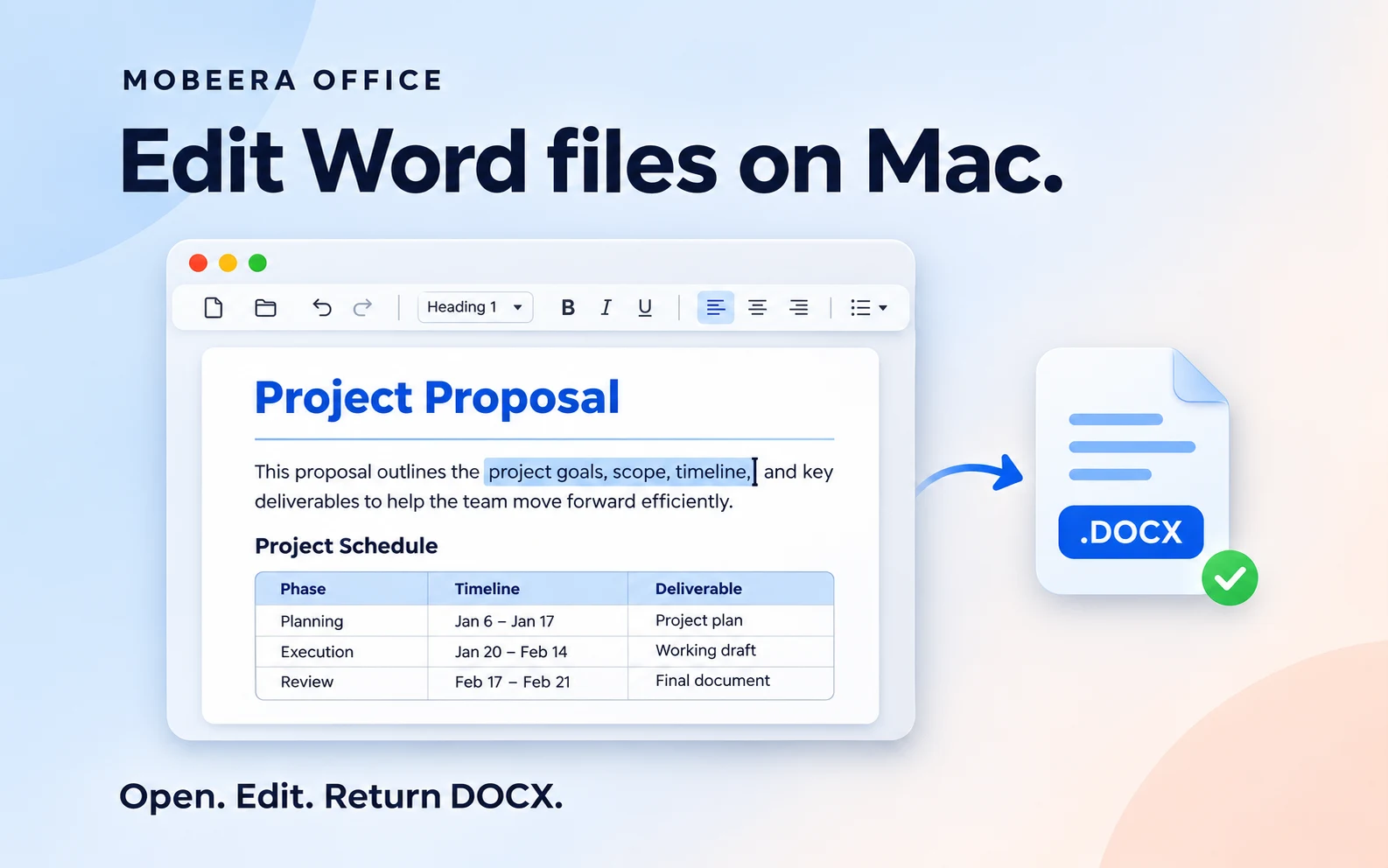
Mobeera Office opens and saves DOCX files on Mac, with tools for text, paragraph styles, tables, comments and tracked changes. It also brings spreadsheet, presentation and PDF tools into the same app. The free allowance covers editing the first two document pages; Pro unlocks editing beyond that limit.
The walkthrough below uses Mobeera Office for one everyday job: someone sends you a proposal, you update the wording and a table, then return an editable Word file. The same habit—keep the original, edit a copy, reopen the saved DOCX—applies whichever editor you choose.
Before you start
You need Mobeera Office on a supported Mac and a document ending in .docx. Download an email attachment to a folder you can find again. If the sender supplied a PDF, ask for the DOCX when you need to revise the original Word document; changing a file's extension does not convert it.
Keep the original. In Finder, select the document and choose File → Duplicate. Rename the copy clearly, for example project-proposal-reviewed.docx.
Mobeera Office's free editing allowance covers the first two document pages. Editing beyond that allowance requires Pro. Check the current plans if your document is longer. You do not need to connect an AI service to make ordinary document edits.
1. Open the DOCX in Mobeera Office
In Finder, Control-click the working copy, choose Open With, and select Mobeera Office. If it is not listed, choose Other and select the installed app.
Before typing, read through the document once. Notice its headings, page breaks, tables, images, headers and footers. This gives you a baseline for spotting a layout change later.
If the file already looks different from the sender's reference, resolve that before editing. A missing font or a complex layout can affect line breaks and pagination. Opening a DOCX successfully does not guarantee that every feature will look or behave exactly as it does in Word. Our compatibility page explains the scope of the comparisons and known differences.
2. Make the changes you need
Start with the smallest useful edit. In a proposal, that might mean replacing an old delivery date, clarifying a paragraph or updating the client's name.
For a simple review pass:
- Edit the text. Select the words you want to replace and type the new wording. Read the whole sentence afterward, including the punctuation beside your edit.
- Keep headings consistent. When adding a section, use the same paragraph style as comparable headings. Enlarging ordinary text may look similar, but it does not give the paragraph the same heading structure.
- Update table cells. Click into the relevant cell and change its contents. Check adjacent rows and columns for wrapping, altered widths or text that has moved to another page.
- Leave a comment when you need an answer. Attach feedback to the relevant passage instead of placing a question inside the final body text.
For example, changing a proposal's delivery date may also require an update in its schedule table and closing paragraph. Search for the old date and review each occurrence in context; do not replace unrelated dates automatically.
If the sender asked for tracked revisions, enable Track Changes before making the requested edits. Agree whether they want a marked-up review copy or a clean final document. Do not accept everyone else's existing changes simply to make the page look finished.
3. Save the file as DOCX
Choose File → Save, or press Command-S, to save your working DOCX.
To choose a different name or location, use File → Save As. Keep the output format as Word document (.docx) and save it to a recognizable folder. Check the selected format as well as the filename: typing .docx onto another format's name is not a conversion.
If the recipient needs to continue editing, send the DOCX. A PDF can be useful as an additional visual reference, but it does not replace the editable Word file they asked for.
4. Close and reopen the saved file
Close the document, then open the saved copy from Finder. This checks the file on disk rather than only the editing session still on screen.
Work through these checks before attaching it:
- Text: your revised wording, names, dates and amounts are present.
- Headings and lists: styles and numbering remain consistent.
- Tables: every row is present, values are in the correct columns and labels remain readable.
- Layout: page breaks, images, headers and footers still make sense.
- Review material: comments and tracked changes match the handoff the sender requested.
- File identity: you reopened the revised DOCX, not the untouched original or a PDF preview.
Reopening in Mobeera Office checks your saved result in Mobeera Office. It does not prove identical rendering in Microsoft Word. For a document with strict layout requirements, ask the recipient to check the DOCX in their app before treating it as final. A reference PDF can make differences easier to identify.
5. Return the editable Word document
Attach project-proposal-reviewed.docx to your reply. Briefly say what changed and whether any comments need an answer. For example:
I've updated the delivery date and schedule table. The attached DOCX remains editable. There's one comment on the approval deadline for you to review.
Open the attachment from your draft reply if your mail app allows it, and confirm that it is the intended file. A clear filename and a short handoff note help the recipient avoid continuing work in an older version.
Common questions
Can I edit a Word document for free on Mac?
Yes. LibreOffice and ONLYOFFICE Desktop Editors offer free desktop editing on macOS. Mobeera Office lets you edit the first two pages of a document for free; Pro unlocks editing beyond that limit. Check the plans page for current terms before starting a longer document.
Why did the formatting change?
Different editors can interpret fonts, spacing and document features differently. A font unavailable on your Mac can also affect layout. Compare the original and revised copies, check the known compatibility differences, and confirm important layouts with the recipient.
Should I send DOCX or PDF?
Send DOCX when the other person needs to edit or review the Word document. Send a PDF as well when a visual reference would help. Ask the recipient if their submission process requires a specific format.
Does the recipient need Mobeera Office?
They need an application that supports DOCX; it does not have to be Mobeera Office. Features and formatting can vary between editors, so check important documents in the recipient's workflow.
Start with the document you already have
Open your next DOCX in Mobeera Office, make a small change and reopen the saved copy before returning it. Keep the original alongside it until the review is complete.