How to make a PDF fillable on Mac, iPad, and iPhone
Convert a flat PDF into a fillable form on Mac, iPad, or iPhone by detecting fields, adding missing controls, and testing the finished file.

Direct answer
How do you turn a flat PDF into a fillable form on Mac, iPad, or iPhone?
Open the flat document in a PDF editor that can author form fields, run field detection as a starting point, then review every proposed text box, checkbox, choice control, date, image, and signature field. Add missing fields, set names and required states, define the tab order, and test the saved PDF in another viewer.
To make a flat PDF fillable, add interactive fields on top of the printed labels and blank areas. In PDF Max, Forms → Detect Fields can identify likely text, checkbox, and signature areas on-device. You can then inspect the result and manually add any specialized or missing fields before testing the completed form.
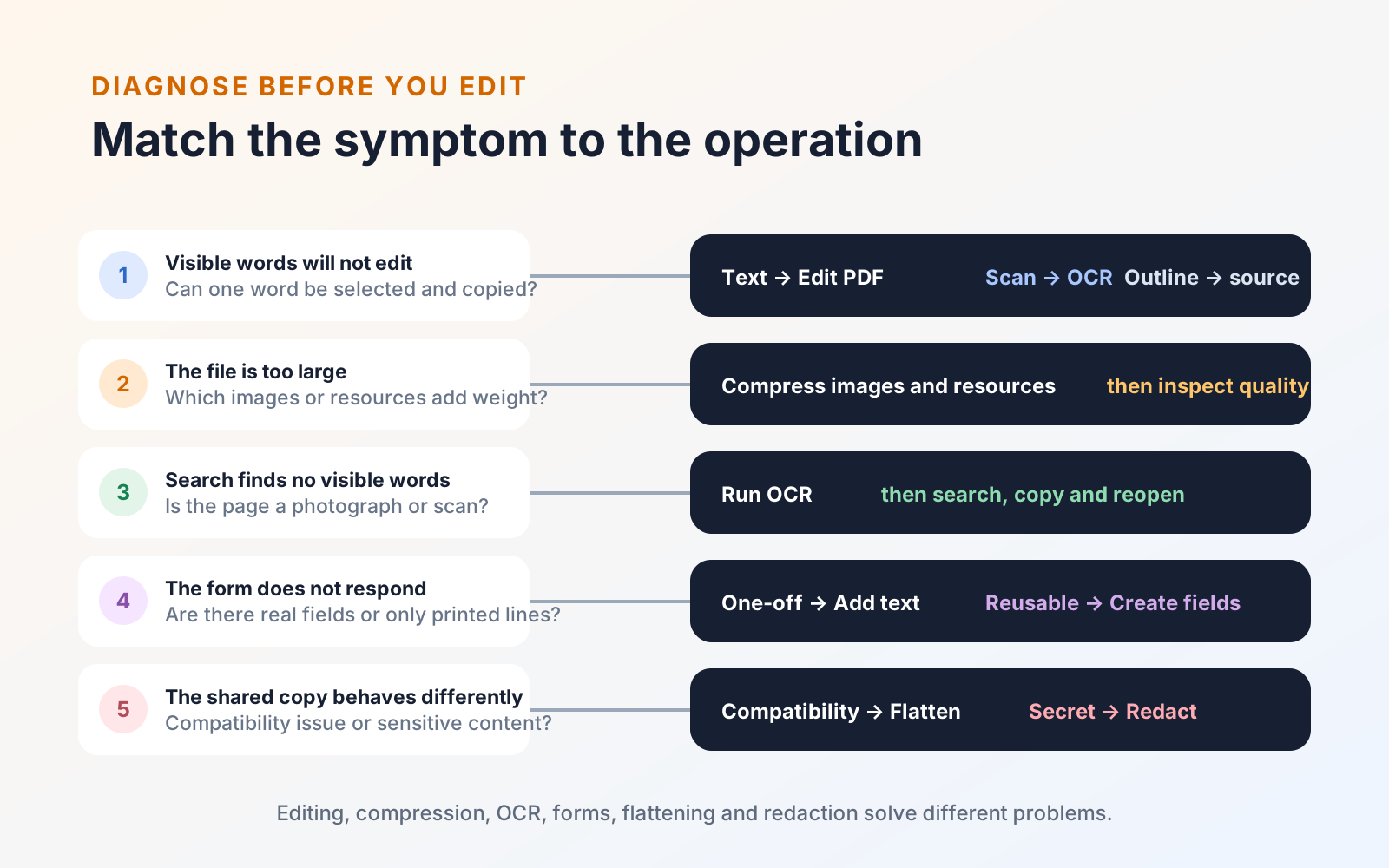
The important distinction is whether you need to fill a form that already works or create the fields that make a printed form interactive.
Check whether fields already exist
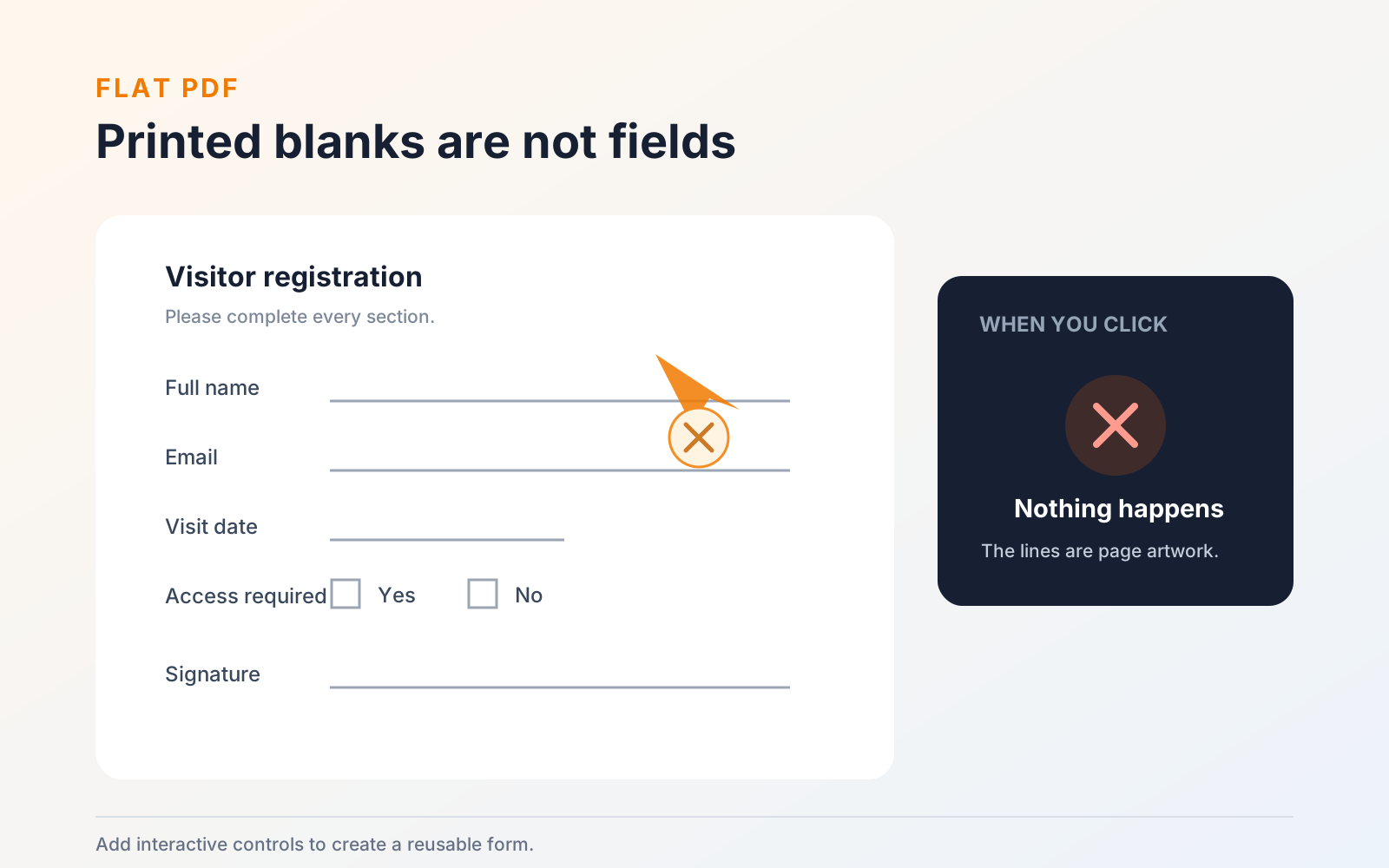
Open the PDF and tap or click an apparently blank area. Existing fields normally respond with a cursor, choice control, date picker, or signature action. You may also be able to move between them with field navigation.
If nothing happens and the lines are simply part of the page artwork, the form is flat. Adding ordinary text boxes can complete one copy, but it does not create a reusable form for the next person. Interactive fields are the better choice when the PDF will be completed repeatedly or sent to other people.
Choose detection or manual creation
| Capability | What it means |
|---|---|
| Detect fields | Start here when the page has a conventional form layout with printed labels, blank lines, checkboxes, or signature areas. It is faster, but every result still needs review. |
| Create fields manually | Use this for unusual layouts, specialized controls, fields detection missed, or a form where each field needs deliberate placement and configuration. |
| Use both | Detect the obvious fields first, remove incorrect results, then add the missing or specialized controls by hand. |
Detect fields in PDF Max
- Keep an untouched copy of the original PDF.
- Turn on Edit PDF.
- Open the Forms tools and choose Detect Fields.
- Wait while PDF Max analyzes the printed page on-device.
- Inspect every detected text, checkbox, and signature field.
- Undo the detection if the result is not useful, or continue refining it.
Pages that already contain interactive fields are left alone during detection. That reduces the risk of stacking a second control over a working one, but mixed documents still require a page-by-page review.
Add or correct fields manually
Choose the appropriate field type, place it over the intended area, and size it so the completed value remains legible. PDF Max can create common controls including:
- text fields for names, addresses, numbers, and longer answers;
- checkboxes for independent yes/no choices;
- radio buttons for one choice from a group;
- dropdown fields for a defined list of options;
- signature fields;
- date fields;
- image fields.
Use meaningful field names and tooltips where the form allows them. Do not rely only on visual position: clear underlying labels make the form easier to understand, while field metadata helps completion tools and assistive workflows identify what belongs there.
When several radio buttons represent one question, test them as a group and confirm that selecting one option clears the previous choice. When a form includes dates, confirm that the displayed format matches the instruction printed on the page.
Test the form like a recipient
Save a new copy, leave editing mode, and complete the form from the beginning:
- Move through every field in the expected order.
- Enter realistic long names, addresses, and numbers—not only short test values.
- Select and clear each checkbox or radio group.
- Open every dropdown and date control.
- Add a temporary signature or image where those fields appear.
- Check that text stays inside its field and remains readable.
- Save, close, and reopen the completed test copy.
- Open it in another PDF viewer to confirm the values remain visible and editable.
Preserve a clean master
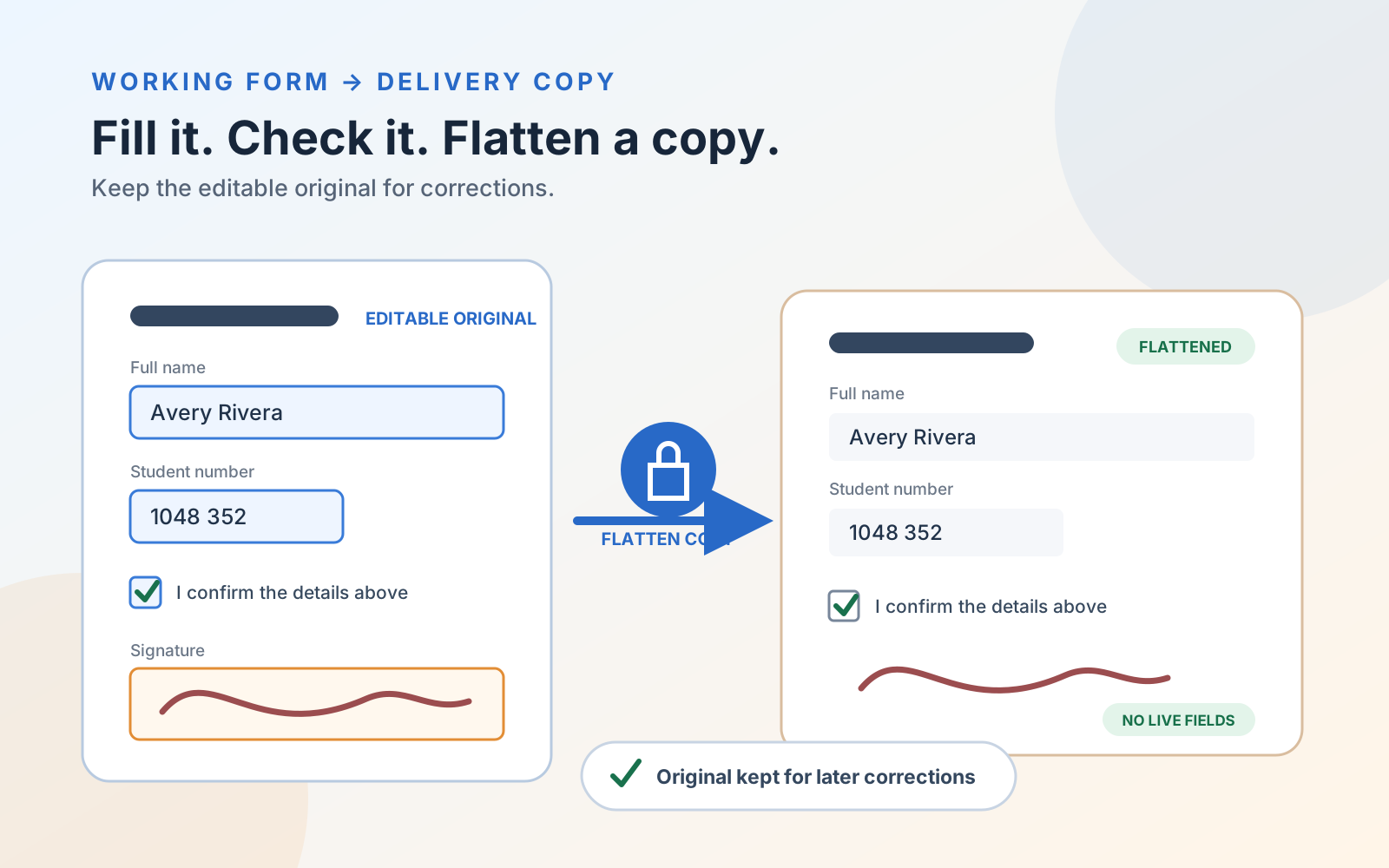
Keep three separate files when a form matters: the untouched source, the clean fillable master, and a completed test copy. That separation prevents test data or a signature from becoming part of the template you distribute.
Creating fields is an advanced editing workflow; simply completing existing fields remains a different task. If the form already responds, follow the Free workflow to fill, sign, and flatten the completed copy rather than rebuilding its fields. You can review PDF Max’s current form creation and Fill & Sign capabilities on the PDF Max product page.