Five common PDF frustrations—and the practical fix for each
Diagnose five frequent PDF problems involving editing, file size, scans, forms, annotations, and privacy before choosing the right fix.
Direct answer
How do you choose the right fix for a PDF problem?
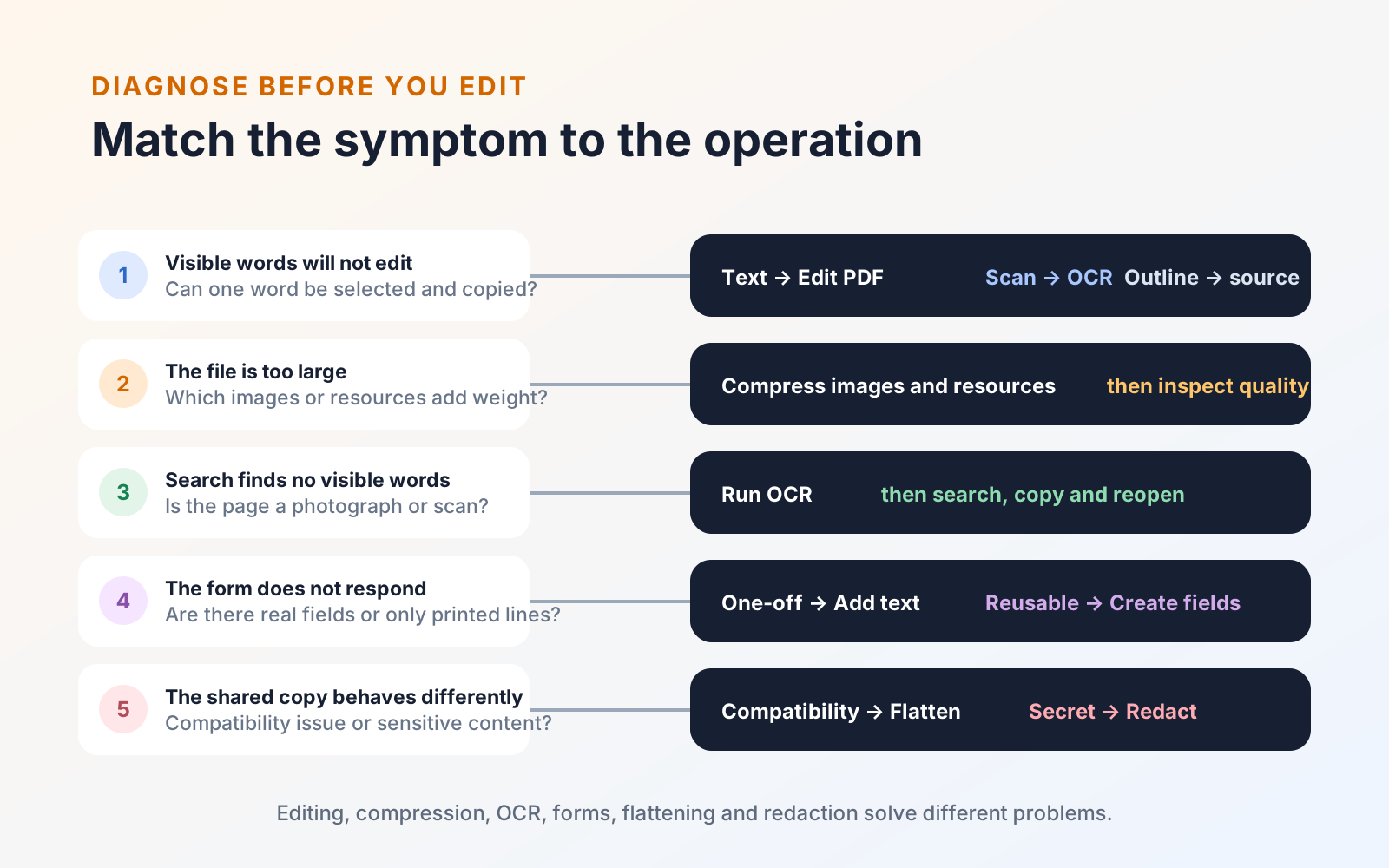
Start by identifying whether the problem is content, file size, scan quality, form behavior, or confidentiality. Those are different failures: text editing changes page content, compression reduces size, OCR adds searchable text to scans, form tools create interactive fields, and redaction permanently removes sensitive material. Choose the operation only after diagnosing the file.
Many PDF problems become easier once you identify what the file actually contains. Words may be positioned text, outlines, or pixels in a scan. A form may be interactive or merely look like one. A black rectangle may hide information visually while leaving the original content underneath.
Start with the symptom, test the file, and choose the smallest tool that addresses the underlying cause.
1. “I can read the text, but I cannot edit it”
First try to select and copy one word. If it copies correctly, the file probably contains PDF text. A PDF editor may be able to change that text, although replacements still have to fit a fixed page layout.
If selection grabs the entire page, the page is probably an image. If individual letters look sharp but cannot be selected, the text may have been converted to vector outlines. Adding a white rectangle and typing over it changes the appearance without removing the original content.
Use: existing-content editing for real PDF text; OCR for search and copying from scans; the source document for substantial rewriting. Follow the PDF text-editing guide for a complete diagnosis and verification workflow.
2. “The file is too large to send or upload”
Do not assume page count is the cause. A short PDF can be large because it contains high-resolution photographs, repeated scans, embedded fonts, attachments, or several versions of an image.
Before compressing, preserve the original and ask what the recipient needs. A screen-reading copy can usually tolerate lower image resolution than a print proof, architectural drawing, or scan whose small type must remain legible.
Use: image downsampling or an appropriate PDF compression setting when visual quality remains acceptable. Remove genuinely unnecessary pages or attachments, but do not flatten the PDF merely to reduce its size—flattening and compression solve different problems.
Afterward, compare small text, diagrams, photographs, and page count with the original. “Smaller” is not a successful result if important information becomes unreadable.
3. “Search cannot find words that are plainly visible”
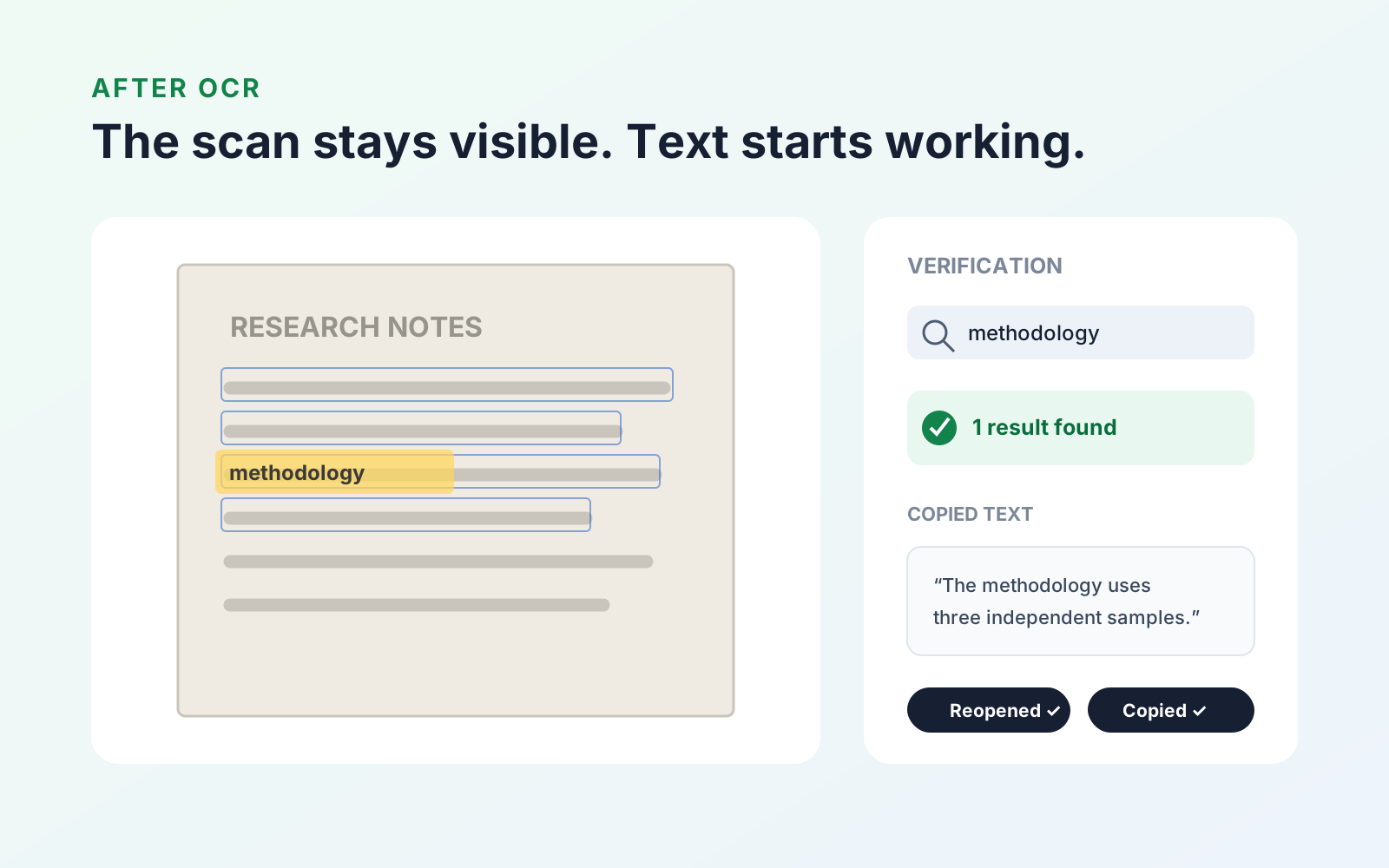
The visible words may be pixels in a photographed or scanned page. Search needs machine-readable text; it cannot infer characters from the picture unless optical character recognition has analyzed it.
Use: OCR to add a text layer aligned with the scan. Then reopen the saved PDF, search for several kinds of content, and copy a sentence into a plain-text note. The searchable PDF guide covers recognition quality, on-device processing, and verification.
OCR is not automatic proofreading. Names, dates, account numbers, handwriting, and faint print still require comparison with the visible page.
4. “The form looks fillable, but tapping does nothing”
A printed line and an empty square can look like a field and checkbox without containing any interactive form object. Test several controls before assuming the viewer is broken.
Use: form-field detection or authoring to add text fields, checkboxes, radio buttons, and other appropriate controls. If the task is a one-off response and the recipient accepts it, adding text and a signature may be enough. If other people must complete the form repeatedly, create and test real fields.
The fillable PDF guide explains how to detect missing controls, add them deliberately, and test keyboard and touch behavior before distribution.
5. “The shared PDF does not behave like my final copy”
Comments, highlights, signatures, and form values can remain separate from the printed page content. Another viewer may display them differently, and some elements may remain editable. Conversely, drawing a shape over confidential material can leave the underlying words searchable or extractable.
Choose the remedy according to the goal:
- Flattening incorporates supported interactive appearances into a static delivery copy. It is useful for compatibility and preventing accidental annotation or form changes. Follow the PDF flattening guide to decide when a static copy is appropriate and verify the result.
- Redaction removes sensitive underlying content. Use the permanent redaction workflow when information must not remain recoverable from the released file.
- Compression reduces storage or transfer size. It does not make annotations permanent or remove secrets.
Never treat those operations as synonyms. Keep an untouched original, create a clearly named release copy, and reopen that exact file in another viewer before sharing it.
A ten-second diagnosis is worth doing
Before changing a troublesome PDF, ask:
- Can I select and copy its visible text?
- Are the fields interactive or only drawn on the page?
- Is the problem about size, editability, compatibility, or confidentiality?
- Must the recipient keep editing, or is this a final delivery copy?
- Do I still have the editable source?
The answers point toward editing, compression, OCR, form authoring, flattening, or redaction. PDF Max brings those document workflows together on Apple devices, but the important first step is still choosing the operation that matches the file.