How to fill, sign, and flatten a PDF form on Mac, iPad, and iPhone
Complete an existing PDF form, add a one-time signature, and save a stable flattened delivery copy on Mac, iPad, or iPhone.
Direct answer
How do you fill, sign, and flatten an existing PDF form before sending it?
Complete the existing writable fields, use Next Unfilled and Review to catch omissions, then add a one-time signature if needed. In PDF Max those actions and Save as Flattened are Free. Export under a new name, reopen the delivery copy, and confirm the values remain visible while the form controls no longer respond. Keep the editable original because flattening is not redaction, password protection, or identity verification.
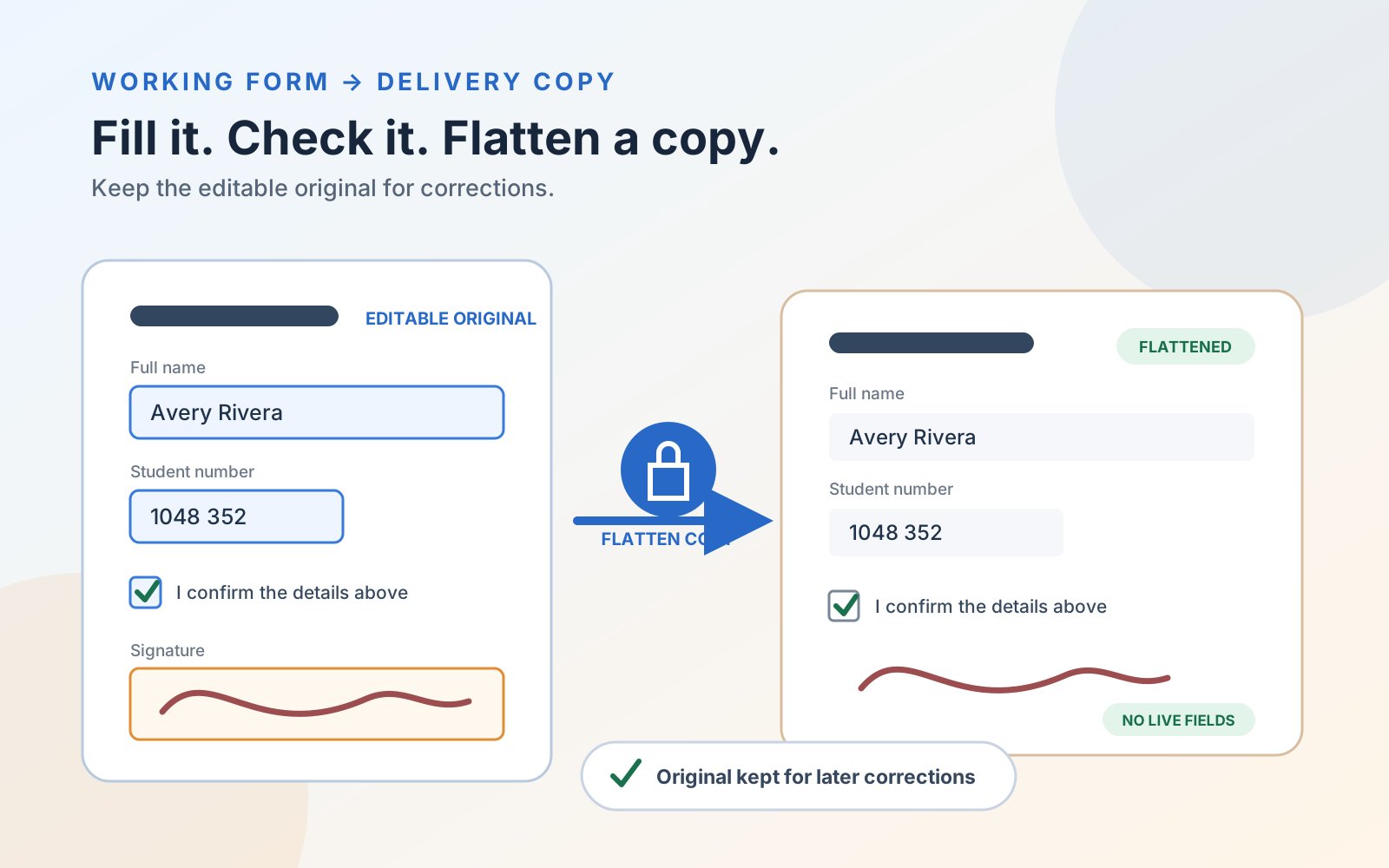
The form already works. Its name, date, checkbox, choice, and signature fields respond when you tap or click them. Your job is not to build a form from scratch; it is to complete this copy, check it, sign it, and send a version whose fields no longer remain live.
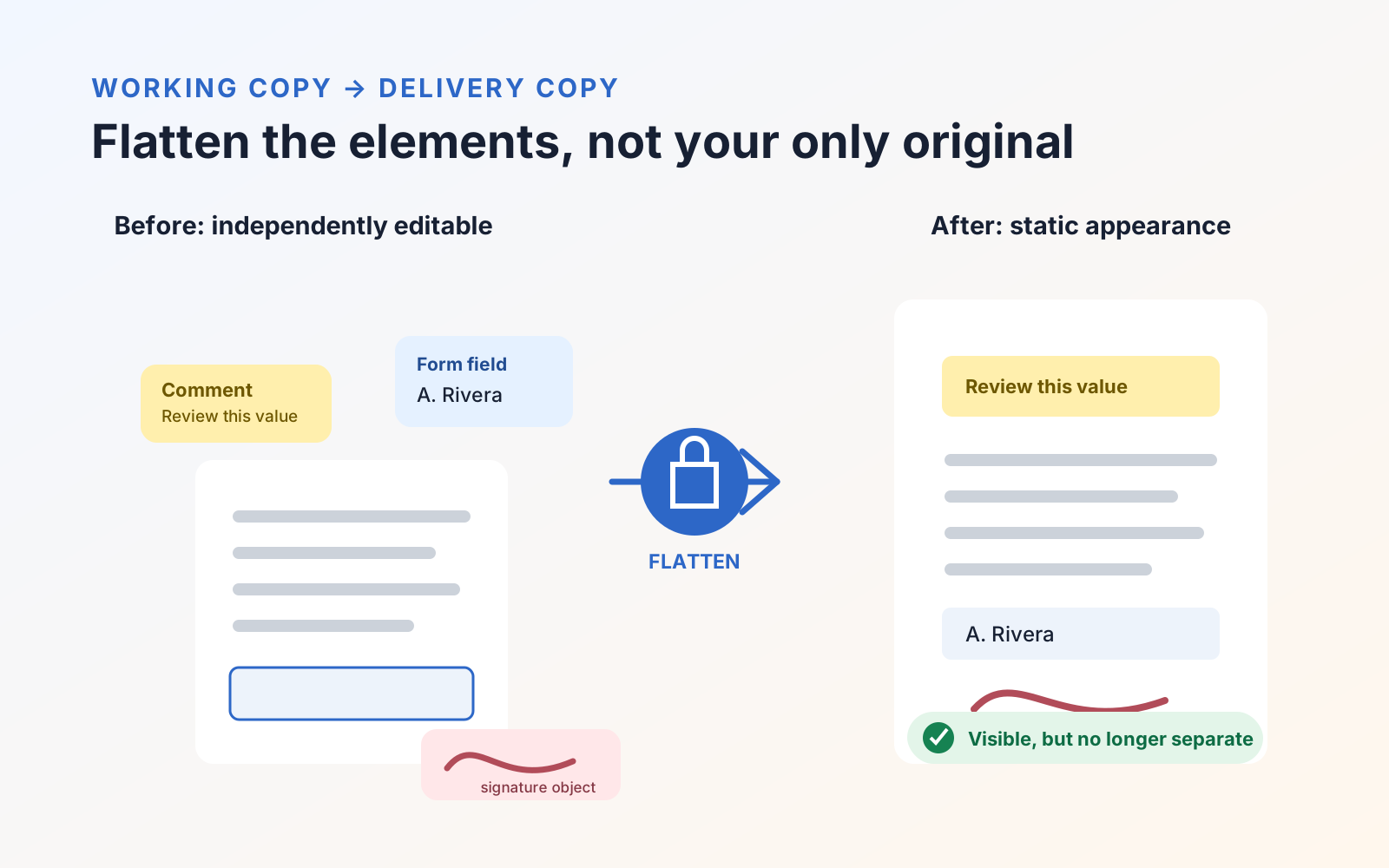
That final distinction matters. Saving an ordinary PDF can preserve its editable form widgets. Save as Flattened… creates a separate delivery copy in which visible field values, signatures, and supported annotations are incorporated into the page appearance.
In PDF Max, filling existing fields, the guided Fill & Sign controls, a one-time signature, and flattened export are included with Free. Keep the original editable file because a flattened copy is meant for delivery, not later correction.
First confirm that the form already has fields
Tap or click a blank area that looks like a name, date, checkbox, list, or signature field. An existing field should respond with the appropriate cursor or control. You can also enter Fill & Sign and use field navigation.
If the blank lines are only printed artwork and nothing responds, this is a different task. You can place text and a one-time signature over a flat form, but creating reusable interactive fields requires form authoring. Follow How to make a PDF fillable on Mac, iPad, and iPhone when other recipients also need working fields.
Fill the existing fields methodically
Open Fill & Sign and complete the form in its intended order. Use Next Unfilled rather than scanning the page visually after every entry. It moves to the next incomplete field without pretending that every blank field is required.
Before signing, choose Review. The Review & Finish sheet lists missing or invalid required fields and identifies their page. Use that list to identify what needs attention, return to the form with Next Unfilled or the normal field controls, and correct each issue. Run Review again until the sheet reports that all required fields look complete.
Review is a completion check, not legal advice. It can report what the form declares required or invalid; it cannot decide whether the information you supplied is substantively correct. Compare names, identifiers, totals, and dates with their source records yourself.
Add a one-time signature without building a library
Choose Signature in Fill & Sign, create the signature, and place it in the active signature field or on the page. This is a one-time signing path: the signature is inserted into the current document without being saved for later reuse.
That is different from the reusable signature library. Saving, managing, and reusing signatures is included with PDF Max Pro. It is not required to sign and flatten this one form in PDF Max Free.
Save a separate flattened delivery copy
Finish the editable version first, save it, and leave it available in case the recipient requests a correction. Then export under a new name:
- Mac: choose File → Save as Flattened….
- iPhone or iPad: open the document menu in the editor's top bar and choose Save as Flattened….
PDF Max prepares a snapshot of the currently open PDF, including unsaved editor changes, and writes the flattened result as a separate file. The open working document remains the editable original.
Use a name that makes the relationship clear, such as Enrollment Form - Working.pdf and Enrollment Form - Flattened.pdf. A filename does not create security, but it reduces the chance of overwriting the only copy you can still revise.
Reopen and verify the file you will send
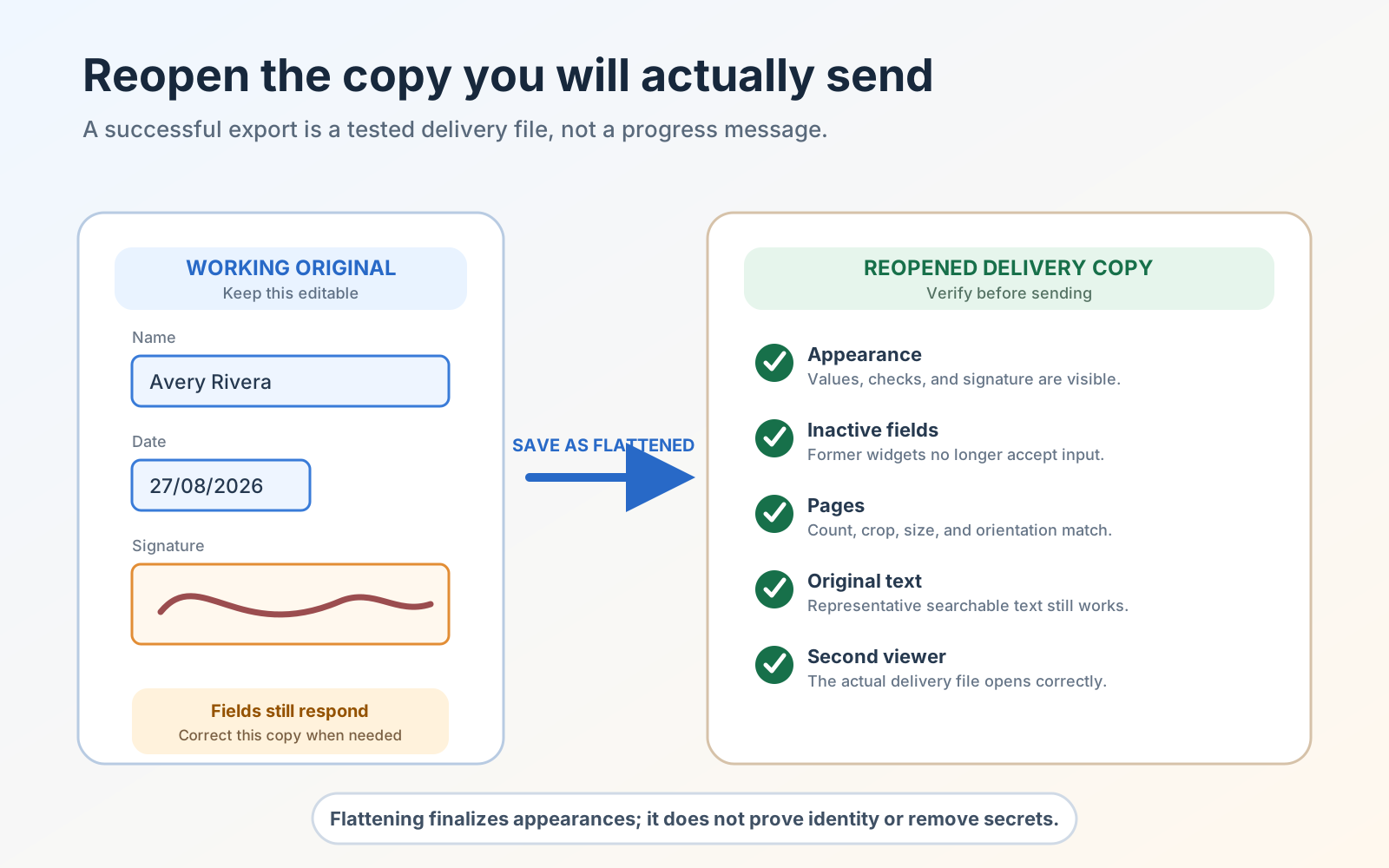
Do not verify the working document still open in the editor. Close or set it aside, then reopen the newly exported flattened file and check:
- Every value, checkmark, date, and signature remains visible and correctly positioned.
- Former form fields no longer show a cursor, picker, checkbox action, or signature action.
- Page sizes, orientation, cropping, and page count match the working copy.
- A representative line of original page text can still be searched, selected, and copied when it was searchable in the source.
- The file opens in a second viewer without losing the completed appearances.
Flattening re-renders the visible pages. Interactive links, document outlines, tagged structure, and live form controls may not survive that process. If any of those are required by the recipient, test the actual delivery copy against their rules before sending it. The deeper explanation of what the operation preserves and removes is in What flattening a PDF actually does, and the flattened-PDF diagnostic gives you a reusable set of checks.
Know what flattening does not prove
A flattened form is a stable page appearance, not a universal security format:
- It is not redaction. Content covered by an annotation may still exist in the source, and flattening is not the correct way to remove a secret.
- It is not password protection. A recipient can open the file unless a separate access control prevents it.
- It is not a cryptographic digital signature. It does not validate the signer's identity or preserve certificate validation.
- It is not impossible to edit. A sufficiently capable PDF editor can alter static page content; flattening chiefly removes the ordinary live widgets and annotation objects.
Use the redaction, flattening, and covering comparison when the real requirement is permanent removal rather than stable delivery.
Keep the plan boundaries clear
For this existing-form workflow:
- Free: fill ordinary existing fields, use Next Unfilled and Review, place dates and marks, add a one-time signature, save, share, and Save as Flattened.
- Pro: save, manage, and reuse signatures from a signature library.
- Premium: Detect Fields, create or edit form fields, use Form Assist, and maintain reusable answer profiles.
If the form already responds correctly, you do not need Detect Fields or Form Assist to finish it. The current boundaries are listed in the Free, Pro, and Premium comparison, and the PDF Max overview covers the wider editing workflow.
Test the complete delivery job once
Use one real form rather than a disposable blank example:
- Fill every required field and run Review.
- Add a one-time signature where requested.
- Save the editable working file.
- Choose Save as Flattened… and give the new copy a distinct name.
- Reopen that copy and prove its former fields no longer respond.
Send the flattened copy only after those checks pass, and keep the working original. That gives the recipient a stable result without pretending that flattening supplies redaction, encryption, or signer identity that it was never designed to provide.