Final document review checklist: 12 errors spell-check misses
Use a repeatable final review to catch broken references, inconsistent terms, numbering errors, placeholders, unresolved changes, and hidden data.
Direct answer
What should you review after spell-check and before sharing a final document?
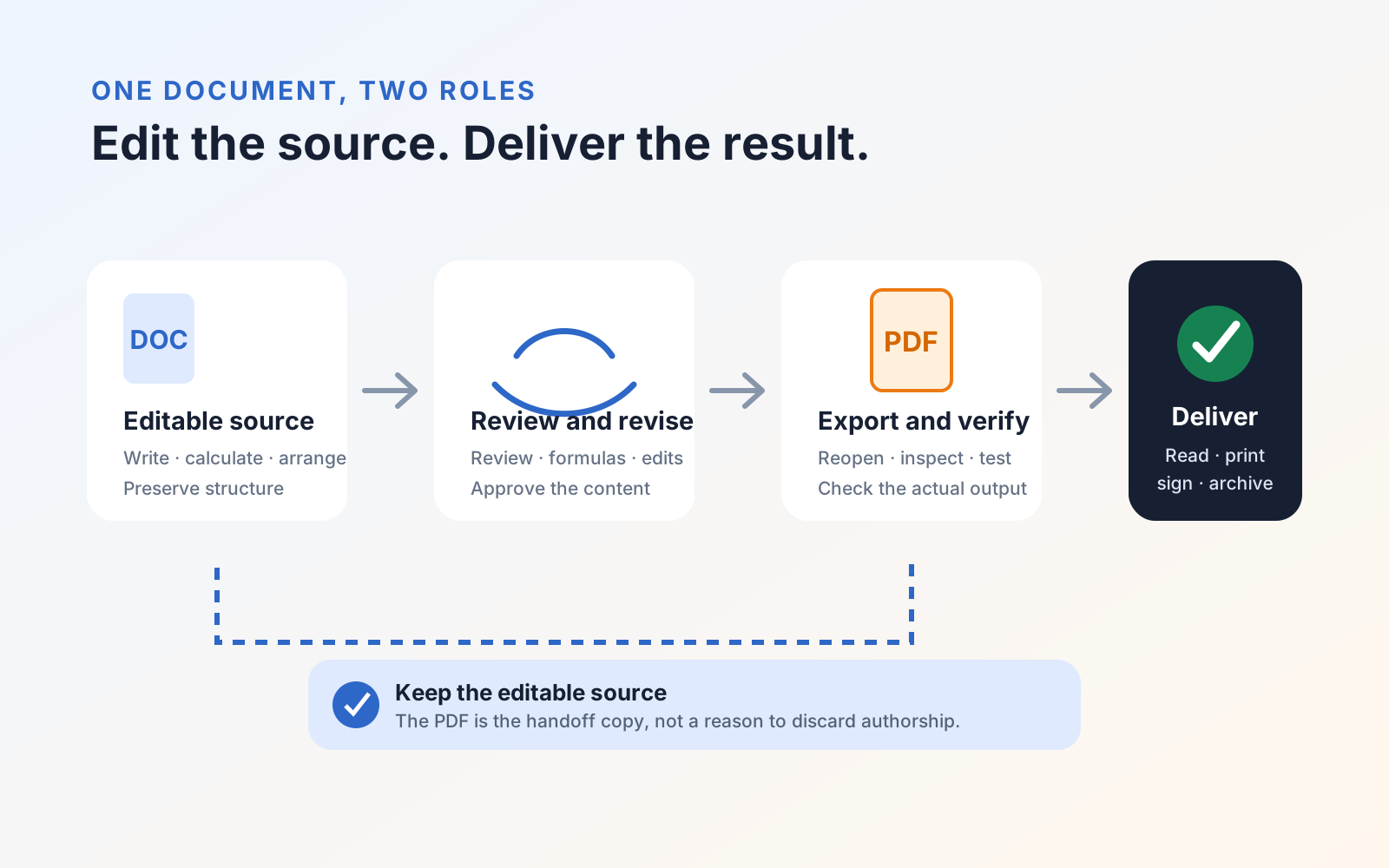
A final document review should check more than spelling: verify names and figures, references, numbering, terminology, placeholders, unresolved comments, tracked changes, hidden data, links, and the exported layout. Review the document as a complete deliverable, then open the exact file you will share instead of relying on the editable source.
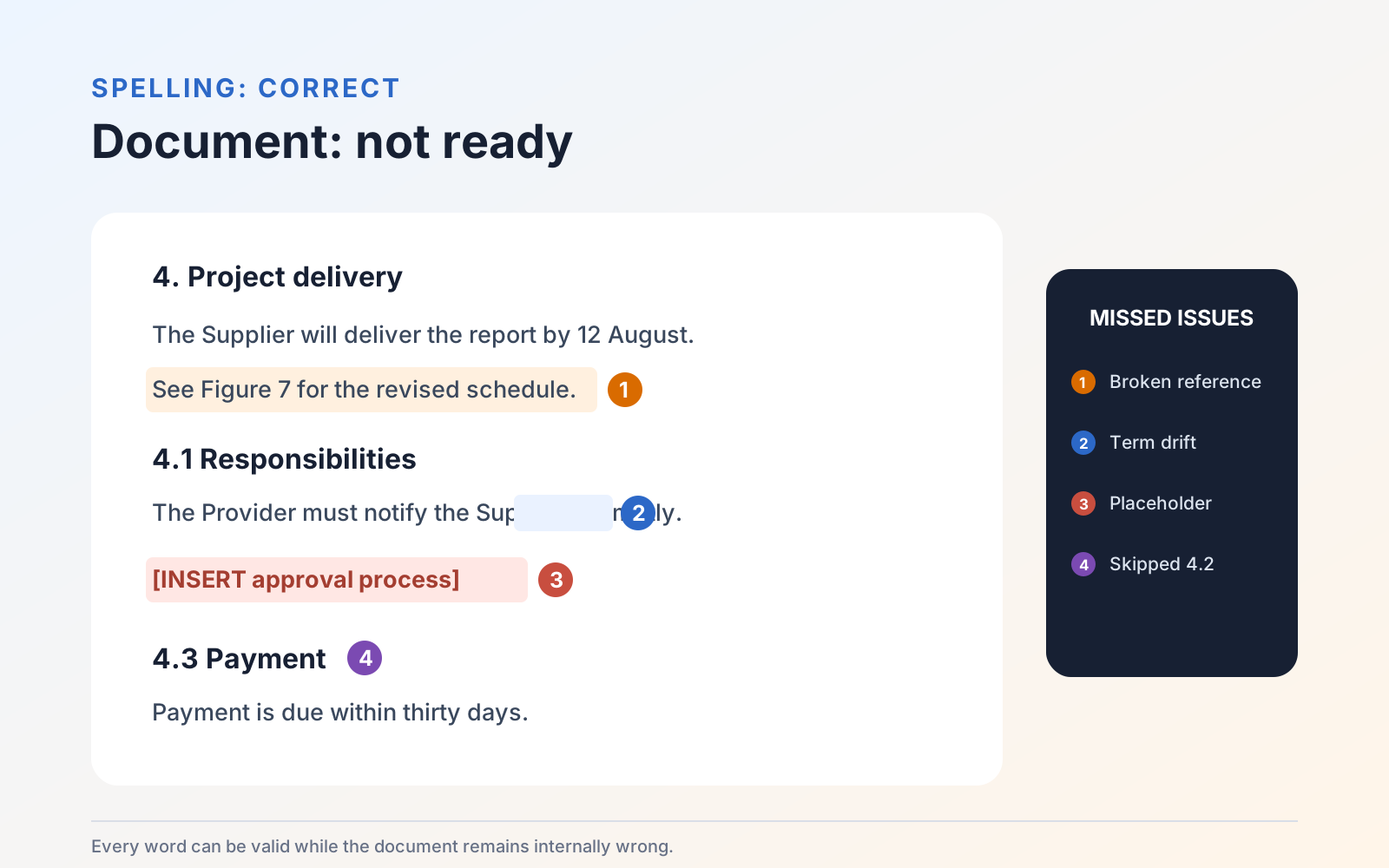
Spell-check is only one part of a final document review. A draft can contain perfect spelling and still ship with a broken cross-reference, two meanings for the same term, a skipped heading number, an unresolved comment, or private metadata.
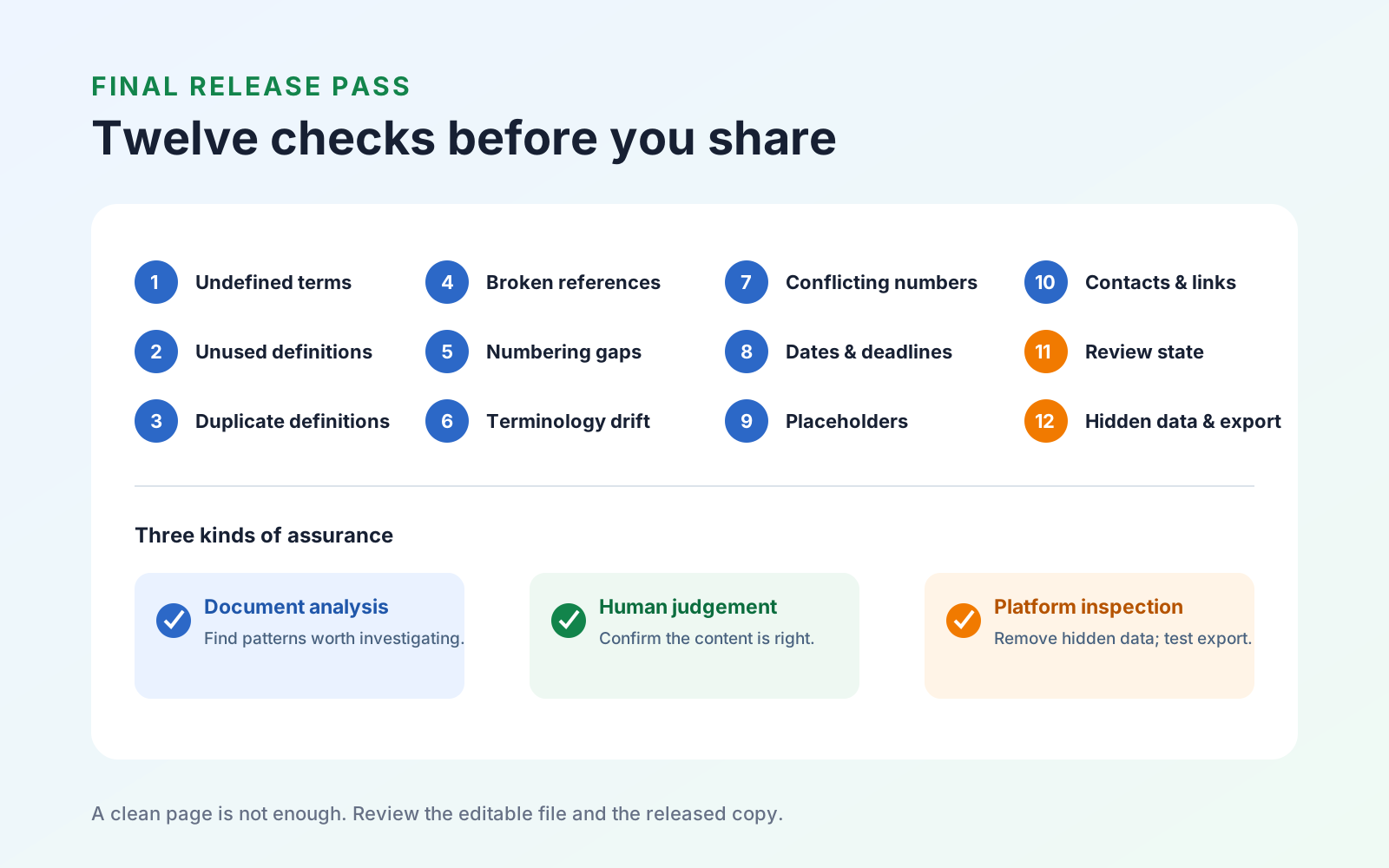
Use the following twelve checks on reports, proposals, policies, contracts, and other serious documents before you export or share the final copy. Some can be assisted by document-review tools; others require a deliberate human or platform-level inspection.
1. Undefined terms
Find capitalized or specialized terms that appear to have a defined meaning. Confirm that each is introduced clearly and that the definition appears before—or close enough to—its first consequential use.
Do not assume every capitalized phrase is a defined term. Product names, headings, and sentence starts need human context.
2. Unused definitions
A definition left behind after editing can imply that a missing clause or obligation was intended to remain. Check that every defined term is used meaningfully in the document, then remove genuinely obsolete definitions.
3. Duplicate definitions
Search for terms defined more than once. The wording may have diverged between sections during revision, leaving readers unsure which meaning applies. Keep one authoritative definition or make the scopes explicitly different.
4. Broken cross-references
Review every reference to a section, figure, table, appendix, schedule, footnote, or external attachment. Confirm that the target exists and that its title or number still matches.
Pay particular attention after moving or deleting content. A sentence such as “see Figure 3” is spelled correctly even when Figure 3 no longer exists.
5. Numbering gaps and duplicates
Scan headings and ordered lists for skipped, duplicated, or inconsistent sequences. Check multilevel structures independently: a correct top-level sequence can still contain two items labeled (b) or jump from 4.2 to 4.4.
6. Inconsistent terminology
Choose one name for each organization, role, product, process, and document. Search for old project names, abbreviations, spelling variants, and singular/plural changes introduced by multiple authors.
Consistency is not the same as blind replacement. Review each occurrence before using Replace All, especially when a short term also appears inside another word or proper name.
7. Conflicting numbers
Compare totals, subtotals, percentages, quantities, currencies, and written-out amounts. Check the summary against the tables and the body against any appendix. Recalculate important totals rather than checking only whether the figures look plausible.
8. Dates and deadlines
Put every effective date, reporting period, duration, renewal date, and notice period onto one temporary timeline. Confirm that dates are possible, chronological where expected, and expressed in an unambiguous format for the audience.
9. Placeholders and drafting notes
Search for drafting markers such as TBD, TODO, XXX, [INSERT], question marks used as reminders, empty brackets, and highlighted instructions. Also inspect headers, footers, text boxes, comments, and table cells, which ordinary body-text searches can miss.
10. Contact details and links
Test every email address, phone number, web link, and internal link. Confirm that the visible label and actual destination agree. A syntactically valid address can still belong to the wrong person or an earlier version of the project. When only the exported PDF needs correction, follow the dedicated workflow to add, edit, and verify PDF links.
11. Comments and tracked changes
Resolve each comment and accept or reject every tracked change. Microsoft’s Track Changes guidance warns that selecting No Markup only hides revisions; it does not remove them. Reopen the document in the view a recipient will use and confirm that no review material remains visible.
If the document has passed through several reviewers, inspect the complete change and comment list instead of relying on a visually clean page.
12. Hidden data and export defects
Run the platform’s document-inspection tools on a copy to find hidden text, author names, document properties, revision data, and other information that may not appear on the page. Microsoft provides a separate guide to inspecting and removing hidden document data. This is a platform-level privacy check, not something a prose reviewer can infer from the visible document.
Then export the final format and inspect it separately. Check page breaks, clipped tables, missing fonts, blank pages, headers, footers, hyperlinks, image quality, and whether comments or markup appeared in the output.
Where Dr. Proof can help
WordPilot’s Dr. Proof reviews the document as a whole and can help surface issues including broken references, undefined or unused terms, duplicate definitions, placeholders, numbering problems, mismatched numbers, date conflicts, and malformed contact details. It is currently available in WordPilot on macOS; availability on iPad and iPhone may vary.
That assistance narrows the places a person needs to investigate. It does not decide whether a clause is correct, verify a real-world fact, provide legal advice, resolve comments for you, or replace the operating system’s hidden-data inspection.
Use a two-pass sign-off
Run the checklist twice:
- Document pass: Review meaning, references, terms, numbers, dates, placeholders, and links while the file remains editable.
- Release pass: Resolve collaboration state, inspect hidden information, export the final format, reopen it, and review what the recipient will actually receive.
For important documents, ask a second person to perform the release pass without being told where you expect the errors. Fresh eyes are more likely to notice assumptions the main author has stopped seeing.
You can review the current editing, Track Changes, and Dr. Proof capabilities on the WordPilot product page.