How to add links to a PDF on iPhone, iPad, and Mac
Add clickable web or page links to an existing PDF on Apple devices, edit or remove them locally, and verify every destination before sharing.
Direct answer
How can you add a clickable link to an existing PDF on an iPhone, iPad, or Mac?
If the editable source still exists, add the link there and export the PDF again. If only the PDF remains, PDF Max can place a clickable rectangle over text or another page area, then send it to a web address or a page in the current PDF. Link editing is Premium. Check every destination in the saved file before sharing it.
A URL printed on a PDF page is not necessarily clickable. Conversely, a clickable PDF link can sit over ordinary words, a diagram, or an invisible rectangular area without displaying the destination. To add a reliable link, you need to define both the page area a reader will activate and what should happen next.
Use the editable source when you have it. When only the PDF remains, work on a copy, place the link carefully, and test the saved file in a second viewer. A link that looks right but opens the wrong page or an obsolete website is a release error, not a cosmetic one.
Add the link in the source document when possible
Apple documents how to add web, email, phone, and bookmark links in Pages on iPhone, iPad, and Mac. If the original Pages file still exists, add the link there and export a new PDF. The linked words stay part of the editable document, so future text changes and layout revisions are easier to manage.
Edit the existing PDF when the source is unavailable, when someone else supplied the final artwork, or when the destination is a page inside an already assembled PDF. Do not rebuild a finished handbook or report merely to add two navigation links.
If the visible wording itself is wrong, correct it first with the PDF text-editing workflow, then add the clickable area. Link editing changes the destination and hotspot; it does not rewrite the words beneath it.
Choose the right kind of PDF link
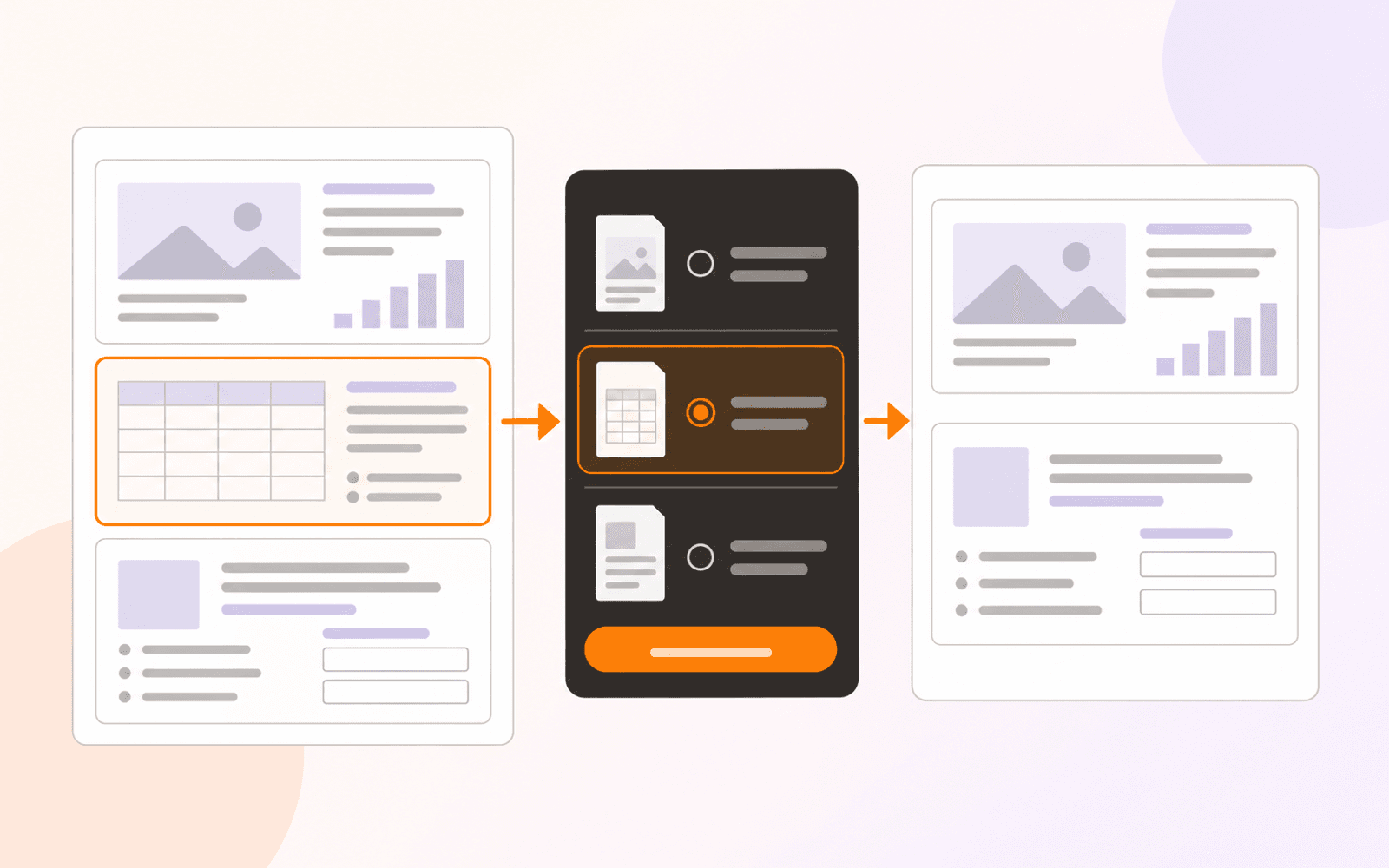
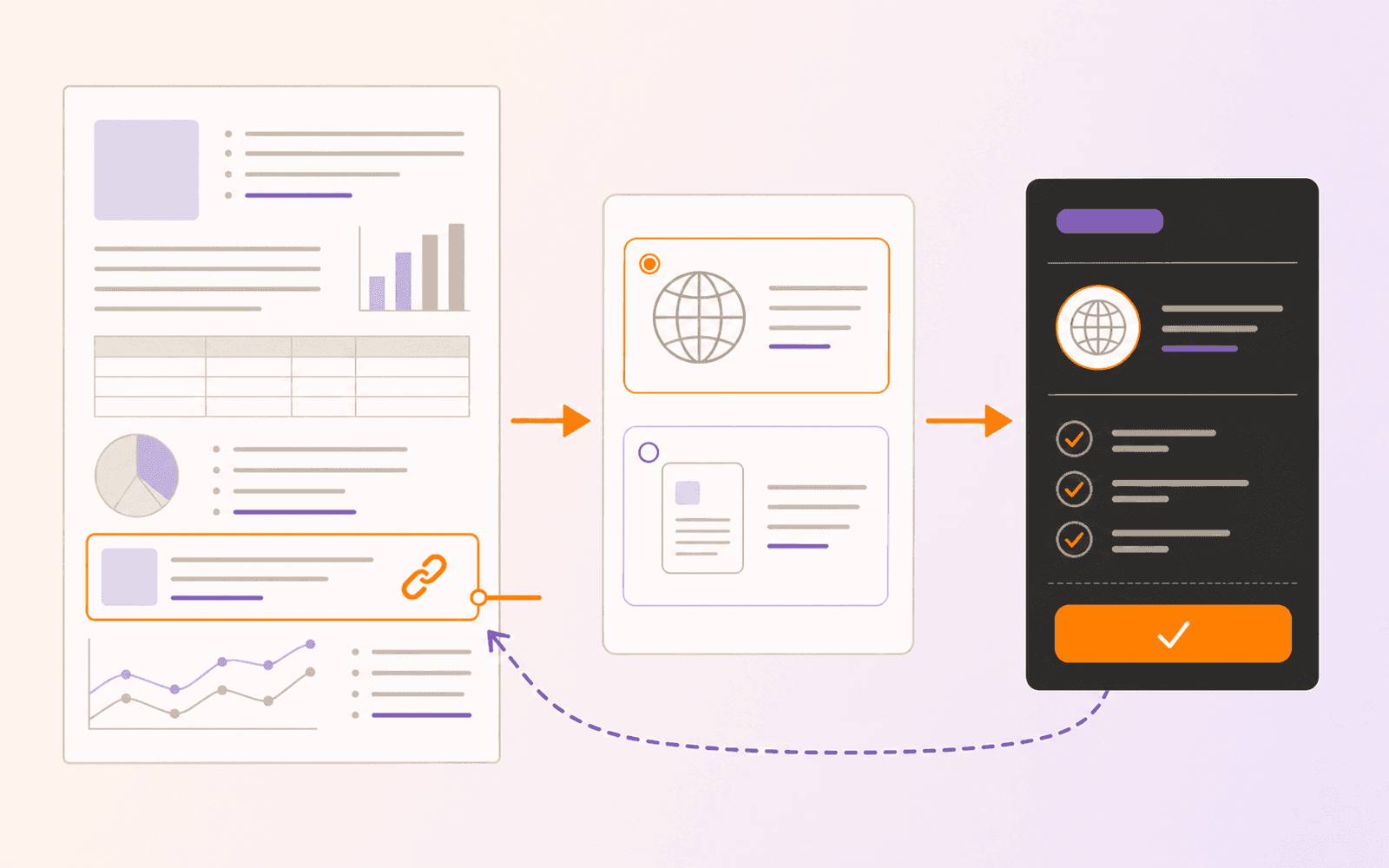
PDF Max supports two destinations in its link dialog:
- Web link: opens an
https://or other supported URL outside the document. - Page in this PDF: moves to a selected page in the current file.
Use a web link for a current source, registration page, cited dataset, or support page. Use a page link for a table of contents, “see appendix” reference, figure index, or return-to-summary control inside a long document.
These are not interchangeable. A page link should keep working without a network connection because it points within the current file. A web link depends on the destination remaining available and on the reader allowing the external handoff.
PDF Max does not document this dialog as a way to link to another local file, launch a script, or build advanced PDF actions. Keep the workflow to verified web and current-PDF page destinations.
Add a web or page link in PDF Max
Open the file in PDF Max, then:
- Turn on Edit PDF.
- On Home, choose Add Link.
- Drag a rectangle over the words, image, button-shaped area, or other region readers should activate.
- Choose Web link or Page in this PDF.
- For a web link, enter the complete destination, including
https://where applicable. - For a page link, select the intended page from the page chooser and its thumbnails.
- Confirm the link, leave editing mode, and activate it as a reader would.
Make the hotspot large enough for a finger but no larger than its visible purpose. A rectangle spanning two adjacent entries can make the wrong item appear clickable. A tiny area over one character is difficult to activate on a phone.
For text links, use wording that describes the destination. The W3C guidance on link purpose explains why readers should be able to determine where a link goes from its text or immediate context. “Download the 2026 timetable” is more useful than a row of unrelated “click here” labels.
Edit or remove an existing link
Turn on Edit PDF, select the link annotation, and open the contextual Annotation tab. Choose Edit Link to change its web address or current-PDF page destination. Use the delete action when the clickable region should no longer exist.
Selection can be easier at a higher zoom, especially when the link has no visible border. Confirm that you selected the link annotation rather than the text or image underneath it before making a change.
After editing, test the link again. Do not assume that a correctly typed URL resolves to the intended current page, or that an internal target still matches a heading after the PDF was reorganized.
Know the plan and platform boundary
Link editing is a Premium PDF Max capability. It is not included in the Free or Pro floor, including the one-time PDF Max Pro app. PDF Max 27.1 supports iPhone with iOS 18 or later, iPad with iPadOS 18 or later, and Apple-silicon Mac with macOS 15 or later. Adding or editing a link does not require Apple Intelligence or a downloaded language, speech, or OCR model. Check the current plan comparison before beginning a delivery-critical job.
Reading an existing PDF link is separate from creating or changing one. The Premium boundary here applies to link editing.
Verify links before sharing the PDF
Run a link-specific release pass on the saved file:
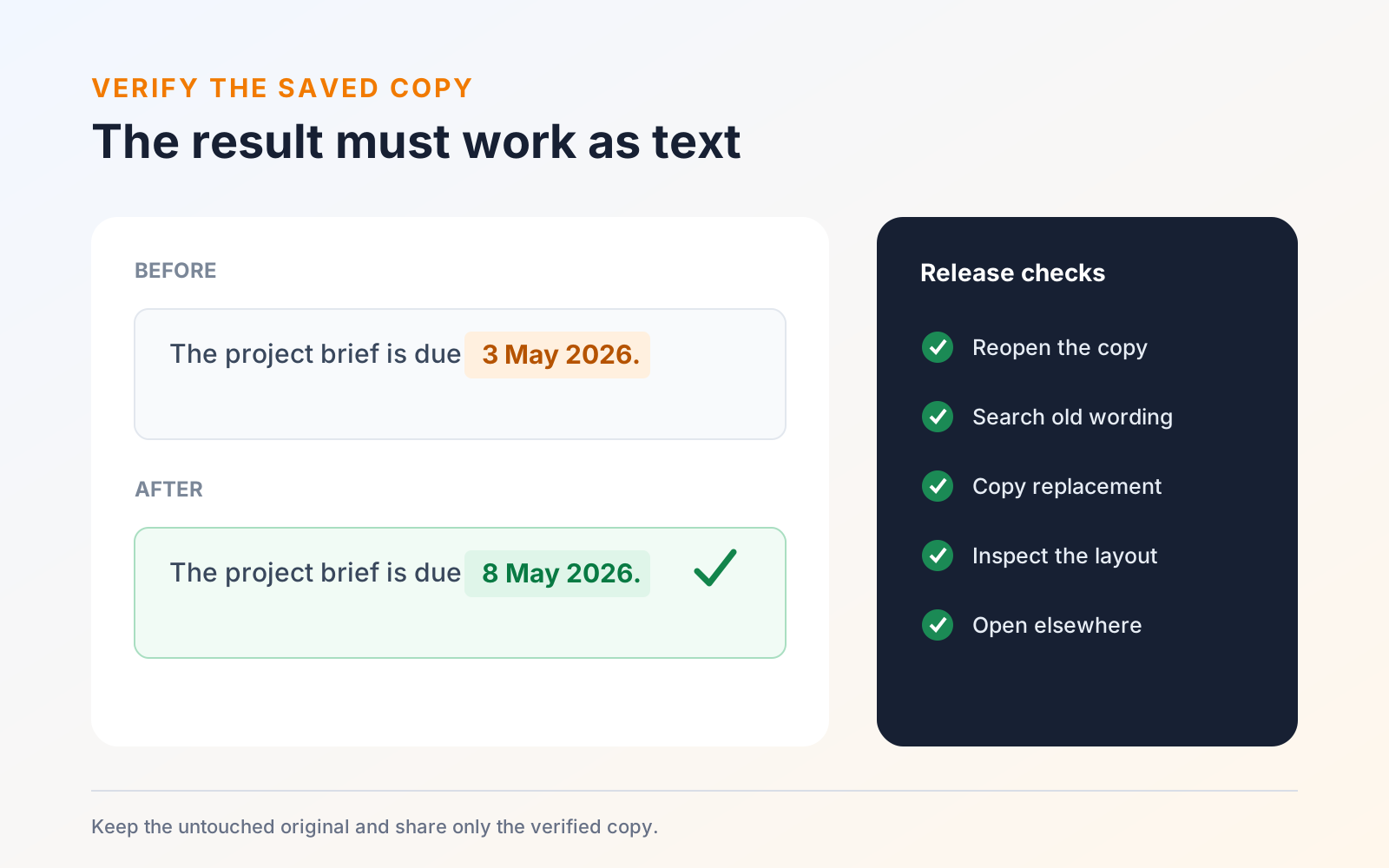
- Reopen the exact PDF you intend to send, not the working copy still open in the editor.
- Activate every new or changed hotspot at normal reading zoom.
- For web links, confirm the address uses the expected domain, opens the intended current page, and does not expose a private draft or signed-in-only resource by mistake.
- For internal links, confirm the destination page and surrounding heading—not only the viewer's page counter.
- Test the first and last internal link in each navigation group after any page reordering.
- Open the PDF in another viewer on a different Apple device when the file is important.
- Inspect the clickable area with touch as well as a pointer when phone or tablet readers are expected.
Browsers and PDF viewers may warn before opening external destinations. That safety prompt does not mean the link is broken. Verify the destination without training recipients to ignore an unexpected domain or security warning.
The broader final document review checklist covers names, figures, hidden information, comments, and exported layout in addition to links.
Start with a three-page sample copy. Add one descriptive web link and one link from page 1 to page 3, close the editor, and test both on the saved PDF. If each hotspot is easy to activate and reaches the intended destination in a second viewer, repeat the same verified workflow on the real document.