OCR vs reflow vs searchable PDF: three features that solve different problems
Learn how OCR, searchable text, and reflow differ, when each PDF feature helps, and how to verify scanned documents before relying on the result.
Direct answer
What is the difference between OCR, reflow, and a searchable PDF?
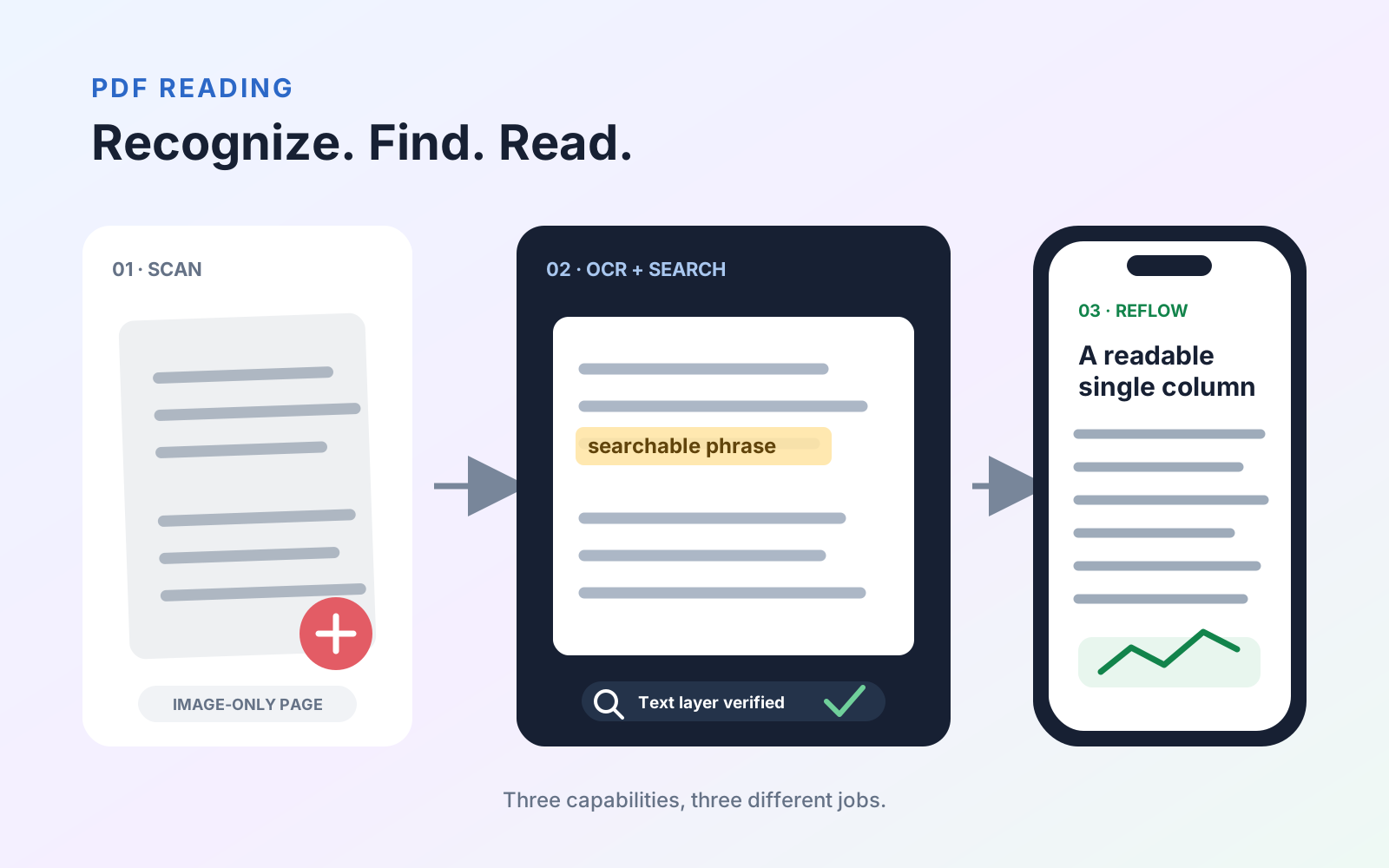
OCR is the recognition process that converts text visible in an image into machine-readable characters. A searchable PDF is a file whose text can be found or copied, often because OCR added a hidden text layer. Reflow is a reading view that rearranges content for the available screen. Reflow can use recognized text, but it does not itself perform OCR or prove that recognition is accurate.
OCR, searchable text, and reflow are often described together because they can improve a scanned document. They are still separate capabilities. One recognizes characters, one describes what the file lets you do with text, and one changes how content is presented while you read.
The three concepts at a glance
| Term | What it means | What it helps you do | What it does not guarantee |
|---|---|---|---|
| OCR | Optical character recognition analyzes page images and predicts their characters | Turn scans or photographed pages into text that software can search or copy | Perfect spelling, reading order, or layout interpretation |
| Searchable PDF | A PDF contains usable text associated with its visible content | Find phrases, select words, copy text, and support other text-based tools | That the text came from OCR or that every recognized character is correct |
| Reflow | A reader rearranges text and sometimes images to fit the viewing area | Read fixed-layout pages more comfortably on a smaller screen | That the source has text, that OCR was run, or that visual page geometry is preserved |
A born-digital PDF exported from a word processor may already be searchable without OCR. A scan normally needs OCR before a reader can find its words. Reflow may then use that text to build a more flexible reading view.
OCR is a process, not a quality guarantee
OCR compares shapes in a page image with characters and language patterns. Clear, straight, high-contrast pages generally produce better results than blurred photographs, handwriting, decorative fonts, multi-column layouts, formulas, or pages with marginal notes.
Recognition can be good enough for finding a section while still being wrong in important details. Names, dates, equations, medication quantities, account numbers, and citation identifiers deserve manual checking. Keep the original page image available so the recognized text can be compared with the source.
A searchable PDF is an outcome
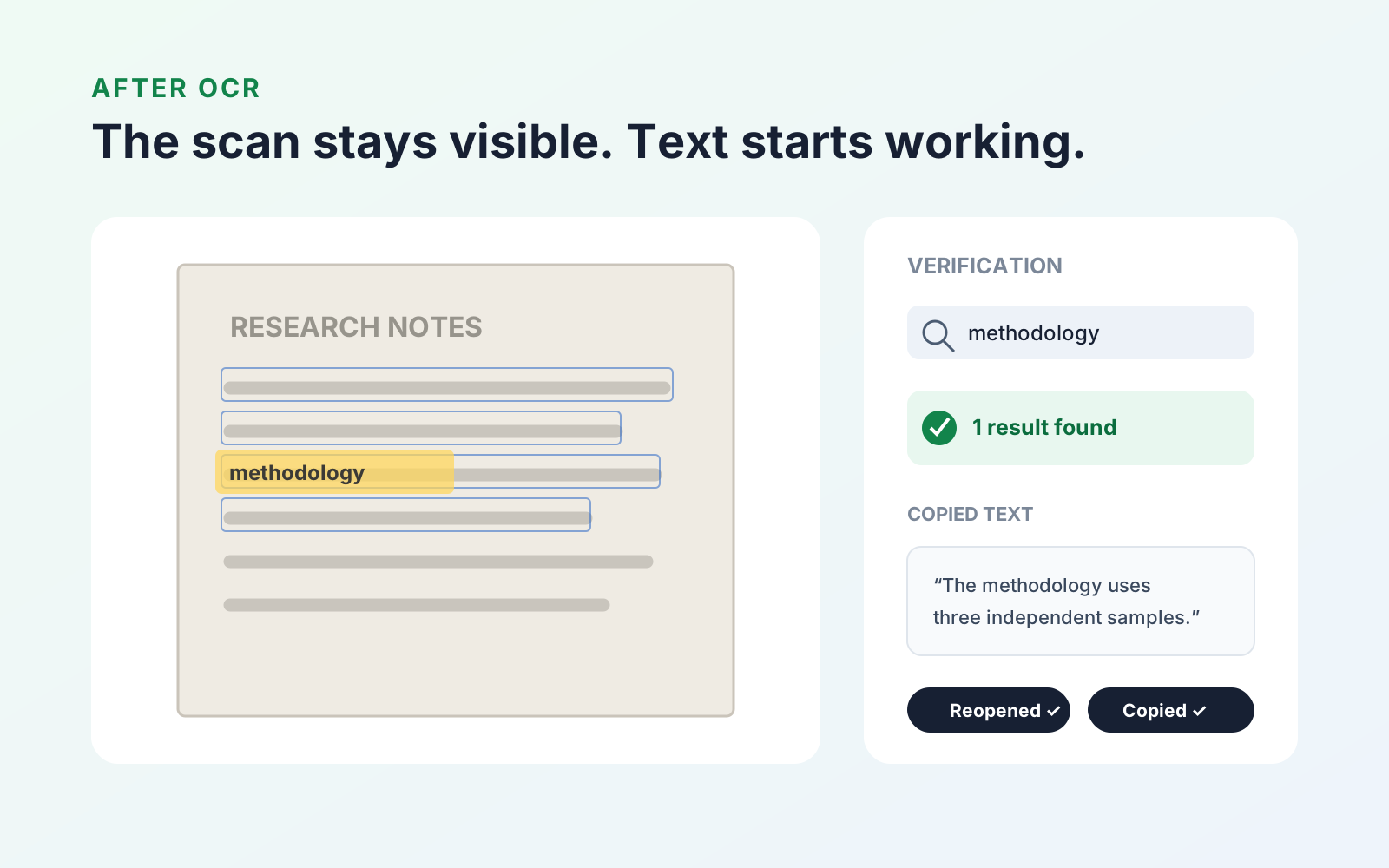
When OCR is added to a scan, the visible page can remain as an image while an aligned text layer sits behind it. That arrangement preserves the source appearance and makes search and selection possible.
Test the outcome rather than assuming the process succeeded:
- Search for a distinctive phrase from the first, middle, and final pages.
- Select a sentence and paste it into a plain-text note.
- Check the pasted text for substitutions, missing spaces, and incorrect reading order.
- Repeat the test on tables, columns, headers, and low-quality pages.
Our step-by-step searchable PDF guide covers this workflow on Mac, iPad, and iPhone.
Reflow is a reading mode
PDF was designed to preserve a page, so a two-column report can be awkward on a phone. Reflow creates a reading presentation that adapts to a narrower screen. It may increase text size, remove fixed line breaks, and present the content in a more continuous sequence.
That convenience comes with a tradeoff: reflow is not the right view for checking exact page geometry, signatures, diagrams, footnote placement, or whether a table is aligned correctly. Switch back to the original page whenever visual position carries meaning.
A practical workflow for a scanned document
For a scan that needs to be read and researched:
- Start with the clearest scan available and correct any rotated pages.
- Run OCR in the correct document language.
- Search and copy representative passages to verify recognition.
- Use reflow when it improves continuous reading on a small display.
- Return to page view for layouts, figures, equations, and final verification.
- Preserve the original and save the searchable result as a separate file.
PDF Max supports on-device OCR and reading workflows on supported Apple devices. The PDF Max product page summarizes the available tools, while PDF Max plan comparison shows which capabilities belong to each plan.
Choose the feature by the problem
- If search returns nothing because every page is an image, start with OCR.
- If you need to find, select, or copy words, test whether the PDF is searchable.
- If the page is difficult to read on a phone, try reflow, then use page view for layout-sensitive material.
- If recognition must be exact, manually compare critical values with the original image regardless of the tool used.
The clearest question is not “Does this app have OCR?” It is “Can this file be recognized, searched, read comfortably, and verified for the work I need to complete?”