How to listen to a PDF on iPhone, iPad, and Mac
Make a PDF read aloud on Apple devices, choose a suitable voice, handle scanned pages, and verify tables, formulas, and reading order as you listen.

Direct answer
How can you make a PDF read aloud on an iPhone, iPad, or Mac?
For occasional listening, try Apple's Read & Speak or Accessibility Reader controls and check whether they follow the PDF correctly. For a document-focused workflow, PDF Max can reflow the PDF and read it aloud with Apple Speech or an optional downloaded Kokoro English voice while highlighting the current words. Test the text first, and return to the original page for tables, formulas, figures, footnotes, and any detail where layout carries meaning.
To listen to a PDF, first try Apple's built-in speech controls on a page with selectable text. On Mac, enable Speak selection and use Option–Esc; on iPhone or iPad, enable Speak Selection or Speak Screen in Read & Speak. Check a short passage before listening to a full chapter.
For a document-focused listening view, PDF Max Premium combines Reflow Reader with Read Aloud and a moving word highlight. The Mac walkthrough below shows that route.
A scan needs recognized text first. Better voice quality cannot repair missing words or an incorrect reading order.
Try Apple's built-in speech controls first
Mac: listen to selected PDF text
- Open the PDF in Preview and select a short passage of text.
- Open System Settings → Accessibility → Read & Speak and enable Speak selection.
- Return to the PDF and press Option–Esc, Apple's default speaking shortcut. If you customized it, use your chosen shortcut.
- Press the shortcut again to stop. You can also enable the speech controller to pause, resume, or adjust speed.
Apple documents these controls in its Mac speech guide. A scan without recognized text will not behave like a selectable-text PDF.
iPhone and iPad: Speak Selection or Speak Screen
- Open Settings → Accessibility → Read & Speak.
- Enable Speak Selection for a selected passage, or Speak Screen for onscreen content.
- Open the PDF. Select text and tap Speak, or swipe down with two fingers from the top of the screen for Speak Screen.
- Use the speech controls to pause and adjust the rate.
These paths follow Apple's current iPhone and iPad guides. Settings labels can differ on older OS versions. Accessibility Reader, where available, offers a focused text view with an Autoplay option. You do not need a separate PDF subscription for these system controls.
Open a representative page and listen for one minute before committing to the whole document. Check whether the voice reads the title, body, sidebar, header, and footnotes in a useful order. If it repeats navigation labels, skips paragraphs, or jumps between columns, the problem may be the PDF's reading structure rather than the voice.
Adobe's accessibility guidance makes the same underlying point: Read Out Loud and reflow depend on the text, tags, and reading order available in the file. Changing the speaker cannot repair a page whose logical order is wrong.
Check whether the PDF has usable text
Before using any read-aloud tool:
- Search for a distinctive phrase from the middle of the document.
- Select one sentence without selecting the page as a single image.
- Copy it into a plain-text note.
- Compare the pasted words and order with the visible page.
If search and selection fail, the PDF may be image-only. Recognize Text can create a searchable copy in PDF Max, but OCR is a Premium capability and its output must be checked. Follow the scanned-PDF search workflow when you need a durable searchable file.
Reflow and OCR are not synonyms. Reflow builds a flexible reading presentation; OCR recognizes characters; a searchable PDF is a file outcome. The OCR, reflow, and searchable-PDF guide explains those boundaries in detail.
For a scan, compare a distinctive name, a number, and a full sentence in the recognized result with the visible original before listening. Successful OCR and sensible reading order are separate checks. Keep the scan as a reference.
Start Read Aloud in PDF Max on Mac
Open the PDF in PDF Max and enter Reflow Reader. Reflow turns the fixed page into a continuous reading view with adjustable theme, type size, spacing, margins, alignment, and optional two-page presentation.
- Open your PDF and choose Home → Reflow.
- Move to the page where you want to begin.
- Open Voice settings and start with the Apple engine.
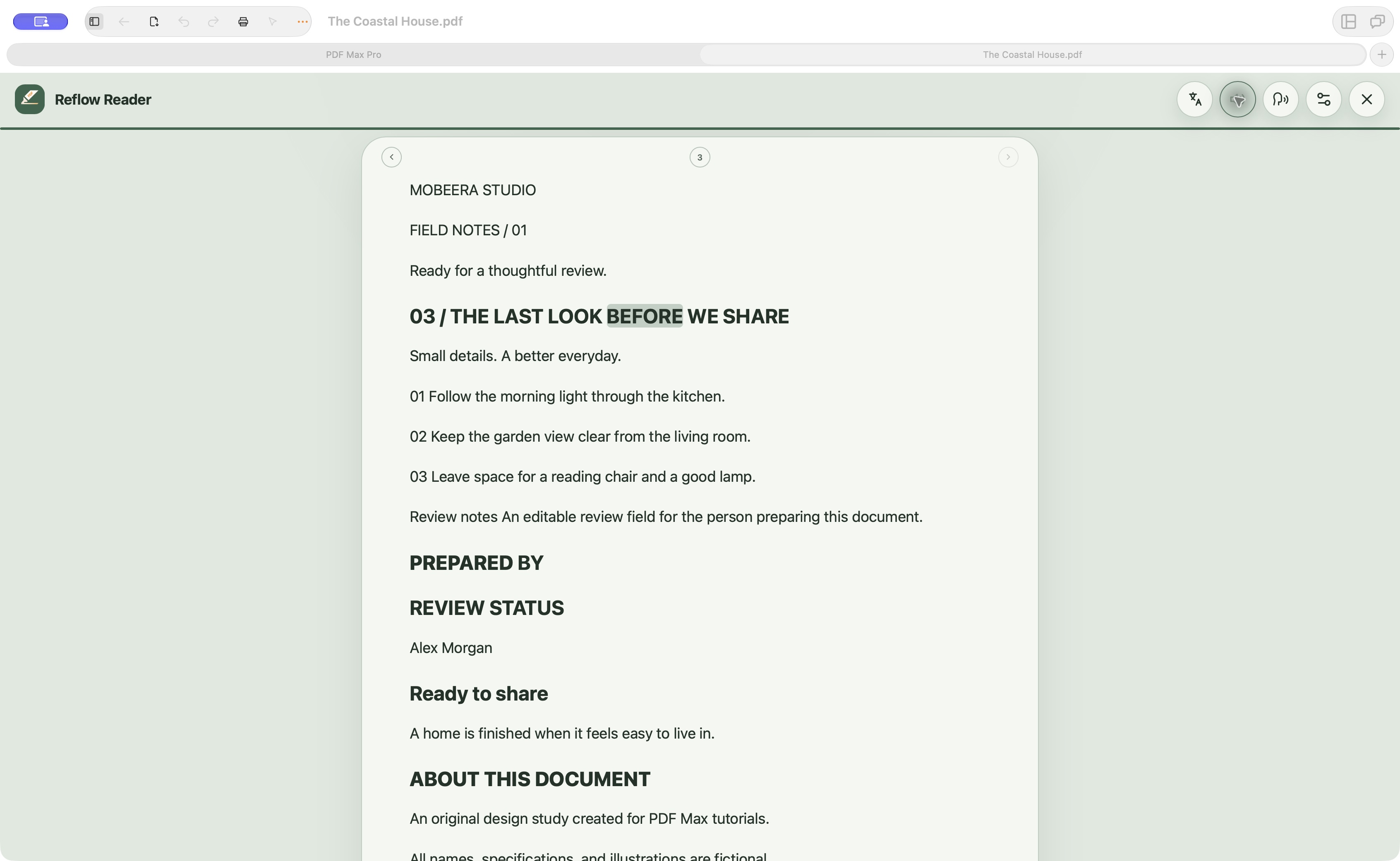
- Close the Voice sheet and choose Read aloud. The control changes to Pause reading, and the current word is highlighted.
- Choose Pause reading when you need to inspect a detail. Choose Resume reading to continue the same session.
- Let a short document reach its next page, then use Close reader to return to the original layout.
PDF Max builds the reading queue from the focused page and continues through later pages. In the three-page Coastal House example, the reading highlight moves through the prose and continues onto the final review page. Listening does not require saving a modified PDF or creating an audio export.
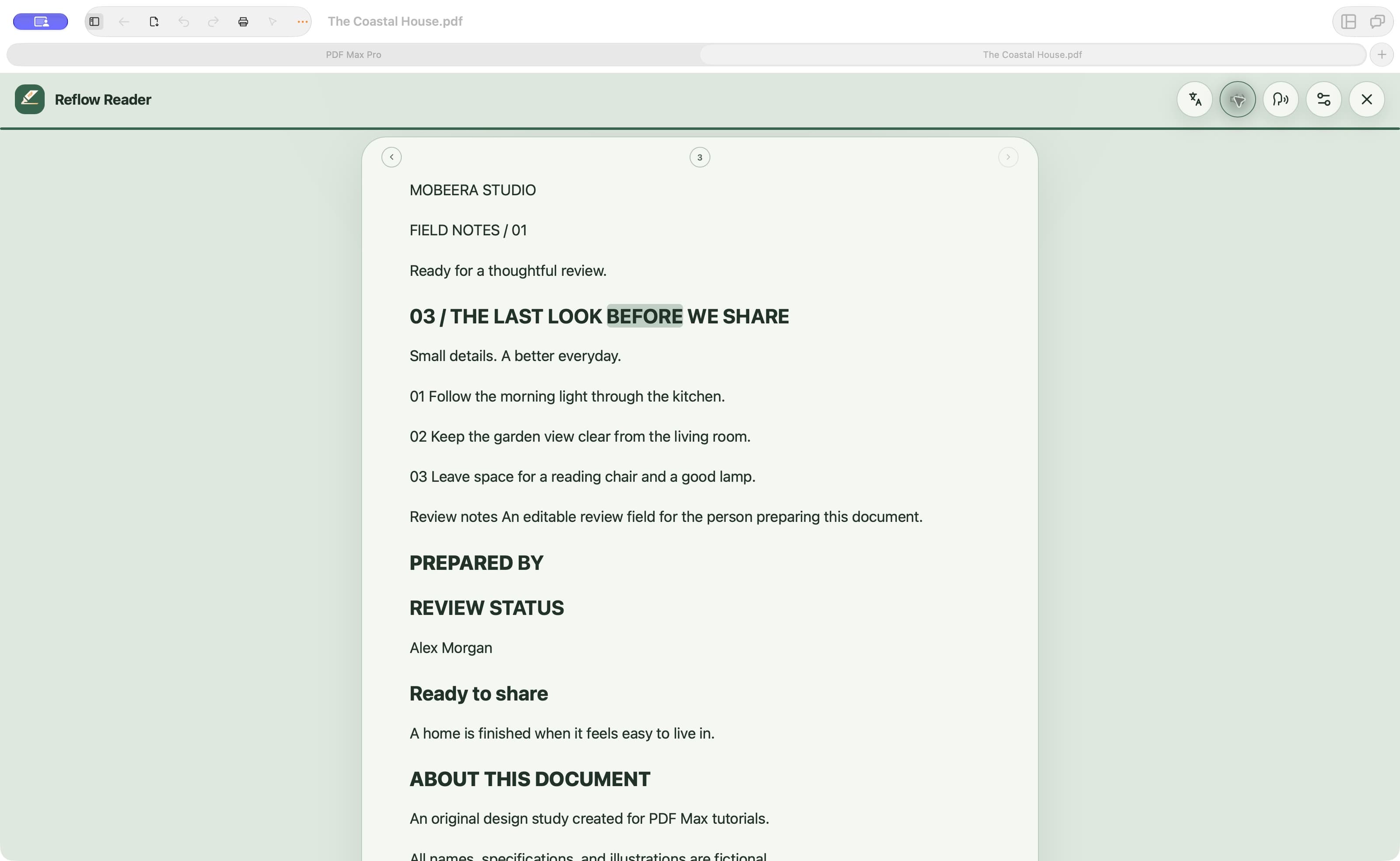
Open the full-resolution Read Aloud screenshot to inspect the highlighted word and reader controls.
Reflow Reader and Read Aloud are Premium capabilities on iPhone, iPad, and Mac, as shown in the full plan comparison. They do not require Apple Intelligence. The screenshots and walkthrough here show the Mac interface.
Choose Apple Speech or the optional Kokoro voice
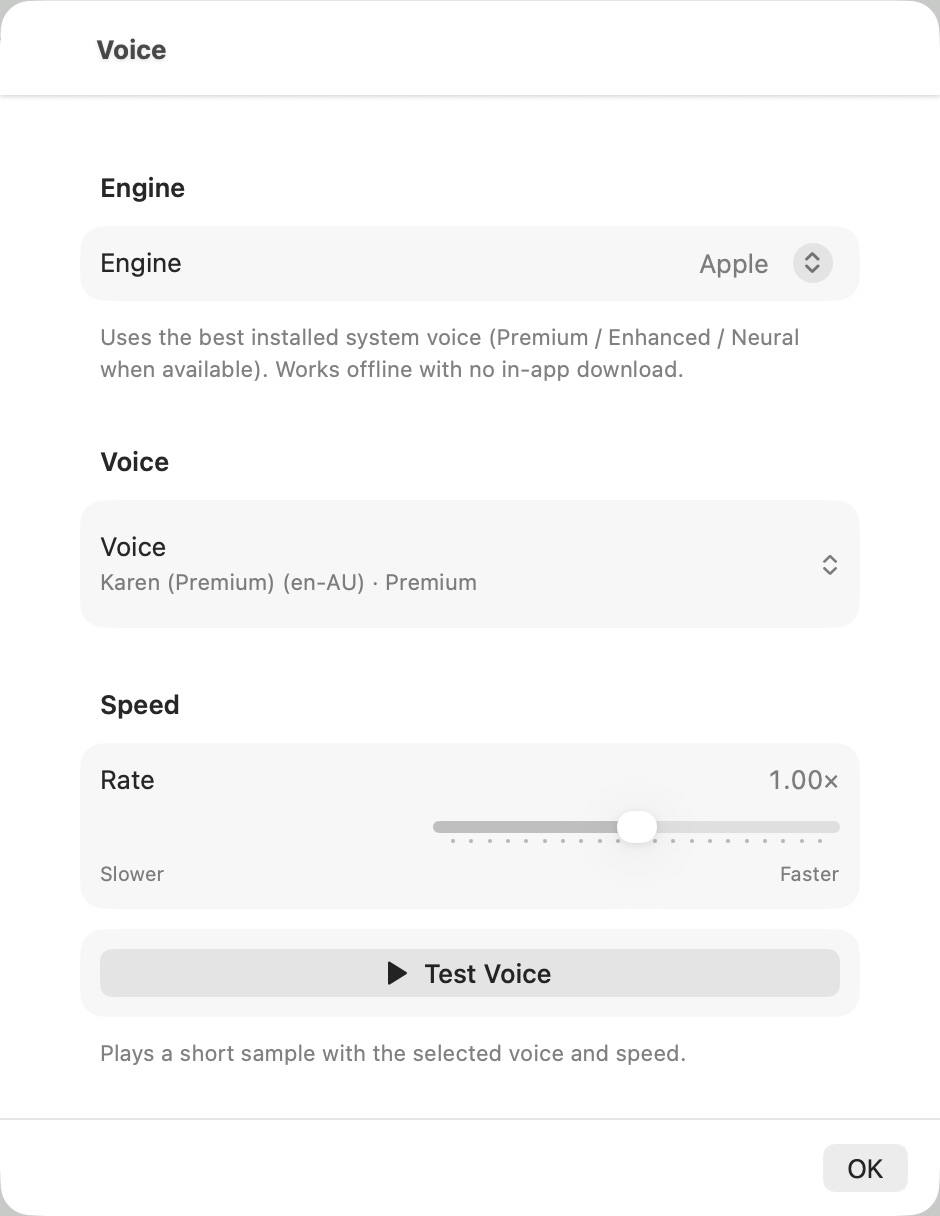
Apple Speech is the default engine. It uses the voices available through the Apple system, and PDF Max lets you choose a voice and speed and play a test sample. The app can open the relevant system voice settings when you want to download or manage additional Apple voices.
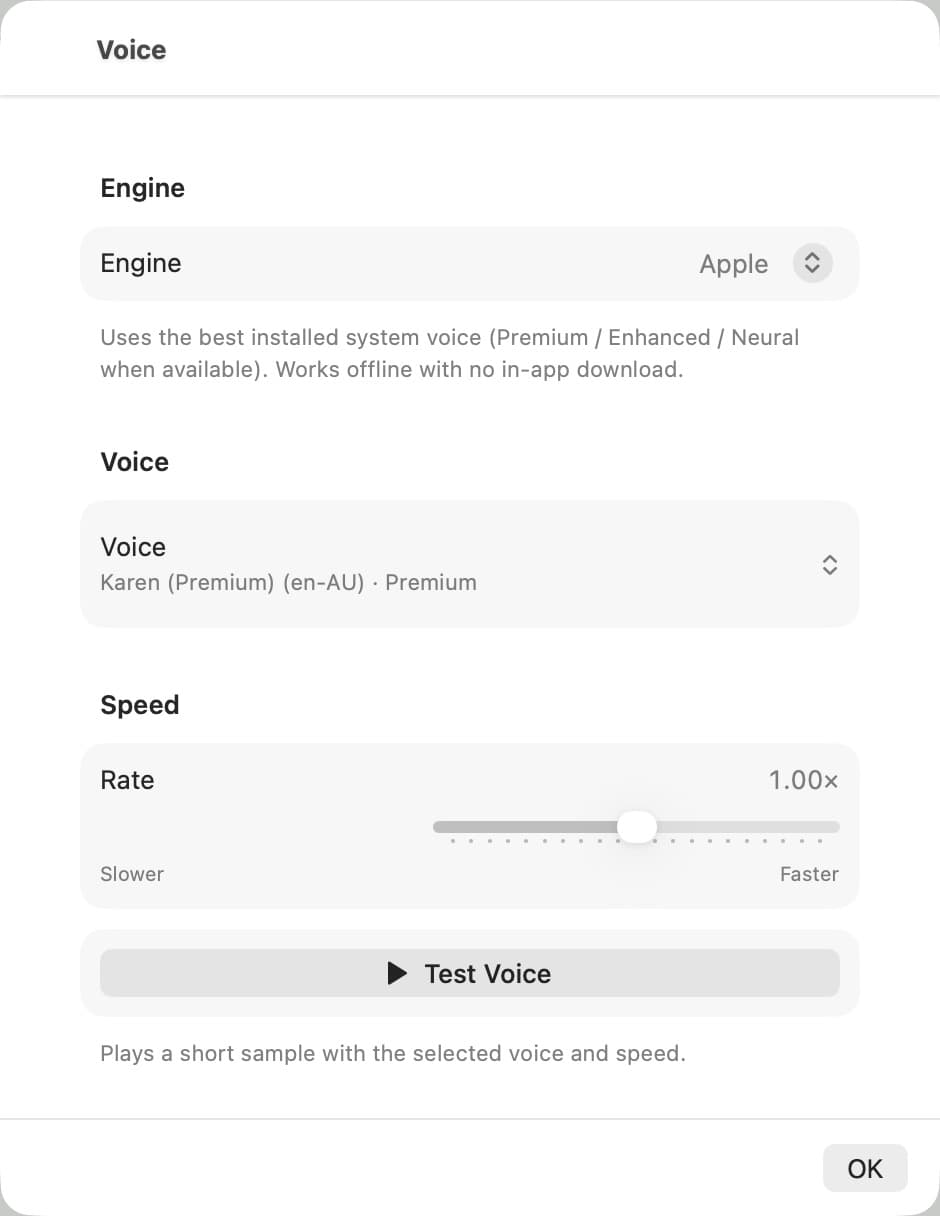
Open the full-resolution Voice settings screenshot.
PDF Max also offers Kokoro, an optional English-only neural voice. Its model is approximately 198.6 MB and runs on device after download. On iPhone and iPad it requires an A13 Bionic, Apple M1, or newer chip; on Mac it requires a GPU with Metal residency-set support. Unsupported devices continue to use Apple Speech.
Kokoro is optional, not a prerequisite for Read Aloud. Download it before a trip if you intend to use it away from a reliable connection, but test Apple Speech first because it starts without the Kokoro model.
Listen actively instead of treating the PDF as an audiobook
Read Aloud works best for prose: lecture notes, reports, article discussions, and a second pass through a research paper. Use the moving highlight to notice where the voice is in the source.
Pause and return to the original page for:
- tables whose row and column positions carry meaning;
- equations, subscripts, superscripts, and symbols;
- diagrams, maps, and figure labels;
- citations and footnotes with non-linear placement;
- names, dates, measurements, and other details that must be exact; and
- multi-column pages whose reading order still sounds wrong.
For technical papers, the dedicated guide to reading research PDFs with equations explains how Reflow Reader, equation recognition, Read Aloud, and the original page play different roles.
Use a three-pass student listening method
For lecture notes or assigned reading, separate coverage from understanding:
- Preview: Scan headings, figures, questions, and the conclusion in page view.
- Listen: Start Read Aloud at the first relevant page and follow the moving highlight.
- Verify: Pause at dense claims, formulas, tables, and unfamiliar terms; inspect the original page and add an annotation or source-linked Card when the material needs later work.
Listening helps you cover prose. It does not prove comprehension or replace the page as evidence. If a passage needs active recall later, capture it into PDF Max Workspace and create a source-linked Question rather than copying a disconnected sentence into a generic flashcard.
Test one real chapter before choosing a voice or app
Open a PDF you genuinely need to finish, not a perfect sample document. Listen to one born-digital page and one layout-heavy page. Check word order, highlighting, pause and resume, page advance, and pronunciation. If it is a scan, verify recognition before listening to the rest.
Then choose the smallest route that works: Apple's built-in speech controls for occasional reading, or PDF Max Reflow Reader and Read Aloud when you want the listening view, original PDF, annotations, research Cards, and later Study workflow to remain together.
Open one lecture or report PDF in PDF Max, start Read Aloud on a prose-heavy page, and follow the highlight for ten minutes. Pause at the first table or formula and verify it against the original page before continuing.
Sources
- Apple Support — Have your Mac speak text that's on the screen
- Apple Support — Hear iPad speak the screen and selected text
- Apple Support — Hear iPhone speak the screen, selected text, and typing feedback
- Adobe Acrobat — Reading PDFs with reflow and accessibility features
- PDF Max product page
- PDF Max plan comparison
- PDF Max on the App Store