How to make a scanned PDF searchable on Mac, iPad, and iPhone
Turn an image-only scan into a searchable PDF with OCR on Mac, iPad, or iPhone, then test that its text can be found, selected, and copied.
Direct answer
How can you make a scanned PDF searchable on Mac, iPad, or iPhone?
Run optical character recognition on the image-only pages and save a new PDF containing a text layer aligned with the scan. In PDF Max, OCR can run on the Apple device. Reopen the result, search for several distinctive phrases, select and copy text from different pages, and compare important names and numbers with the image.
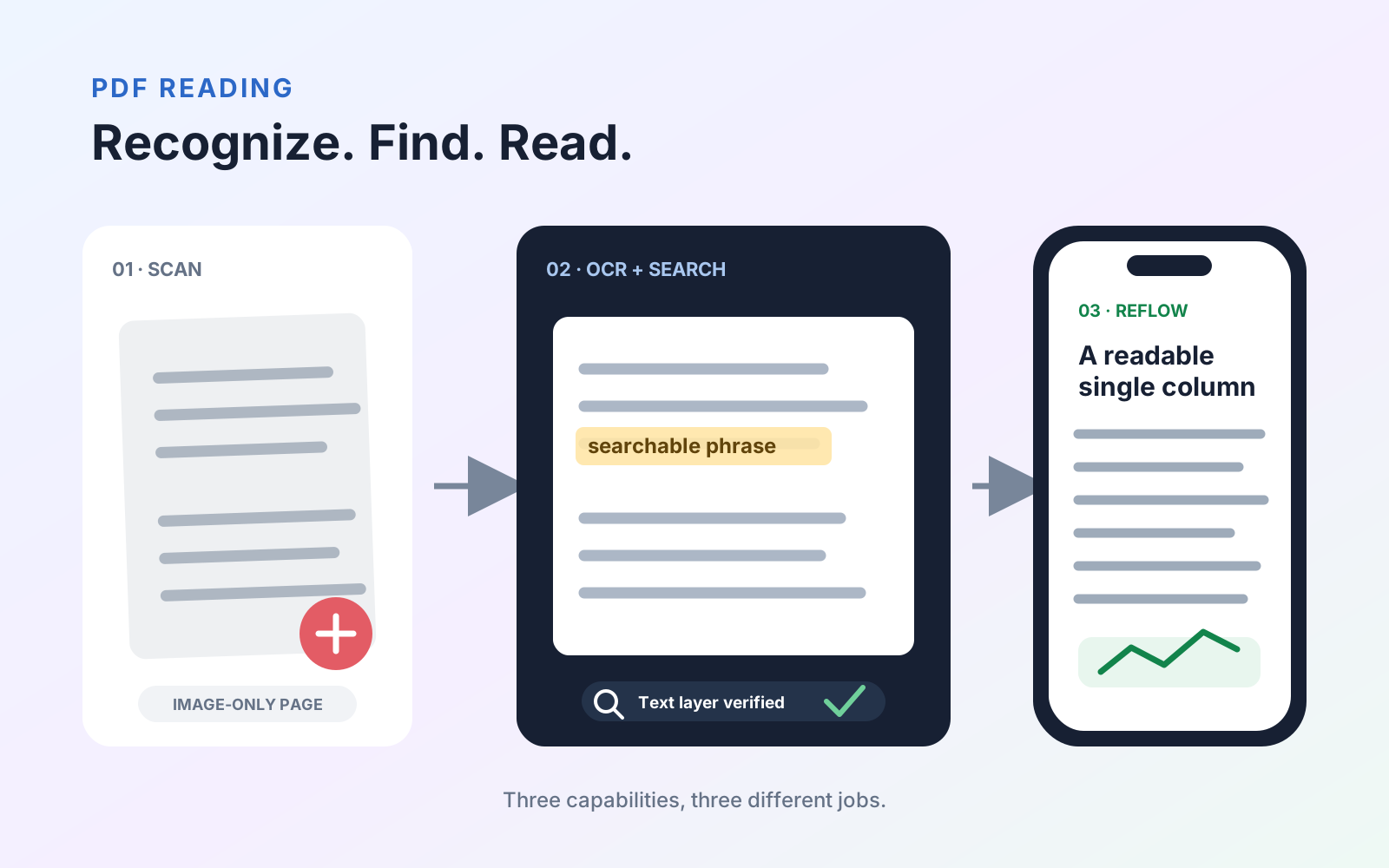
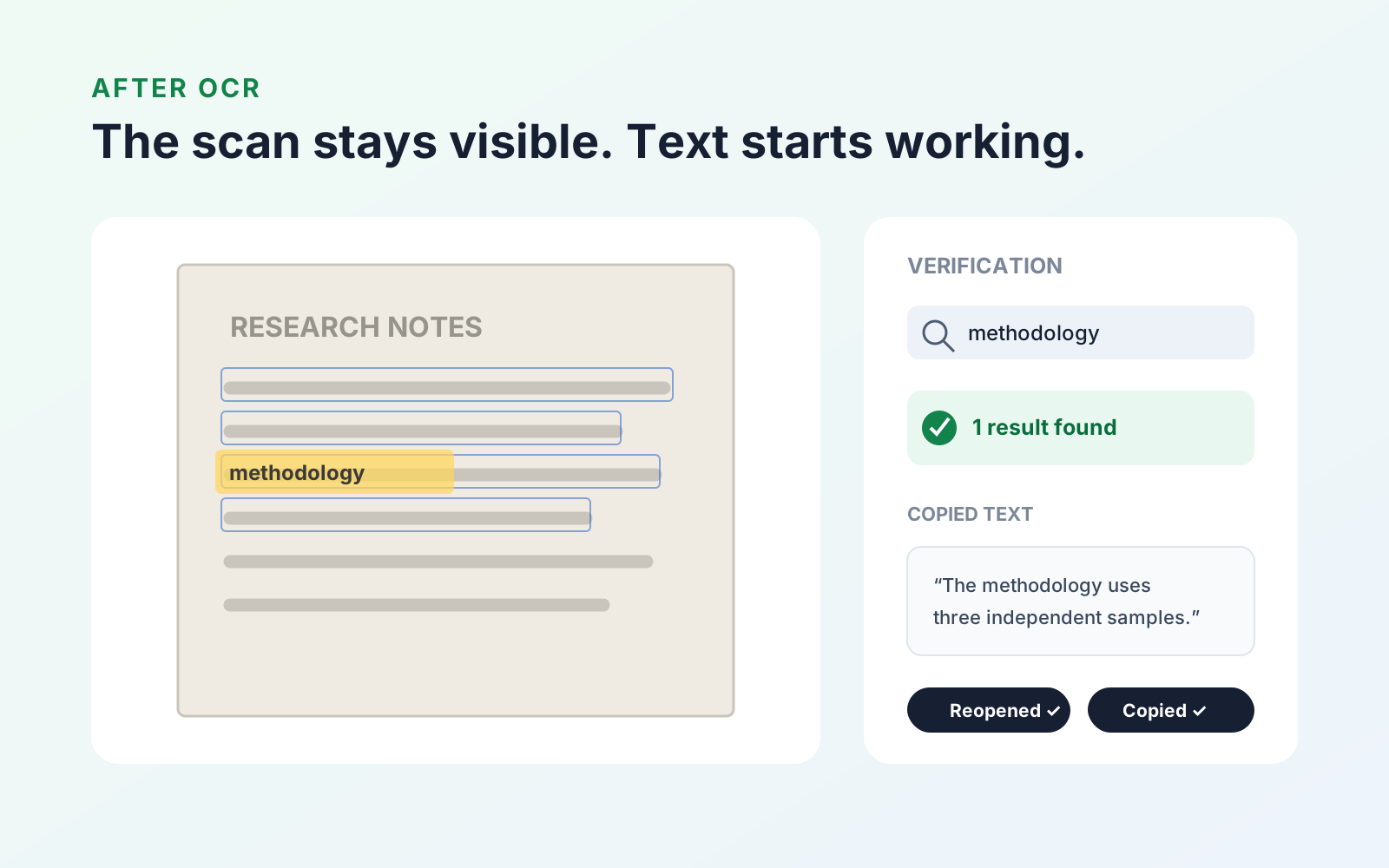
A scanned PDF becomes searchable when optical character recognition—usually shortened to OCR—adds an invisible text layer aligned with the words in the page image. The scan remains visible, while search, selection, and copying begin working against recognized characters.
In PDF Max, use Tools → Recognize Text, let the on-device recognition finish, save the file, and then search for a distinctive phrase to verify the result.
Check whether the PDF already has text
Do not run OCR only because a document came from a scanner. Some scanning tools already include searchable text.
Test the file first:
- Search for a distinctive word you can see on the page.
- Try to select one sentence rather than the whole page.
- Copy the selection into a plain-text note.
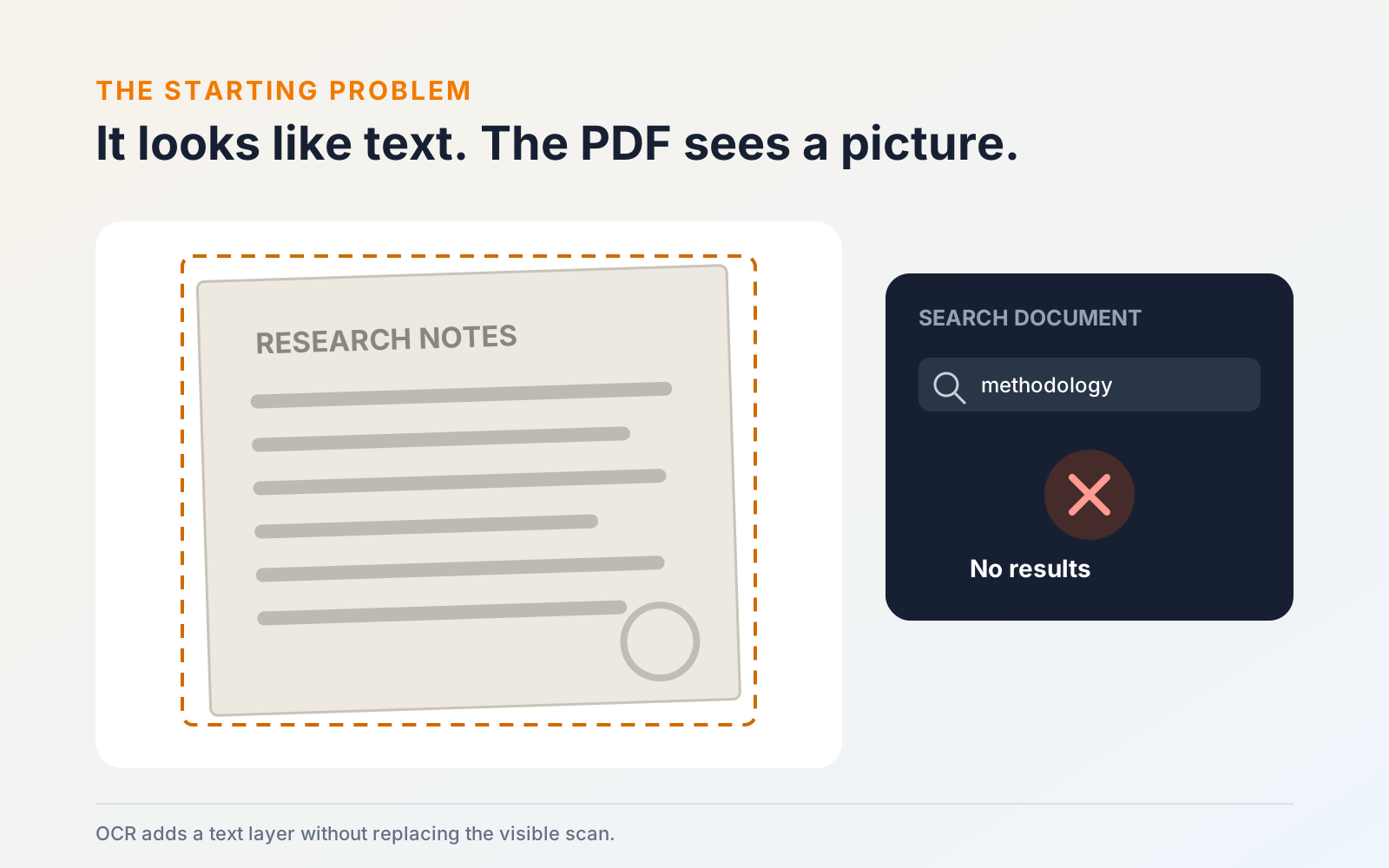
If search finds nothing and selection treats the page as one large image, the PDF probably needs OCR. If the copied result is already accurate, running recognition again may be unnecessary.
Scanning and OCR solve different problems
Scanning captures a picture of a page. OCR analyzes that picture and records the characters it finds. A PDF can therefore be:
- a scan with no text layer;
- a scan with a searchable text layer;
- a normal digital PDF whose text was created directly by another app; or
- a mixed document containing digital pages and scanned attachments.
This distinction matters because OCR improves discovery and can help assistive workflows, but it does not replace the page image, reconstruct the original word-processing document, or make the PDF fully accessible by itself.
Recognize the text in PDF Max
Keep an untouched copy before changing a large or important document. Then:
- Open the scanned PDF in PDF Max.
- Choose Tools → Recognize Text.
- Start recognition and keep the document open until processing completes.
- Save the recognized result as a separate PDF.
- Close and reopen that saved copy before testing it.
Recognition runs on the device, so the document is not uploaded to Mobeera or a recognition server for this workflow. That is particularly useful for contracts, identification documents, client records, and unpublished material.
Improve weak recognition results
OCR depends on the image it receives. Before rescanning, check whether a cleaner source page is available. If you do need to scan again:
- Place the page on a contrasting, evenly lit surface.
- Hold the camera parallel to the page to reduce perspective distortion.
- Avoid shadows, glare, fingers, and folded corners over the text.
- Capture enough resolution for small print to remain distinct.
- Keep the page orientation correct.
- Separate pages that overlap or show text from the reverse side.
Language and script support can also affect recognition. Test a representative page before committing to a long document, especially when it contains multiple languages, specialist symbols, equations, or handwriting.
Verify that the saved PDF is searchable
Do not stop when the progress indicator disappears. Reopen the saved file and perform several checks:
- Search for a heading, a word from the body, and a number.
- Select a complete sentence and copy it into a plain-text note.
- Compare the copied wording with the visible scan.
- Move through several pages, including one with small or faint text.
- Open the PDF in another viewer and repeat one search.
If search works only while the file remains open in the original app, the recognized text may not have been saved into the PDF you intend to share. Testing after reopening catches that problem.
Searchable, editable, and accessible are different results
OCR can make a scan searchable, selectable, and copyable. It does not guarantee that the visible lettering can be retyped like a paragraph in a word processor. If the original PDF already contains real text, follow the existing-text editing workflow instead.
Searchable text is also only one part of accessibility. A well-structured PDF may need a document language, headings, lists, table semantics, logical reading order, alternative descriptions, and other tags that OCR alone does not supply. Treat recognition as a text-discovery step, not as proof that a file conforms to an accessibility standard.
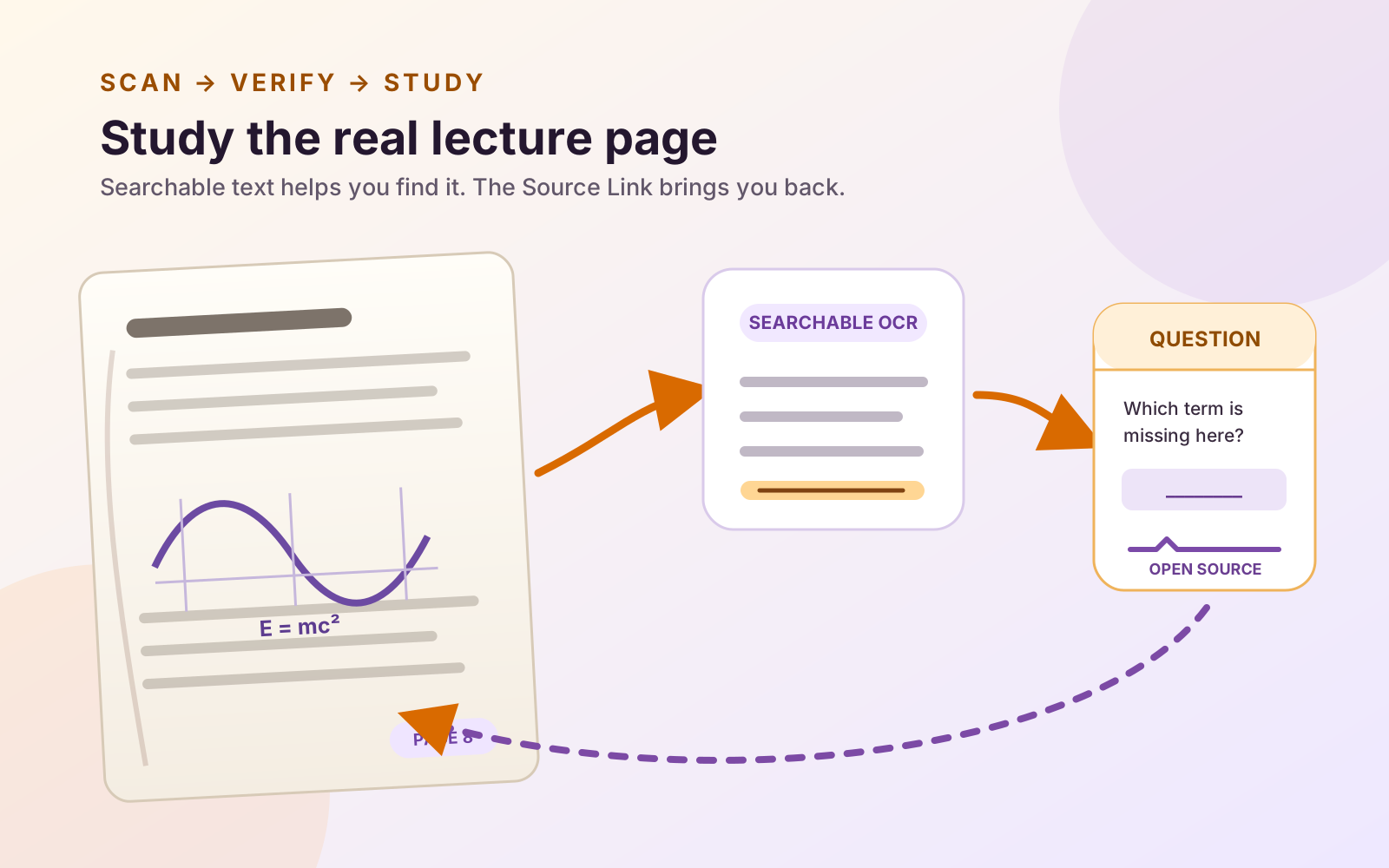
For a private, repeatable workflow, preserve the original scan, recognize a working copy, verify several kinds of content, and share only the tested result. If the file is a lecture packet, continue with the source-linked workflow for studying from scanned lecture notes instead of treating recognized text as unquestionable study material. If the scan is one of several issues with the file, use the five-problem PDF diagnostic to identify the appropriate workflow. The current recognition tools are described on the PDF Max product page.