PDF or Office file? Choose the right format for editing and sharing
Compare PDF with Word, Excel, and PowerPoint files, then choose a working format and a delivery format without sacrificing editability or layout.
Direct answer
When should you use a PDF instead of a Word, Excel, or PowerPoint file?
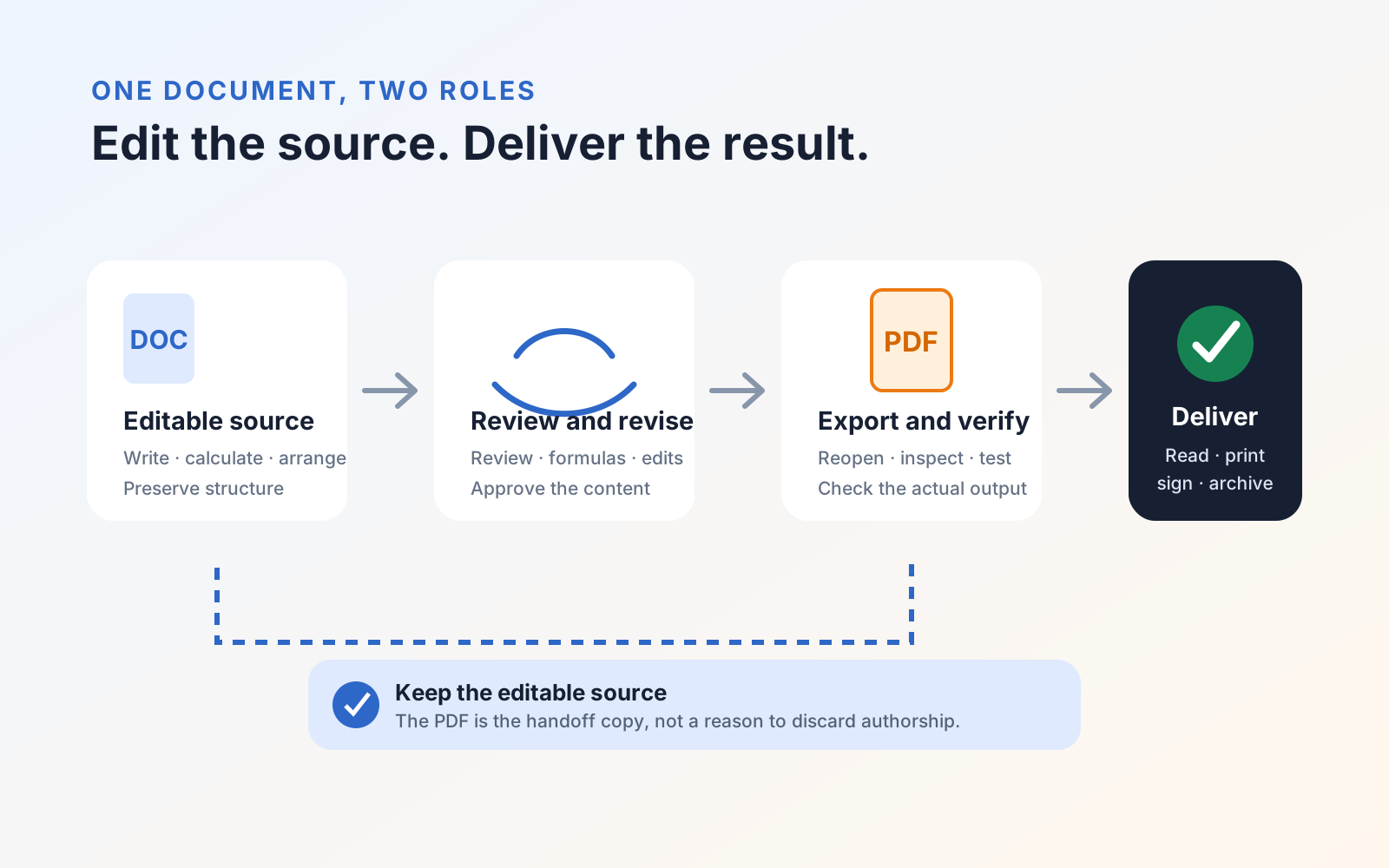
Use the editable Office file while people still need to revise text, formulas, data, layouts, or slides. Use PDF when the document is ready for consistent viewing, printing, signing, annotation, submission, or archiving. For many workflows the safest approach is to retain the editable source and create a separately verified PDF as the delivery copy.
Choosing between PDF and an Office file is not a contest between a good format and a bad one. The formats serve different stages of a document's life.
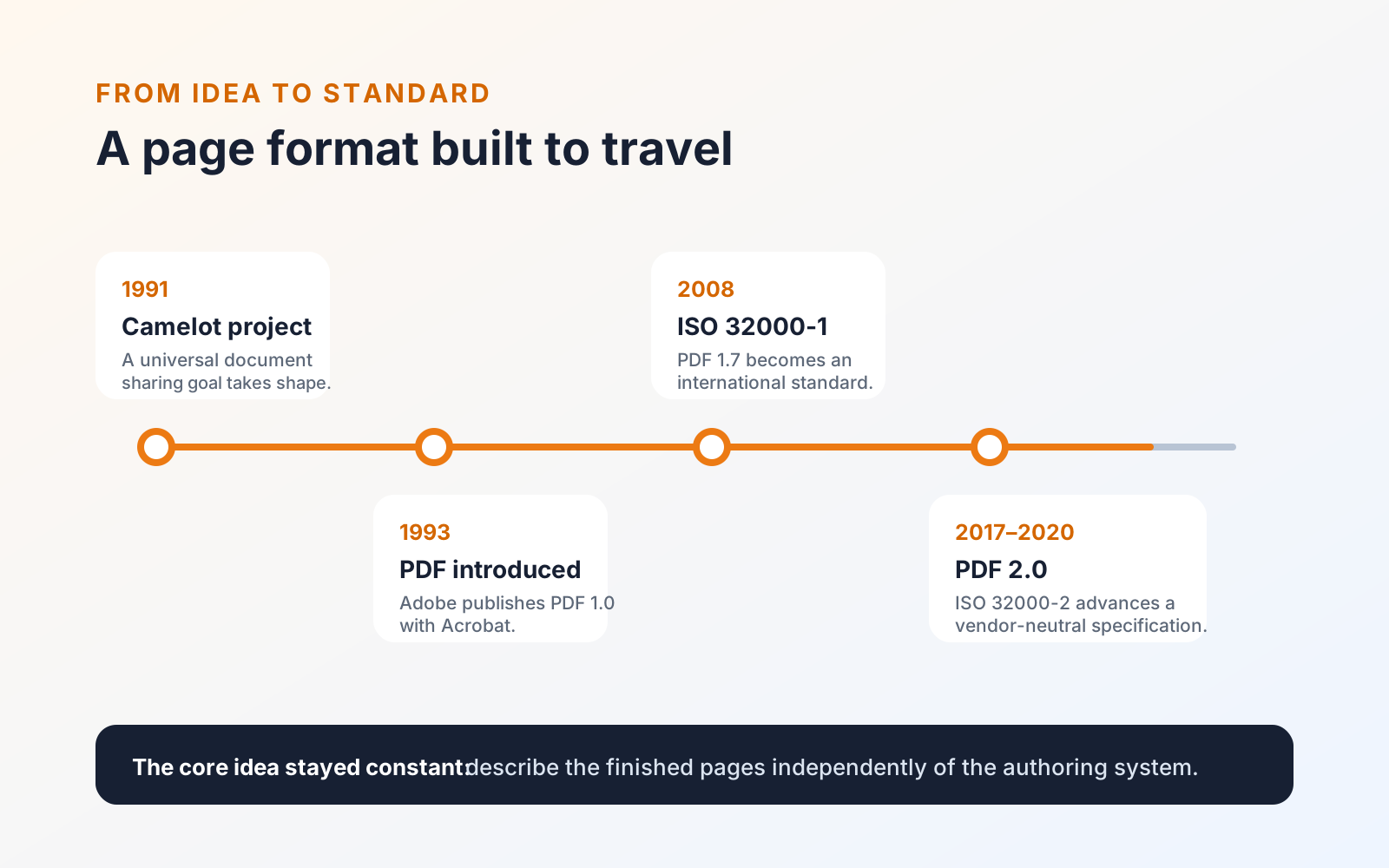
A Word document, spreadsheet, or presentation is usually a working file: its structure is available for writing, calculation, collaboration, and rearrangement. A PDF is usually a delivery file: its pages are prepared for dependable reading, review, printing, signing, or archiving. The guide to how PDF became a document standard explains the fixed-page model behind that difference.
The short answer
Use DOCX, XLSX, or PPTX while the document's ideas and structure are still changing. Use PDF when the recipient needs the intended result more than they need the original editing model.
For important work, keep both:
- Maintain the editable source as the authoritative working copy.
- Export a PDF for delivery or formal review.
- Reopen and verify the PDF before sending it.
Compare the formats by the job
| Requirement | Office working file | PDF delivery file |
|---|---|---|
| Rewrite paragraphs or restructure sections | Usually the better choice | Possible with a PDF editor, but the page may not reflow like the source |
| Recalculate formulas and linked data | Keeps spreadsheet logic and cell relationships | Presents the calculated result; formulas are not the working model |
| Rearrange slides and edit speaker content | Preserves slide objects, themes, and notes | Preserves the delivered pages, not the full presentation workflow |
| Collaborate on unfinished content | Designed for comments, tracked changes, and co-authoring | Useful for page-specific review and annotations after layout matters |
| Preserve page arrangement for recipients | Can change with fonts, app versions, and layout settings | Designed to retain fixed page dimensions and positioned content |
| Let recipients read without the authoring app | Depends on compatible software or a web service | Widely supported by system viewers, browsers, and dedicated readers |
| Support assistive technology | Can carry rich document structure when authored correctly | Can be accessible when correctly tagged and checked; PDF alone is not a guarantee |
| Preserve a long-term record | The editable source remains valuable | A validated archival profile such as PDF/A may be appropriate |
When PDF is the better delivery choice
Choose PDF when the document has reached a stable state and any of these matter:
- Page breaks, typography, figures, and labels should remain in their intended positions.
- The recipient should not need the original authoring application.
- The file will be printed, filed, submitted, signed, or reviewed against page numbers.
- Several kinds of content—text, vector diagrams, images, links, forms, and comments—must travel together.
- You need a controlled snapshot of what was approved at a particular point in time.
That is why PDF is common for invoices, contracts, policies, application forms, final reports, proofs, and public downloads.
When the Office file should remain primary
Keep the Office file at the center of the workflow when recipients need to:
- revise the wording extensively;
- inspect or change spreadsheet formulas;
- reuse document styles and structured headings;
- rearrange presentation slides or edit speaker notes;
- merge material into another editable document; or
- collaborate through tracked changes and comments before layout is final.
Converting an unfinished file to PDF too early can make ordinary editing unnecessarily difficult. Editing a PDF is valuable for corrections and final-stage work, but it should not replace a well-organized source file when that source still exists.
A PDF is not automatically secure or final
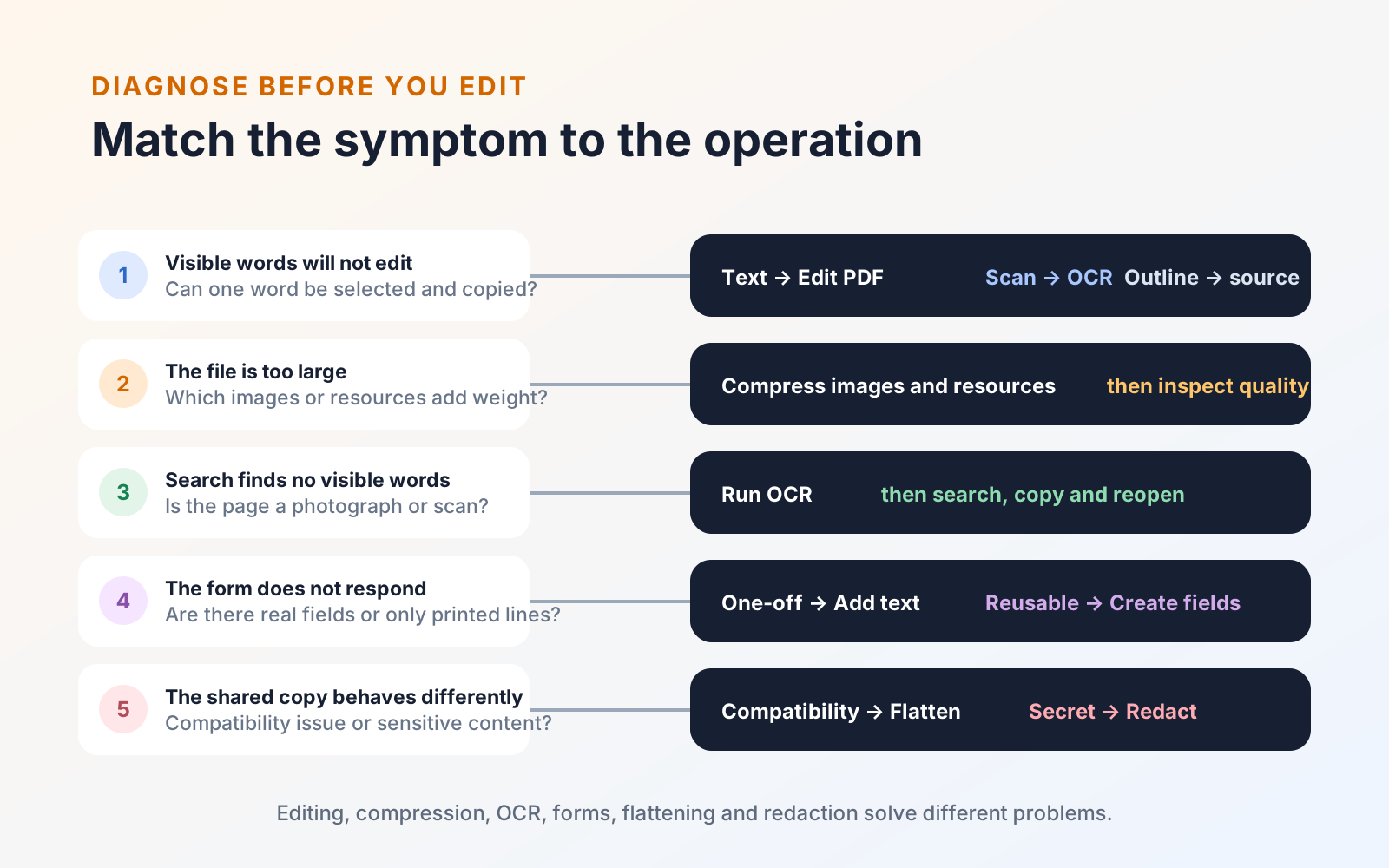
The appearance of a finished page does not prevent every change. A PDF may still contain editable form fields, removable annotations, attachments, metadata, or unredacted underlying content. Passwords, digital signatures, flattening, and redaction address different risks and should be selected deliberately.
Likewise, exporting to PDF does not automatically make a document accessible. Reading order, headings, table structure, language, and alternative descriptions must survive the workflow and be checked in the final file.
Verify the handoff copy
Before sending the PDF:
- Reopen the exported file rather than trusting the source preview.
- Check page breaks, tables, images, headers, footers, and fonts.
- Test links, bookmarks, form fields, and search where relevant.
- Confirm comments or tracked changes did not appear unexpectedly.
- Check the filename, page count, and document properties.
- Open the PDF in a second viewer when the result is consequential.
If the PDF reveals a typo and the source is available, fix the source and export again. If only the PDF remains, use an editor for a contained correction and verify the saved copy. The PDF text-editing guide explains how to tell real PDF text from scans, outlines, and added text boxes.
The durable workflow is not “PDF instead of Office.” It is Office for authorship, PDF for dependable delivery, and both when the document matters.