How to edit existing text in a PDF on Mac, iPad, and iPhone
Learn how to change existing PDF text—not just add a text box—on Mac, iPad, and iPhone, and verify the edited file before sharing.
Direct answer
How can you edit existing PDF text on Mac, iPad, or iPhone?
Use a PDF content editor, not an annotation text box. In PDF Max, enable Edit PDF, make the current page editable, select the existing text, and change it while checking the original font, size, color, and line wrapping. Save a copy, reopen it, and verify search, selection, copying, and surrounding layout before sharing.
Yes, you can change existing words in a PDF on a Mac, iPad, or iPhone—but only when the page contains editable PDF text. Adding a text box or covering a mistake with a white shape changes how the page looks without changing the original text underneath.
The reliable workflow is to identify what kind of page you have, edit the real text when possible, save a separate copy, and then reopen that copy to confirm the change survived.
First, identify what you are editing
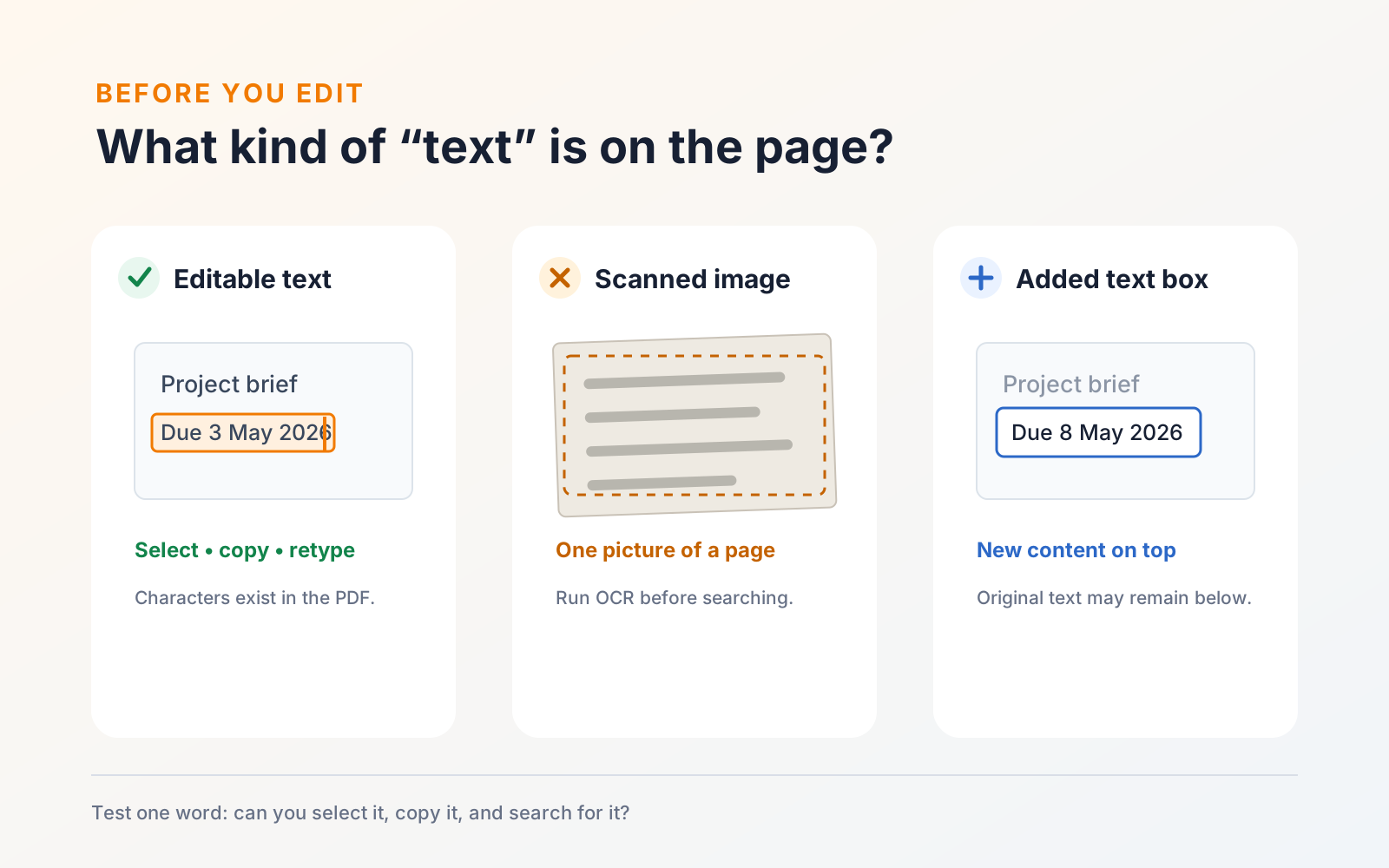
A page that looks like text can be built in several different ways:
- Editable PDF text: Individual characters and words exist in the file. You can usually select and copy them.
- A scanned page: The whole page is an image. It may look crisp, but there is no text to edit.
- An annotation or form field: Text sits on top of the page as a comment, text box, or field value. Editing it does not alter the printed content below.
- Outlined text: Letters have been converted to drawing paths. They look like text but no longer behave like characters.
Try selecting one word and copying it into a plain-text note. If the correct word appears, the page probably has a text layer. If you can select only the whole page—or nothing at all—you may be working with a scan or outlined text.
Can Apple Preview edit existing PDF text?
Apple Preview is a useful built-in starting point for reading, markup, signatures, form filling, page organization, and export. Apple’s current Preview guide explicitly distinguishes annotation from existing-text editing: Preview can mark up a PDF, but it cannot edit the PDF’s existing text. Adding a text box, shape, or other markup can alter what the page looks like without replacing the underlying words.
If the original wording itself must change, use a content-editing workflow and test the saved result as text. The PDF Max vs Apple Preview comparison records the current capability differences and links to the official product documentation.
Edit the existing text in PDF Max
The route is the same on Mac, iPad, and iPhone, although the ribbon adapts to the available screen space:
- Open the PDF and keep an untouched original somewhere safe.
- On Home, turn on Edit PDF.
- Choose Edit Page to make the current page content editable.
- Select the existing word or text run you need to change.
- Retype the text. If needed, use the Text tab to adjust its font, size, or color.
- Finish editing the page, then save the result as a clearly named copy.
PDF Max attempts to retain the selected text's font and size when you retype it. That is useful for correcting a name, date, amount, or short sentence without rebuilding the page.
If the font or spacing changes
PDF text does not behave exactly like a paragraph in a word processor. Many PDFs store short positioned text runs rather than a continuously flowing paragraph. A replacement can therefore affect spacing when it is much longer or shorter than the original.
For a clean result:
- Keep a replacement close to the original length when the layout is tight.
- Check the font, size, color, and line position after typing.
- Inspect nearby words for overlaps or unexpected gaps.
- Zoom out and review the whole page, not only the edited word.
- Recheck headers, tables, columns, and footnotes, where space is often limited.
If a large paragraph needs rewriting, editing the source document and exporting a new PDF may produce a better result than forcing substantially different text into a fixed layout.
What to do with a scanned PDF
Running OCR can add a searchable text layer to a scan, but it does not turn the photographed lettering into an ordinary flowing paragraph. Start by using Tools → Recognize Text so names and phrases can be found and copied. Our guide to making scanned PDFs searchable covers that process.
After OCR, decide whether the visible page itself needs changing. A small correction may be suitable for a carefully placed new text element; a substantial rewrite is usually safer in the source document. Never assume that covering old wording removed it from the file—especially when the content is sensitive. For that, use a permanent process such as PDF redaction.
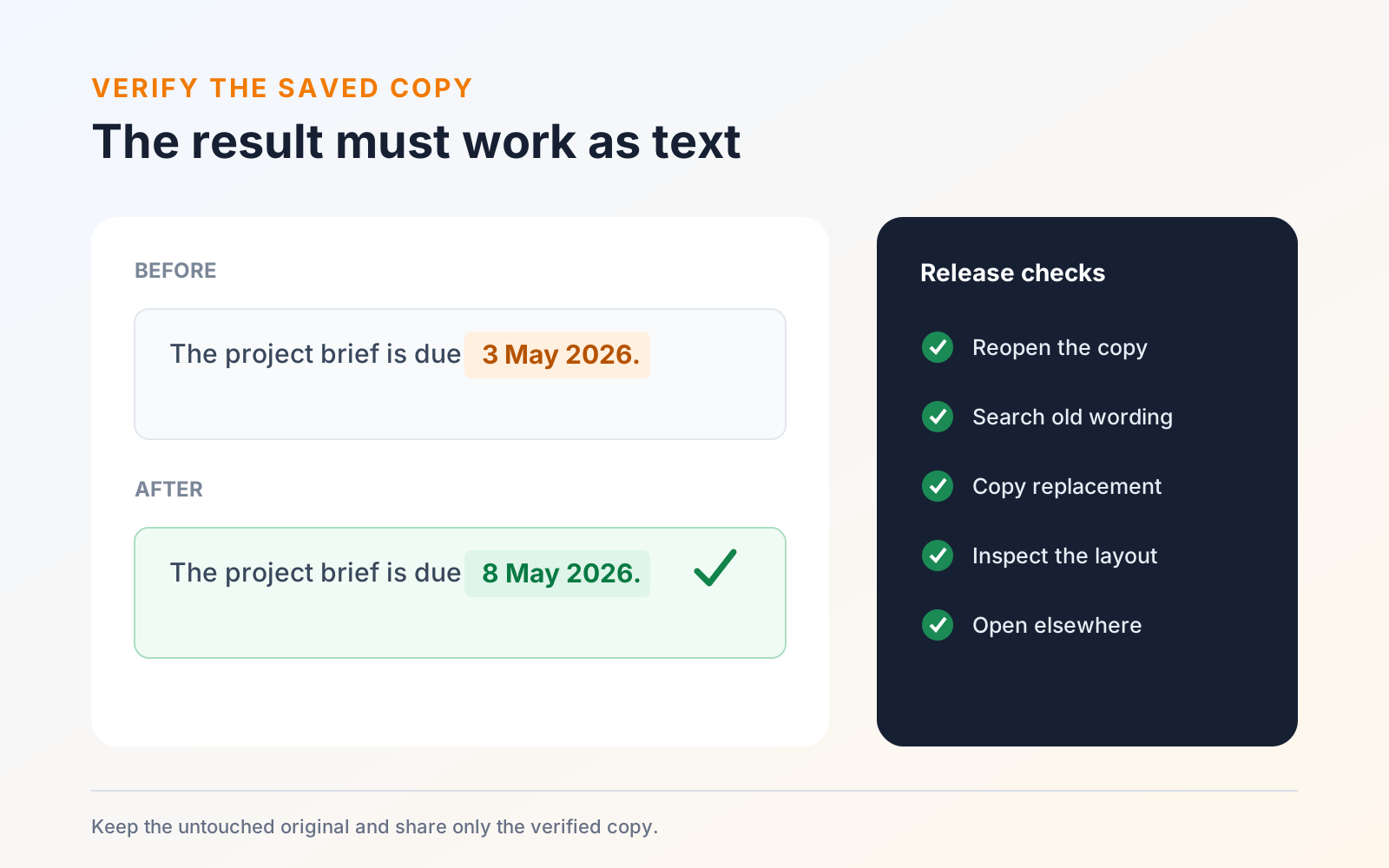
Verify the edited file
Treat verification as part of the edit:
- Save a new copy instead of overwriting your only original.
- Close and reopen the saved copy.
- Search for the old wording; it should no longer be found in the edited location.
- Select and copy the replacement text into a plain-text note.
- Inspect the page at normal size and high zoom for gaps, overlaps, or font changes.
- Open the PDF in a second viewer and confirm that it renders the same way.
Choose the simplest tool that completes the job
Use a full editor when the underlying wording must change, then verify the saved copy before it leaves your device. If the final delivery copy also needs live form fields or annotations fixed in place, complete the text edit first and then follow the fill, sign, and flatten workflow. You can review the current editing tools on the PDF Max product page.