How to add transcribed voice notes to lecture PDFs
Attach recordings to exact PDF pages, transcribe them on device, follow words during playback, and verify study notes before relying on them.
Direct answer
How can you attach a transcribed voice note to the right place in a lecture PDF?
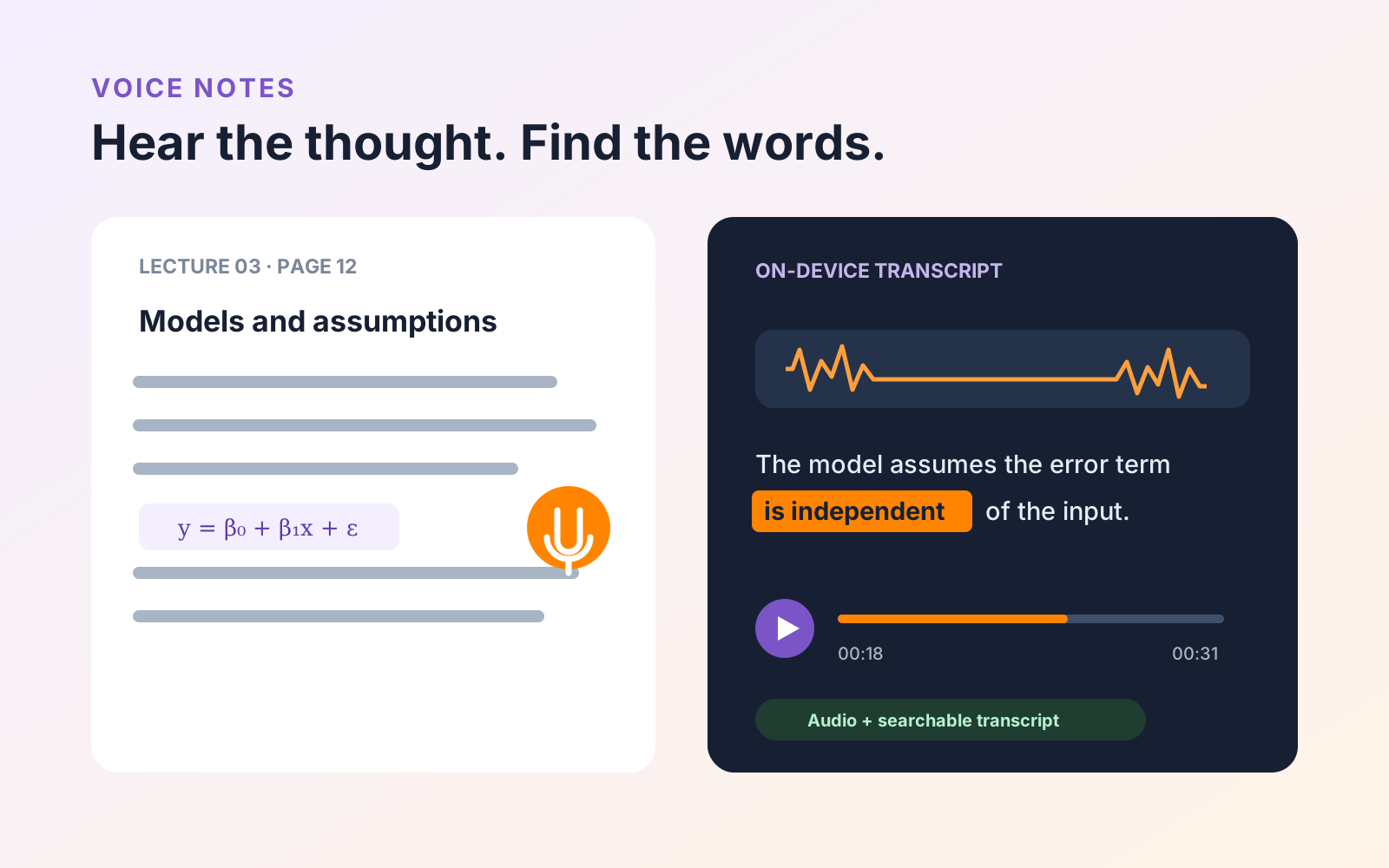
Add the Voice Note while the relevant lecture page is open so the recording remains anchored to that page. In PDF Max, supported devices can transcribe an authored note on device and highlight transcript words during playback. Review technical terms, names, formulas, and numbers against the recording before relying on the transcript for study.
A typed annotation is ideal when you already know what you want to say. A voice note is better when an explanation is unfolding quickly: why a diagram matters, how a lecturer qualified a claim, or which step in a worked example caused confusion.
PDF Max Voice Notes attaches a recording to a location on a PDF page. The note can be replayed from the document and, when the speech model is installed, transcribed on the device. That keeps the spoken thought beside the material it describes instead of leaving it as an unnamed audio file in another app.
Recording and transcribing Voice Notes is a Premium capability. Playing a note somebody else recorded, and reading its transcript, is included with every plan—receiving a marked-up PDF never requires a purchase.
Confirm that recording is appropriate
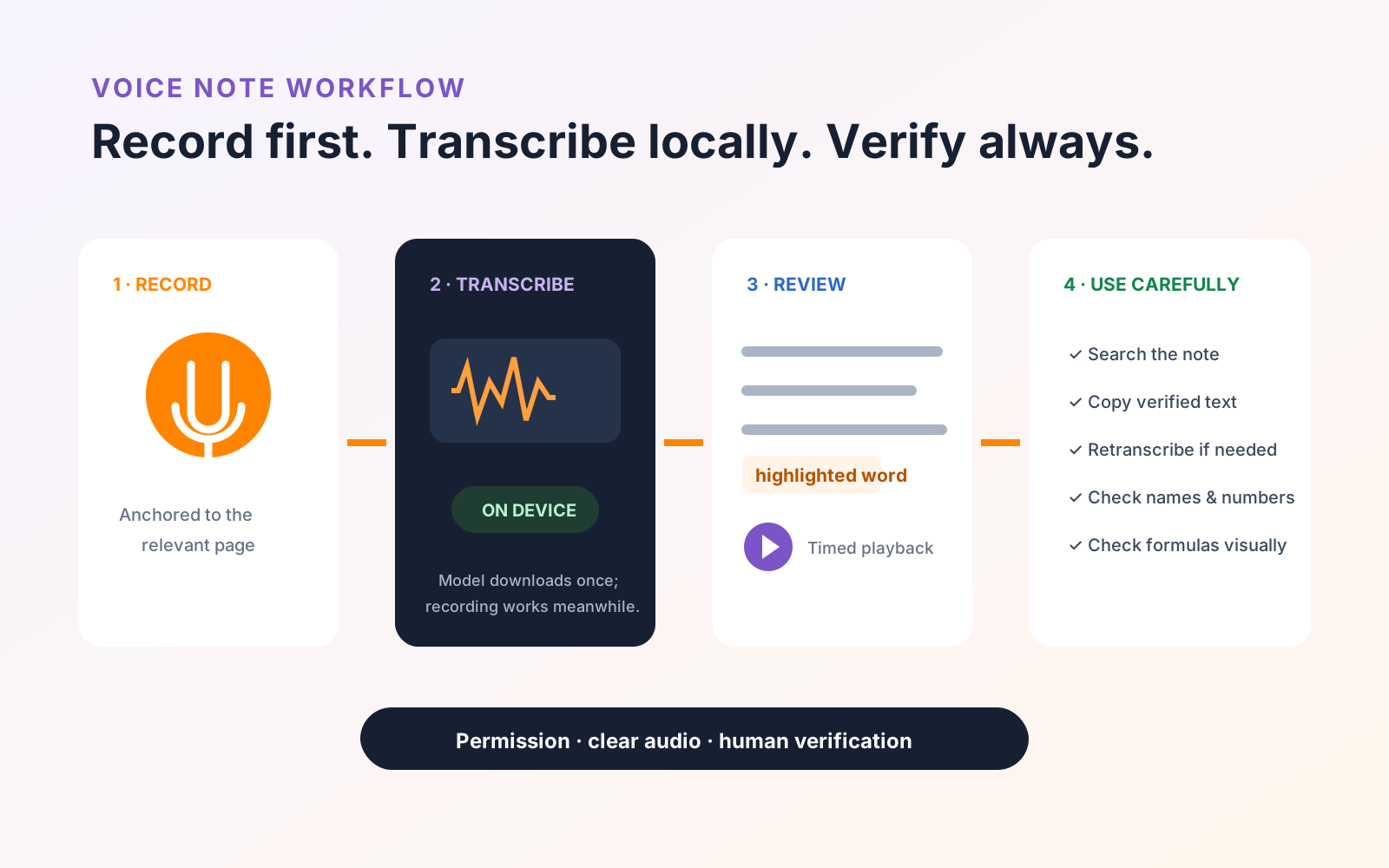
Before recording a class, tutorial, meeting, or another person's voice, ask for permission and follow the rules set by the instructor, institution, and location. A microphone permission prompt from the operating system is not permission from the people being recorded.
When recording is not allowed, use Voice Notes after class to capture your own summary. A 30-second explanation of what you understood—and what still needs checking—can be more useful than an hour of unreviewed audio.
Put the recording where the question occurred
Open the lecture PDF, choose Voice Note, and tap or click the relevant place on the page. Recording starts at that location rather than in a detached sheet. Stop the recording when the thought is complete.
Use short, purposeful notes. Begin with a phrase that will make sense later, such as:
- “The lecturer's exception to this definition…”
- “Check how equation 4 follows from equation 3…”
- “This chart compares the control and treatment groups…”
- “Possible essay link: contrast this claim with…”
The page badge shows that a recording is attached. The Voice Notes panel lists the document's notes in reading order, including recordings whose badges may not currently be visible on screen.
Install transcription when you need searchable text
Recording and transcription are related but separate. Voice Notes can record while the optional speech model is absent or downloading. The panel offers a one-time model download; when it becomes ready, pending notes can be transcribed.
The model is several hundred megabytes, so prepare it on a suitable connection before the first week of classes if transcription is part of your workflow. Transcription runs on the device. The transcript text is stored with the PDF note, while word-timing data supports the richer playback experience in PDF Max.
Review the transcript while listening
Open a note from the Voice Notes panel and play it back. The transcript follows the recording word by word, which makes it easier to find the part you need without scrubbing blindly through the waveform.
You can copy transcript text into a study outline or research note. Do that only after listening to the relevant section and correcting the meaning in your own working document. Automatic transcription can mishear names, specialist vocabulary, accented speech, numbers, and formulas.
Use Retranscribe when the model has changed or a note needs another pass. Do not assume a second run must be correct because it is different. Compare it with the audio.
Capture audio that can actually be understood
Better input produces a more useful recording and transcript:
- Keep the device near the speaker without blocking vents or resting it on a vibrating surface.
- Avoid covering the microphone with a case flap or hand.
- Record one idea per note instead of creating a single unsearchable session.
- Say names and technical terms clearly when recording your own summary.
- Stop and review an early sample before depending on the setup for a long class.
If the room is noisy or distant, write a page comment as a fallback. The goal is a retrievable idea, not an impressive waveform.
Turn voice notes into active study material
At the end of the week, open the Voice Notes panel and review each item:
- delete accidental or empty recordings;
- rename or summarize the useful point in your study outline;
- copy only verified transcript passages;
- turn unresolved questions into research tasks; and
- return to the anchored page before making a flashcard or assignment claim.
Voice Notes work especially well beside a source-linked research Workspace: the recording preserves your immediate explanation, while Workspace organizes the evidence you decide to use. If the underlying file began as paper, prepare it first with the back-to-school scan and submission checklist.