How to study from scanned lecture notes on iPad, iPhone, and Mac
Make scanned lecture notes searchable with on-device OCR, verify difficult text, then build source-linked Questions that reopen the exact PDF page.
Direct answer
How can you study from scanned lecture notes without losing the original page?
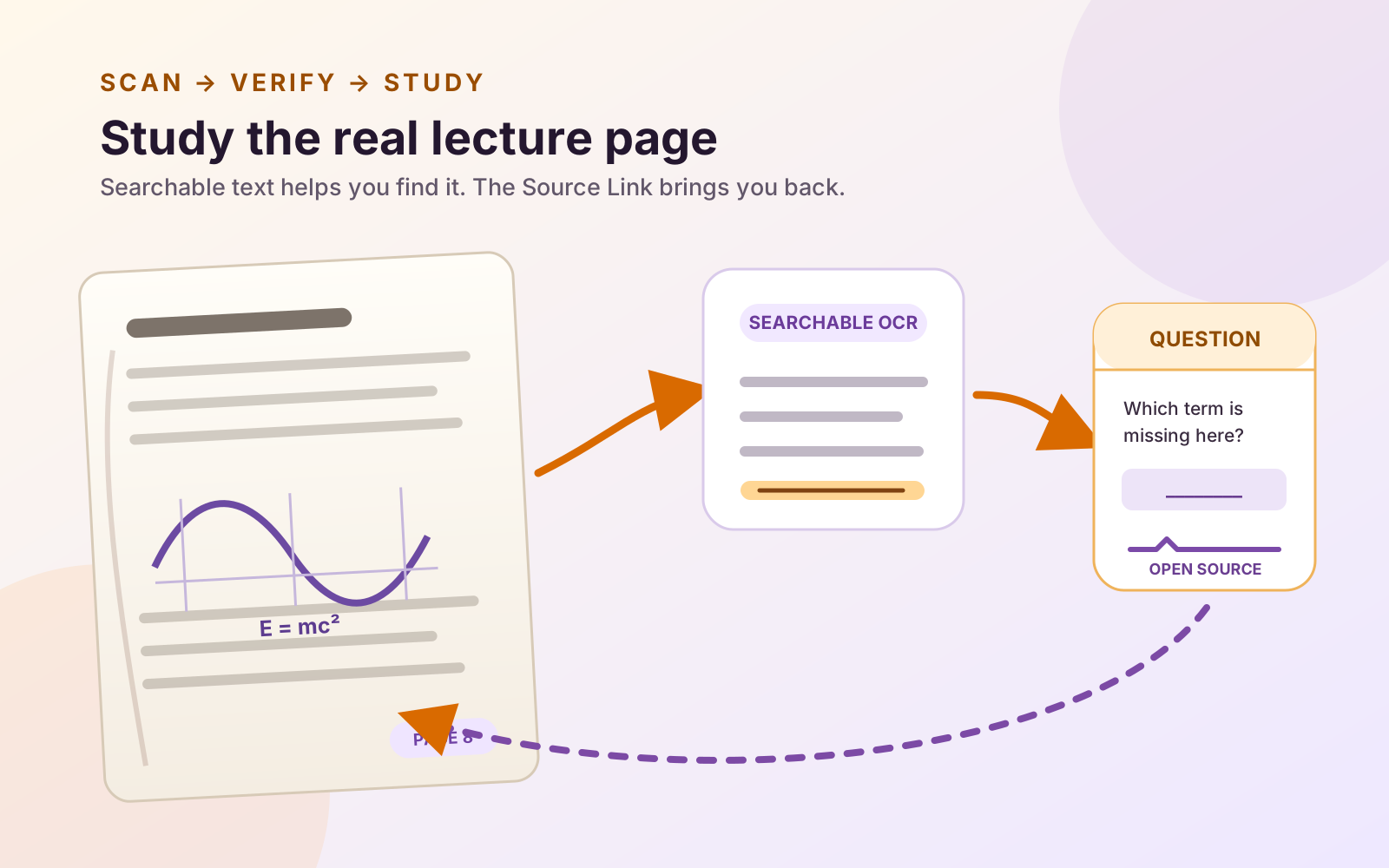
First make an image-only lecture PDF searchable with OCR, then verify names, numbers, labels, and notation against the page image before you study from the recognized text. In PDF Max, Recognize Text is Premium and runs on the Apple device. Once the result is saved, Free Study can turn a clipped passage or region into a source-linked Question whose source control reopens the exact PDF page.
A classmate's phone scan can look perfectly readable and still behave like a stack of photographs. Search finds nothing. Selecting a sentence grabs the whole page. Copy and paste produces no useful text. A study app cannot reliably turn that image into a passage until something first recognizes the words.
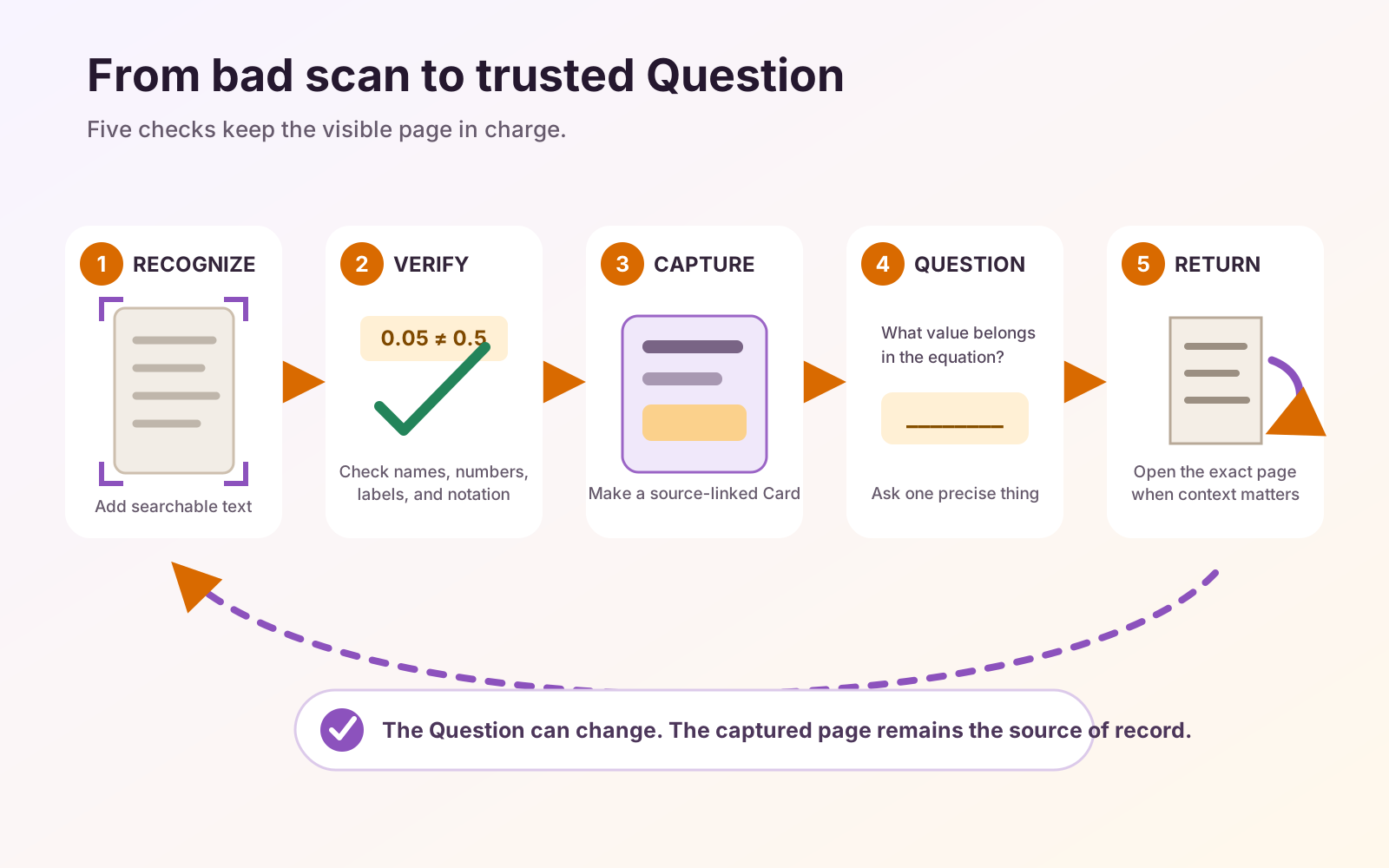
The dependable workflow is not “upload the scan and trust whatever deck comes back.” It is recognize, verify, capture, question, and return. The visible page remains the source of record throughout.
In PDF Max, Recognize Text adds a searchable layer on the Apple device. Once you have saved and tested that result, the Free Study workflow can keep passages, diagrams, tables, and formulas attached to their original page instead of sending isolated facts into a separate deck.
Test whether the scan already contains text
Do not run OCR merely because the PDF came from a camera or photocopier. Some scanning apps already add a text layer.
Try three quick tests:
- Search for a distinctive word visible on the page.
- Select one sentence rather than the page as a single image.
- Copy the sentence into a plain-text note.
If all three work and the copied wording is accurate, the PDF may already be ready to study. If search returns nothing and selection treats the page as one picture, follow the detailed guide to making a scanned PDF searchable.
OCR, Reflow Reader, and ordinary PDF search solve different problems. The OCR, reflow, and searchable-PDF explainer helps when the file already has some text but remains difficult to read.
Recognize a working copy, not your only scan
Keep the original PDF untouched. Open a copy in PDF Max, choose Tools → Recognize Text, let recognition finish, and save the result under a new name. Recognition runs on the device, so this workflow does not send the lecture packet to Mobeera or an OCR server.
Reopen the saved result before relying on it. Search for a heading and select a sentence from a different page. This proves the text layer was written into the copy rather than existing only in the current editing session.
Verify the tokens that could change the answer
A plausible OCR result is not necessarily an accurate one. Before turning a passage into Questions, compare at least three difficult tokens with the page image:
- a person's name or specialist term;
- a date, measurement, coefficient, or page reference; and
- a symbol, diagram label, variable, or table value.
Also read one complete sentence around each token. Recognition can produce real words while losing a negative sign, decimal point, qualifier, or superscript that changes the meaning.
If the same region repeatedly fails, do not “correct” your memory to match the OCR. Capture the visible region as an image, table, or formula Card and write the Question from what the page actually shows. The guide to studying diagrams, tables, and formulas inside a PDF explains how to hide a label, cell, or formula part without reducing the source to unreliable plain text.
Turn verified evidence into Questions
After OCR and verification, capture only the material that supports a useful Question:
- Use Research → Clip Text for a verified passage, or capture a visual region for material whose layout matters.
- Open the resulting Card in the Workspace.
- Choose Create Questions….
- Hide a precise word, label, table cell, or formula part, or write a focused prompt and answer.
- Read the saved Question once before starting Study.
The Card retains the evidence and its Source Link; the Question is the practice surface. That separation matters. You can improve a confusing prompt without rewriting the captured passage, and you can reopen the page when the surrounding explanation matters.
The complete authoring choices are covered in How to turn a PDF into source-linked study Questions.
Reopen the source after a wrong answer
A wrong answer does not automatically move the PDF. Reveal the answer, inspect the source row, and choose Open to leave the Study surface and reopen the Card's page. The Study queue waits for you when you return.
Outside a session, open the Card and choose Go to Source. PDF Max scrolls to the stored passage or captured region and briefly reveals it. This is the useful end of the loop: the Question tells you what you missed, while the page restores the explanation, neighboring labels, worked example, or footnote that makes the answer trustworthy.
If the source says the page changed, leave Study, open the Card, use Go to Source to inspect where the passage was found, and choose Re-anchor Here when it is offered. If the source is unavailable because its PDF moved, use the Workspace's Locate PDF… prompt to reconnect the file. Repair or recreate the Source Link before memorizing the Question: a saved prompt should not outrank evidence the app can no longer locate.
Know which parts are Free and Premium
The workflow crosses one plan boundary:
- Premium: Recognize Text and the searchable OCR layer created during Scan to PDF.
- Free: one editable multi-PDF Workspace, every clip type, manual Question authoring, scheduled Study, Practice, Progress, and source return.
Camera Scan to PDF is available on iPhone and iPad, not as a Mac camera workflow. Free and PDF Max Pro can create up to two pages per Scan to PDF or Images to PDF session without a searchable text layer. Premium removes the page cap and can add that layer. Those limits concern making a new PDF from captures or images; they do not cap the number of pages you can open and study.
See the current Free, Pro, and Premium comparison before choosing a plan. The broader PDF Max overview covers the editing and delivery tools around this study workflow.
Prove the loop with one page
Do not begin by processing a semester of handouts. Take one representative page from the worst scan:
- Run Recognize Text and reopen the saved copy.
- Verify three difficult tokens against the image.
- Capture two useful pieces of evidence as Cards.
- Turn them into Questions and practice one.
- Choose Open and confirm the exact scan page reappears.
If that loop survives a difficult page, scale it to the rest of the packet. The result is not merely a searchable photocopy or a detached set of generated prompts. It is a study trail that can still show its work. The implemented Question types, source-return behavior, and Free availability are summarized on PDF Max Study.