How to compress a PDF on Mac, iPad, or iPhone without uploading it
Reduce PDF file size on Apple devices with an on-device workflow, choose sensible image quality, and verify the compressed sharing copy before sending it.
Direct answer
How can you compress a PDF on an Apple device without uploading it?
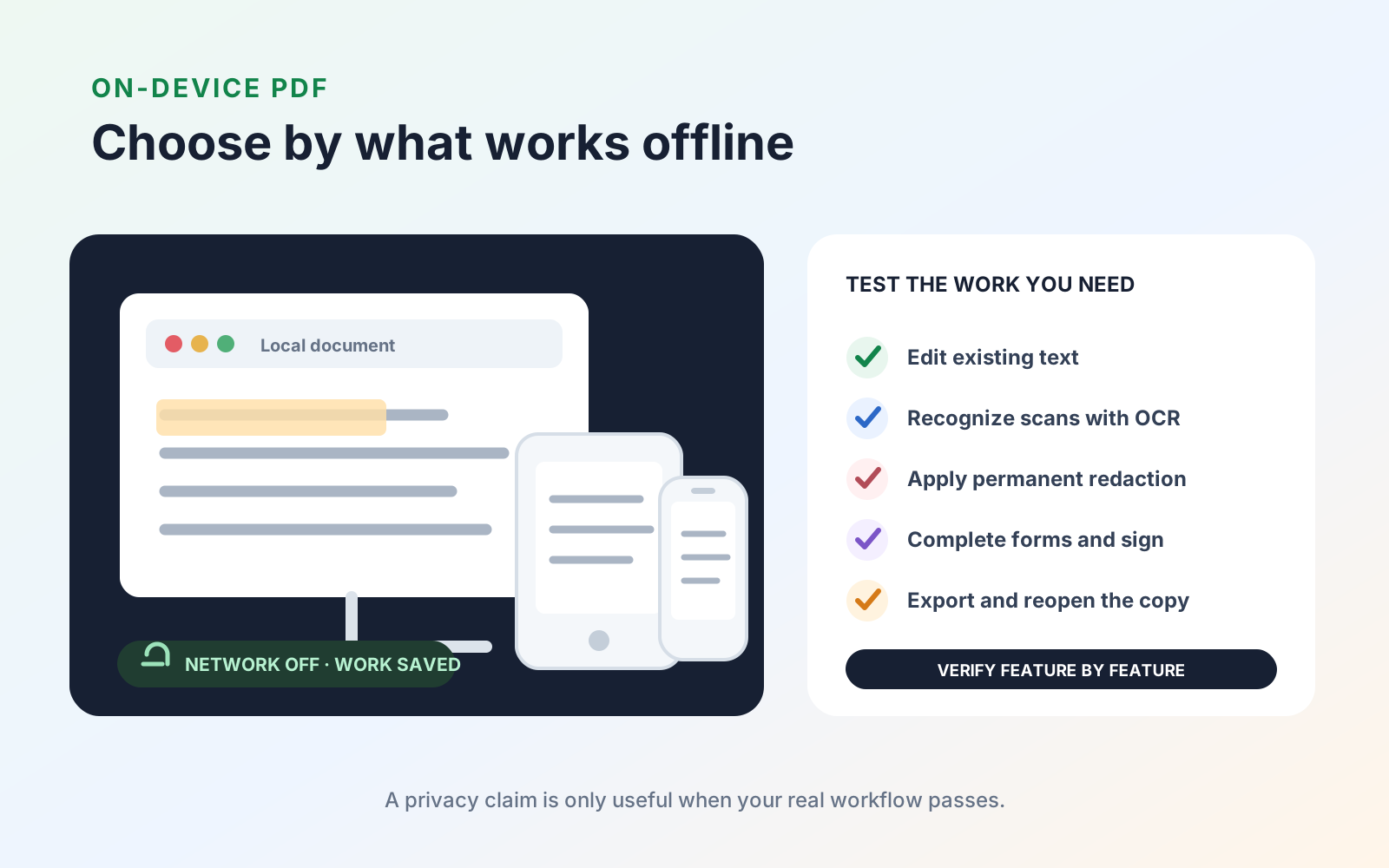
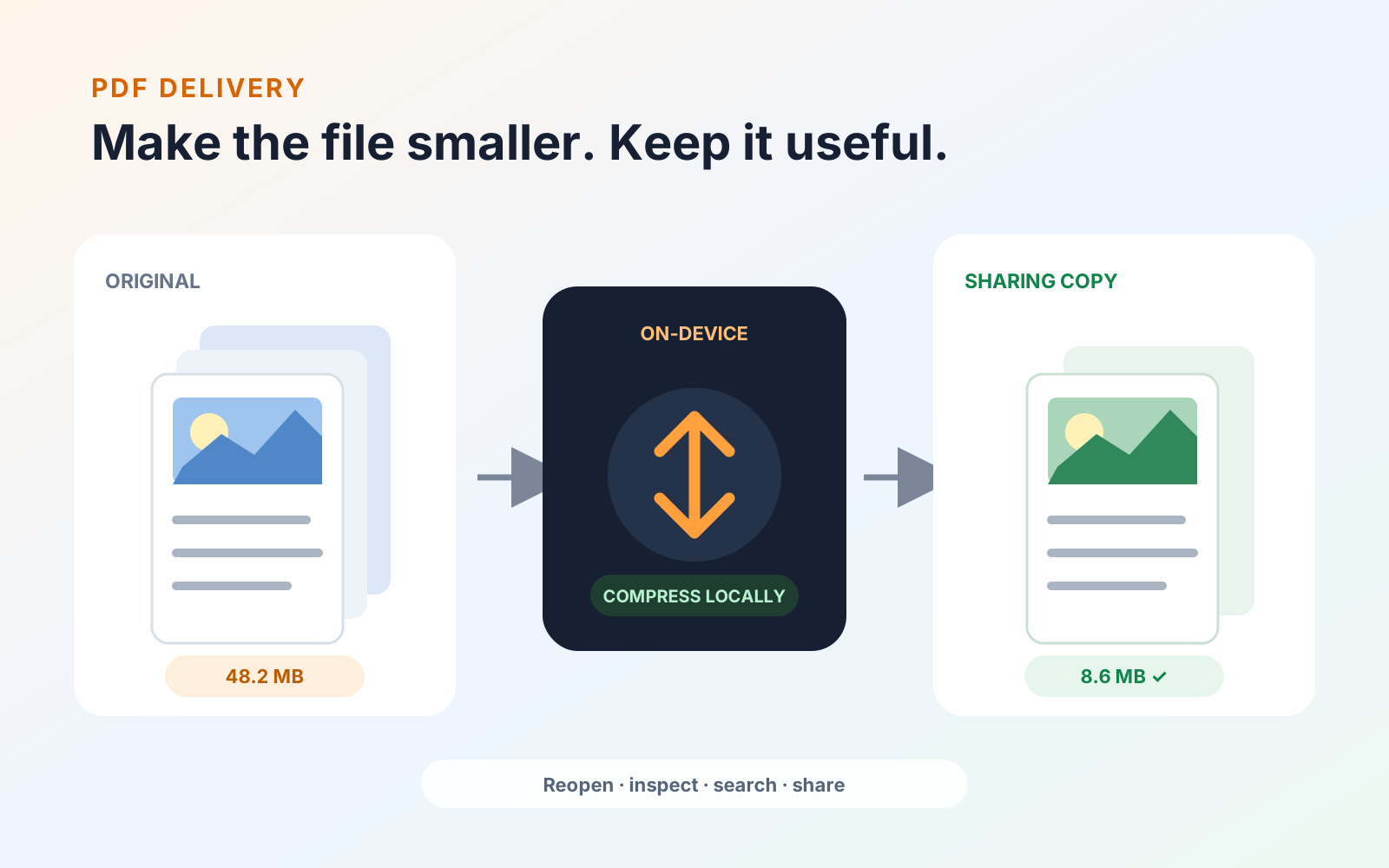
Use an app that explicitly performs PDF compression on-device, open a local copy, and choose a quality level suited to the document. Image-heavy scans usually offer the greatest reduction; text-heavy files may shrink less. Save a separate output, then reopen it to inspect small text, images, links, forms, signatures, searchability, and file size. Keep the original because compression can be lossy and difficult to reverse.
A PDF can be large because it contains high-resolution photographs, scanned pages, embedded fonts, attachments, duplicate resources, or content that is already compressed. The safest goal is not the smallest possible file. It is the smallest copy that still preserves the text, images, interactivity, and evidence your recipient needs.
Before you compress the PDF
Keep the original and create a working copy. Then check:
- The current file size and page count.
- Whether pages contain photographs, scans, diagrams, or mostly text.
- Whether text can be searched and copied.
- Whether the file includes links, form fields, signatures, comments, or attachments.
- The recipient’s actual upload or email limit.
If the PDF contains unnecessary pages or attachments, removing them may reduce size without lowering image quality. Do that before applying lossy compression.
Choose a local compression tool
On Mac, Preview can export a PDF with its Reduce File Size Quartz filter. Apple notes that the compressed file can have lower quality, so inspect the result. On iPad or iPhone, use a PDF app whose current documentation or App Store listing explicitly says the compression workflow runs on-device.
PDF Max provides on-device compression on supported Apple devices. A typical workflow is:
- Open a local copy of the PDF.
- Choose the optimize or compress command.
- Select a quality or size setting appropriate to the document.
- Save the result with a name that distinguishes it from the source.
- Close and reopen the new file before sharing it.
Menu names and available controls can change between app versions, so confirm the current interface on your device.
Match compression to the content
| PDF content | Likely opportunity | What to inspect afterwards |
|---|---|---|
| Photographs and scans | Downsampling or recompressing images can reduce size substantially | Small text, fine lines, gradients, color, and image artifacts |
| Mostly digital text | The file may already be efficient, so savings can be modest | Font rendering, selectable text, links, and symbols |
| Forms and signatures | Image and resource optimization may help, but interactive objects matter | Field values, checkbox states, signatures, and whether fields remain interactive |
| OCR-processed scans | Image compression can help while retaining the recognized text layer | Search results, copy accuracy, and alignment between text and page image |
Avoid repeatedly compressing an already compressed output. Each lossy pass can degrade images and make small type harder to read.
Verify the compressed copy
Treat verification as part of the workflow:
- Compare the new file size with the original and the recipient’s limit.
- Open the first, middle, and final pages at normal size and high zoom.
- Inspect the smallest text, detailed diagrams, photographs, and signatures.
- Search for a distinctive phrase and copy a sentence into a plain-text note.
- Test links, bookmarks, form fields, comments, and attachments that must remain usable.
- Open the result in a second PDF viewer.
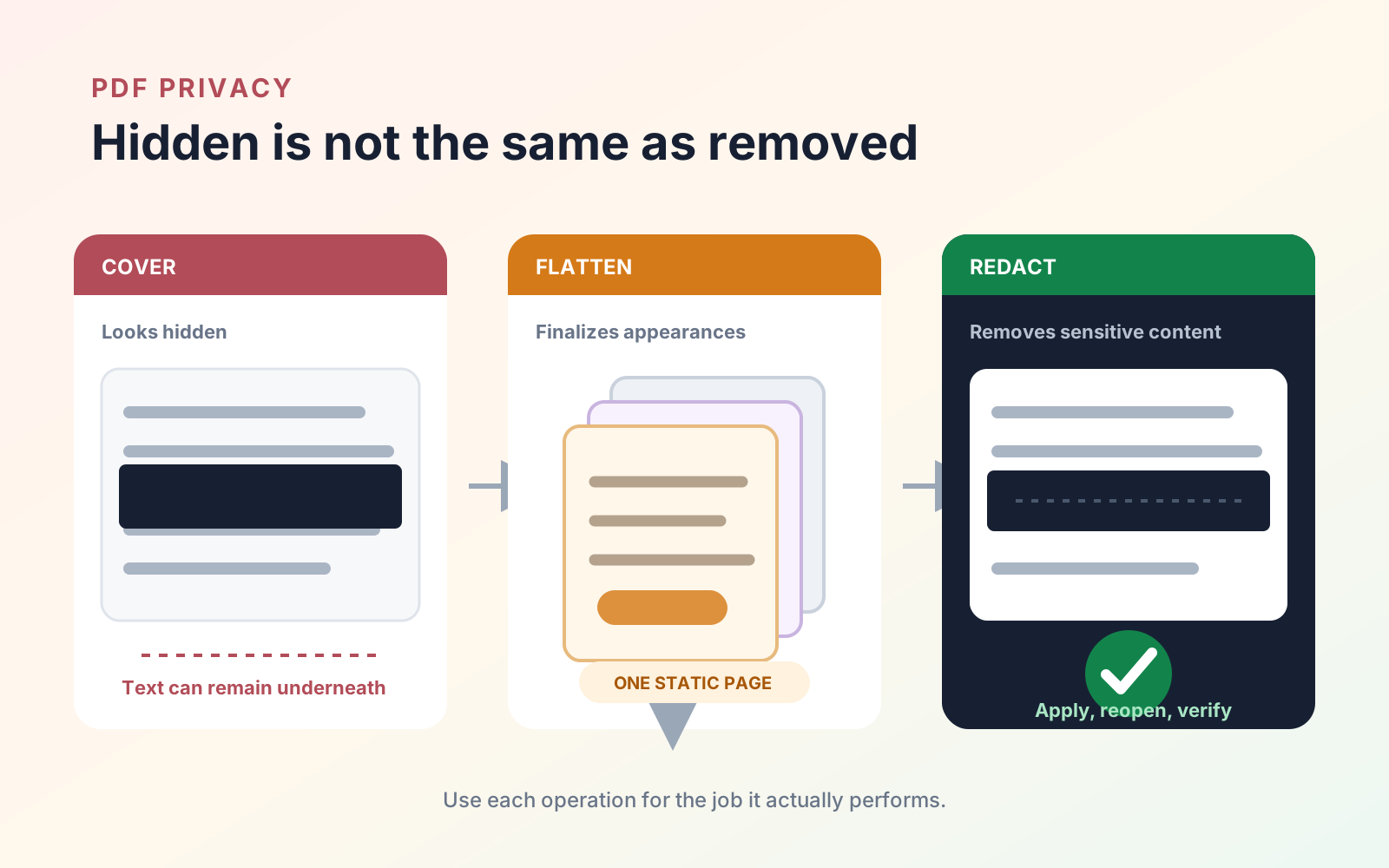
If the document contains private information, review redaction vs flattening vs covering before sending it. For a final form or annotated copy, what flattening a PDF does explains when flattening may be useful.
If the file is still too large
Try a targeted change rather than repeatedly lowering quality across every page:
- Remove pages or attachments the recipient does not need.
- Rescan only oversized pages at an appropriate resolution.
- Crop unnecessary borders from scanned pages before recompressing.
- Split the document only if the recipient can accept multiple files and the sequence remains clear.
- Use a secure, approved transfer method when the required quality cannot fit an email limit.
The right output preserves the document’s purpose. A research paper must keep equations and figures legible; a completed form must retain its values; a scan must remain searchable if the recipient relies on text search.
Review PDF Max’s current platform, version, and App Store facts on the PDF Max product page. The plan comparison shows which delivery workflows are included in Free, Pro, and Premium.