What Does Flattening a PDF Do? Meaning, Uses, and Risks
Flattening a PDF turns supported annotations and filled fields into page content. Learn when to use a flattened copy and what it preserves or removes.
Direct answer
What does flattening a PDF do, and when should you use it?
Flattening creates a new PDF in which supported annotations or form appearances are incorporated into static page content, making them harder to edit accidentally. It is useful for a stable delivery copy, but it is not the same as redaction, encryption, or a digital signature. Preserve the original and verify the flattened copy before sharing.
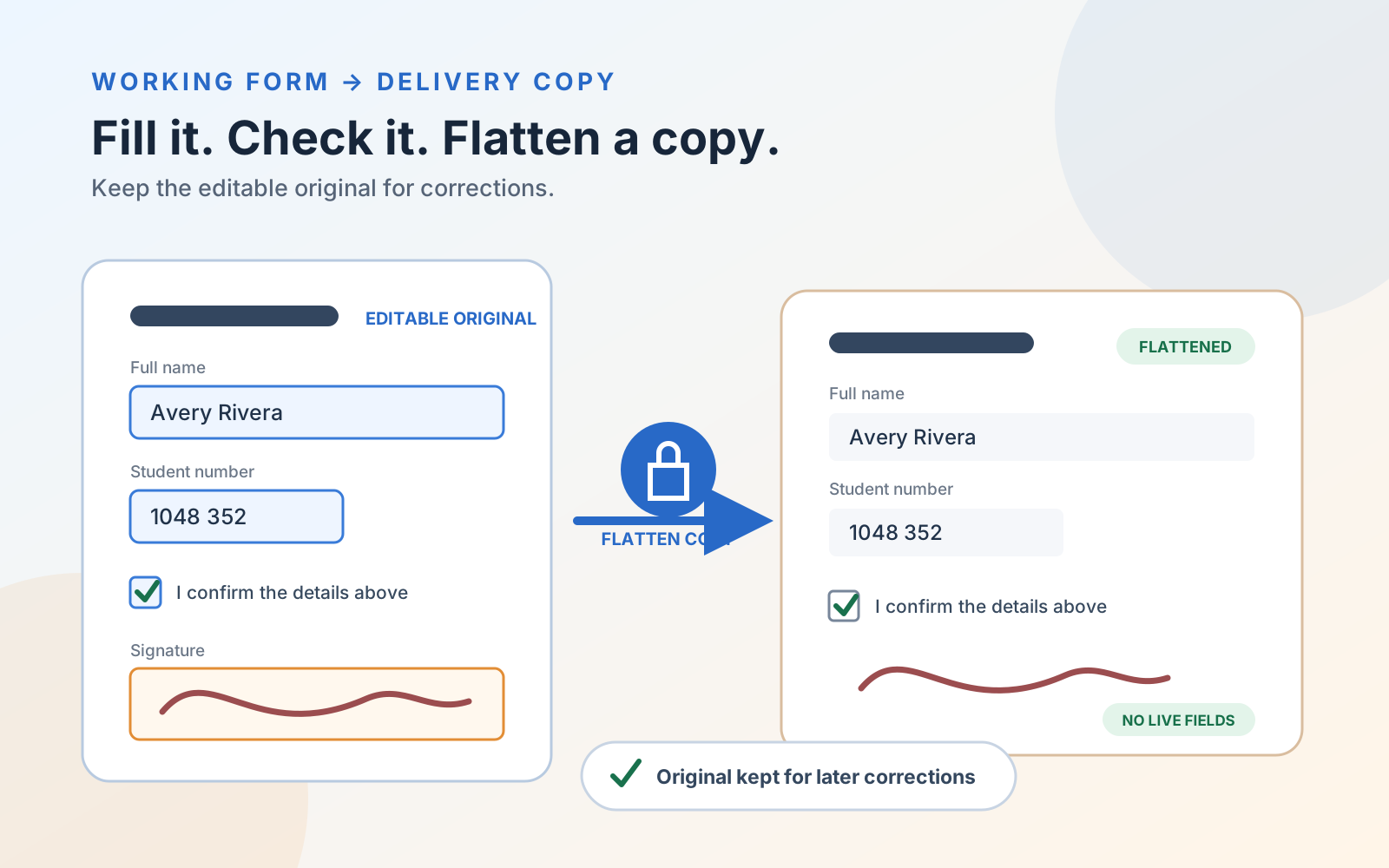
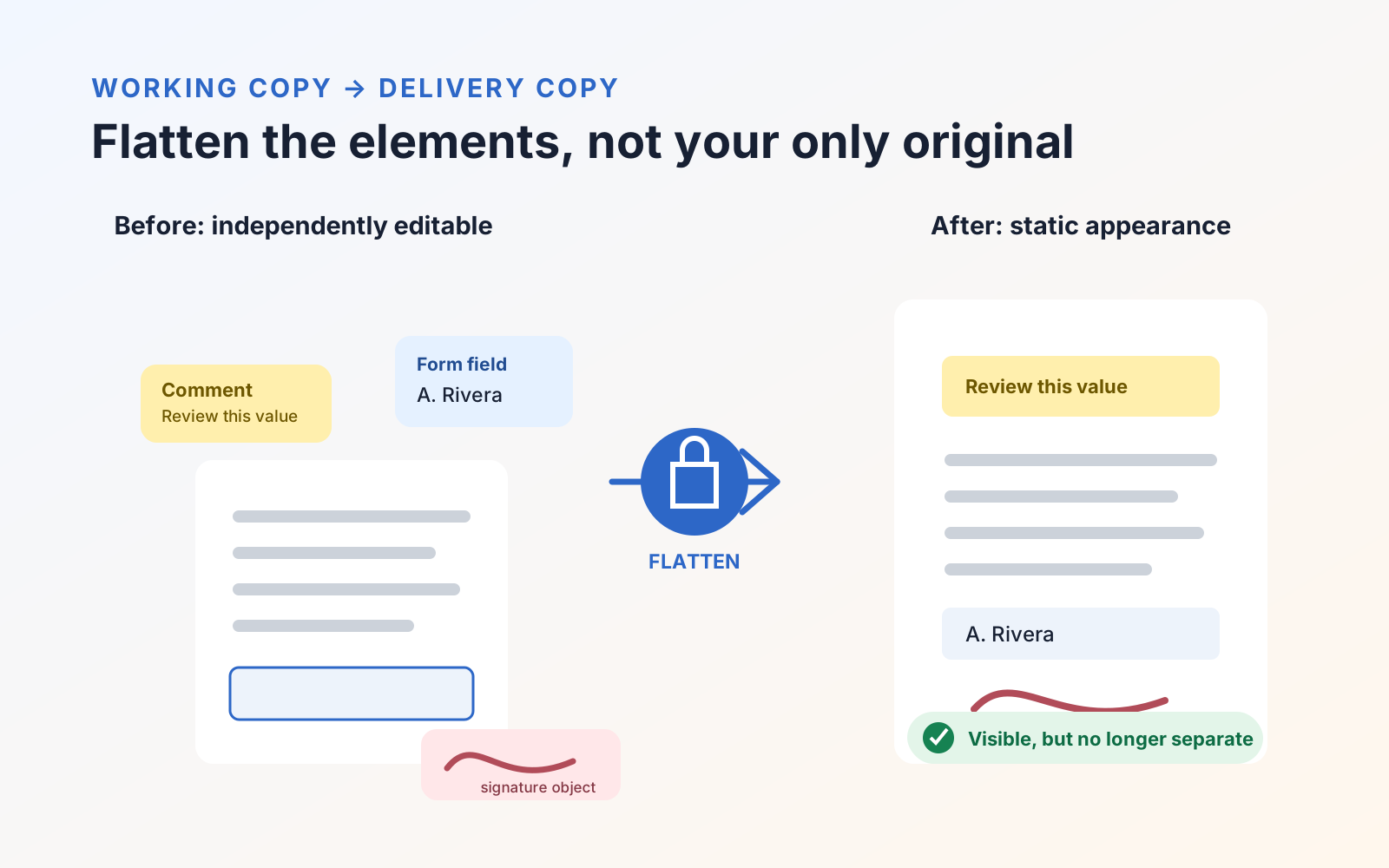
Flattening a PDF incorporates supported annotations and filled form appearances into the page content. The marks and values remain visible, but they stop behaving as the original editable annotation and field objects.
Use a flattened copy when you want to deliver a completed form or marked-up document with a stable appearance. Keep the editable original for corrections. Flattening does not make all page content impossible to edit, and it does not replace permanent redaction, password protection, or a cryptographic digital signature.
In PDF Max, Save as Flattened… on Mac, iPad, and iPhone exports the document currently open in the editor, including unsaved changes. It incorporates visible annotations and form widgets into a new PDF and leaves the working document untouched. This guide explains what changes and when that output is useful; the flattened-PDF checklist explains how to test a copy you already have.
What PDF Max Save as Flattened changes
An ordinary working PDF can contain several kinds of information at once:
- original page text, images, and vector graphics;
- comments, highlights, drawings, and stamps;
- text fields, checkboxes, and other form controls;
- placed signatures; and
- links, bookmarks, metadata, attachments, and accessibility structure.
PDF Max renders each page with its visible annotations and form widgets, then writes that result as new page content. The output no longer contains those live annotation and field objects, so a recipient cannot casually move a highlight, change a filled value, or delete a placed signature as the original object type.
The process does not turn each page into a screenshot. Original page text remains vector content and stays selectable and searchable. Page images and graphics also remain PDF page content rather than being reduced to one page-sized bitmap.
There are several deliberate details:
- the export uses the live editor state, so changes that have not yet been saved to the original file are included;
- visible annotations are burned even when their PDF print flag is absent;
- popup note windows are not stamped over the page—the visible comment mark may remain, but its interactive popup and discussion do not;
- the visible crop becomes the output page, so content outside the crop is dropped;
- rotated pages are written upright, with width and height exchanged where necessary; and
- document title, author, subject, and keywords are carried across when present.
When the PDF has no visible annotations or form widgets to burn, PDF Max copies it byte for byte instead of rebuilding it unnecessarily.
How to tell whether a PDF has been flattened
PDF files do not carry one universal flag that proves the whole document is flattened. The most reliable check starts with a known editable original and tests the separate delivery copy: try to select or move an annotation, type into a form field, search and copy original page text, open links or comments, and compare the appearance in a second viewer.
If the intended annotations and fields remain visible but no longer behave as live objects, that is consistent with flattening. It is not proof that confidential content was removed, that every page was rasterized, or that password or signature protections exist. Follow the detailed guide to checking whether a PDF is flattened for a repeatable diagnostic and the limits of each test.
What can be removed from the new copy
When flattening does rebuild pages, live annotations and form fields are removed by design. Link annotations, bookmarks or outlines, tagged accessibility structure, and other non-page interaction do not survive that re-render. The source document's password or permission encryption should not be assumed to survive either.
That does not make the output defective; it makes it a delivery copy with different priorities. It does mean you should test required links, navigation, accessibility, and security settings before sending it.
When a flattened copy is useful
Flatten after the review or completion stage when:
- a filled form should be delivered as a completed record;
- comments, drawings, or stamps should no longer be casually moved or deleted;
- a signature's visible placement must remain with the page;
- a print service or recipient's viewer handles interactive elements inconsistently; or
- you want a static copy that represents a particular review state.
Keep the unflattened original. A future correction is much easier when the fields and annotations remain editable in a separate working file.
When not to flatten
Do not flatten the only copy when:
- reviewers still need to reply to comments or move annotations;
- recipients must complete or reset form fields;
- the file is a reusable form template;
- a formal digital-signature workflow must preserve and validate its own signature data; or
- the output's accessibility, links, bookmarks, layers, or other interactive behavior has not been tested.
Flattening a cryptographically signed PDF turns the visible signature appearance into page content; it does not preserve the signature field as independently verifiable cryptographic evidence. Flattening can also make later changes harder. It should be a deliberate release step, not an automatic response to every PDF problem.
Flattening is not compression, protection, signing, or redaction
| Operation | Primary purpose | What it does not guarantee |
|---|---|---|
| Flattening | Makes supported interactive page elements static in a delivery copy | Smaller file size, removal of confidential content, or proof of signer identity |
| Compression | Reduces file size by optimizing stored content | Permanent annotations or removal of sensitive information |
| Password protection | Restricts opening or selected operations according to the PDF's security settings | That an authorised recipient cannot copy or redistribute what they can view |
| Digital signing | Provides cryptographic evidence about document integrity and signer credentials | That every visible mark is flattened or every secret is removed |
| Redaction | Removes selected underlying content from the released PDF | A smaller file or continued editability of marked material |
If information must be gone rather than merely fixed in place, use the permanent PDF redaction workflow.
How to use Save as Flattened in PDF Max
First preserve the editable original. Then use the command for your device:
- Mac: choose File → Save as Flattened…. The same command is also available from the title-bar overflow menu.
- iPad or iPhone: open the document menu in the editor's top bar and choose Save as Flattened….
PDF Max suggests a new name based on the original, ending in Flattened.pdf. Choose the destination in the save panel or document picker, wait for the saved-copy confirmation, then reopen that exact file for verification.
Verify the flattened result
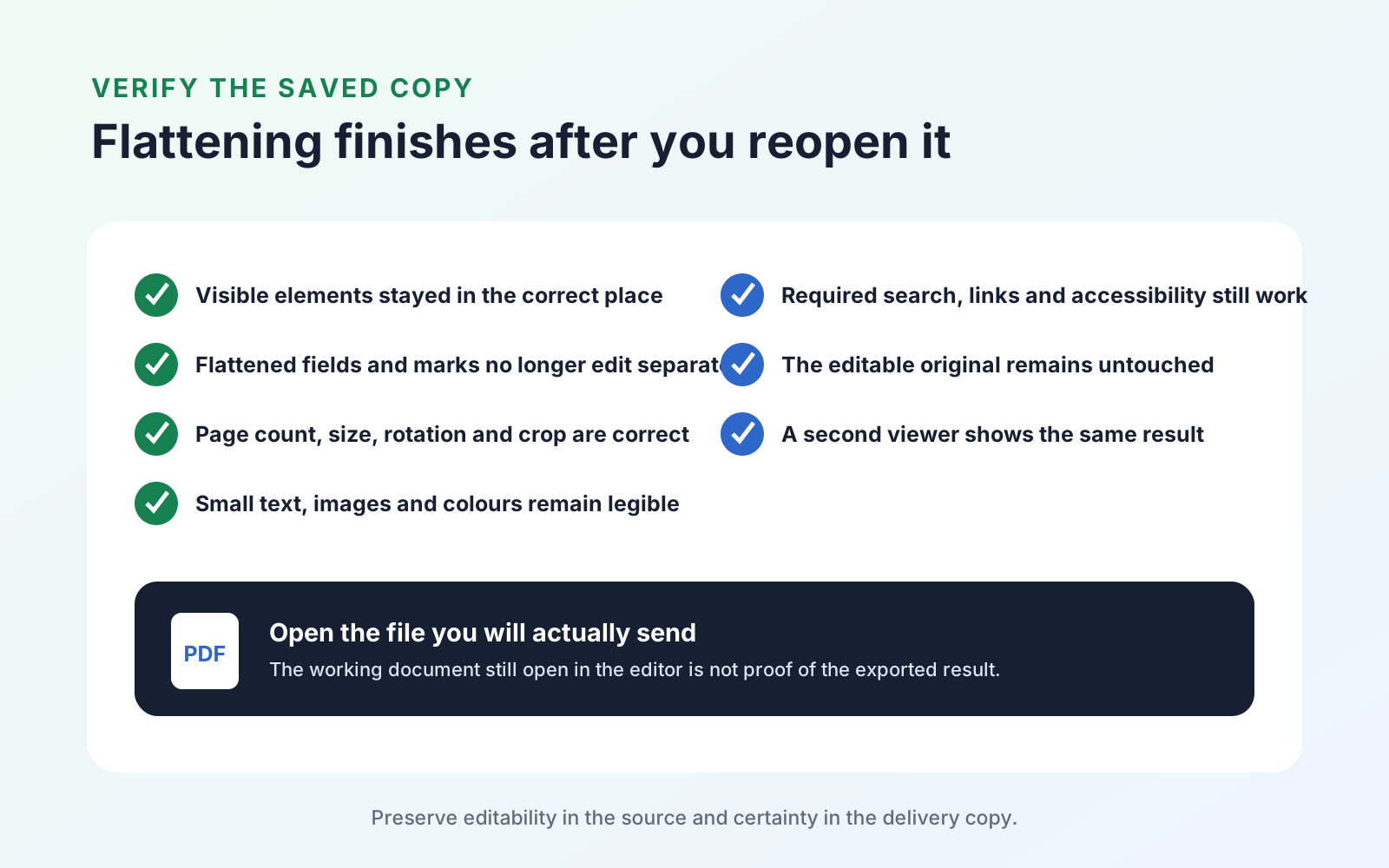
Reopen the exact file you intend to share and confirm:
- Highlights, drawings, stamps, visible comment marks, signatures, and form values appear in the correct places.
- Those flattened elements can no longer be selected and changed as their original annotation or field types.
- Original page text can still be selected and found with search.
- Every page is present with the expected upright orientation, dimensions, and visible crop.
- Small text, images, transparency, and colors remain legible.
- Required links, bookmarks, accessibility behavior, and password protection are present—or their removal is acceptable for this delivery copy.
- The unflattened source still opens with its editable fields, annotations, comment details, and signature data intact.
- A second PDF viewer shows the same delivered appearance.
A flattened PDF is successful only when the static copy preserves what should be visible and the separate working original preserves what may need editing later. For the complete Free delivery job, follow the workflow to fill, sign, review, and flatten an existing PDF form. If flattening is only one part of the problem, the five-problem PDF diagnostic distinguishes it from editing, compression, OCR, form authoring, and redaction. Review the wider editing and delivery toolset on the PDF Max product page.