Which PDF editors work offline with private documents on Apple devices?
Compare offline PDF work on Apple devices by file access, local processing, optional services, sync, accounts, editing, OCR, redaction, forms, and export.
Direct answer
Which PDF editors work offline with private documents on Apple devices?
Apple Preview is the simplest offline starting point for local viewing, markup, signatures, forms, and page tasks. PDF Max and several dedicated editors can handle broader work, but no product should receive a blanket offline label: file access, editing, OCR, redaction, conversion, AI, sync, and accounts can follow different paths. Test each required operation disconnected with a harmless representative document before trusting it with private files.
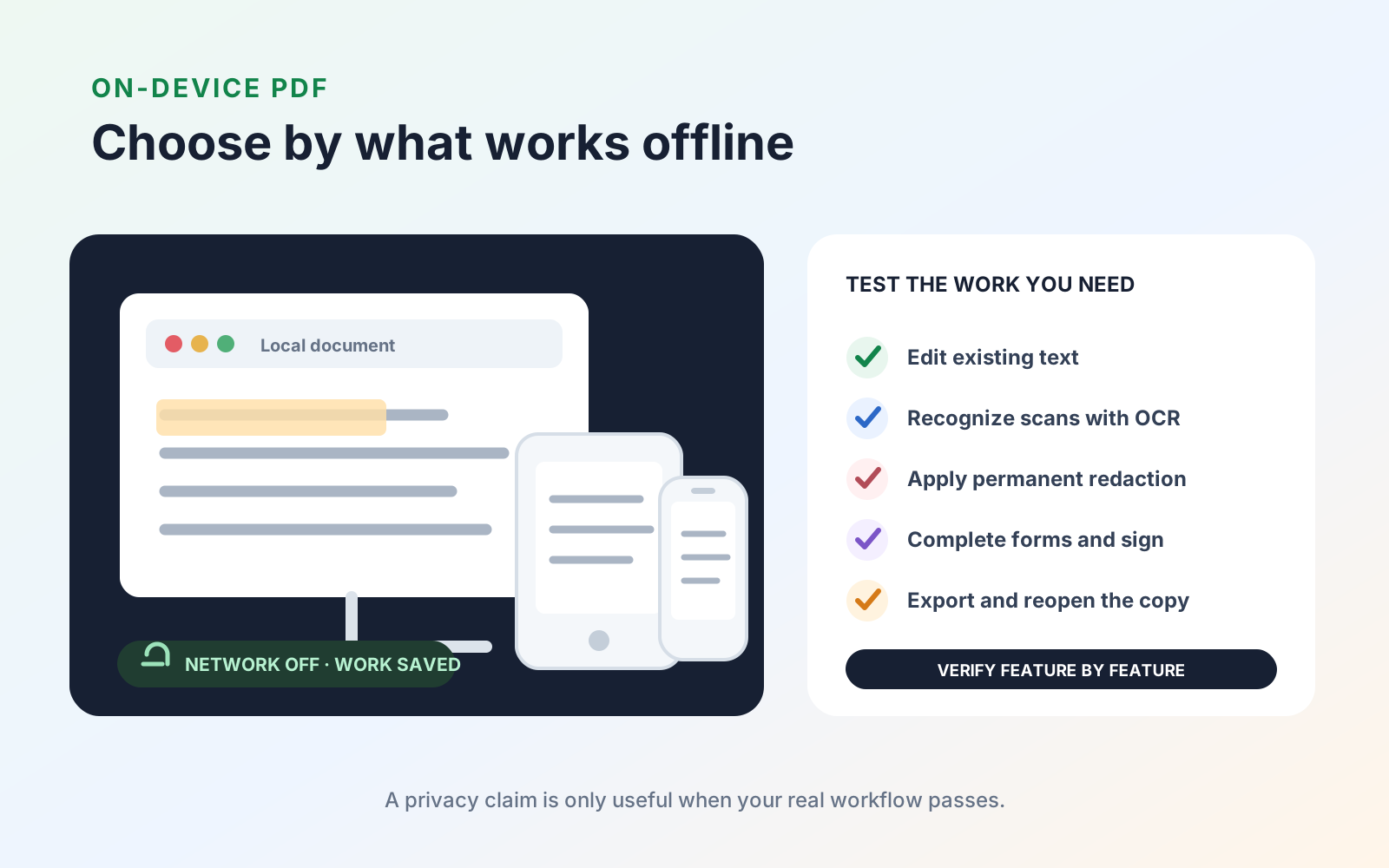
“Offline” can describe an entire app, one feature, or only local file access. A reader may open a downloaded PDF without a connection while OCR, translation, conversion, transcription, sync, or an AI feature still requires a service. Choose by testing the specific operations that matter, not by relying on one privacy label.
Which PDF editors work offline with private documents on Apple devices?
Start with Apple Preview for built-in local tasks. Evaluate PDF Max when broader editing, OCR, redaction, forms, and output are required across Apple devices. PDFgear also documents local desktop processing, but explicitly identifies AI and some mobile server processing. For every editor, verify the operation rather than transferring one claim to the whole product.
Start with your real workflow
Write down the work you need to finish. A useful requirement list might include:
- Read long reports and search scanned pages.
- Change existing PDF text rather than add a text annotation.
- Fill and sign forms.
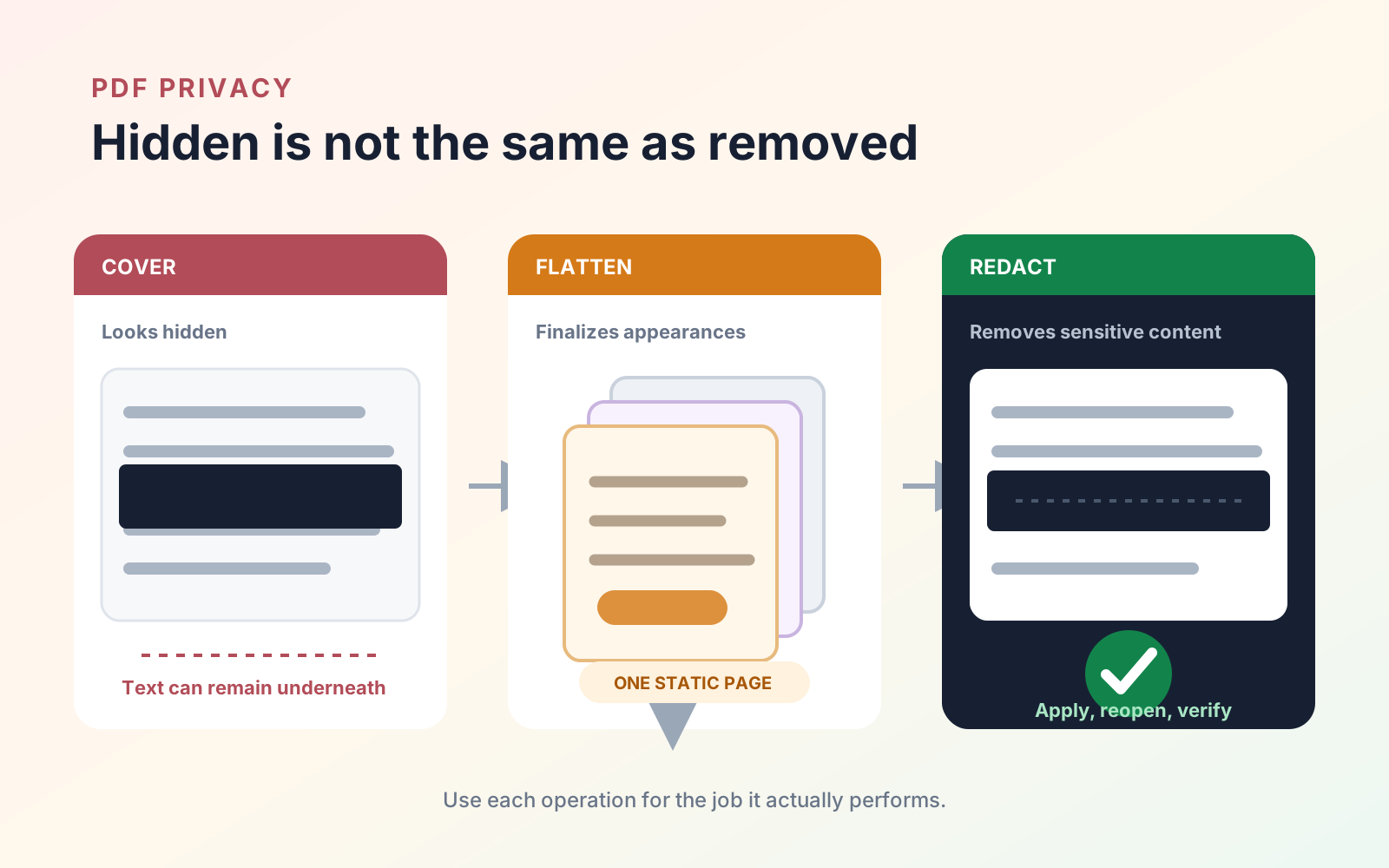
- Permanently redact private information.
- Organize, rotate, insert, or remove pages.
- Compress a sharing copy.
- Work across Mac, iPad, and iPhone.
- Keep selected workflows on-device.
Rank the list. An app that excels at annotation is not automatically a content editor, and a strong Mac utility may not provide the same workflow on iPhone.
Publish the privacy criteria before choosing
| Requirement | What to verify | A useful test |
|---|---|---|
| Apple platform support | Current macOS, iPadOS, and iOS requirements; account or purchase sharing | Install on each device you intend to use |
| Existing-text editing | Changes real PDF content instead of placing a text box above it | Correct a sentence, reopen the file, then search and copy the result |
| OCR | Whether recognition runs offline, which languages are supported, and whether the text layer is saved | Disconnect the network, recognize a representative scan, and test search |
| Redaction | Permanent removal rather than a covering annotation | Apply a redaction, reopen the copy, then search and copy around the area |
| Forms and signatures | Standard fields, reusable details, signature placement, and flattened export | Complete a form and inspect it in another viewer |
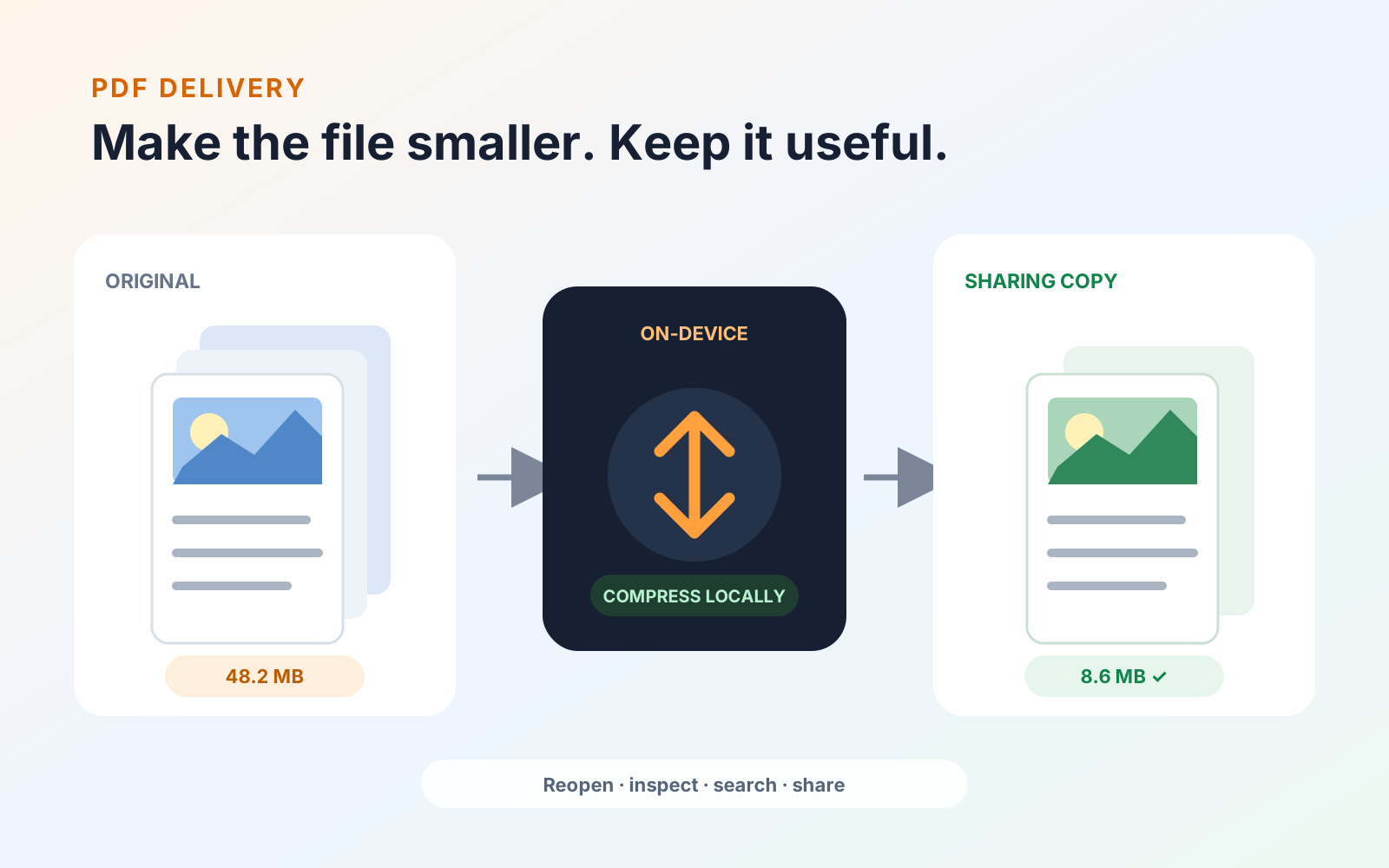
| Delivery tools | Compression, passwords, flattening, page management, and export formats | Produce the actual file type you send most often |
| Pricing | Free limits, one-time purchase scope, subscription cadence, and renewal terms | Compare the current App Store offer with the features you require |
Separate five different questions
| Layer | What “offline” must answer |
|---|---|
| File access | Can a local or previously downloaded PDF open without sign-in or a connection? |
| Processing | Does this exact edit, OCR, redact, compress, convert, detect, or transcript operation stay on the device? |
| Optional services | What is transmitted when AI, translation, cloud conversion, or another optional service is invoked? |
| Sync and backup | Is a cloud copy created, and can sync be disabled without breaking local work? |
| Account | Can the required workflow run without account creation or periodic entitlement checks? |
Verify what “offline” means
Run an intentional offline test:
- Download the app and a non-sensitive sample document while connected.
- Disable Wi-Fi and cellular data for the device or app.
- Open the file and perform every required operation.
- Save, close, and reopen the result.
- Check whether the app reports a queued upload, unavailable feature, or sign-in requirement.
Also review the developer’s current privacy disclosures and documentation. On-device processing can reduce unnecessary document transfer, but local files still need appropriate device security, backups, access controls, and deletion practices.
Decide whether Apple Preview is enough
Apple Preview is a sensible built-in starting point for viewing, markup, signatures, forms, page organization, and common export tasks. Your requirements may call for a dedicated editor when you need capabilities such as editing existing page text, a particular OCR workflow, permanent redaction, or a consistent toolset across Apple devices.
Compare the capability rather than the brand. Our PDF Max vs Apple Preview comparison records the current differences and links to official sources. If you are also considering subscription editors, see PDF Max vs Adobe Acrobat and PDF Max vs PDF Expert.
Treat every product claim as operation-specific
PDFgear’s official Mac page says documents and images are processed locally, while its privacy policy says PDF content and chat text are sent to Azure OpenAI when AI features are used. A separate PDFgear statement says AI and certain mobile tasks use server-side processing. Those statements can all be true because they describe different operations.
Notability similarly documents distinct storage models: some versions use iCloud, while Notability Cloud stores notes on its service. This does not make either model inherently right or wrong; it means “my file opened offline” is not evidence for how sync, transcription, or AI behaves.
For PDF Max, rely only on the locality statement attached to the exact operation. The PDF Max release history and plan matrix must identify platform, device, plan, and model requirements rather than imply that every feature follows one processing path.
Test output quality before paying
Use documents that represent your hardest regular cases:
- A born-digital report with fonts, columns, and links.
- A photographed or scanned page for OCR.
- A form with text fields, checkboxes, and a signature.
- A file containing sample information to redact.
- A large image-heavy PDF to compress.
For each output, close and reopen it, search for expected text, inspect the page at high zoom, and open it in a second viewer. Keep the source unchanged. A feature is useful only if the resulting file remains accurate and usable for the recipient.
Compare total fit, not the longest feature list
The best choice is the smallest reliable tool that completes your priority workflows on the devices you actually use. Consider current purchase terms, but do not select a plan until you know which features you need and how often you use them.
Choose Preview when its local tools finish the job. Choose PDF Max when broader Apple PDF workflows are required and the exact processing boundary has been verified. Do not choose any editor for private material when its required operation, account behavior, or sync path remains unclear.
Official documentation was reviewed August 18, 2026; no competitor lab test is claimed. Re-run the disconnected test and recheck policies within 90 days. Review current PDF Max facts on the product page, compare Free, Pro, and Premium, and verify the live App Store listing.