PDF redaction vs flattening vs covering: what actually removes content?
Understand the security difference between permanent PDF redaction, flattening annotations, and visually covering information before you share a file.
Direct answer
What is the difference between redacting, flattening, and covering content in a PDF?
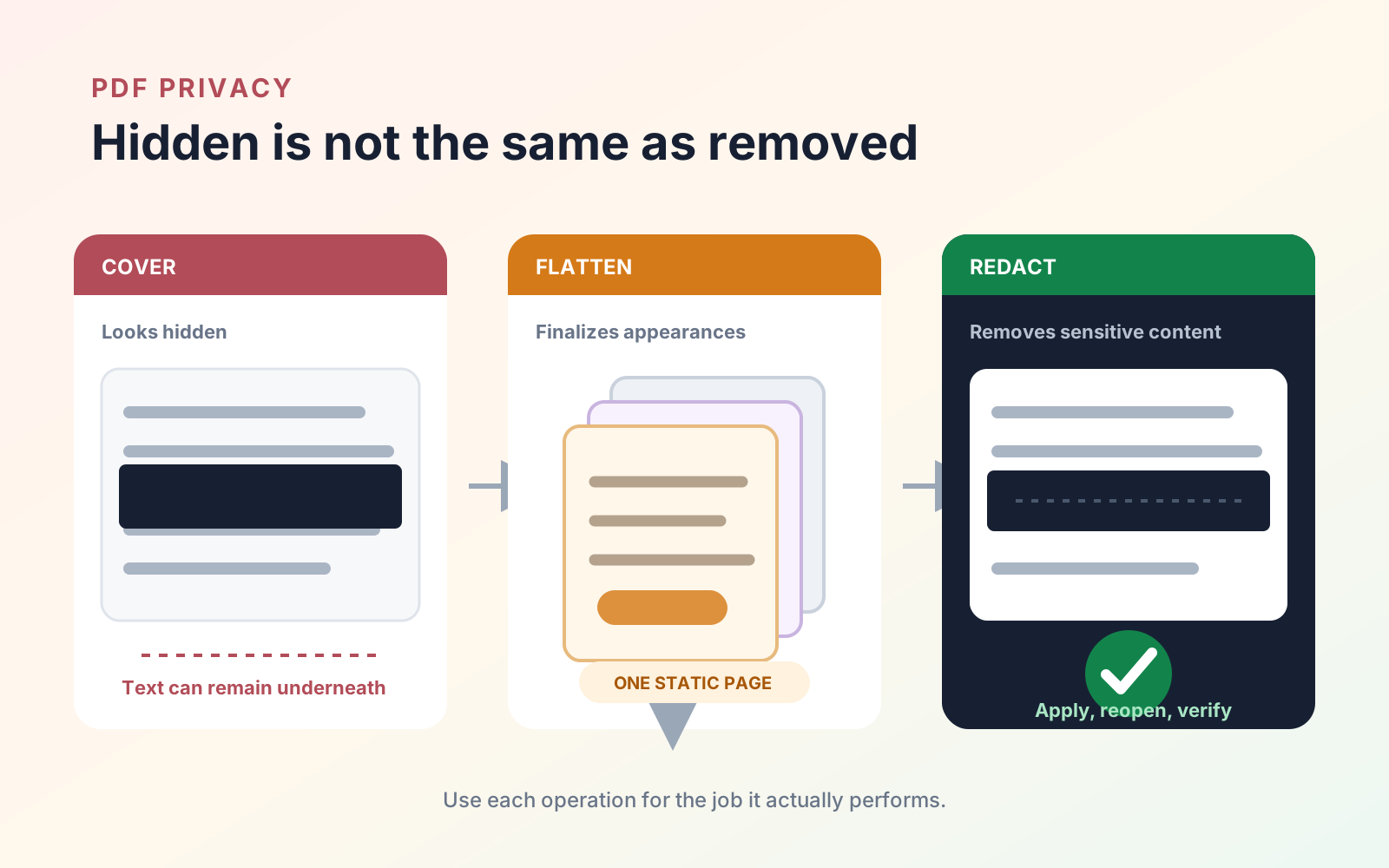
Redaction is the appropriate process for permanently removing sensitive PDF content. Covering content with a shape or highlight only changes what is visible and can leave the original text searchable or recoverable. Flattening converts supported annotations or form fields into static page content, but it does not prove that information underneath was removed. Always verify a redacted copy before sharing it.
Redaction, flattening, and covering can make a PDF look similar on screen, but they solve different problems. The important question is not whether the sensitive words are hidden at first glance. It is whether the information remains in the file and can be found by searching, copying, moving an object, inspecting a layer, or opening the PDF in another viewer.
The difference at a glance
| Method | What it does | Appropriate use | Security limitation |
|---|---|---|---|
| Permanent redaction | Removes selected content and replaces the area with a redaction appearance | Names, account numbers, confidential paragraphs, or images that must not be disclosed | Must be applied and verified; a pending redaction mark is not the finished result |
| Flattening | Converts supported annotations or form appearances into static page content | Finalizing comments, signatures, stamps, or completed fields for consistent display | Does not establish that page content behind an annotation has been removed |
| Covering | Places a shape, image, or highlight over existing content | Visual design or temporary review markup | The original content can remain searchable, selectable, or recoverable |
The methods are not interchangeable. If disclosure would cause harm, use a tool designed for permanent redaction rather than relying on appearance.
Why a black rectangle is not a redaction
PDF pages can contain multiple independent objects. A black rectangle may sit above a text object while the text remains intact below it. Someone receiving the file may be able to select the hidden words, copy them, search for them, remove the rectangle, or extract the page content with another tool.
The same warning applies to changing text color, cropping the visible page, or drawing over an image. These operations can alter the presentation without deleting the underlying data.
What flattening does—and does not do
Flattening is useful when a recipient should see a stable final appearance. It can merge supported comments, stamps, form values, or signatures into the page so they no longer behave like editable annotations or fields.
That is different from removing information. If an opaque annotation covers text and the PDF is flattened, the resulting page may look protected, but flattening alone is not evidence that the text underneath was deleted. The result depends on the objects in the source PDF and the flattening implementation.
Use flattening for delivery and compatibility. Use redaction for removal. Our guide to what flattening a PDF does explains the delivery workflow in more detail, and the flattened-PDF diagnostic shows what to test in the output.
A safer redaction workflow on Apple devices
For a PDF that contains sensitive information:
- Keep the original in a controlled location and work on a copy.
- Open the copy in a PDF editor with a permanent redaction feature.
- Mark every text, image, or page region that must be removed.
- Review the full document for repeated names, headers, footers, attachments, comments, and form values.
- Apply the redactions and save a new sharing copy.
- Close and reopen the sharing copy before testing it.
PDF Max includes redaction on supported Apple devices. The detailed steps are in How to permanently redact a PDF on Apple devices.
How to verify the sharing copy
Verification should try to disprove that the file is safe:
- Search for every removed name, number, and distinctive phrase.
- Drag across each redacted area and try to copy its contents into a plain-text editor.
- Inspect the page at high zoom for fragments around the edge of the redaction.
- Open the file in a second PDF viewer and repeat the search.
- Confirm that comments, attachments, form fields, and document properties do not disclose the same information elsewhere.
- Send only the verified copy—not the source file or a file with pending marks.
For highly sensitive, regulated, or legally significant material, follow your organization’s approved handling process and have another authorized person review the output.
Which method should you choose?
- Choose redaction when information must be permanently removed.
- Choose flattening when annotations or completed fields need a stable, non-interactive appearance.
- Choose a covering shape only as visual markup, never as a confidentiality control.
- Use both redaction and flattening when a delivery copy needs removed content plus finalized annotations or forms—but perform and verify each operation for its own purpose.
The PDF Max product page describes the editing, protection, and delivery tools available across Mac, iPad, and iPhone. If you are deciding which plan includes the workflows you need, see the Free, Pro, and Premium comparison.