How to rearrange PDF pages on iPhone, iPad, and Mac
Reorder PDF pages in Mac Preview, on iPhone or iPad, or in PDF Max. Follow local thumbnail steps, keep the original, and check the saved page order.

Direct answer
How can you rearrange PDF pages on an iPhone, iPad, or Mac without uploading the document?
On Mac, open a copy in Preview, choose View → Thumbnails, drag the pages into order, and save. On iOS 26 or iPadOS 26, move thumbnails in Preview’s sidebar. In PDF Max on Mac, use Edit PDF → Pages → Move Page for a numbered destination. Reopen the saved copy and check the page count and sequence.
On a Mac, open your PDF in Preview → View → Thumbnails, then drag a page thumbnail to its new position and save. On iPhone and iPad with iOS 26 or iPadOS 26, use Preview’s thumbnail sidebar. In PDF Max, open Edit PDF → Pages for Move Page and Reorder Pages.
Start with a duplicate so the original order is still available. Reordering changes the sequence; it should not change the page count.
Use Apple Preview for a quick built-in reorder
Preview can rearrange pages locally. Start with a duplicate of the PDF so you can return to the original order if needed.
Reorder PDF pages in Preview on Mac
- Open the working copy in Preview.
- Choose View → Thumbnails or View → Contact Sheet to show the pages.
- Select the thumbnail of the page you want to move. Select several thumbnails to move a group.
- Drag the selection to its new position in the page list.
- Save, close, and reopen the copy. Check the first page, last page, and each moved page against the intended order.
Preview also supports moving pages between two open PDFs. For the built-in controls, see Apple's Mac Preview page-management guide.
Rearrange PDF pages on iPhone or iPad
Use Preview on iOS 26 or iPadOS 26:
- Open a copy of the PDF in Preview.
- Show the sidebar with the page thumbnails.
- Touch and hold the thumbnail of the page you want to move.
- Drag it above or below another thumbnail to change its position.
- Reopen the saved copy and check the new sequence before sharing.
The thumbnail menu also provides other page actions. Apple's iPhone Preview instructions describe moving, inserting, deleting, rotating, and cropping pages.
Keep using Preview when its page tools cover the job. The PDF Max versus Apple Preview comparison explains where the two workflows differ beyond reordering.
Rearrange pages in PDF Max on Mac
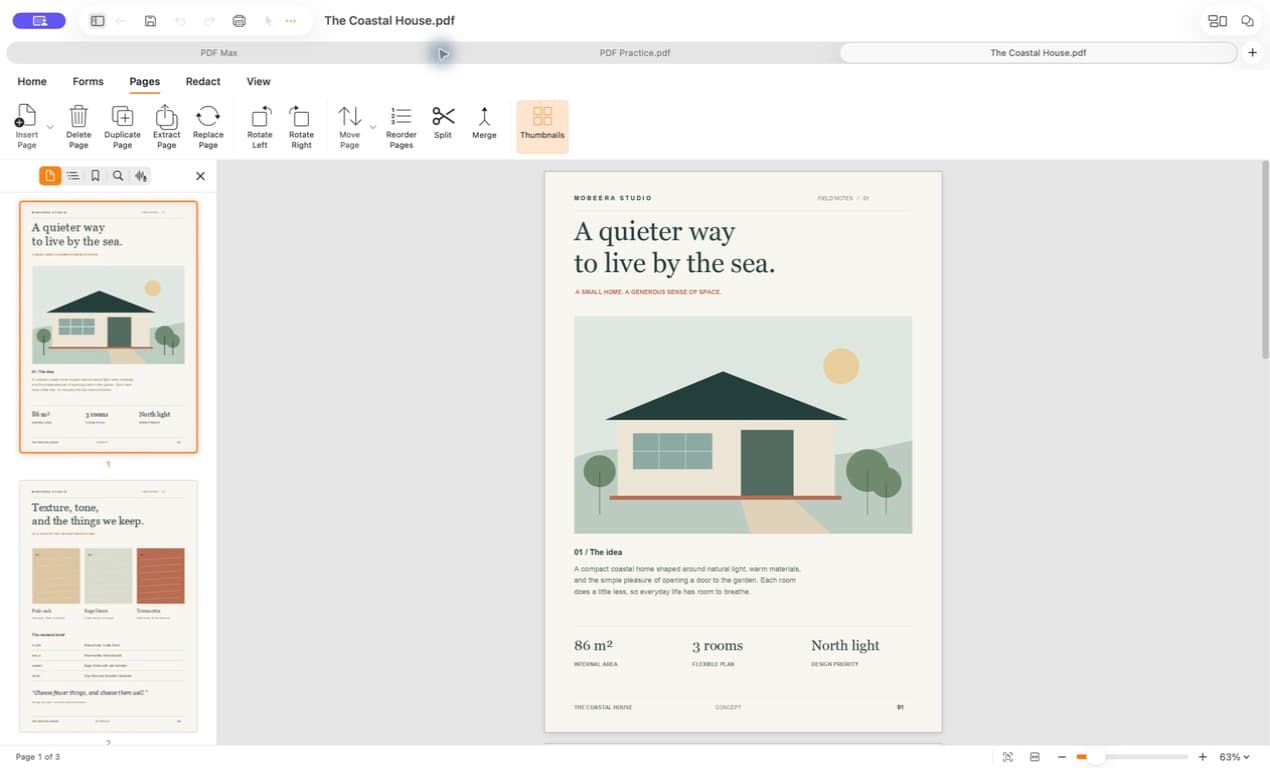
Open a working copy in PDF Max, choose Edit PDF, then open Pages. Moving and reordering pages require Pro or Premium. See features and plans for the other page tools.
Choose Move Page when you know the destination page number. Choose Reorder Pages to see the whole document in a thumbnail sheet.
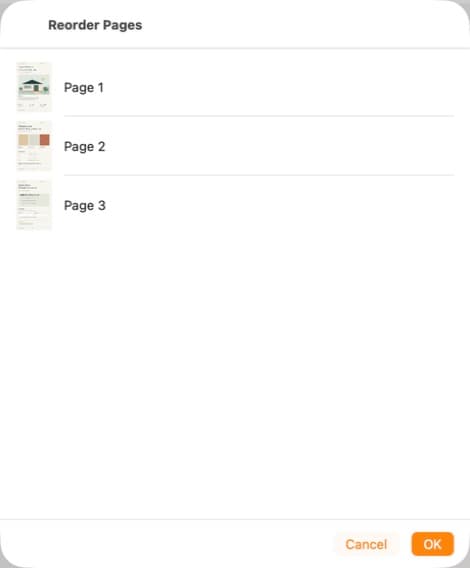
The reorder sheet begins with every current page represented once. Arrange the draft, review it from first page to last, and apply it only when no page is missing or duplicated.
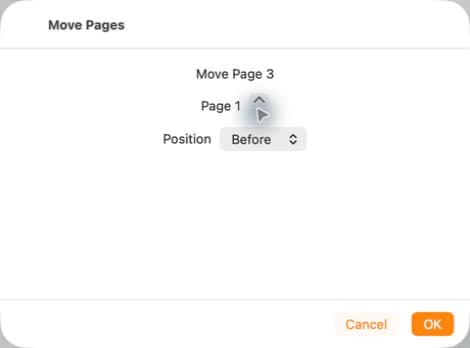
Example: bring the cover from page 3 to page 1
Select the cover thumbnail, choose Move Page, set the destination to Page 1 and Before, then choose OK. Save the copy. The cover should now be first, followed by the materials page and the review page; there should still be three pages.
When you need more than a reorder
Reordering changes the sequence of the existing pages. To save selected pages in another file, follow the page extraction guide. To label the final sequence, see how to add PDF page numbers. Those workflows require Premium in PDF Max.
Verify the organized copy before sharing
Save, close, and reopen the working copy. Confirm the page count stayed the same and inspect the first, last, and every moved page. In this three-page example, the intended order is cover → materials → review.
If the PDF contains form fields, bookmarks, or internal links, test those in the saved copy too. Keep the original until you have checked the result. If the document is digitally signed, check with its sender before changing it.
Use Preview for a quick built-in move. Use PDF Max when arranging pages is part of reviewing and preparing the document for sharing.