How to extract pages from a PDF on iPhone, iPad, and Mac
Save selected PDF pages as a separate file on Apple devices, preserve the original, and verify links, annotations, forms, and protection before sharing.
Direct answer
How can you extract selected pages from a PDF on an iPhone, iPad, or Mac?
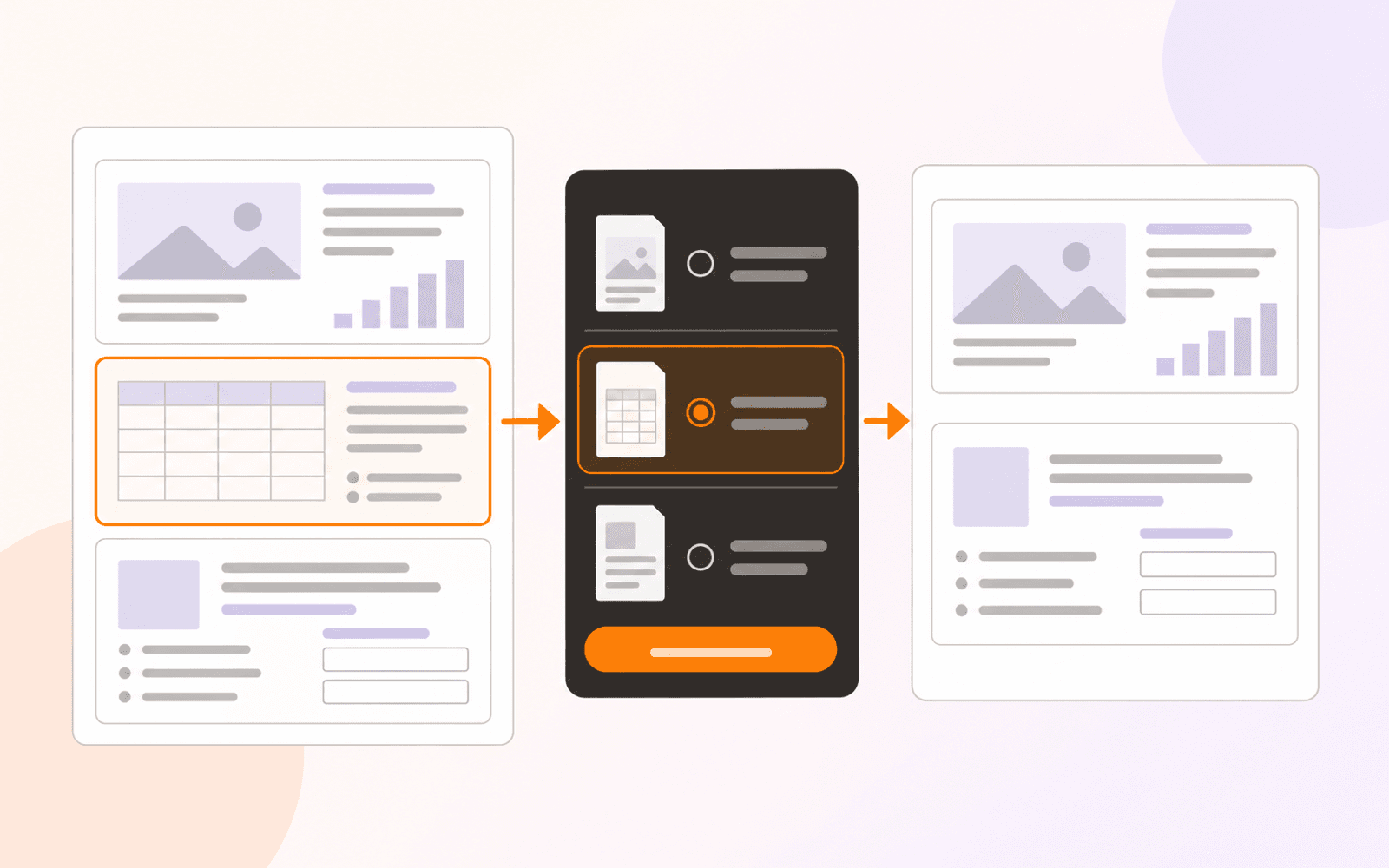
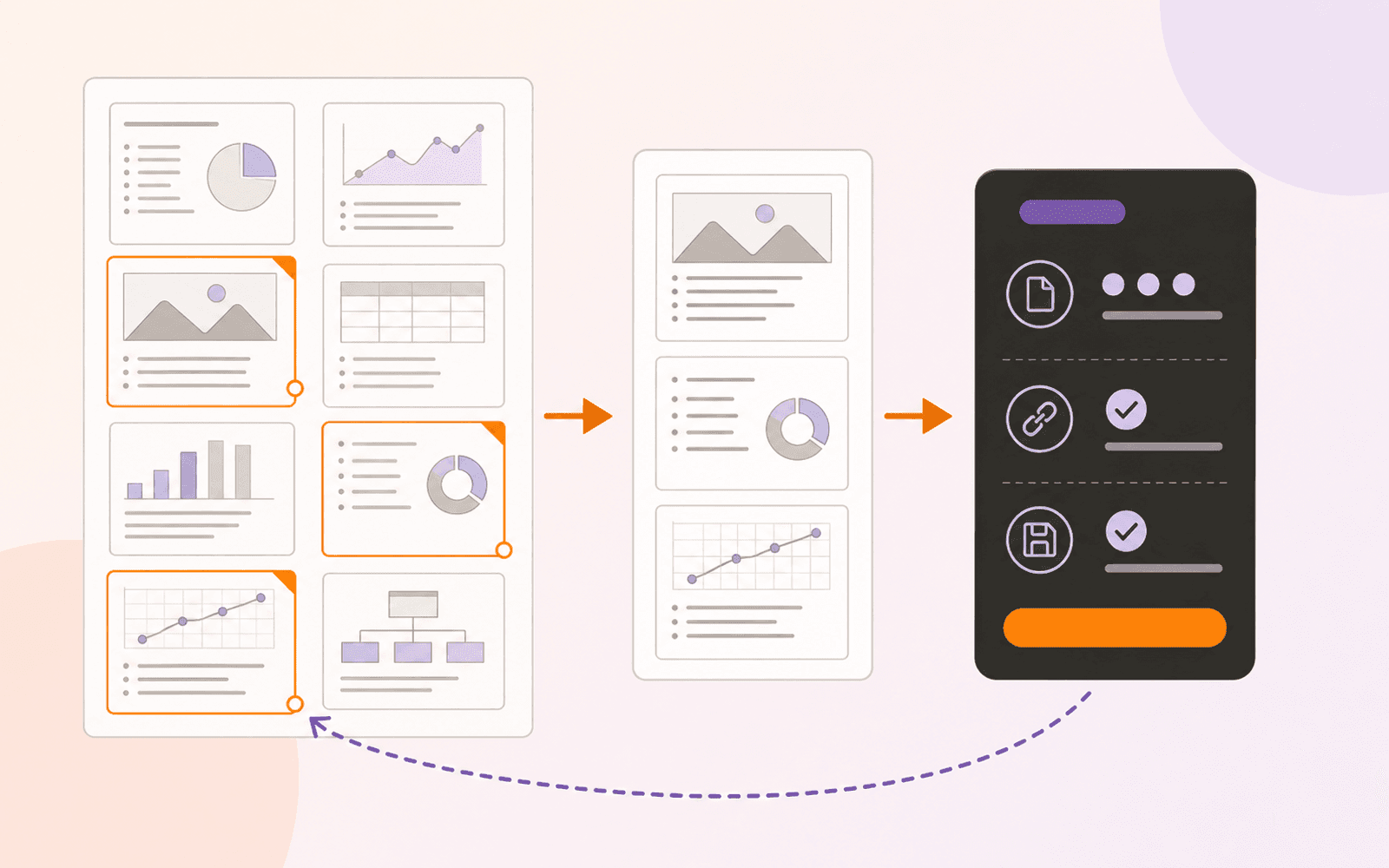
Select the pages by thumbnail, use an Extract Pages action to save them as a separate PDF, and leave the source document intact. On Mac, Preview can create a new PDF by dragging selected thumbnails to the desktop. PDF Max provides the same task across iPhone, iPad, and Mac as a Premium page-composition feature, including non-adjacent page selection and a separate saved output.
A 180-page report may contain only six pages you need to send, cite, print, or review. Extracting those pages creates a separate, smaller PDF while leaving the source document intact. It is safer than deleting everything else from your only copy, and more faithful than taking screenshots of the pages.
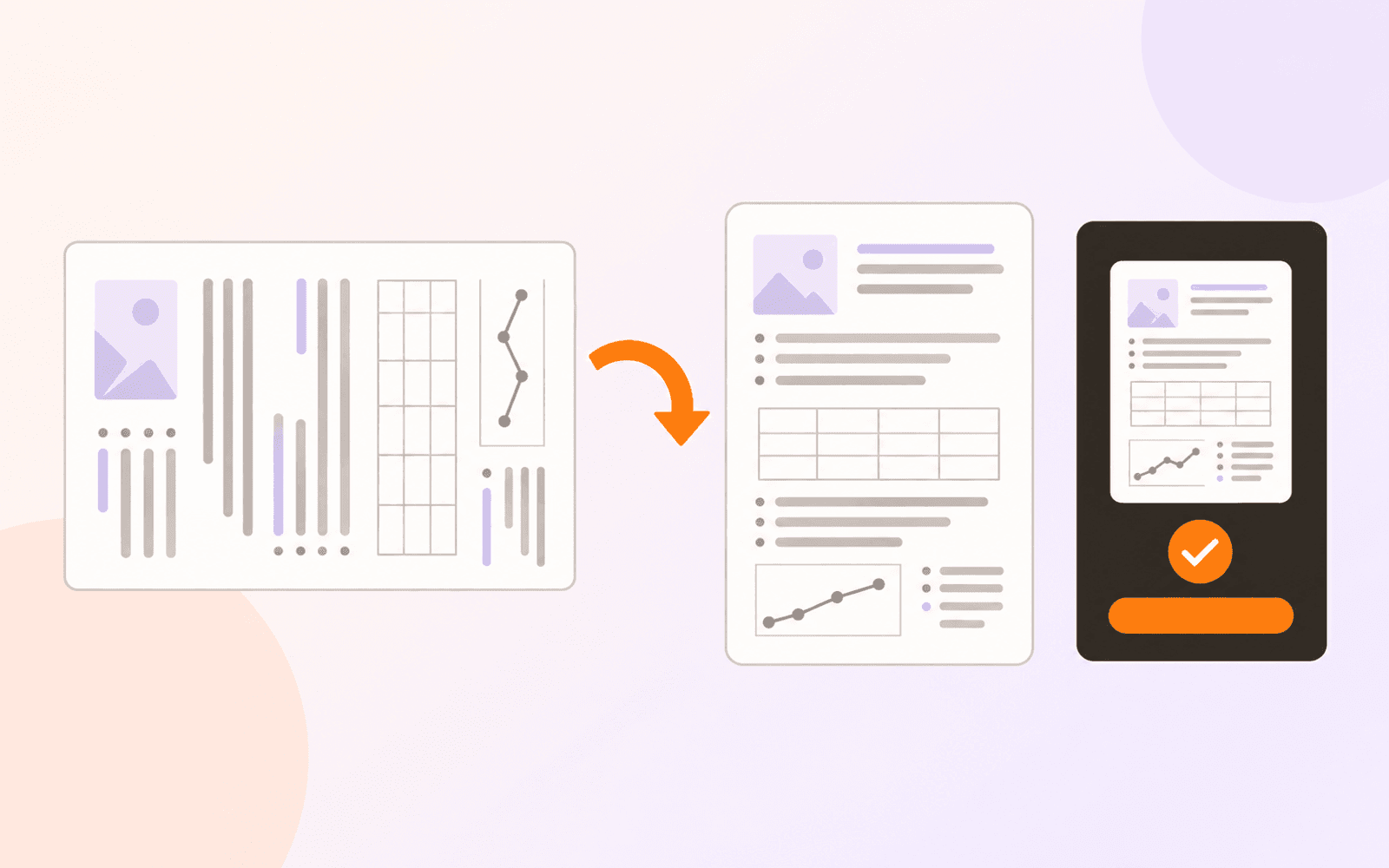
The task is simple, but the finished file still needs a check. A page can contain annotations, form fields, links, media, or references to pages that were not selected. Treat the extracted PDF as a new delivery file rather than assuming every document-level behavior followed it automatically.
Decide whether you need extract, split, or delete
These page operations sound similar but produce different results:
- Extract copies selected pages into one new PDF and keeps the original unchanged.
- Split divides the whole document into two or more new PDFs at chosen boundaries.
- Delete removes pages from the current document.
- Reorder keeps the same page set but changes its sequence.
- Print a range to PDF creates a print-derived file and may not preserve interactive behavior the same way as page extraction.
- Screenshot turns a visible page region into an image and can lose selectable text, links, forms, and the original page dimensions.
Use extraction when the request is “send pages 4, 9, and 12 as one PDF.” Use split when the request is “separate this handbook into chapters.” Use page reordering when the pages belong in the same document but appear in the wrong order.
Use Preview for a quick Mac extraction
Apple documents a built-in route in Preview on Mac. Open the PDF, choose View → Thumbnails or View → Contact Sheet, then select the page thumbnails you need. Drag those thumbnails from the sidebar to the desktop. Preview creates a new PDF from the selected pages.
This is a good choice when you are already on a Mac and only need a straightforward derivative. The selected thumbnails remain in the source PDF; the desktop file is a separate output. Give that output a descriptive name instead of leaving it with an ambiguous automatic filename.
Apple's documented method is Mac-specific. If you need one consistent extraction workflow on iPhone, iPad, and Mac, use a PDF app that exposes page selection and extraction on all three device classes.
Select the exact pages before extracting
Open the source in PDF Max, turn on Edit PDF, and show the Pages tab or thumbnail sidebar. The current page is enough when you are extracting one page. For several pages, select them from the thumbnail view:
- On iPhone or iPad, enter Select mode and tap each required thumbnail.
- On Mac, Command-click non-adjacent thumbnails or Shift-click a continuous range.
Check the selection count before continuing. For a non-adjacent selection, PDF Max writes the pages in their original source order, not the order in which you tapped them. If the desired output needs a different sequence, extract first, inspect the new file, then deliberately reorder its pages.
Visible page numbers can be misleading. A report cover may be the first PDF page while the printed footer begins at “1” several pages later. Select by thumbnail content and position, not only by a number printed inside the page.
Extract the pages as a separate PDF
With the intended thumbnails selected, choose Extract Page from the Pages ribbon or the thumbnail actions. The label is singular in the ribbon, but the action uses the complete current selection.
PDF Max first exports the live document so edits in the open session are included, then writes only the selected pages to a new PDF. On Mac, choose the filename and save location. On iPhone or iPad, use the export sheet to save the generated PDF to Files or another destination you control.
Extraction does not remove the selected pages from the source. If the real goal is to shorten the original as well, verify the extracted copy first, then return to the source and delete unwanted pages as a separate decision.
Know the plan and platform requirements
Extracting, replacing, splitting, and merging pages are Premium page-composition capabilities in PDF Max. They are available on iPhone, iPad, and Mac with Premium in either PDF Max app. They do not require Apple Intelligence, a language model, or a model download.
Current-document organization has a different boundary. Deleting, duplicating, rotating, moving, and reordering pages already in the PDF are Pro capabilities. The distinction matters because extraction creates a new derivative file rather than only rearranging the open document. The complete breakdown is available in the Free, Pro, and Premium comparison.
Verify the extracted PDF, not just the thumbnails
Open the new file from its saved location and test the output itself:
- Confirm that the page count matches the number you selected.
- Compare the first and last extracted pages with the source.
- Check that non-adjacent pages appear in the intended order.
- Search for a phrase and copy a sentence to confirm text remains usable.
- Open representative annotations and comments.
- Test web links and any internal link that should still point to an included page.
- Try one representative form field if the source contains an interactive form.
- Open the file in a second PDF viewer before sending it.
An internal link to an omitted page cannot lead to useful content in the smaller file. An outline built for the full report may also be incomplete or irrelevant after extraction. Remove misleading navigation or include the pages it depends on.
If the source was password-protected, do not assume the derivative has the same protection. Test the new file from a closed state. When the extracted copy also needs an open password, apply and verify protection on that copy using the password-protection workflow.
Name and deliver the smaller file clearly
Use a filename that identifies both the source and the purpose, such as project-report-appendix-a.pdf or course-reader-week-4.pdf. Avoid a bare name such as pages.pdf, especially when several extractions will be stored in the same folder.
Then run the broader final document review checklist: confirm the filename, page count, links, comments, protection, and exact file you are about to send.
Open one long PDF in PDF Max, select only the pages a recipient needs, and save them as a separate PDF. Reopen that output, verify every selected page and active element, then share the smaller file while keeping the source safely unchanged.