PDF Max vs Apple Preview: which PDF workflow fits you?
Compare PDF Max and Apple Preview for reading, annotation, signing, page organization, editing, OCR, redaction, and cross-device work.
Direct answer
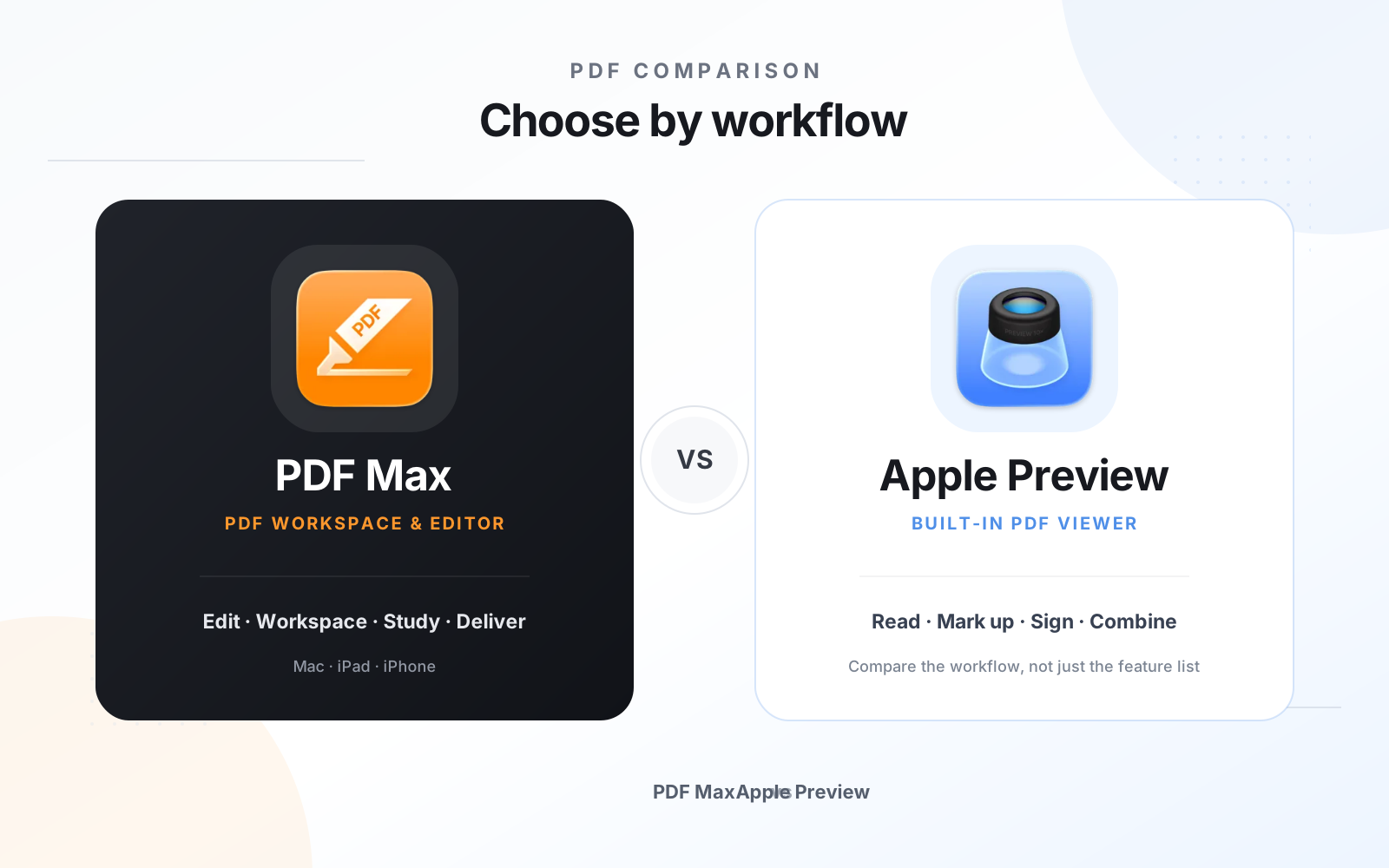
When is Apple Preview enough, and when do you need PDF Max?
Use Apple Preview for built-in Mac viewing, straightforward annotation, signatures, and basic page organization. Choose PDF Max when the work requires editing existing page content, OCR, permanent redaction, form authoring, compression, translation, research tools, or a consistent workflow across Mac, iPad, and iPhone. The right choice depends on the task, not a universal winner.
Apple Preview is a capable built-in choice for everyday PDF jobs. PDF Max is intended for people whose work goes beyond those basics into document editing, form creation, OCR, permanent redaction, and longer cross-device workflows.
The useful question is not which app wins every category. It is whether your PDF task ends with reading and markup, or whether the document itself needs to be changed, transformed, or protected.
The short answer
Choose Apple Preview when you are on a Mac and mainly need to open a PDF, add a signature, highlight text, combine files, or rearrange pages with tools already included with the system.
Choose PDF Max when you need the same workspace on Mac, iPad, and iPhone, or you regularly edit existing PDF content, recognize scanned text, build forms, translate or listen to long documents, and permanently remove sensitive information.
Capability comparison
| Criteria | PDF Max | Compared app |
|---|---|---|
| Everyday reading and markup | Reading, highlighting, comments, drawing, stamps, and threaded review tools. | Preview documents reading, highlighting, notes, signatures, and other common markup tasks. |
| Fill and sign | Interactive fields, reusable signatures, field navigation, completion review, and form-assist workflows. | Apple documents form filling, text boxes, AutoFill for supported forms, and signatures created with a trackpad, camera, iPhone, or iPad. |
| Edit existing PDF content | Edit existing text and typography, add or replace images, add links, and work with page content. | Apple's Preview guide focuses on markup, forms, page organization, export, and PDF management rather than a full existing-content editing workflow. |
| Scanned documents | On-device OCR can write searchable text back into a scanned PDF. | Preview can display and annotate scans; Apple's current Preview guide does not describe a comparable OCR-to-searchable-PDF workflow. |
| Permanent redaction | Mark text, areas, search results, or pages, review the marks, then remove the underlying content. | Preview's documented protection tools include password protection; its current guide does not present a permanent content-redaction workflow. |
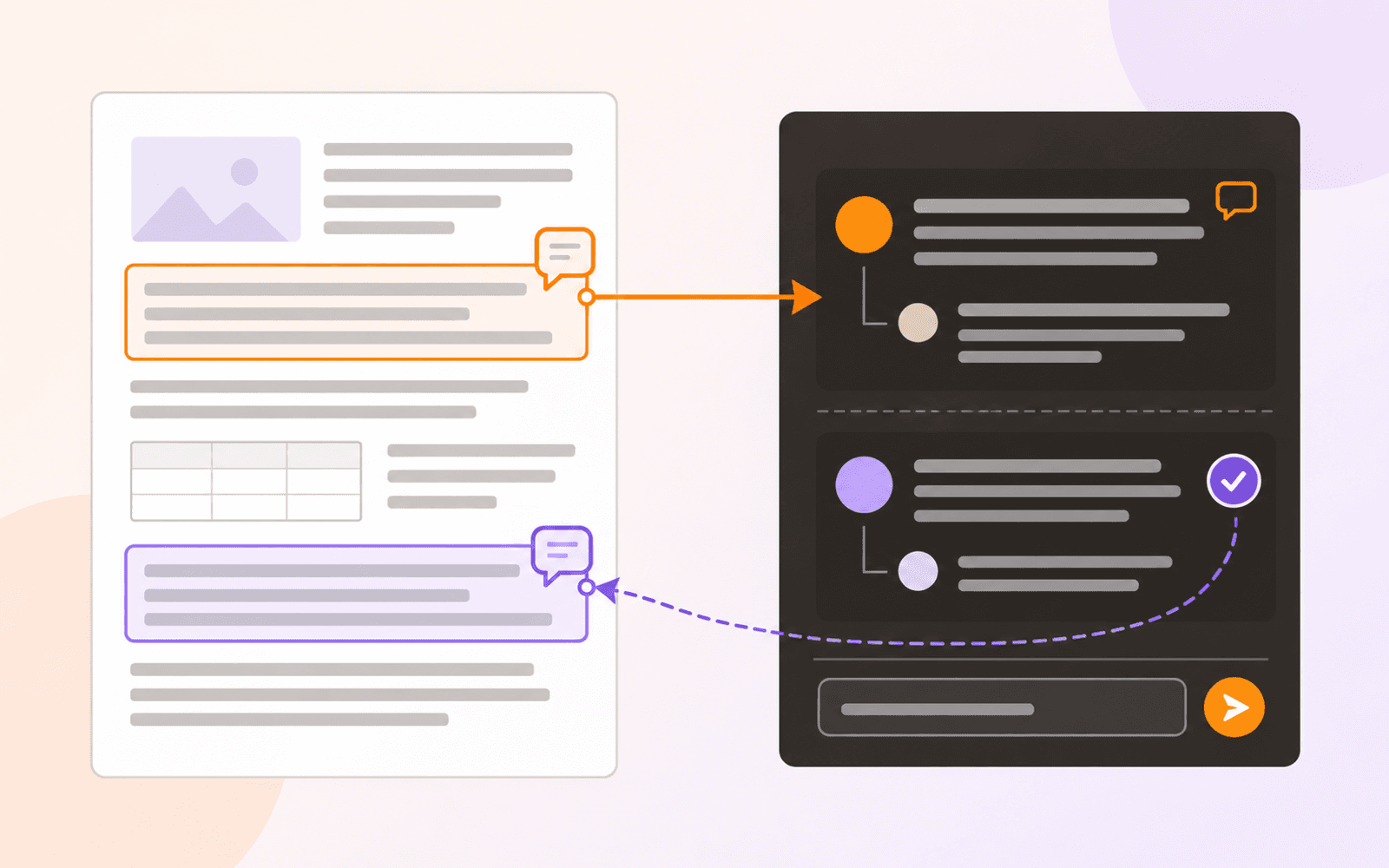
| Workspace and source return | Capture source-linked Cards across PDFs, connect evidence, organize Frames, present it live, and export accepted knowledge. | Preview can open and combine documents, but Apple's current guide does not describe a source-linked evidence canvas across PDFs. |
| Scheduled study | Free includes source-linked Questions with scheduled Study, unscheduled Practice, Progress, presets, and source return. | Apple's current Preview guide does not describe a built-in Question authoring and spaced-practice workflow. |
| Create, optimize, and present | Scan on iPhone or iPad, create from images, compress, resize PDF pages, set or remove an open password, flatten a delivery copy, and present full screen. | Preview on Mac can combine PDFs and images, reduce PDF file size, password-protect a PDF, and display a PDF as a slideshow; it does not offer the same cross-device tool set. |
| Apple-device workflow | One focused editor across Mac, iPad, and iPhone. | Preview is built into Apple's platforms, with available features depending on the device and current operating system. |
Where Preview is the simpler choice
Preview has almost no setup cost on a Mac. If someone emails a form that only needs a name and signature, or you want to highlight a paragraph and send the file back, opening it in the built-in app is direct and sensible.
Apple also documents useful page-management tasks, including combining PDFs and moving, adding, or deleting pages. For occasional work, those tools may be all you need.
Where PDF Max goes further
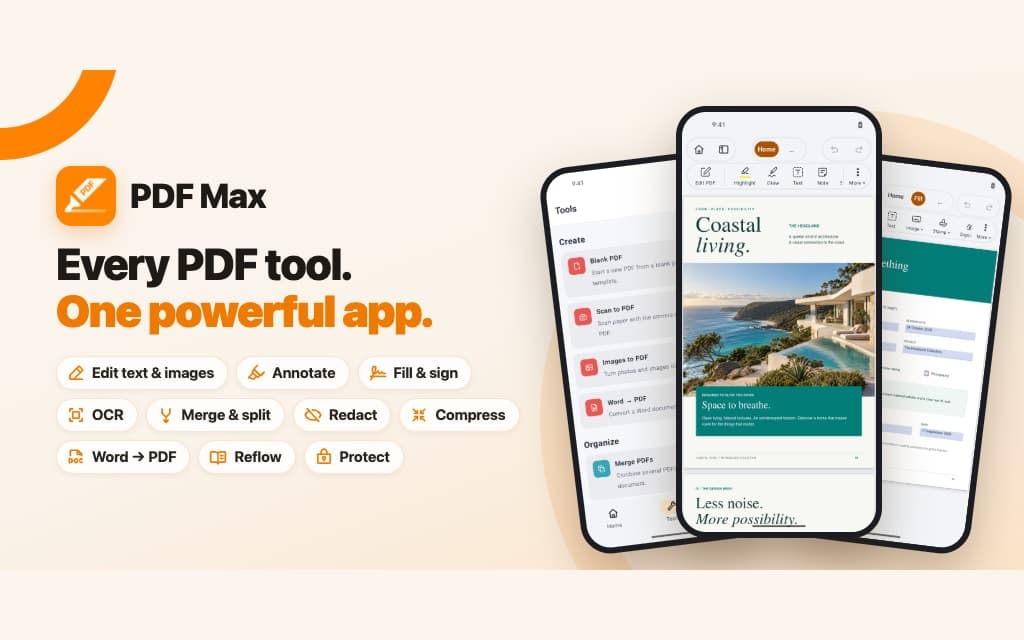
PDF Max is built around workflows where the PDF itself needs more than markup. Its editing mode works with existing text, typography, images, and links. OCR turns a scan into searchable text. Form tools can detect or create fields, while permanent redaction removes marked content instead of simply covering it.
It also keeps the interface and document workflow familiar when the work moves between Mac, iPad, and iPhone. That matters if a PDF begins as a long review on a Mac, receives handwritten annotation on an iPad, and needs a final signature from an iPhone.
Workspace and Study extend that difference beyond editing. Evidence can become source-linked Cards and Frames across documents, then Questions included with Free can enter scheduled Study or unscheduled Practice while retaining a route back to the page.
Privacy and on-device work
Both apps benefit from working directly with files on Apple devices. PDF Max specifically describes on-device workflows for OCR, translation, read-aloud processing, form assistance, and document conversion. As with any sensitive file, check the exact feature and storage location you choose before starting work.
Plans and pricing
Preview is included with Apple devices. PDF Max has a Free level for everyday reading, review, and annotation, with Pro and Premium options for broader workflows.
Which should you use?
Use Preview first when the task is genuinely small: read, annotate, sign, combine, or make a quick page change on a Mac.
Use PDF Max when PDF work is recurring, travels across devices, or requires editing, OCR, advanced forms, conversion, reading assistance, or permanent redaction. The better choice is the one that completes the whole workflow without forcing a chain of separate tools.