How to delete pages from a PDF on iPhone, iPad, and Mac
Delete unwanted PDF pages in Mac Preview, iPhone or iPad Preview, or PDF Max. Keep the original and check the saved copy before sharing.
Direct answer
How do you delete unwanted pages from a PDF on Apple devices?
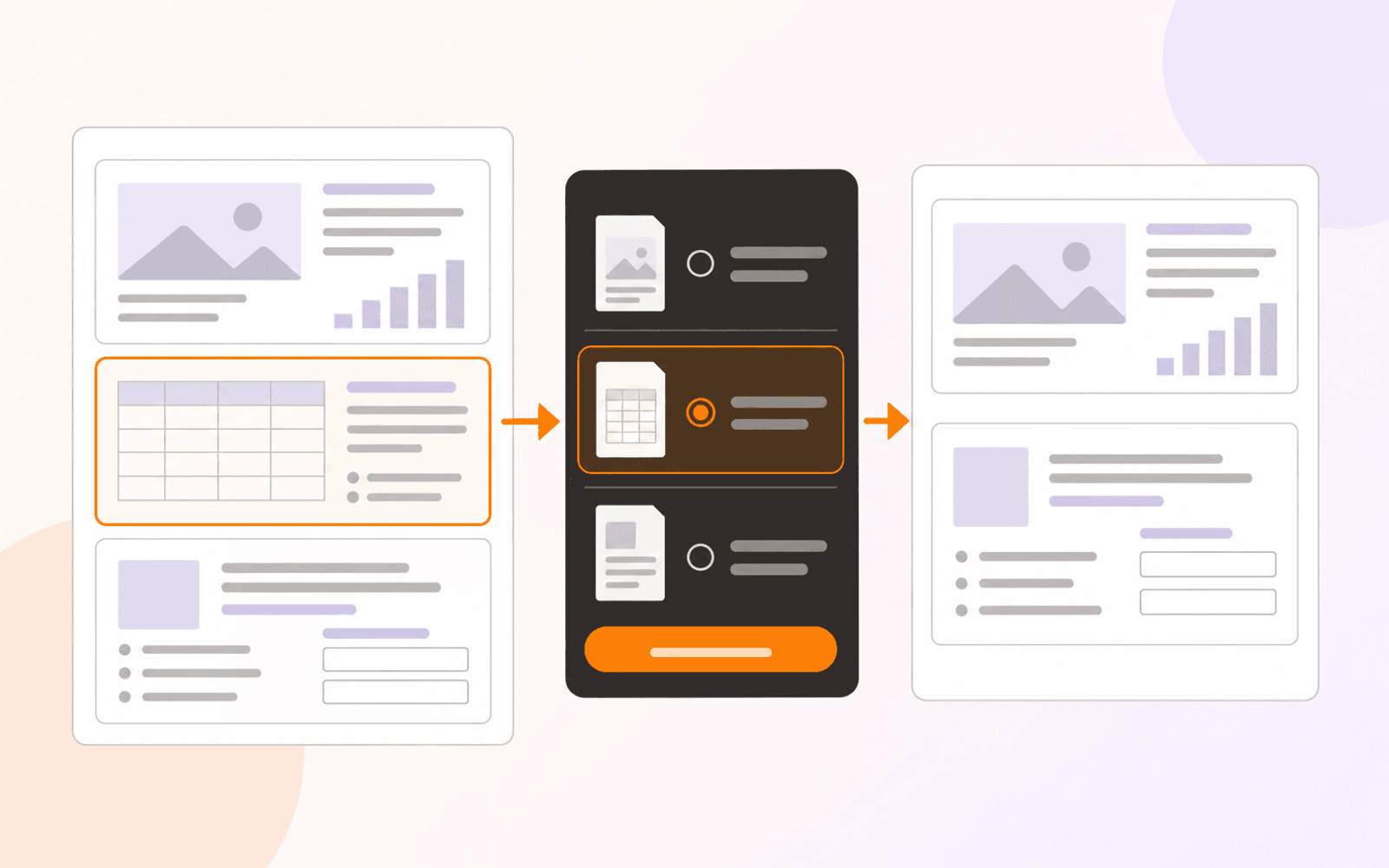
On Mac, open a copy in Preview, choose View → Thumbnails, select the unwanted page, and press Delete. In Preview on iOS 26 or iPadOS 26, touch and hold its thumbnail and choose Delete Page. In PDF Max on Mac, use Edit PDF → Pages → Delete Page. Save, close, and reopen the copy to check the remaining pages before sharing.
To remove a PDF page on a Mac, select its thumbnail in Preview → View → Thumbnails, then press Delete. On iPhone or iPad running iOS 26 or iPadOS 26, Preview puts Delete Page in the thumbnail's touch-and-hold menu.
Start with a duplicate. A blank scan, an outdated appendix, or a repeated cover may be safe to remove, but the page beside it may contain a signature or review notes you still need. Deleting a page is a different task from erasing a highlight or changing the words on it.
Delete pages in Preview on Mac
- Duplicate the PDF in Finder and give the copy a recognizable name, such as
project-review-short.pdf. Open that copy in Preview. - Choose View → Thumbnails.
- Click the thumbnail of the unwanted page. For several separate pages, hold Command while selecting their thumbnails.
- Press Delete, or choose Edit → Delete.
- Save, close, and reopen the copy. Check its page count and read across the gap where you removed material.
Select the thumbnail, not words or an annotation inside the page. Apple's Mac Preview guide also offers View → Contact Sheet for selecting pages. The deletion removes annotations on those pages too.
Delete a page on iPhone or iPad
These steps use Apple's Preview app on iOS 26 or iPadOS 26. They are not instructions for every attachment viewer in Mail, Safari, or another app. Duplicate the file before opening the working copy.
On iPhone:
- Open the PDF copy in Preview.
- Tap the page count to display thumbnails. If the count is hidden, pinch on the page to bring it into view.
- Touch and hold the unwanted thumbnail, then tap Delete Page.
- Reopen the copy and inspect its remaining pages.
On iPad, open the copy in Preview, tap Toggle Sidebar, then touch and hold the unwanted thumbnail and choose Delete Page. Reopen the copy to check it. The sidebar control differs from the iPhone's page-count entry point; see Apple's iPhone instructions and iPad instructions.
Delete a page in PDF Max on Mac
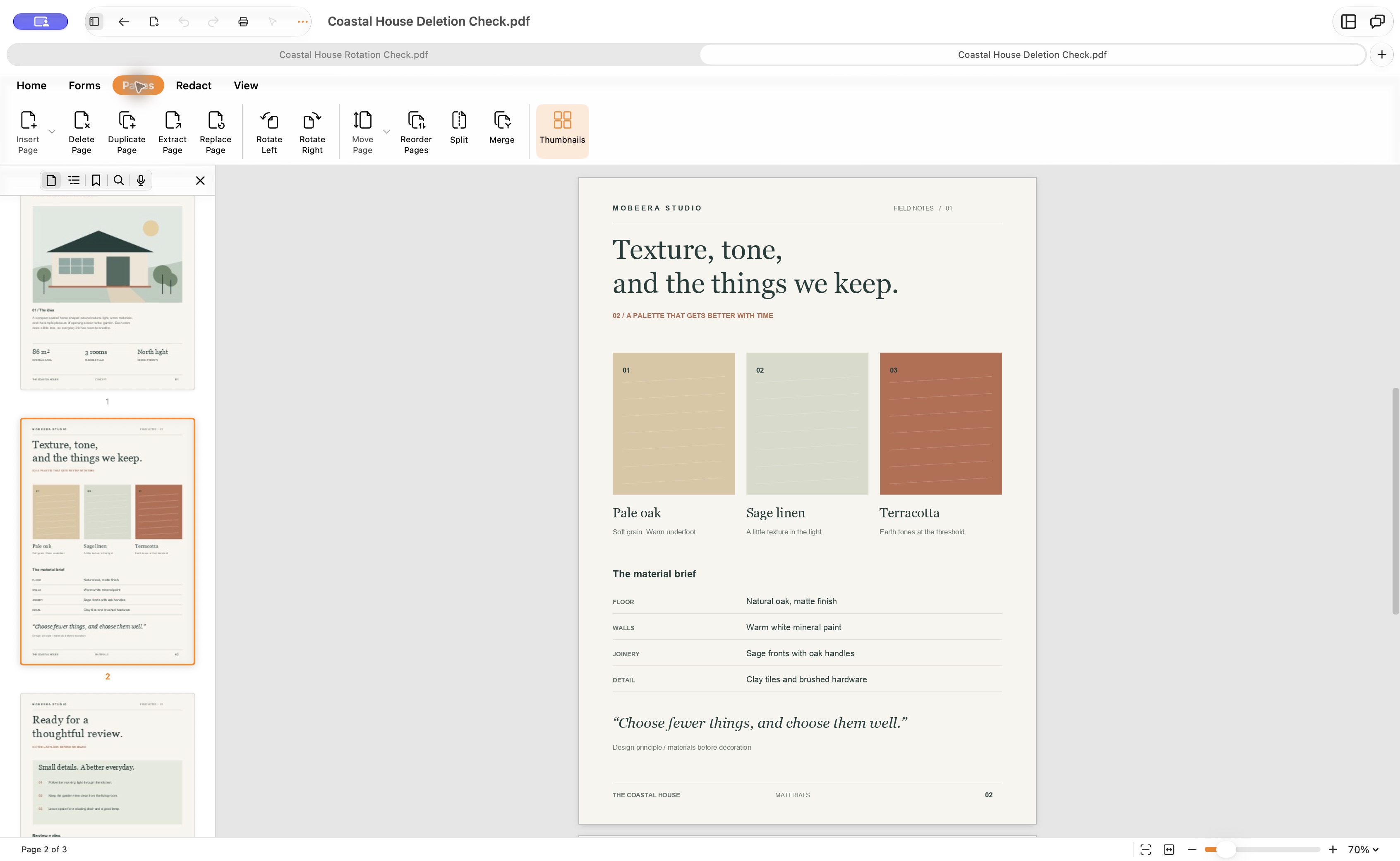
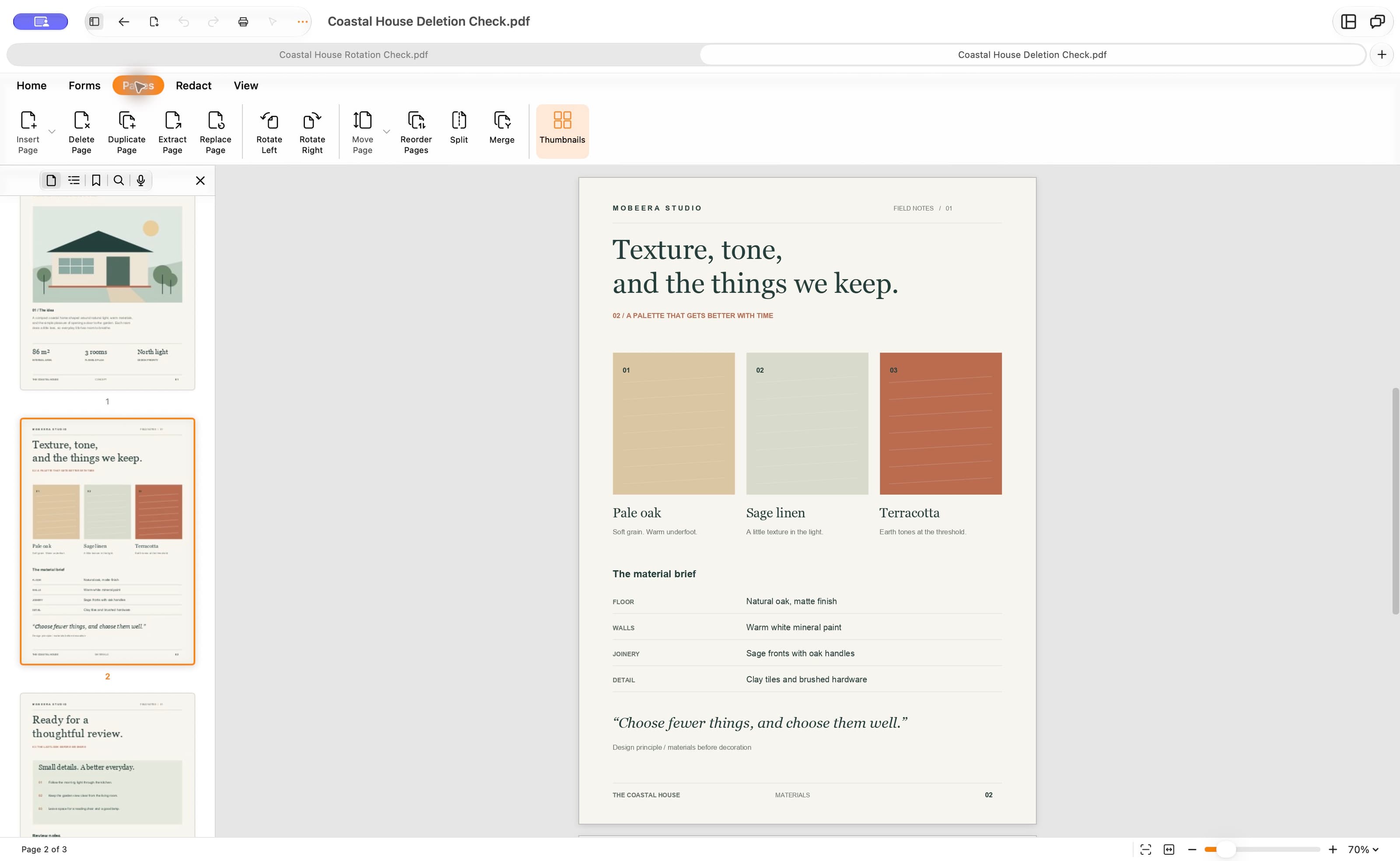
If you already review your documents in PDF Max, use its page tools on the working copy. The screenshots below show the Mac app and a three-page design study: cover → materials → review. The task is to remove the materials page while keeping the cover and review form.
- Open the duplicate in PDF Max and choose Edit PDF on the Home toolbar.
- Open Pages. If the page list is hidden, choose Thumbnails.
- Click the thumbnail of the materials page. Check the orange selection outline and the status bar: it is Page 2 of 3, regardless of any printed numbering.
- Choose Delete Page. The selected page is removed immediately; check your selection before using the command, not while waiting for a confirmation dialog.
- Choose Save, close the document window, and reopen the saved copy.
Open the page-selection screenshot at full resolution.
App, plan, and device requirements
Deleting pages is a Pro capability: it is included with the PDF Max Pro app. In the regular PDF Max app, the upgrade for this action is Premium, not a separate Pro in-app purchase. Free does not include page deletion. The feature comparison distinguishes organization from Premium actions such as extraction and merging.
PDF Max supports iOS 18 or later, iPadOS 18 or later, and macOS 15 or later on an M1 or newer Mac. Page deletion does not require Apple Intelligence or a downloaded AI model. The illustrated procedure here is for PDF Max on Mac; use the Preview section above for the mobile steps in this guide.
Check the saved copy, not just the open document
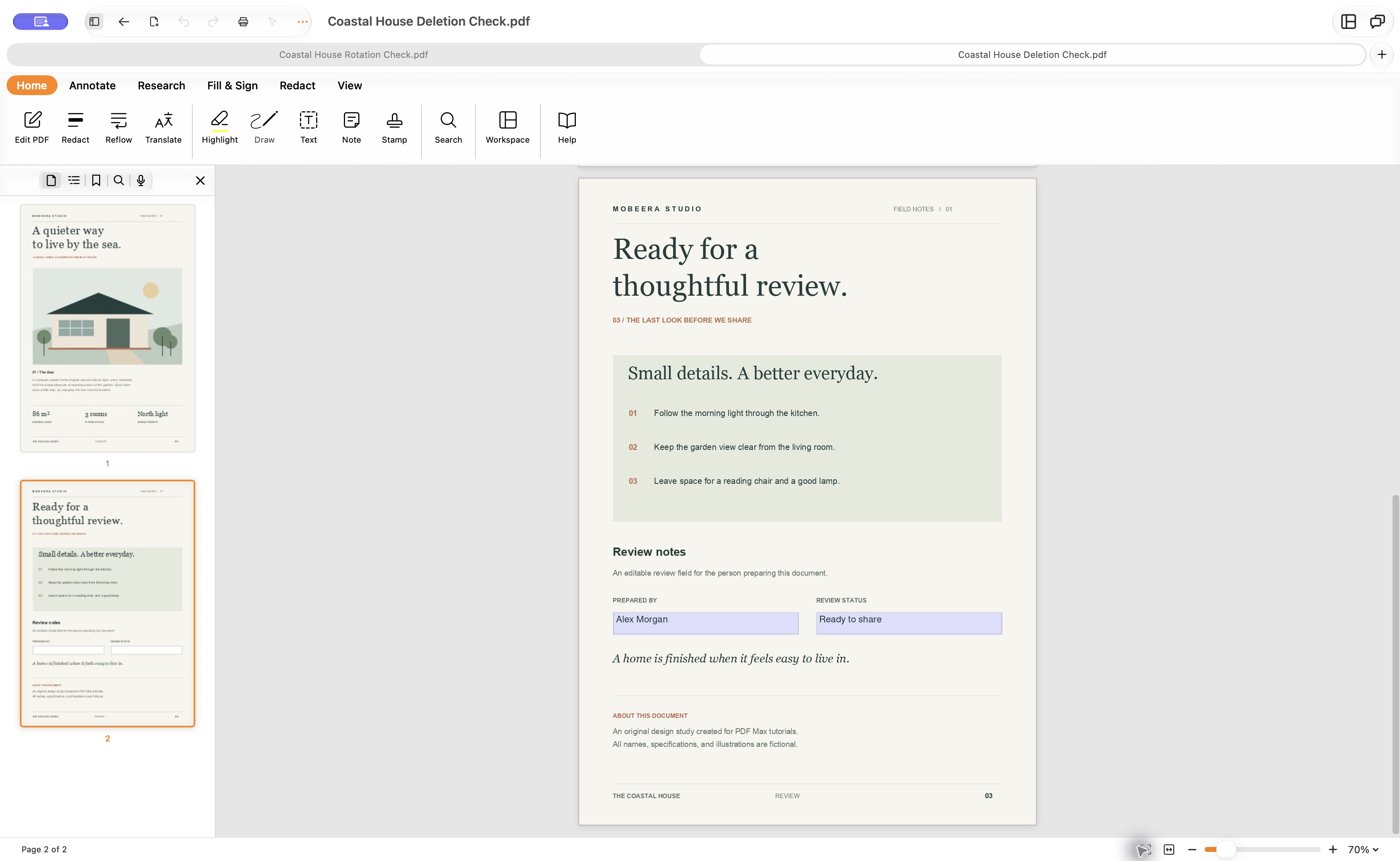
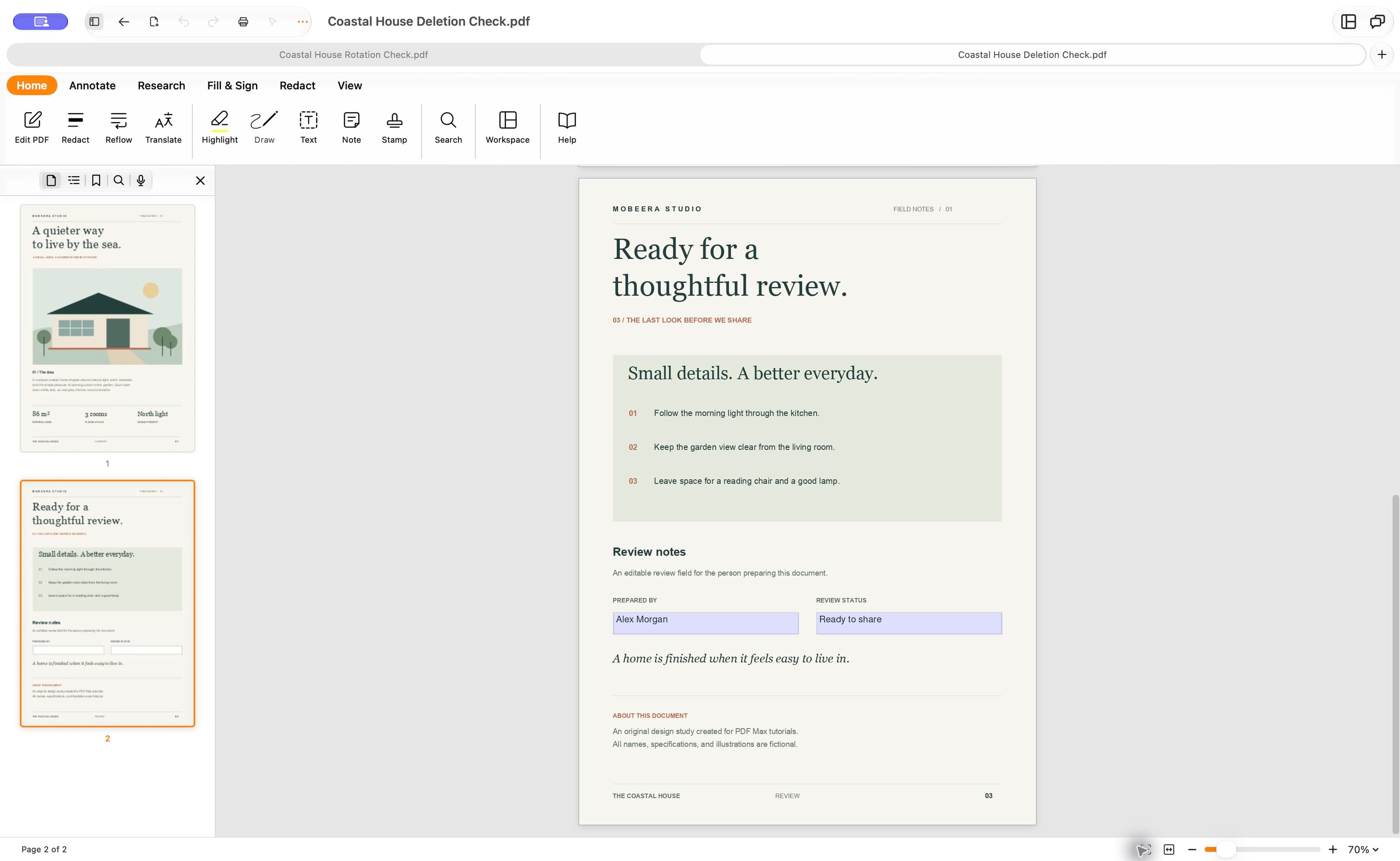
The reopened example has two pages: cover → review. The materials page is gone, and the review page still shows its two filled form fields. That result describes this sample, not a guarantee about every PDF's fields, navigation, or signatures.
Open the saved-result screenshot at full resolution.
Before sending your own result:
- Count the pages. Three pages minus one should leave two. Check the first and last page, plus the pages immediately before and after each removal.
- Inspect what stayed. Open the remaining form fields and annotations. Test bookmarks, outline entries, and links that previously referred to the removed material.
- Check printed numbers. Deleting a page does not rewrite the numbers drawn on the other pages. Our review page keeps its printed
03while becoming the second PDF page. - Keep the original. A deleted page takes its visible content with it. Retain any signed original, and ask its sender before editing a document whose signature must remain valid.
If Delete Page is unavailable or removes the wrong thing
First check that you selected a page thumbnail. A Delete action aimed at an annotation or text selection is not the page-management command. In PDF Max, check that the required plan is available; the page deletion control also needs a document with more than one page. A protected file may restrict page changes—request an editable copy or permission from its owner instead of trying to bypass the restriction.
If you remove the wrong page, use Undo while the edit is still available, or return to the untouched original. Avoid continuing a long sequence of edits before checking the result.
Page deletion is not a substitute for permanent redaction when the task is to remove sensitive information from pages you intend to keep. This guide does not claim secure erasure of a PDF's previous revisions or copies.
To send a few pages without changing the original, use Extract Pages. If the pages are merely in the wrong order, rearrange them instead.
For your next cleanup, duplicate one PDF, remove only the pages you no longer need, and reopen the saved result. Use Preview for a quick built-in deletion, or PDF Max's page tools when organizing pages is part of your document review.