How to permanently redact a PDF on Mac, iPad, and iPhone
Learn the difference between covering and removing sensitive PDF content, then apply and verify permanent redactions before sharing the file.
Direct answer
How do you permanently redact a PDF instead of merely covering its content?
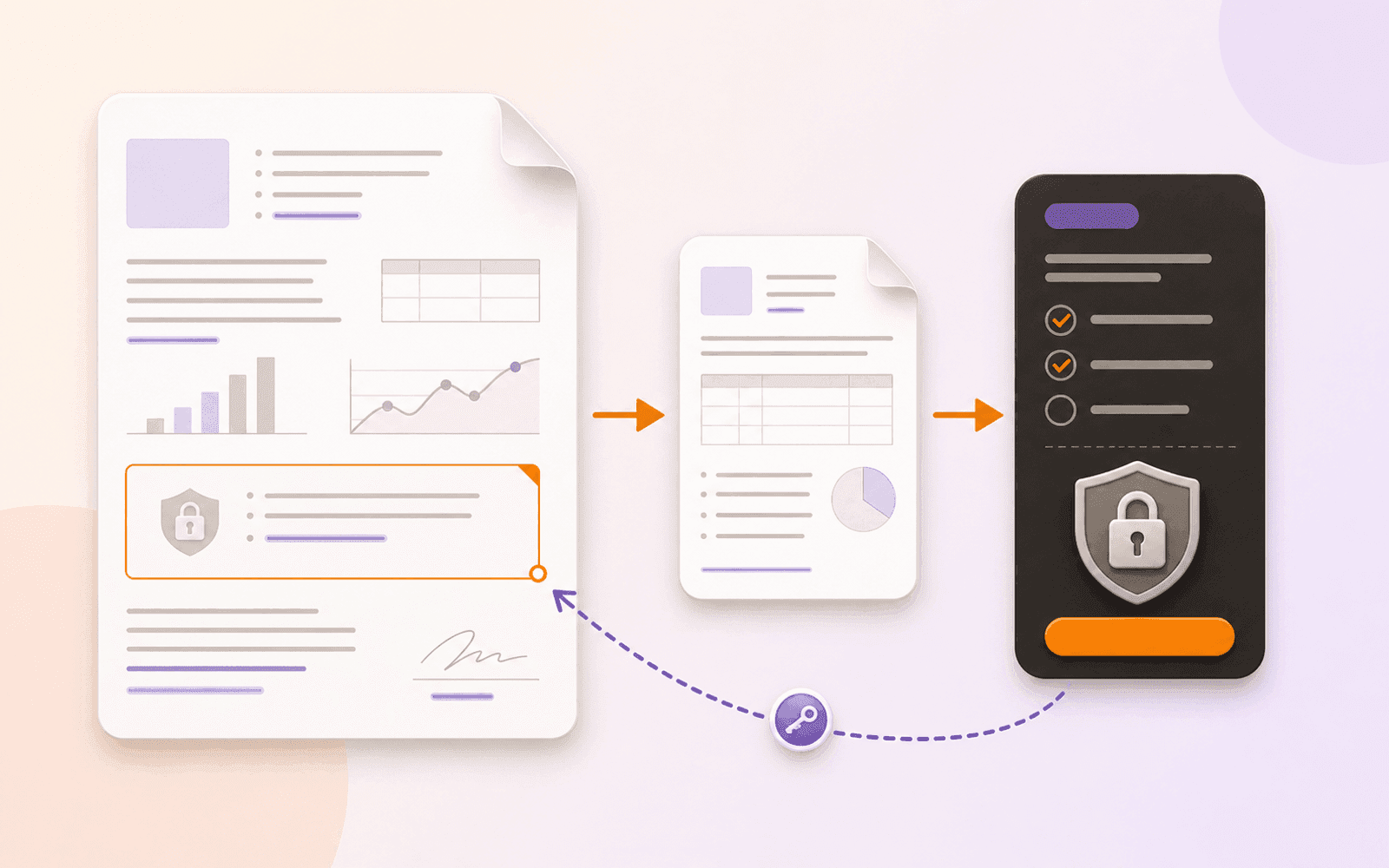
Use a true redaction tool that removes the underlying text, image, or page content when the redactions are applied. A black rectangle or annotation only changes appearance and can leave information searchable or extractable. Preserve the original, review every mark, apply the redactions, save a sharing copy, then test search, selection, copying, and another PDF viewer.
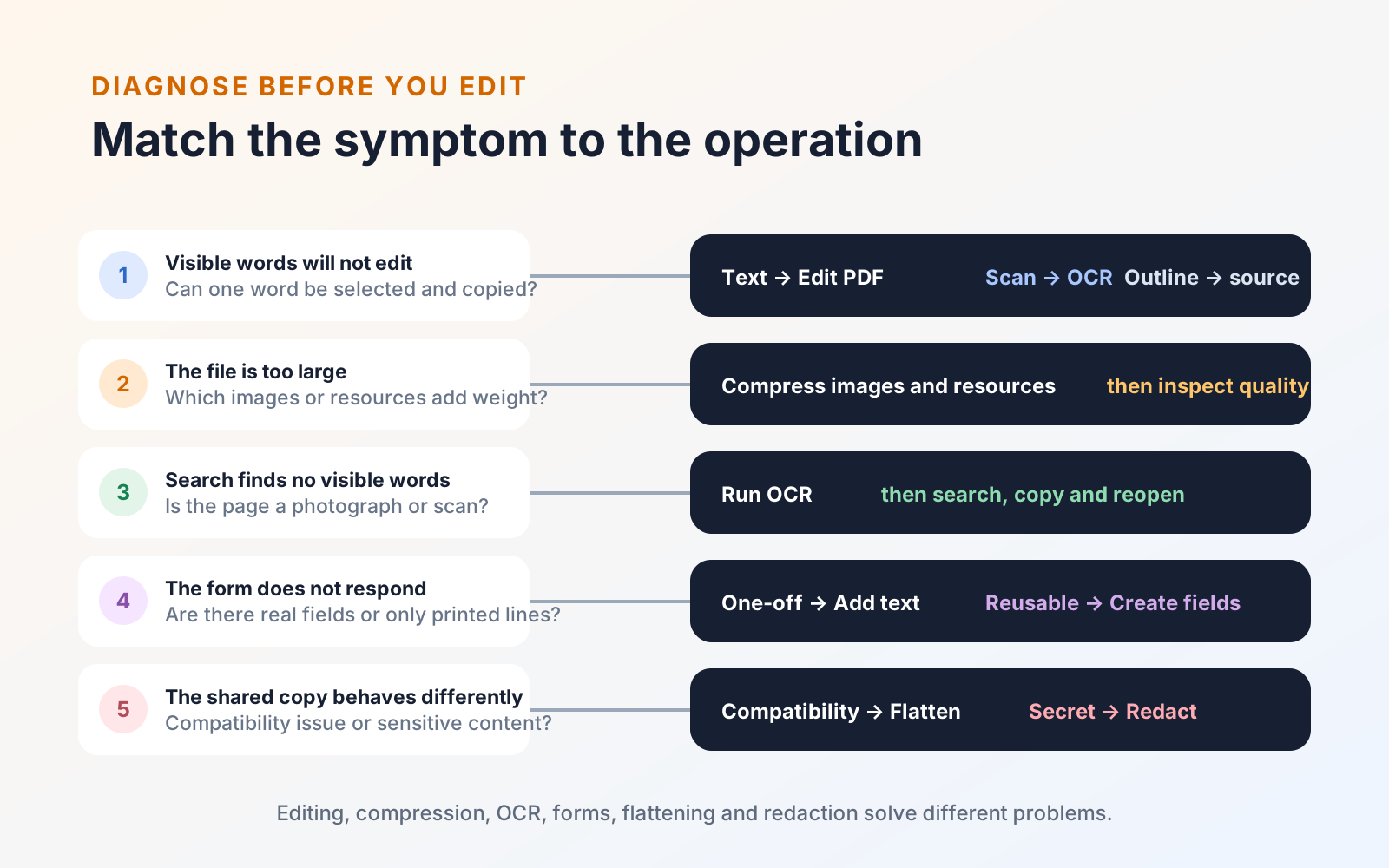
Drawing a black rectangle over a name is not the same as redacting it. A rectangle can leave the original text, image, or metadata inside the PDF, where another person may still be able to select, copy, search, or extract it.
Permanent redaction removes the underlying content. That distinction matters whenever a PDF contains personal details, financial information, signatures, confidential clauses, or material that should not leave your control.
How Apple Preview redaction works on Mac
Preview on Mac includes Redaction Selection for selectable PDF text. Apple documents that the selection removes the text from view, remains adjustable while you edit, and becomes permanent when you close the document. Duplicate the file before starting, select the actual Redaction Selection tool rather than a black shape, then close and reopen the saved copy.
Verify it the same way you would any released PDF: search for the removed phrase, try to select and copy around the area, and inspect the copy in a second viewer. A shape added from Preview’s markup tools is still a covering annotation, not the Redaction Selection operation. For scanned text, images, mixed page content, whole-page removal, or repeated terms that need review, use a workflow that can mark the appropriate areas and apply them deliberately.
The PDF Max vs Apple Preview comparison records the current workflow differences, while redaction vs flattening vs covering explains why those operations are not interchangeable.
Before you redact
Keep an untouched original in a safe location. Applied redactions are intentionally destructive, so the working copy should never be your only copy of the document.
Decide what must be removed before marking the page. Look beyond the obvious paragraph text for names in headers, account numbers in tables, handwritten signatures, comments, and repeated terms elsewhere in the file.
Mark the sensitive content
In PDF Max, open the Redact tools and choose the appropriate marking method:
- Select text when the PDF has selectable text.
- Mark an area for signatures, images, scanned text, or mixed page content.
- Search for a word or phrase when every occurrence needs review.
- Mark a complete page when none of its content should remain.
At this stage the marks are pending. Use that review period to move through the document and confirm that each mark covers exactly what should be removed.
Review before applying
Zoom in on the edges of area marks. A mark that stops halfway through a character, signature, or image may leave part of the content behind.
For repeated terms, inspect every search result instead of assuming each occurrence has the same meaning. A surname might need removal in a client record but remain necessary in a cited source or approval line.
If the final document needs a reason or label over a redacted area, choose that appearance before applying. The visible overlay and the removal of the original content are separate concerns.
Apply the redactions
Choose Apply Redactions only after the review is complete. PDF Max removes the marked underlying content rather than leaving a black shape on top of it.
Save the result as a clearly named sharing copy, such as report-redacted.pdf. Keeping the original and released versions distinct reduces the chance of attaching the wrong file later.
Verify the result
Do not rely only on how the page looks. Reopen the saved sharing copy and test it:
- Search for each removed name, number, or phrase.
- Try to select and copy text around the redacted area.
- Check thumbnails, headers, footers, comments, and repeated pages.
- Open the file in another PDF viewer for a final independent check.
A successful result should reveal neither the sensitive content nor a searchable copy of it. This verification step is especially important for scanned PDFs and pages that combine text with images.
If you create a separate flattened delivery copy after redacting, test that operation independently with the flattened-PDF diagnostic. Flattening can finalize supported fields and annotations, but it is not evidence that redaction succeeded.
A safer sharing habit
Treat redaction as a short release process: preserve the original, mark deliberately, review every mark, apply once, and verify the exported copy. The extra minute is worth it when the alternative is sharing information that only looked hidden. The PDF Max product page describes the editing, protection, and delivery workflow across Mac, iPad, and iPhone.