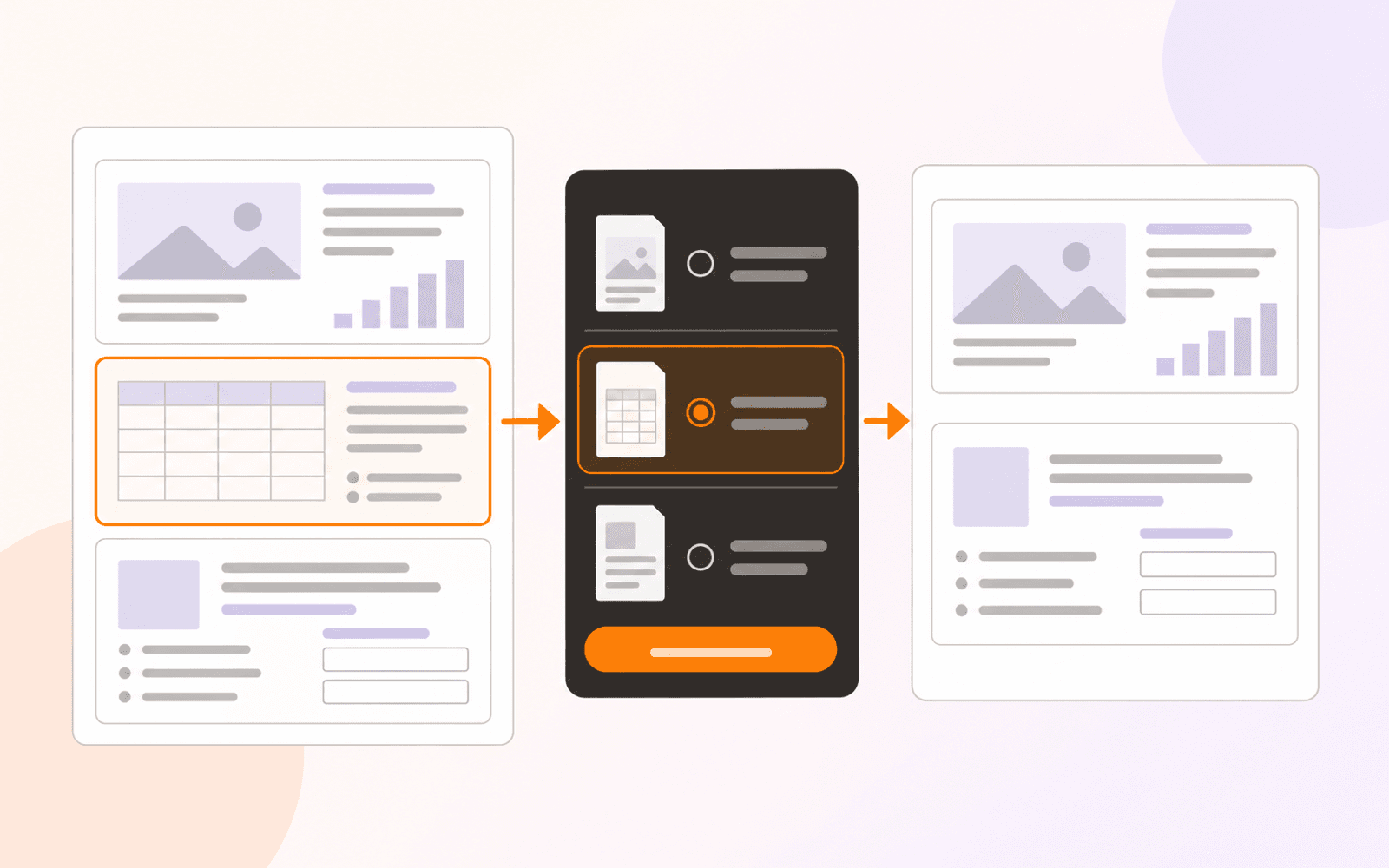
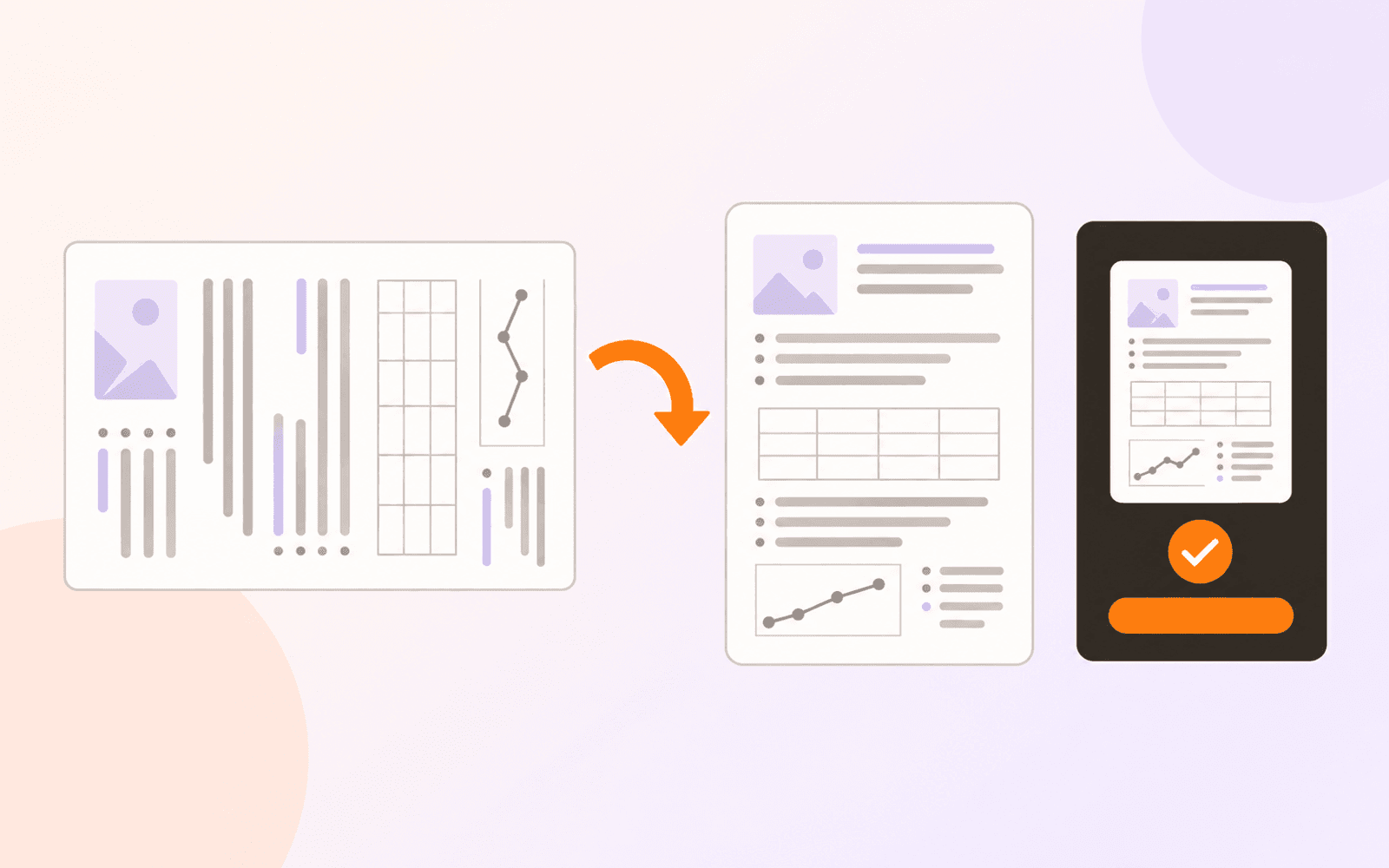
How to bookmark PDF pages on iPhone, iPad, and Mac
Save and name PDF page bookmarks on iPhone, iPad, and Mac. Learn how to return to key pages and when a shared PDF needs an embedded outline instead.
Direct answer
How do you bookmark PDF pages on iPhone, iPad, and Mac?
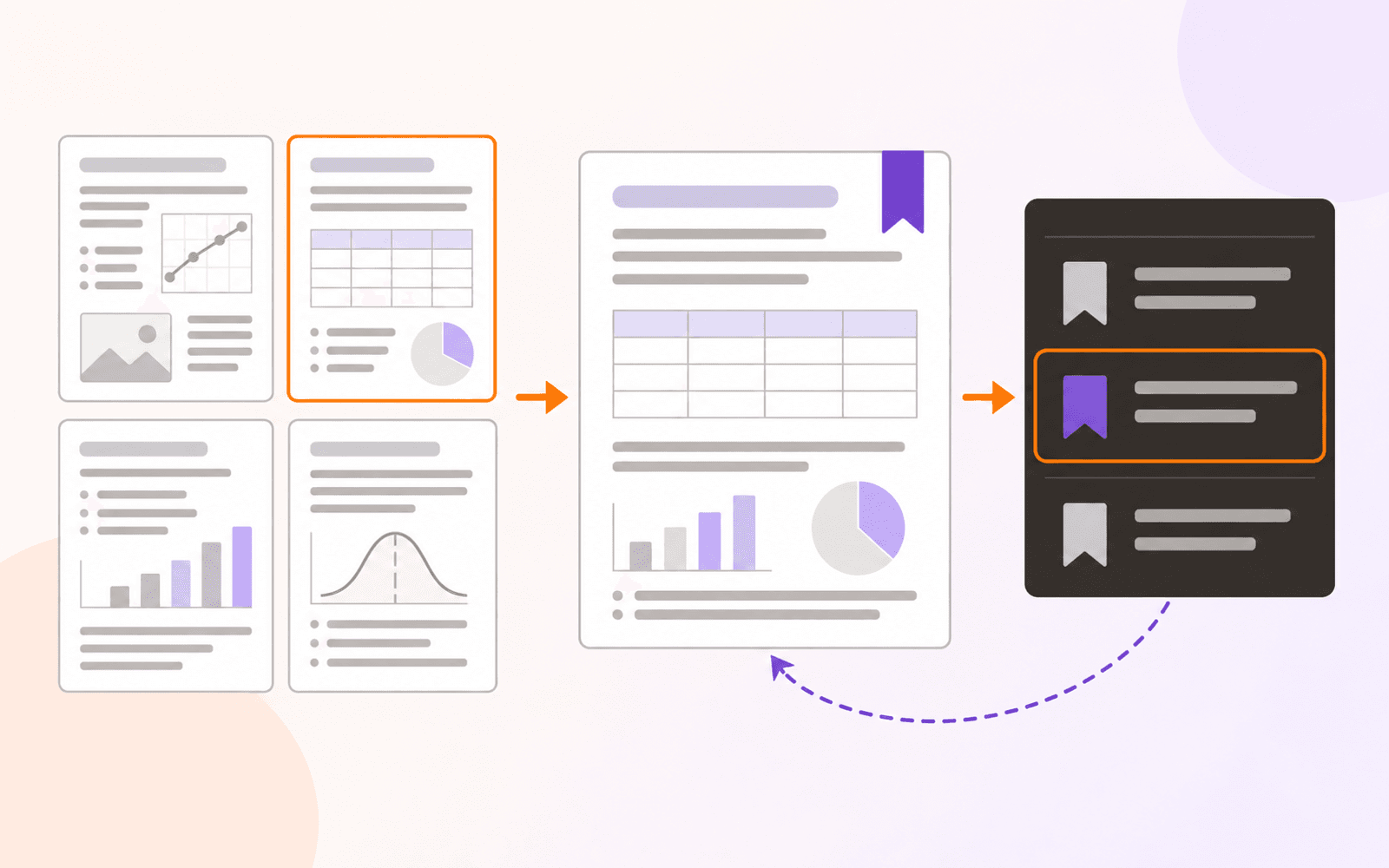
In PDF Max, go to the page and use its bookmark icon: in the page indicator on iPhone and iPad, or at the page's upper-right corner on Mac. Open View > Bookmarks to revisit saved pages, and use a bookmark's context menu to rename or delete it. Personal bookmarks are Free and stored separately from the PDF. To give other readers a navigable document structure, use embedded outline entries instead; editing those requires Premium.
To bookmark a PDF page, open it in a reader that supports page bookmarks, add a marker at the page you need, and return through the bookmark list. A useful name makes the marker easier to recognize than a page number alone.
Before building that list, decide who needs it. Personal bookmarks help you return to your own reading. An embedded PDF outline gives the document a navigable structure that other compatible readers can display. Those are different tools, even though some apps call outline entries “bookmarks.”
For a long lecture PDF or research paper, start with three destinations: where you stopped, a key figure, and a section you expect to consult again. You do not need to turn every heading into a personal bookmark.
A quick option on Mac: Preview
If you only need to save a place while reading on Mac, Apple's built-in Preview supports page bookmarks. Open the PDF, go to the page, and choose Tools > Add Bookmark. Use View > Bookmarks to show the list, then click an entry to return to it. To remove a marker, Control-click it in that sidebar and choose Delete. These are the steps in Apple's Preview bookmark guide.
For a named personal-bookmark workflow in PDF Max on iPhone, iPad, or Mac, follow the steps below. The controls differ between touch devices and Mac, but the list serves the same purpose: returning to a page without scrolling through the document again.
Add a PDF bookmark on iPhone or iPad
- Open your PDF in PDF Max and navigate to the page you want to keep.
- Find the bookmark icon in the page indicator, beside the current-page information.
- Tap the icon once. Its filled state indicates that the page is bookmarked.
- Open the View ribbon tab and choose Bookmarks to see your saved pages.
- Tap the entry to check that it returns to the intended page.
The page indicator hides after a short interval. If it has disappeared, navigate to another page and back so the current-page indicator appears again. Check the page before tapping: this control marks the current page, not whichever passage you were thinking about.
A new bookmark initially uses a label such as “Page 12.” Rename it while the reason for saving it is fresh. “Methods — sampling criteria” is more informative than “Important,” especially when you reopen the paper a week later.
Add a PDF bookmark on Mac
- Open the PDF and locate the page you want to revisit.
- Click the bookmark icon at the upper-right corner of the page.
- PDF Max opens the Bookmarks sidebar and starts editing the new bookmark's name.
- Enter a short label and press Return to finish.
- Navigate elsewhere, then click the saved entry to verify the destination.
You can also open the list later from View > Bookmarks. The bookmark icon is a toggle: clicking it again on an already bookmarked page removes that marker. Use the sidebar's Rename command when you want a different label, rather than clicking the page icon a second time.
Rename, revisit, and remove bookmarks
In the Bookmarks sidebar, open an entry's context menu: long-press on iPhone or iPad, or right-click or Control-click on Mac. Choose Rename…, enter a nonempty label, and finish editing. Pressing Return or leaving the field commits the name.
Choose names that explain what you will find, not just how strongly you reacted to it. For example:
- Resume — section on measurement for a reading checkpoint.
- Figure — comparison of treatments for a visual reference.
- Limitations — missing follow-up data for a passage to discuss.
PDF Max keeps one personal bookmark per page and lists bookmarks in page order. Adding the same page again does not create a second independently named destination. If one page contains two useful items, give its marker a combined label or use a more specific evidence workflow.
To return, select the bookmark row. To remove it, choose Delete from its context menu, or toggle off the bookmark icon on that page. Deleting a bookmark removes the marker, not the PDF page or its annotations.
Personal bookmarks versus an embedded outline
The word “bookmark” can hide an important difference. PDF Expert's guide also distinguishes personal page markers from hierarchical Outlines. In PDF Max, these appear as separate sidebar views and have different storage and plan requirements.
| Need | Use in PDF Max | What to expect |
|---|---|---|
| Keep a few personal return points | Bookmarks | A flat, named list stored in PDF Max's document metadata; Free |
| Navigate a PDF's existing chapter structure | Outline | The outline already embedded in the PDF; viewing is Free |
| Author or change a document's outline | Outline editing | PDF outline entries with document destinations; Premium |
| Put a clickable destination directly on a page | A PDF link | Separate from bookmarks and the outline; link editing requires Premium |
Do not assume that uploading the PDF to a cloud folder makes your personal bookmark list available on another device or in another app. Test the actual transfer you intend to use. A personal marker and a document-level navigation entry are not interchangeable, and adding one does not automatically create the other.
For navigation that someone clicks within the visible page itself, see how to add links to a PDF. That is useful for a contents page or cross-reference, but it is a separate editing task.
Check the destination, not just the label
A page bookmark takes you to a page, not to an exact sentence, table cell, or region. It works for both text-based documents and image-only scanned pages; selecting or recognizing the words is not a prerequisite for marking the page.
When a project needs an exact passage or figure across multiple papers, consider source-linked Cards for comparing PDF passages. Keep personal bookmarks for page-level navigation rather than expecting them to behave like captured evidence.
Also distinguish the page's position in the file from the number printed on it. A cover and introductory pages can make “Page 12” in the reader different from page 12 in a textbook. Use a descriptive bookmark name, and confirm the printed number separately before citing the source. Adding printed page numbers changes the page artwork; naming a bookmark does not.
After inserting, deleting, or rearranging pages, revisit your markers and check their destinations. Do the same after replacing a file or moving it outside the app. Personal bookmarks are page-based markers, not a promise that the app will recognize the same passage through every document revision.
What you need, and a simple first test
Adding, renaming, deleting, and revisiting personal bookmarks is included with PDF Max Free. Reading an existing outline is also Free; editing the embedded outline requires Premium, including in the separate PDF Max Pro app. See the full feature comparison if your goal is document authoring rather than personal navigation.
The workflow is available on iPhone with iOS 18 or later, iPad with iPadOS 18 or later, and Apple silicon Mac with macOS 15 or later. Bookmarking does not require Apple Intelligence, a downloaded language model, or OCR. Accessing a source stored in the cloud may still need a connection.
Open one long reading in PDF Max, bookmark three useful pages, and name each one for its purpose. Close and reopen the same document, then follow all three entries. You will have a small, tested return list before you depend on it during a seminar, revision session, or meeting.