How to rotate PDF pages and save the rotation permanently
Turn sideways PDF pages upright in Preview or PDF Max and verify that the saved file keeps its rotation when reopened in another viewer.
Direct answer
How do you rotate a PDF page and keep it rotated after saving?
Use a page-rotation command, save the PDF, and reopen the saved file. Rotating the view or turning the device does not establish that the document changed. Preview on Mac and PDF Max offer page rotation. Select only the affected thumbnails, rotate them left or right, and confirm that the other pages remain unchanged in the delivered copy.
To keep a sideways PDF page upright, rotate the page, save the PDF, then close and reopen the saved copy. Turning your device or changing a viewer's display orientation is not the same as changing the file you send to someone else.
Start with a duplicate and select only the affected pages. A document can legitimately mix portrait and landscape layouts; there is no need to turn every page just because one scan arrived sideways.
Rotate pages in Preview on Mac
For a straightforward correction, use the Preview app included with macOS:
- Open your working copy in Preview.
- Choose View → Thumbnails so you can identify the sideways page.
- Select its thumbnail. If several pages need the same correction, select those thumbnails together.
- Click Rotate Left in the toolbar. To rotate right, hold Option while clicking the rotation control. Repeat a quarter-turn if the page is upside down.
- Choose File → Save, close the document, and reopen that same file.
- Check the corrected page and an untouched page before attaching the PDF.
Apple's Mac Preview guide also describes selecting pages in Contact Sheet view. Use whichever view makes the intended selection easiest to see.
Rotate a page in Preview on iPhone or iPad
These instructions use Apple's Preview app on iOS 26 or iPadOS 26. They are not instructions for a browser's PDF preview or an older Files interface.
- iPhone: open the PDF in Preview, navigate to the affected page, tap More, then choose Rotate Left or Rotate Right.
- iPad: open the PDF and select the affected page. Tap Rotate Left in the toolbar, or open More and choose Rotate Left or Rotate Right.
After editing, leave the document and reopen the saved file from its location. Check the copy you will actually share, not just a preview still open on screen. Apple's iPhone and iPad guides show the respective controls.
Rotate and save a page in PDF Max on Mac
If you are already preparing the document in PDF Max, use its Pages ribbon. Page rotation requires Pro or Premium; it does not require Apple Intelligence or a downloaded model. See the plan comparison if you are choosing a plan.
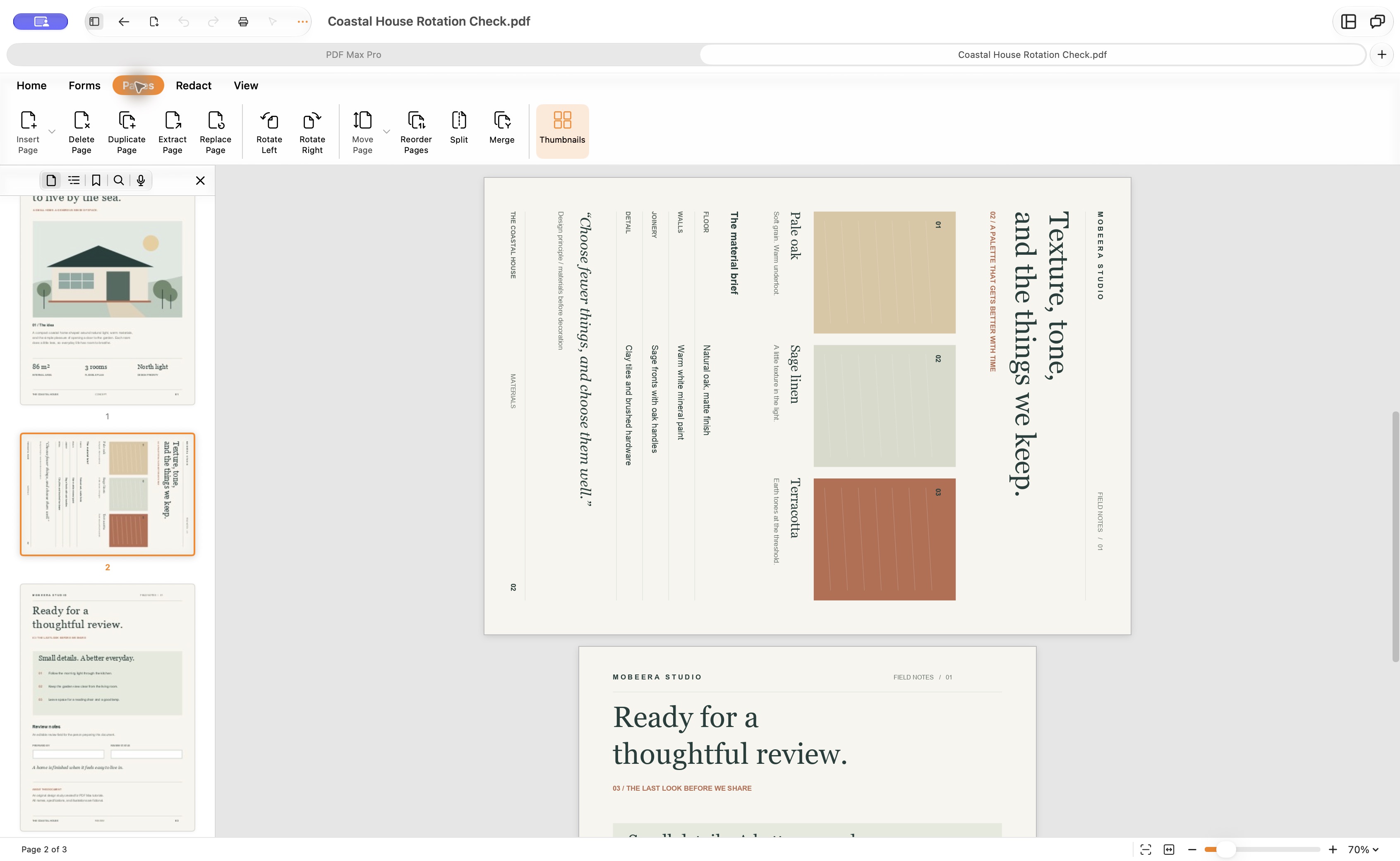
The example below uses a three-page Coastal House document with only page 2 sideways. Keep the original and work on a separate copy:
- Open the PDF and choose File → Save As to give the working copy a distinct name and location.
- Turn on Edit PDF, then choose the Pages ribbon tab.
- Select the sideways page's thumbnail. Confirm that the selection is on that page, not an adjacent one.
- Choose Rotate Left or Rotate Right. For the clockwise-turned materials page shown here, one left turn puts the heading back at the top.
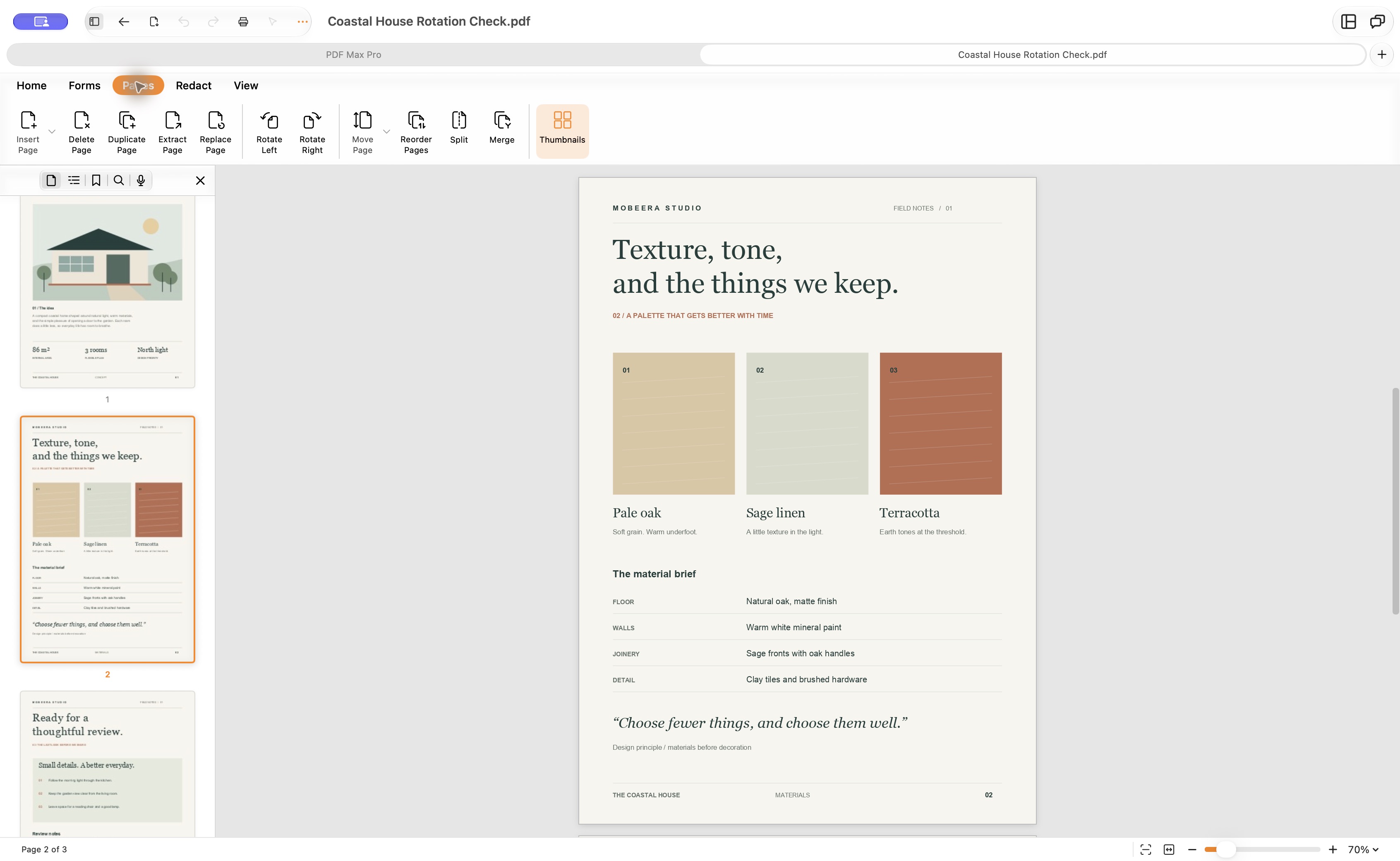
- Choose Save, close the document window, and reopen the saved copy.
- Return to the corrected page. Check the other pages, too, before sharing the file.
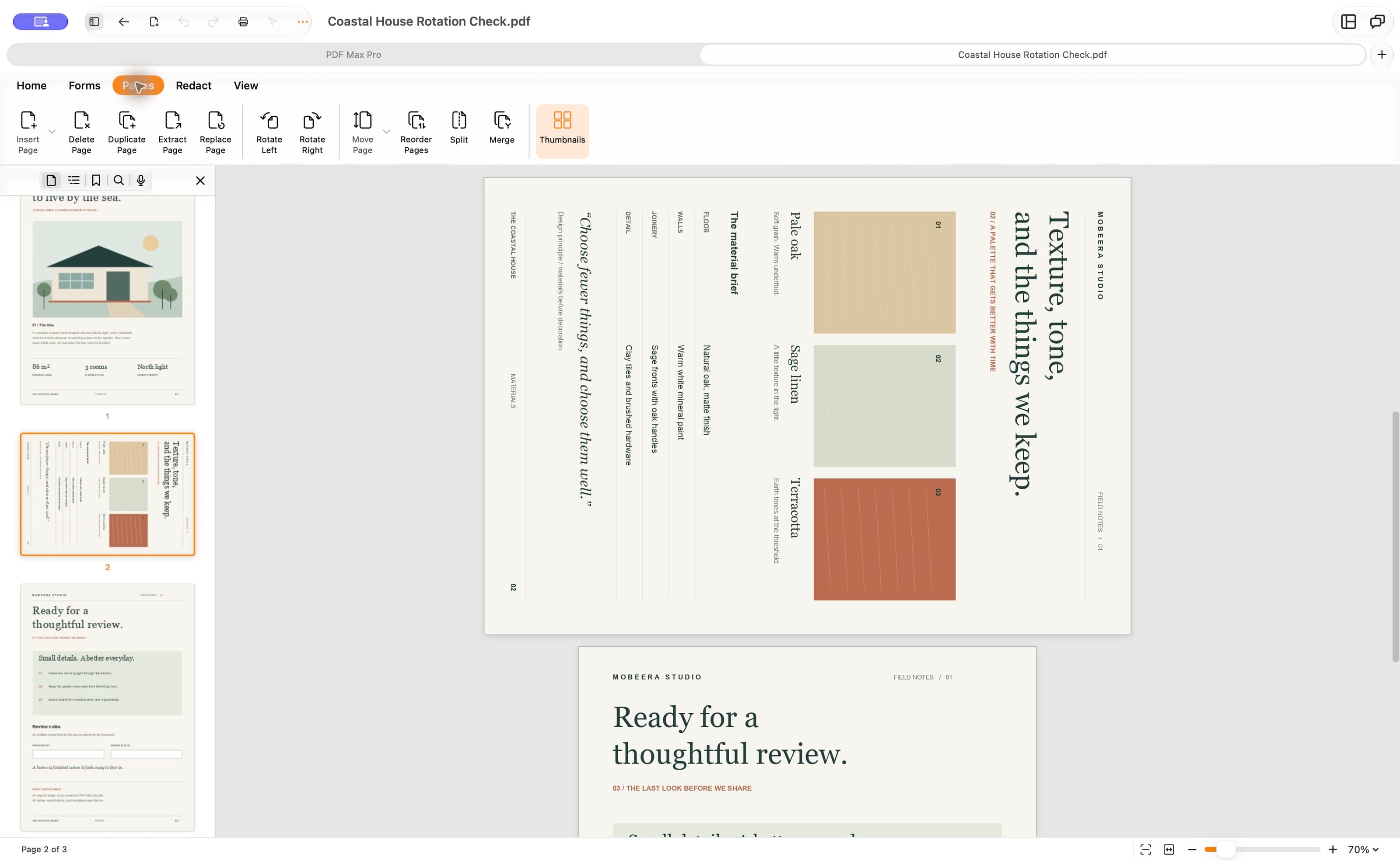
Open the sideways-page screenshot at full resolution.
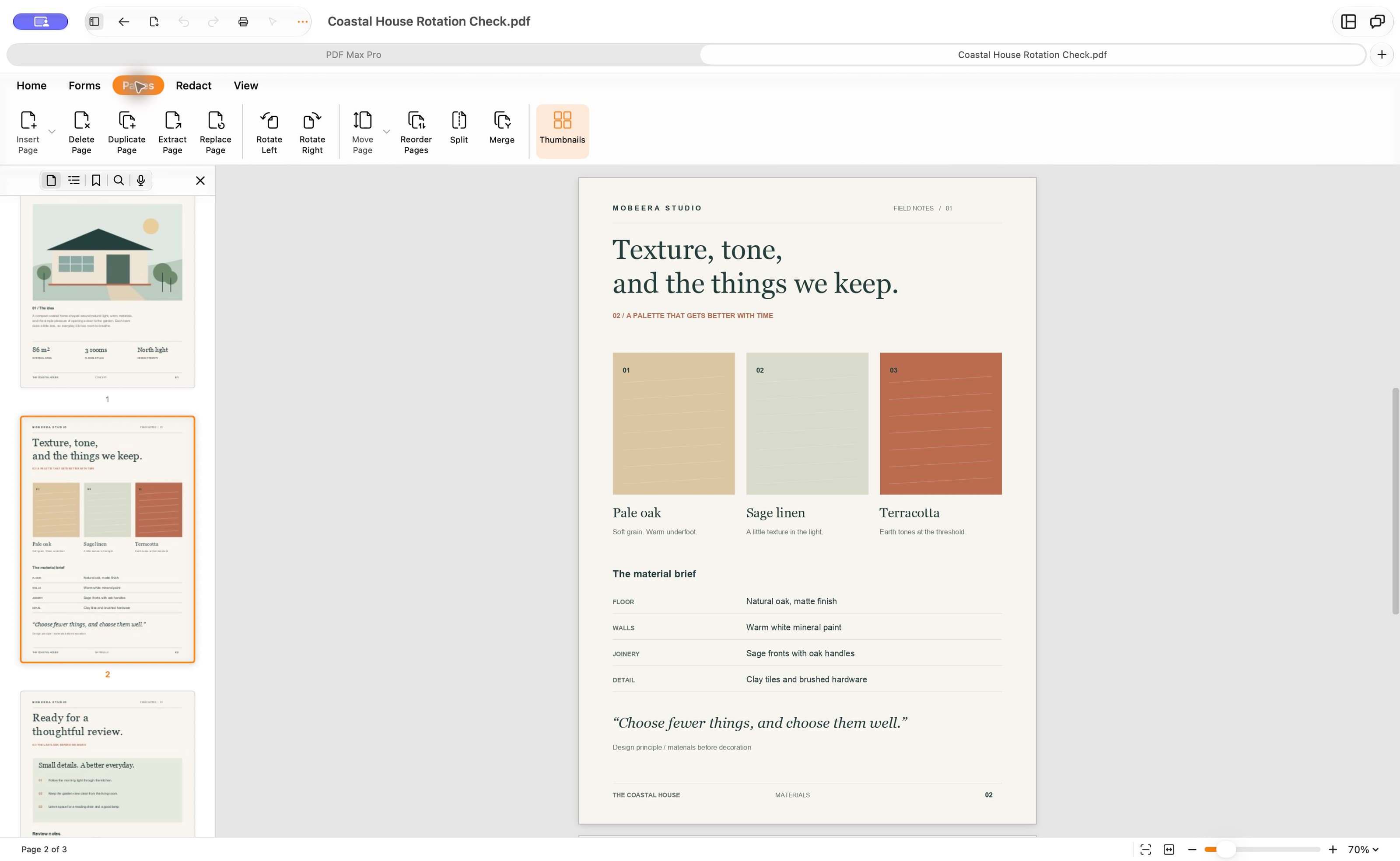
Open the saved-page screenshot at full resolution.
Why the PDF may look sideways again
First check the filename and location. It is easy to correct a downloaded copy and then attach the original from an email. Close the editor and open the exact attachment or delivery copy in a second viewer. This helps distinguish the saved page orientation from a remembered viewing preference.
If the same saved page is still sideways, check whether you used a page-rotation command or merely rotated the view. Save after the page operation, and repeat the close-and-reopen check. If saving is unavailable or fails, resolve that problem before assuming the change is permanent.
A photo placed sideways inside an otherwise upright PDF page is another case. Rotating the whole page also rotates its text and margins. If just one image is wrong, edit the image or recreate the source instead of turning everything on the page.
Verify the final document
“Permanent” here means the orientation is saved in the document; you can still rotate it again later. It does not mean flattening the PDF or converting it into images.
Before delivery, compare the page count and order with the original. Inspect page edges, annotations, and filled form values. If the document contains links or interactive fields, try the ones the recipient needs. For a digitally signed document, retain the signed original and check signature status after any edit instead of assuming it is unchanged.
If the order is also wrong, rearrange the pages before final delivery. If the page dimensions are wrong, use page resizing; rotation alone does not convert Letter to A4.
Have one sideways page to fix? Open a copy in PDF Max, select that page under Edit PDF → Pages, rotate it, and save. Reopen the delivery copy once before sending it.