How to tell if a PDF is flattened—and what to test
Check whether PDF annotations and form fields are still editable, confirm text and search behavior, and verify a flattened copy before relying on it.
Direct answer
How can you tell whether a PDF is flattened?
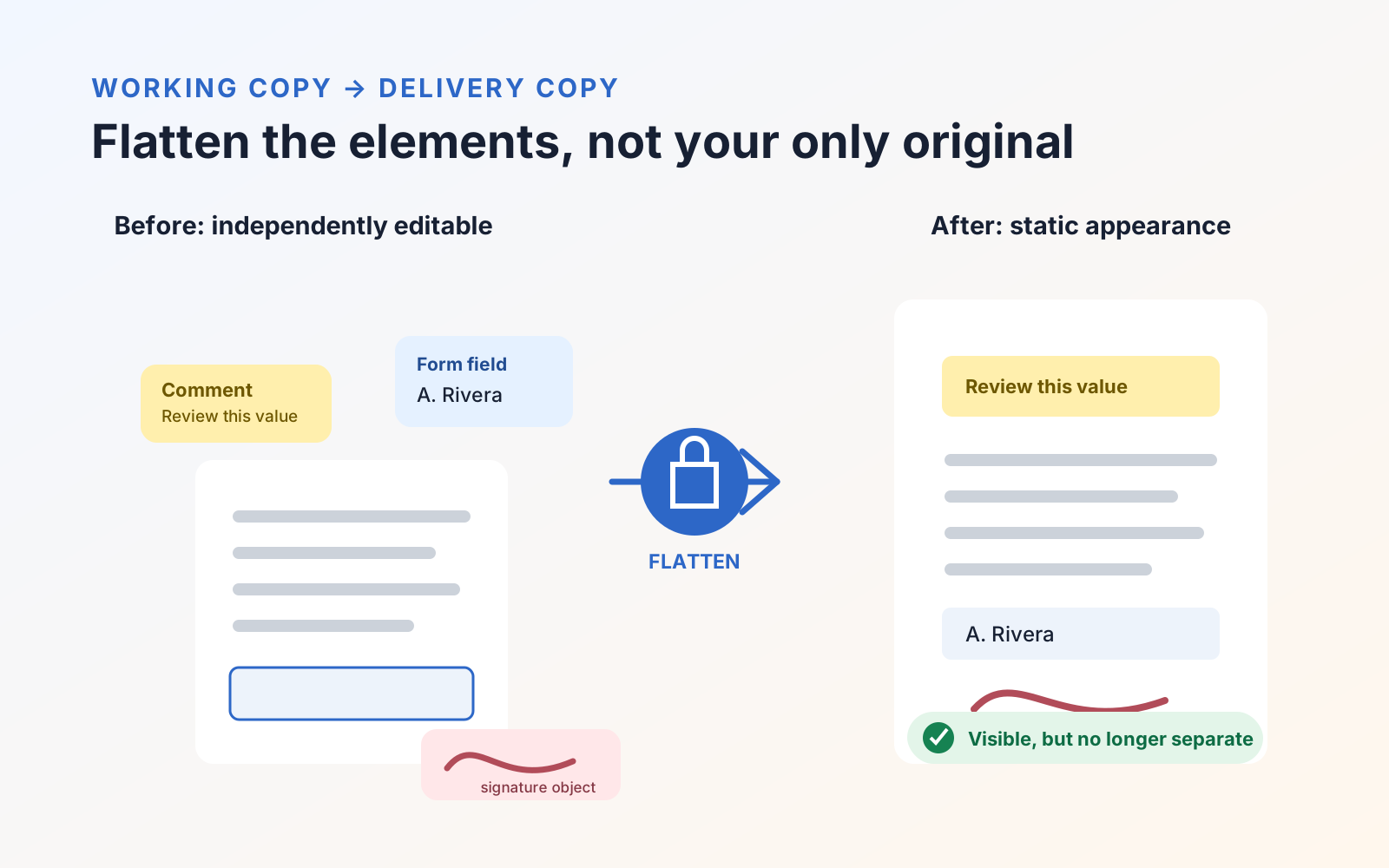
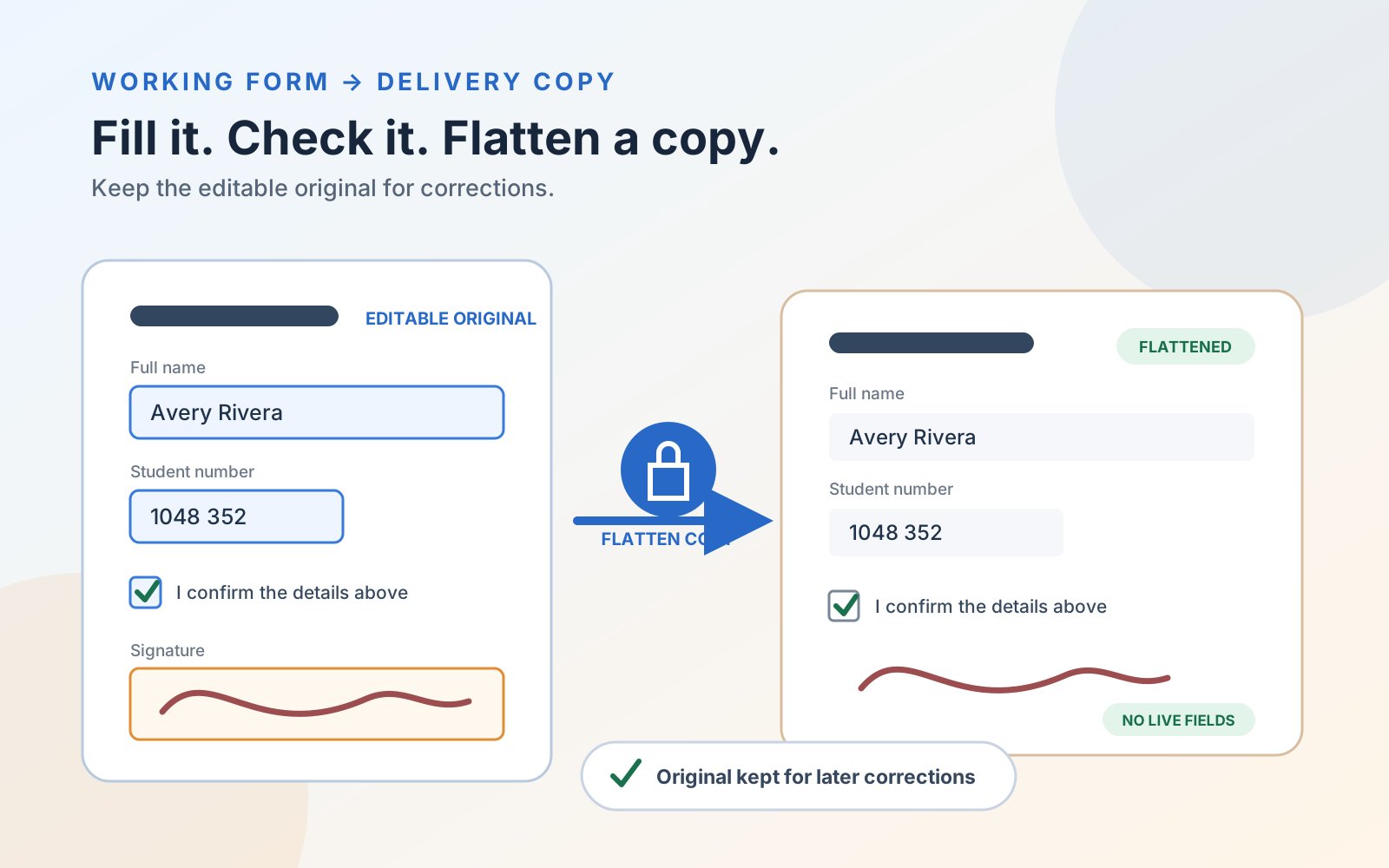
A PDF has no universal flattened flag. Test the copy itself: try to select or move annotations, type into form fields, search and copy original page text, open links and comments, and compare the result in a second viewer. A flattened delivery copy should keep its intended visible appearance while supported annotations and fields no longer behave as live objects.
You cannot reliably identify every flattened PDF from its filename, appearance, or one document property. PDF has no universal flag that means every relevant annotation and form field has been flattened. The dependable approach is to test the exact copy you plan to send, ideally against a known editable original.
The goal is not to prove that the file is impossible to edit. Flattening normally changes supported annotations and form appearances from live objects into static page content. A capable PDF editor may still alter the page itself.
Quick checklist: is this PDF flattened?
Open the delivery copy alongside an original with known editable fields or annotations. Then:
- Compare every filled value, checkmark, signature, drawing, and visible comment mark with the original.
- Confirm that the known fields and annotations no longer respond as their original object types.
- Search and copy a representative line of original page text.
- Test any required links, bookmarks, accessibility behavior, and password protection.
- Repeat the appearance and interactivity checks in a second viewer.
- Keep the editable source as the working record.
Start with the exact delivery copy
Set the working PDF aside and reopen the newly exported file. A test performed on the document still open in the editor can accidentally inspect the editable source instead of the flattened result.
Use a representative page that contained something live before export: a filled text field, checkbox, signature field, highlight, drawing, stamp, or comment. If the source had no annotations or form fields, a lack of interactivity in the copy proves very little because there may have been nothing to flatten.
Keep both files available for comparison:
- the working original, where the chosen field or annotation is known to be editable; and
- the delivery copy, whose visible appearance and behavior you are testing.
Test annotations and form fields
Open the delivery copy and try the same actions that worked in the original:
- Click or tap a known text field and try to type into it.
- Toggle a known checkbox or open a known choice control.
- Select a highlight, drawing, stamp, or placed signature and try to move, resize, edit, or delete it.
- Open a known comment and check whether its popup text, replies, and status remain available.
When the values and marks remain visible but those supported objects no longer respond as fields or annotations, the result is consistent with flattening. Test more than one object type when the document contains them; a tool or workflow may handle fields and annotations differently.
Check text, search, and rasterization
Search for a distinctive phrase from the original page, select it, and copy it into a plain-text note. Then compare the copied text with the source.
In PDF Max, Save as Flattened… preserves original page text as searchable vector content while incorporating visible annotations and form widgets into the page. Other tools may rebuild the file differently. If the entire page behaves like one image and previously searchable text has disappeared, the output may have been rasterized. That is not a universal requirement for flattening and can reduce search, selection, accessibility, and print quality.
A searchable result does not mean the PDF is unflattened. Original page text can remain live while the form fields and annotations above it have become static.
Test links, comments, and navigation
Flattening can affect more than visible form values. Try any links the recipient needs, open the document outline or bookmarks, and inspect comment details rather than only the comment marks printed on the page.
If a required link, outline, comment thread, tagged structure, or other interaction disappears, decide whether that tradeoff is acceptable before sending the file. A delivery copy can be correctly flattened for one purpose and still be unsuitable for another.
Compare the copy in a second viewer
Open the delivery copy in a second PDF viewer and repeat the most important checks. Confirm that the page looks the same, field values and signatures remain visible, former fields do not become interactive again, and required text can still be found and copied.
This catches viewer-specific behavior and verifies the file that left the original editing session. It also follows the practical principle in the U.S. Bankruptcy Court instructions: after flattening, reopen the saved document and confirm that the former fields are no longer editable.
What the results do—and do not—prove
| Result | What it suggests | What it does not prove |
|---|---|---|
| Known fields and annotations remain visible but no longer respond | Those supported objects were probably flattened into the page appearance | The page is impossible to edit or confidential content was removed |
| Original page text remains searchable and selectable | The flattener retained the source text layer | Form fields and annotations are still live |
| A previously searchable page is now one image | The page was rasterized or rebuilt as a bitmap | Rasterization was necessary for flattening or improved security |
| A black shape hides words | The page has a visible cover | The underlying words were permanently redacted |
| The file asks for a password | Access control or encryption is present | The PDF is flattened |
| A viewer shows certificate or signature validation | A digital-signature workflow is present | Annotations or fields were flattened |
Flattening, rasterization, permanent redaction, password protection, and cryptographic signing are separate operations. The redaction, flattening, and covering comparison explains which one matches each release requirement.
Verify a PDF Max flattened copy
First save the editable original. In PDF Max, choose File → Save as Flattened… on Mac, or open the editor’s document menu and choose Save as Flattened… on iPad or iPhone. Give the output a distinct name, wait for the saved-copy confirmation, and reopen that exact file.
For the underlying behavior and risks, read What Does Flattening a PDF Do?. For the complete Free workflow, follow how to fill, sign, and flatten an existing PDF form. If the underlying wording must change before delivery, edit the existing PDF text before flattening. The PDF Max product page covers the wider editing, forms, protection, and delivery toolset across Mac, iPad, and iPhone.