How to password-protect a PDF on iPhone, iPad, and Mac
Add an open password to a PDF—or remove one you know—on Apple devices, keep the work local, and verify the protected or unlocked copy before sharing.
Direct answer
How can you password-protect a PDF on an iPhone, iPad, or Mac without uploading it?
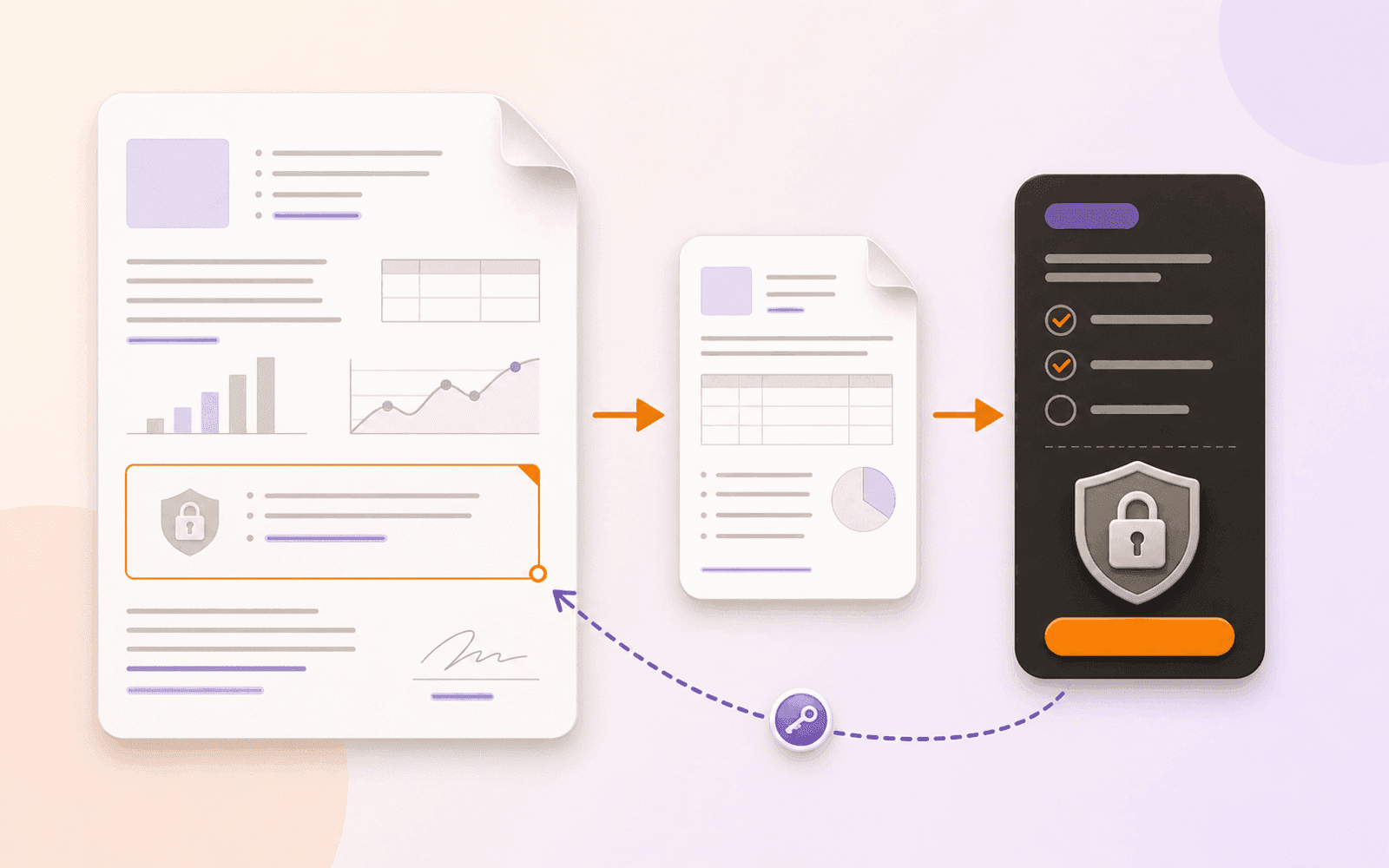
On iOS 26 and iPadOS 26, Apple Preview can require a password for a PDF; Preview on Mac can set an open password and separate permissions during export. For a consistent local workflow across Apple devices, PDF Max can create a password-protected copy or remove a known open password. Keep the original, store the password safely, and reopen the output in a second viewer before sharing it.
A password can stop someone from opening a PDF, but it cannot remove private content, prove who signed the document, or prevent an authorized reader from taking a screenshot or sharing what they can see. Use it when access to the file itself should require a shared secret, then handle redaction, signatures, and delivery as separate decisions.
You can add a password locally on current Apple devices. The best route depends on the operating system, whether you need granular permissions, and whether you also need to remove a password later.
Use Apple Preview when its built-in controls are enough
On an iPhone running iOS 26 or an iPad running iPadOS 26, open the PDF in Preview, open the Actions menu beside the filename, and choose Lock. Turn on Require Password, enter it twice, and finish the operation. Apple advises duplicating the document first if you need to retain an unprotected copy.
On Mac, Preview offers more detailed controls. Open the PDF, choose File → Export, then open Permissions. You can require a password to open the document and separately choose which printing or editing actions need an owner password. Save under a new name if the unprotected source must remain available.
Those built-in routes are sensible for a one-off job. Notice that the mobile and Mac interfaces do not expose the same choices: Mac Preview documents open-password and permission controls, while Apple’s iPhone and iPad guides describe a simpler Lock action.
Decide whether you need an open password or permissions
PDF security discussions often combine two different controls:
- An open password is required before the document can be viewed.
- A permissions password can restrict actions such as printing, editing, or copying after the document opens.
Adobe documents both controls in Acrobat, and Preview on Mac exposes them through its Permissions sheet. PDF Max’s Set Password tool is deliberately narrower: it adds or removes the password required to open the PDF. It does not present a matrix of separate print, copy, and annotation permissions.
Choose the control that matches the release requirement. If the goal is to remove a name, account number, or confidential paragraph, use permanent PDF redaction instead. If the goal is to make completed fields and annotations non-interactive, learn what flattening a PDF does. Neither operation is a substitute for an open password.
Password-protect a copy in PDF Max
PDF Max provides the same Set Password workflow on iPhone, iPad, and Mac:
- Keep the original PDF and choose Tools → Set Password.
- Select the unprotected source document.
- Enter the new password and enter it again for confirmation.
- Choose Protect.
- On Mac, choose where to save the new PDF. On iPhone and iPad, PDF Max creates a collision-safe output in My Files.
- Open the result and confirm that it now requests the password.
The tool creates a separate protected copy rather than overwriting the original. The result uses the same password for opening the document and its permissions; PDF Max does not claim separate recipient roles or granular permission presets in this workflow.
Set Password is a Premium PDF Max capability. It is not included in the Free or Pro floor, including the one-time PDF Max Pro app. PDF Max 27.1 supports iPhone with iOS 18 or later, iPad with iPadOS 18 or later, and Apple-silicon Mac with macOS 15 or later. The current Free, Pro, and Premium comparison records that boundary.
This workflow is local and does not require Apple Intelligence, a language model, or a downloaded speech model. The offline PDF editor checklist explains how to verify other sensitive workflows before entrusting them with real documents.
Remove a password you know
Removing a password is appropriate when you own the document or have permission to create an unlocked working copy. It is not a password-recovery or password-cracking process.
In PDF Max:
- Choose Tools → Set Password and select the protected PDF.
- The tool detects that the source is protected and offers Remove Password.
- Enter the current password.
- Choose Remove and save the unlocked output.
- Open the new copy without supplying a password, then confirm that the original still remains protected.
PDF Max validates the current password before rewriting the file. A wrong password returns you to the entry screen; the tool does not bypass protection. If you do not know the password, ask the document owner for an accessible copy rather than uploading sensitive material to an unknown unlocking site.
Verify the protected or unlocked output
Do not stop at a success message. Close the app or viewer, then test the exact file you plan to deliver:
- Open the protected copy in a second PDF viewer and confirm it requests a password.
- Enter an incorrect password once and make sure access is refused.
- Enter the correct password and inspect the first, middle, and final pages.
- Search for a phrase and test required links, bookmarks, form fields, annotations, and signatures.
- For an unlocked copy, confirm it opens without a prompt and that the protected original still behaves as before.
- Compare filenames and locations before attaching anything to a message.
Send the PDF and its password through separate approved channels when the document’s sensitivity warrants it. Password protection reduces accidental access; it does not control what an authorized recipient does after opening the file.
Use the smallest workflow that meets the requirement
Use Preview on iOS 26 or iPadOS 26 for a quick built-in lock. Use Preview on Mac when you need its documented owner-permission choices. Use PDF Max when you need one local Apple-device workflow for adding an open password or creating an unlocked copy from a password you already know.
Try the process on a harmless sample first: protect it, close it, reopen it in another viewer, then remove the password into a separate copy. Only move to a sensitive document after both outputs pass that test.