How to present a PDF for class without rebuilding it as slides
Present PDF pages or research Workspace frames directly, add presenter notes, skip material, and rehearse the exact deck your class will see.
Direct answer
How can you present a PDF for class without rebuilding it as slides?
Present the PDF pages directly in a full-screen document presentation, or turn selected research Workspace frames into the presentation sequence. Prepare page-specific notes, hide material you will skip, test links and media, and rehearse the exact saved file. With an external display, keep controls, notes, and timing on the presenter device when supported.
Sometimes the assignment is already a PDF: a poster, illustrated report, portfolio, handout, or set of annotated readings. Rebuilding every page in slide software creates another file to keep in sync and another opportunity for fonts, diagrams, and page order to change.
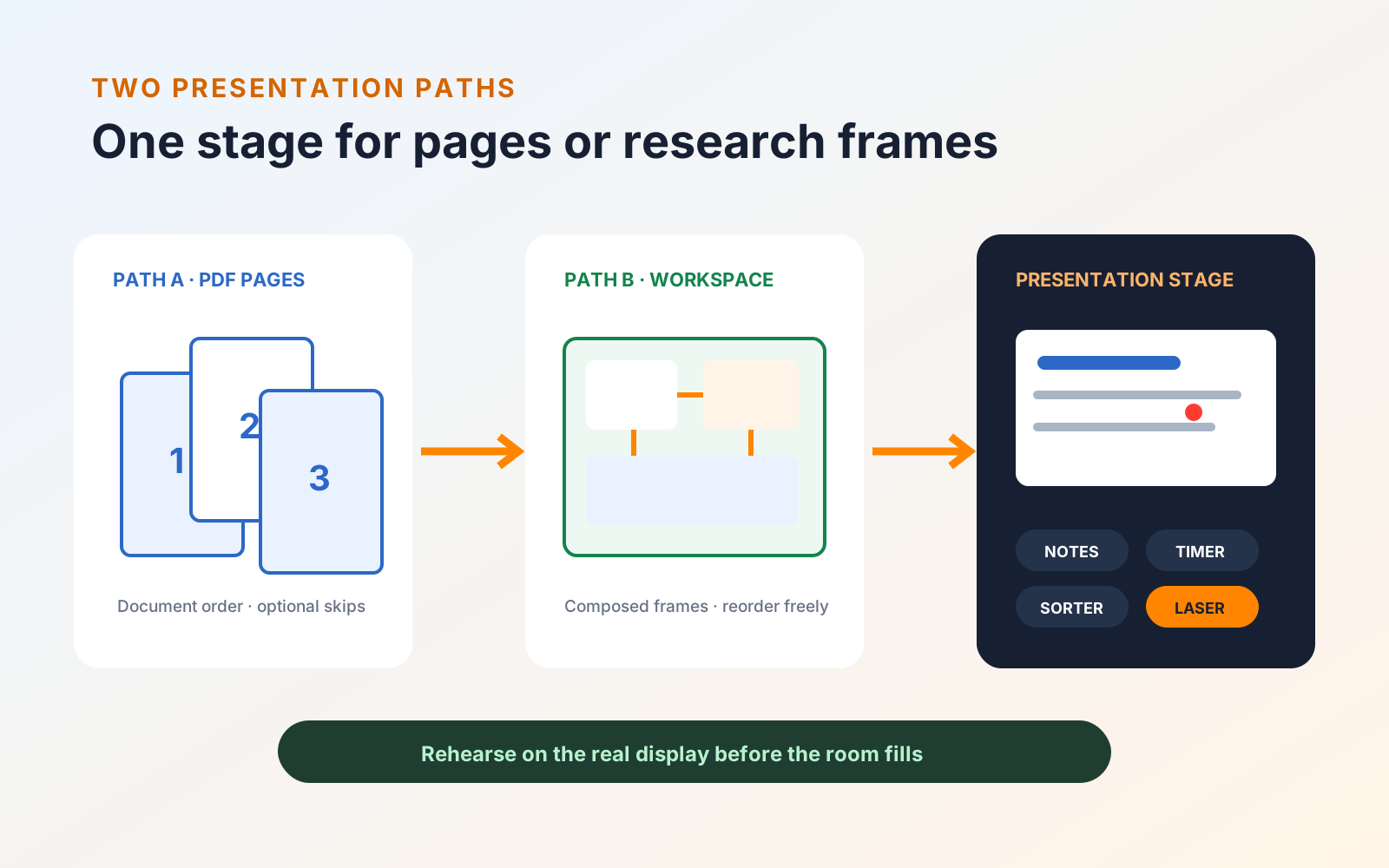
PDF Max can present the PDF itself. It can also present frames composed in a research Workspace. Both routes use the same presentation controls, but they serve different jobs: document pages preserve the file you already have, while Workspace frames let you design a focused story from selected evidence.
Prepare the file before presentation mode
Presentation mode shows the document's real page order. It does not create a hidden alternative order. Make permanent document changes first:
- Remove accidental blank or duplicate pages.
- Reorder pages in the PDF if the argument should run differently.
- Rotate pages that open sideways.
- Use Page Resize if inconsistent page dimensions create distracting jumps.
- Use Compress PDF if the file must be transferred quickly or uploaded to a learning portal.
If the source pages themselves are out of sequence, use the complete guide to rearranging PDF pages on iPhone, iPad, and Mac before opening presentation mode.
Compression re-encodes images while preserving text and vector content, but heavy compression can still soften screenshots, diagrams, and small labels. Inspect the output on a large display before replacing your working copy.
Present the PDF pages directly
Start the document presentation after the PDF is open. PDF Max builds the deck from the file's pages. Portrait pages can appear as document spreads when the screen has room, with the cover treated as a page of its own. This preserves the way a report or booklet is naturally read.
Open the sorter before the talk to:
- skip pages you do not need for this session;
- jump directly to a page during questions; and
- add presenter notes to individual pages.
Skipping is temporary and does not delete the page. Page order remains the document's order; use the page organization tools if it genuinely needs to change.
During the presentation, use the timer to manage pace, the laser pointer to direct attention, and black or white curtain controls when the room should look away from the page. Advancing from a curtain clears it before moving on, helping prevent an unseen page change.
Keep the audience view clean
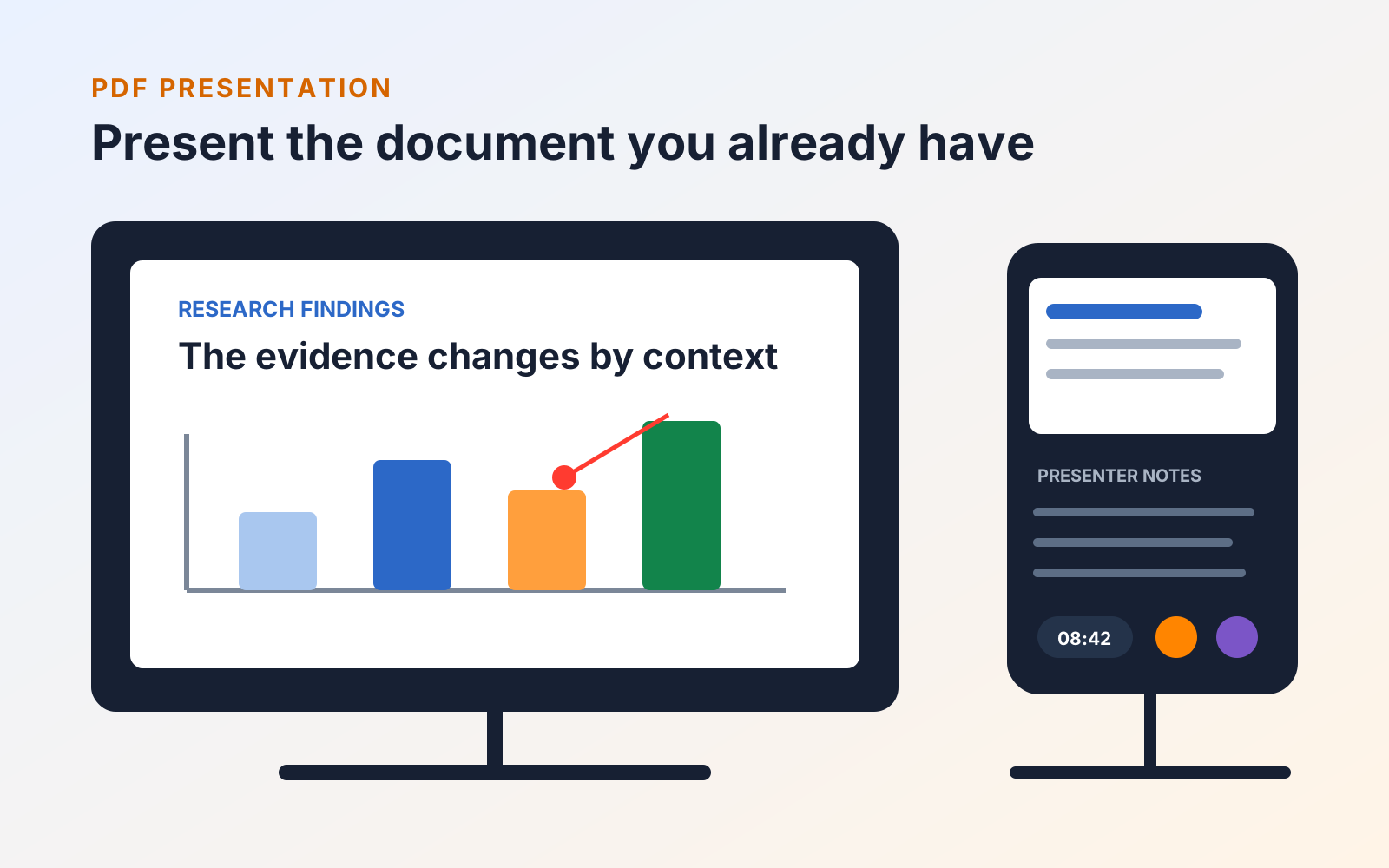
On supported external-display setups, PDF Max separates the presenter controls from the audience stage. The classroom display receives the page, while the device in your hand keeps navigation, notes, timing, and sorting controls available.
Test the real adapter, projector, display mode, and orientation before the class begins. A deck that looks correct on an iPad screen can reveal low-resolution images, narrow margins, or unreadable labels when enlarged across a room.
Present research frames instead of complete pages
A full research paper is rarely a good slide deck. If the talk is based on selected evidence, build it in PDF Max Workspace.
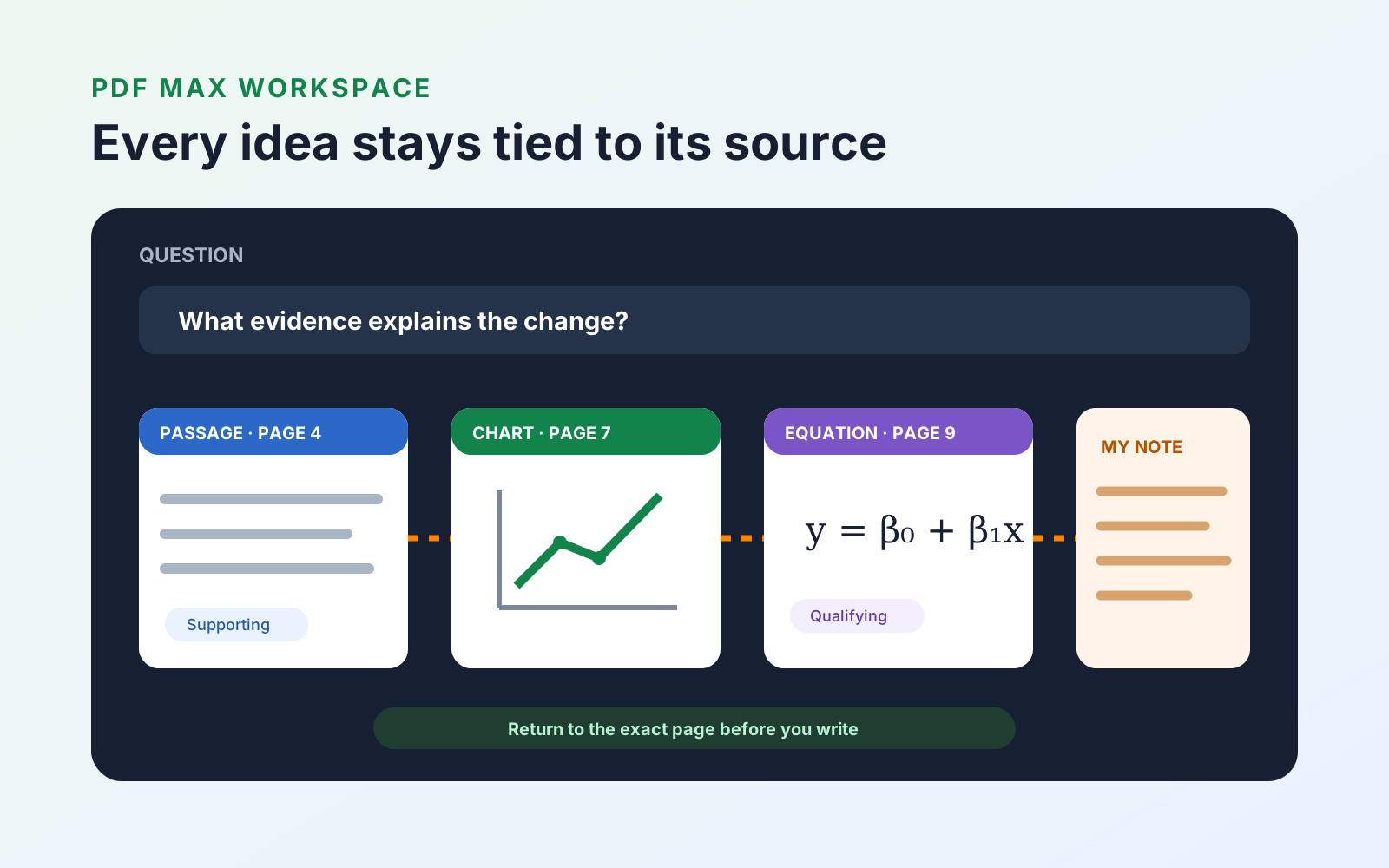
Arrange related passage, chart, image, table, equation, and note cards inside a frame. The frame itself becomes one slide, using the shape and boundary you composed on the board. Add a clear title and presenter notes, then create additional frames for the next part of the argument.
Workspace frames can be:
- reordered in the presentation sorter;
- included or excluded for a particular talk;
- presented one at a time rather than paired; and
- updated from the board without maintaining a separate slide copy.
This route is useful for literature reviews, journal-club discussions, project defences, and any talk where the source material matters as much as the conclusion.
Rehearse the exact presentation path
Run one complete rehearsal using the file and device you will bring:
- Confirm the first and last included slides.
- Check every spread and Workspace frame at projector size.
- Read presenter notes without blocking the audience view.
- Practice opening the sorter and jumping to a likely discussion page.
- Test laser, blackout, and whiteout controls.
- Check external-display connection and device power.
- Open formulas, tables, and linked sources that may come up in questions.
- Keep an exported copy in the storage location permitted by your institution.
The best reason to present a PDF directly is not speed alone. It is consistency: the reviewed document, the version submitted to the course, and the version shown to the room can remain the same file. Use the back-to-school PDF checklist to prepare a clean copy, and the research-paper reading workflow to verify technical material before it reaches the screen.