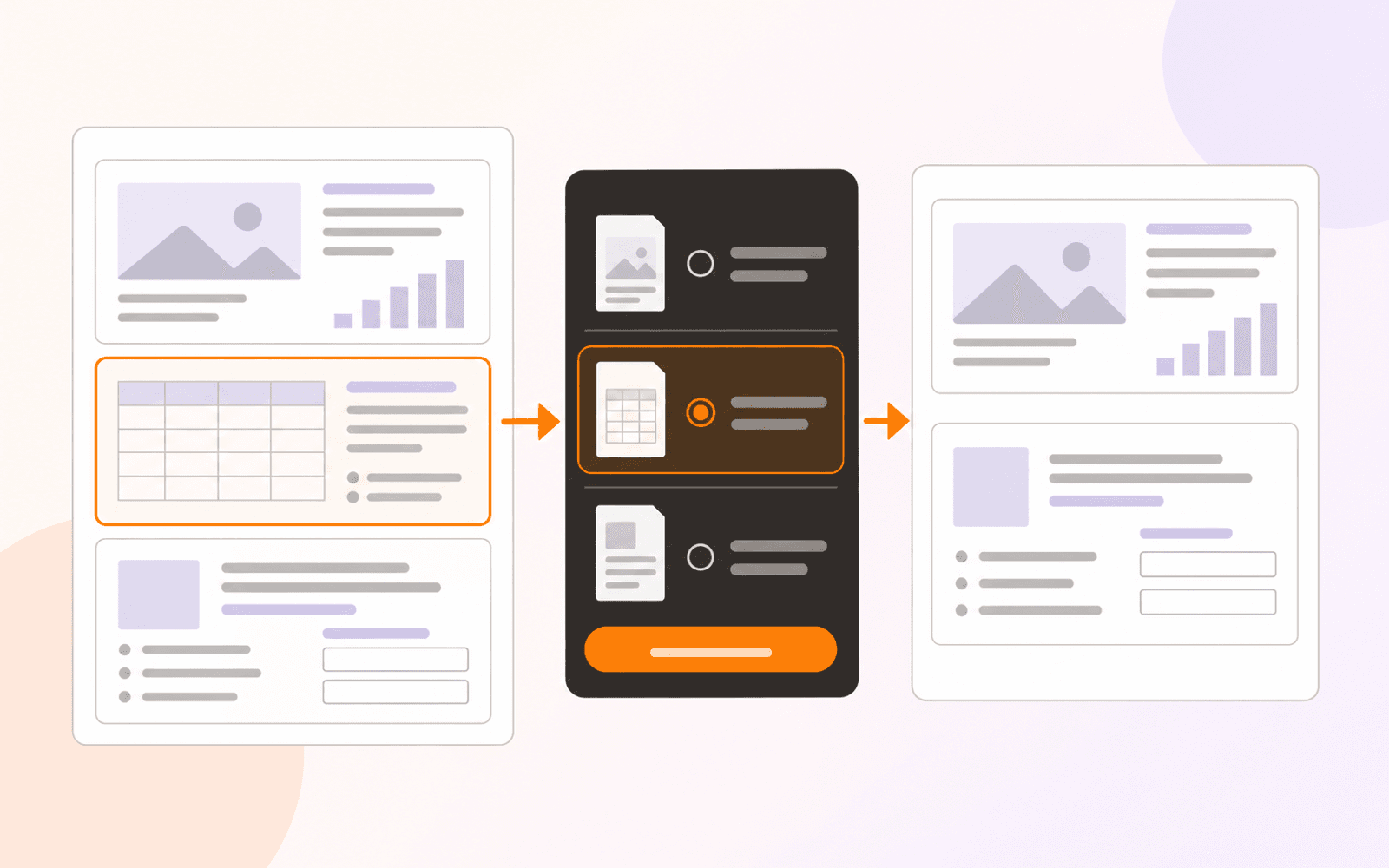
How to resize PDF pages to A4 or Letter on Apple devices
Normalize mixed PDF pages to A4, Letter, Legal, A3, or A5, choose Fit or Fill safely, and verify the resized copy before printing or sharing.
Direct answer
How can you resize the actual pages in a PDF to A4 or US Letter on an iPhone, iPad, or Mac?
If the editable source exists, change its paper size before exporting again. If only the PDF remains, PDF Max's Page Resize tool can rebuild every page as A4, US Letter, US Legal, A3, or A5. Choose Fit to keep the whole page with possible margins, or Fill to cover the new sheet with possible cropping. Page Resize is Premium and saves a separate resized copy.
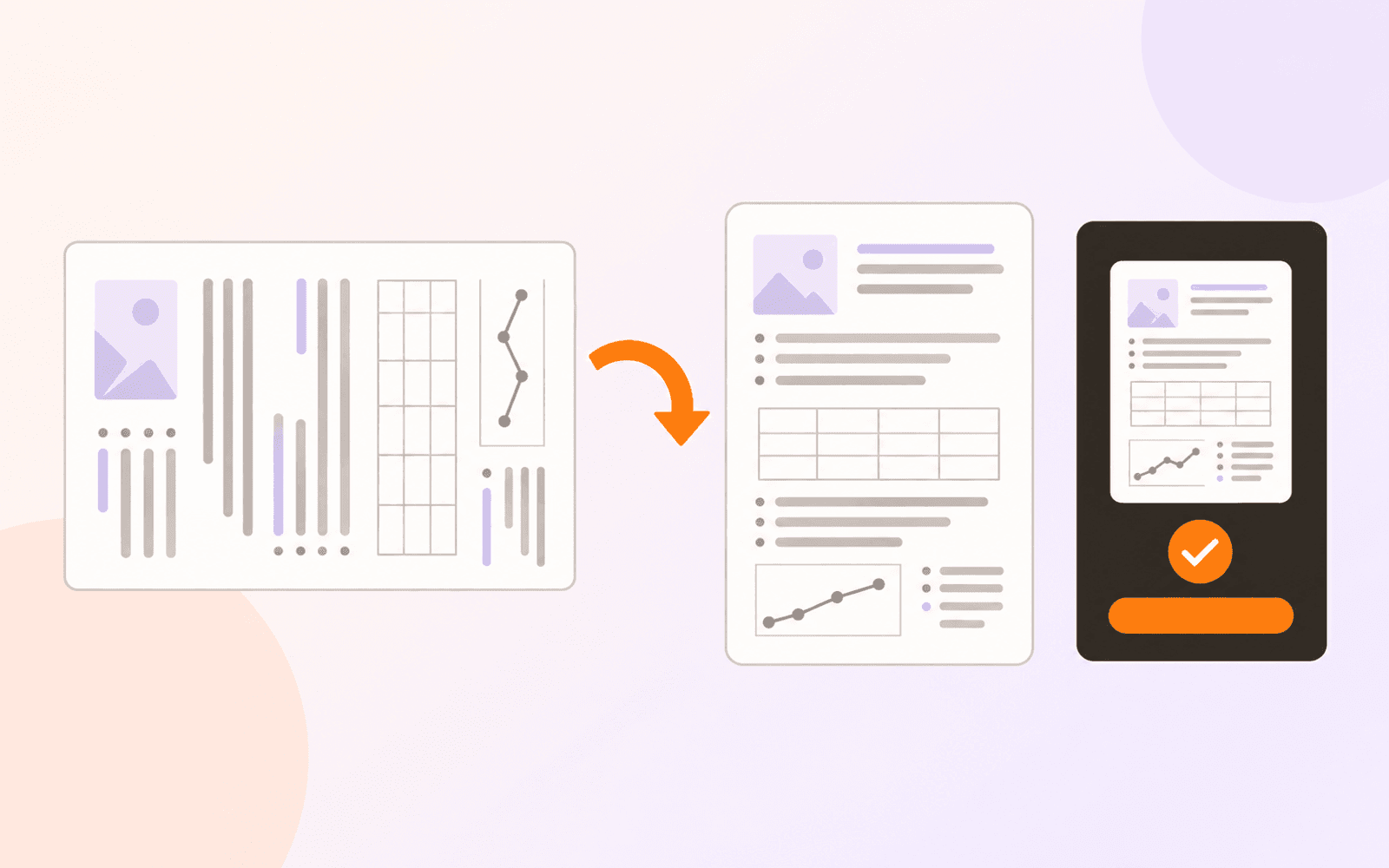
A PDF assembled from scans, slides, exports, and receipts can contain several page sizes in one file. That may be acceptable on screen but awkward in a print shop, school portal, records system, or review workflow expecting one standard sheet.
Changing the print dialog to “Fit” does not change the PDF itself. It only scales the current print job. To deliver a file whose pages are actually A4 or US Letter, resize the page canvases and save a new PDF, then inspect what was preserved and what may have been cropped.
Change the editable source when it still exists
Apple documents paper size and orientation controls in Pages. If the original Pages document remains available, change its document setup and export a fresh PDF. Text and layout can reflow in the source instead of being treated as a finished page.
Resize the PDF when the source is unavailable, when several completed PDFs have already been combined, or when a receiving system requires one page size across the assembled file. Work on a copy: resizing is a delivery transformation, not a harmless viewer preference.
Confirm which problem you need to solve
Several controls can make a PDF look smaller without changing the same thing:
- Viewer zoom changes only the on-screen magnification.
- Print scaling fits the PDF onto paper for one print job; Adobe documents this separately from changing the file's pages.
- Cropping changes the visible page boundary and may hide content.
- Compression targets file size in bytes, mainly by re-encoding images.
- Page resizing creates new page canvases with chosen physical dimensions and places each original page onto them.
Use Page Resize when the requirement names a paper size such as A4 or Letter, or when mixed pages must become consistent. Use PDF compression when the requirement names megabytes. One does not guarantee the other.
Choose A4, Letter, or another target size
PDF Max provides five target sizes:
- A4: 210 × 297 mm, common in countries using the ISO A series;
- US Letter: 8.5 × 11 inches;
- US Legal: 8.5 × 14 inches;
- A3: 297 × 420 mm; and
- A5: 148 × 210 mm.
Use the recipient's written requirement rather than inferring a size from how the page looks. A4 and Letter are close enough to seem interchangeable on screen but not identical. If no size is specified, ask before transforming a formal submission.
Orientation is a separate choice. Portrait or Landscape makes every output page use that orientation. Match Each Page keeps each original page's portrait-or-landscape direction while still normalizing it to the selected paper family.
Understand Fit versus Fill before applying it
The choice with the greatest visual effect is scaling mode:
- Fit scales the whole original page inside the target sheet. Nothing is deliberately cut off, but margins can appear when the aspect ratios differ.
- Fill scales until the target sheet is covered edge to edge. It avoids the Fit margins, but content extending beyond the new boundary is cropped.
Use Fit for forms, evidence, lecture notes, diagrams, footnotes, signatures, and anything where every edge matters. Consider Fill only when edge-to-edge appearance matters more than retaining the entire source, and inspect the crop preview on every page layout.
Resize every page in PDF Max
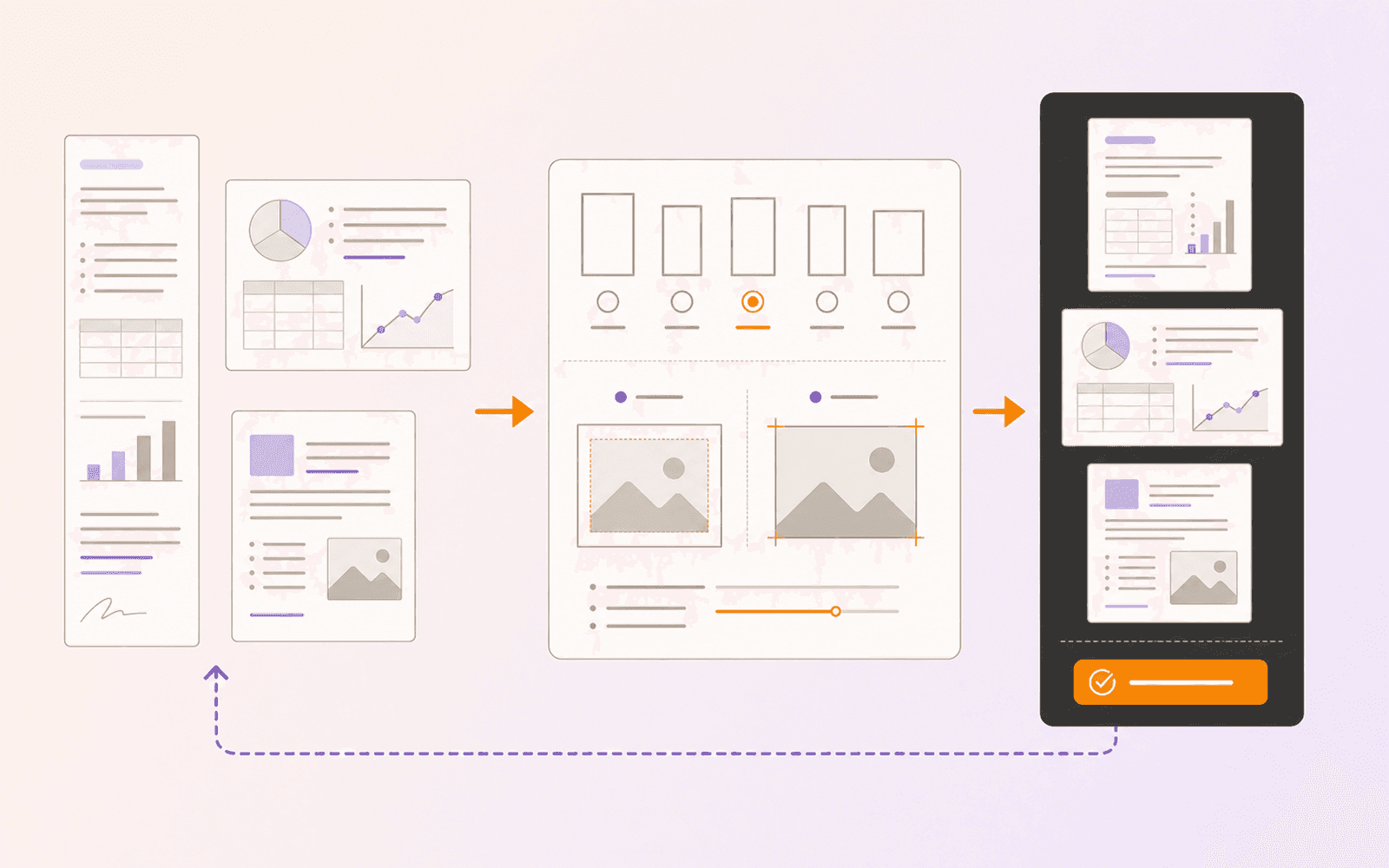
From PDF Max, open Tools → Page Resize and choose the PDF. Page Resize operates on the complete document; it does not offer a page-range selector.
Then:
- Choose A4, US Letter, US Legal, A3, or A5.
- Choose Portrait, Landscape, or Match Each Page.
- Select Fit or Fill.
- Move through representative pages in the preview, including every original size and orientation.
- Watch the preview's crop warning when using Fill.
- Choose Resize and wait for the new copy to be written.
- Review the completion notes, then open the resulting
-Resizedfile.
On Mac, PDF Max presents the save location. On iPhone and iPad, the new file is saved through the app's file workflow with a collision-safe name. The original is not the output target.
The resize writer keeps page content as PDF content rather than rasterizing every page into one flat image, so searchable or selectable source text can remain searchable or selectable. It also rebuilds outlines and page-link annotations when it can map them safely. That is not a promise that every interactive object in every PDF will survive unchanged. Read any completion warning and test the features your document depends on.
Password-protected input must be unlocked before the tool can process it. Do not publish an unprotected resized copy when the recipient still requires encryption; apply and verify the required protection after the content transformation.
Know the plan and device requirements
Page Resize is a Premium PDF Max capability. It is not included in the Free or Pro floor, including the one-time PDF Max Pro app. PDF Max 27.1 supports iPhone with iOS 18 or later, iPad with iPadOS 18 or later, and Apple-silicon Mac with macOS 15 or later. Page Resize does not require Apple Intelligence or a downloaded language, speech, or OCR model. Review the current plan comparison before starting a deadline-sensitive conversion.
Students preparing scans can use the back-to-school PDF checklist to decide when page dimensions, OCR, and file-size reduction are separate requirements.
Verify the resized copy
Do not judge a mixed document from a single preview page. Reopen the saved output and check:
- Confirm the expected paper size on an early, middle, and final page—and on every original layout type.
- Confirm the page count matches the source.
- Inspect all four edges for clipped text, annotations, signatures, diagrams, and page numbers.
- Search for a distinctive phrase and copy a sentence to verify that required text remains usable.
- Activate internal and web links, and open several outline or bookmark destinations.
- Test required form fields, annotations, and other interactive objects instead of assuming they were preserved.
- Compare the resized file with the untouched original in a second viewer.
- Print one harmless sample page or inspect the receiving system's preview before processing the only final copy.
If the pages are also out of order, rearrange them before resizing so the final validation follows the intended reading sequence.
If the paper size is already correct but a page is sideways, rotate the page and save its orientation instead. You do not need to resize it merely to turn its content upright.
Start with a three-page sample containing one portrait page, one landscape page, and one unusually shaped scan. Resize it to the required paper size with Fit, verify the margins and selectable text, then compare a Fill preview without committing it. Once the trade-off is clear and the saved copy passes the link, outline, and edge checks, repeat the documented settings on the real PDF.