How to add and resolve PDF comments on iPhone, iPad, and Mac
Add PDF comments to selected passages, reply in a thread, and resolve feedback on Apple devices. Learn how to keep the discussion in your review copy.

Direct answer
How do you add, reply to, and resolve PDF comments on iPhone, iPad, or Mac?
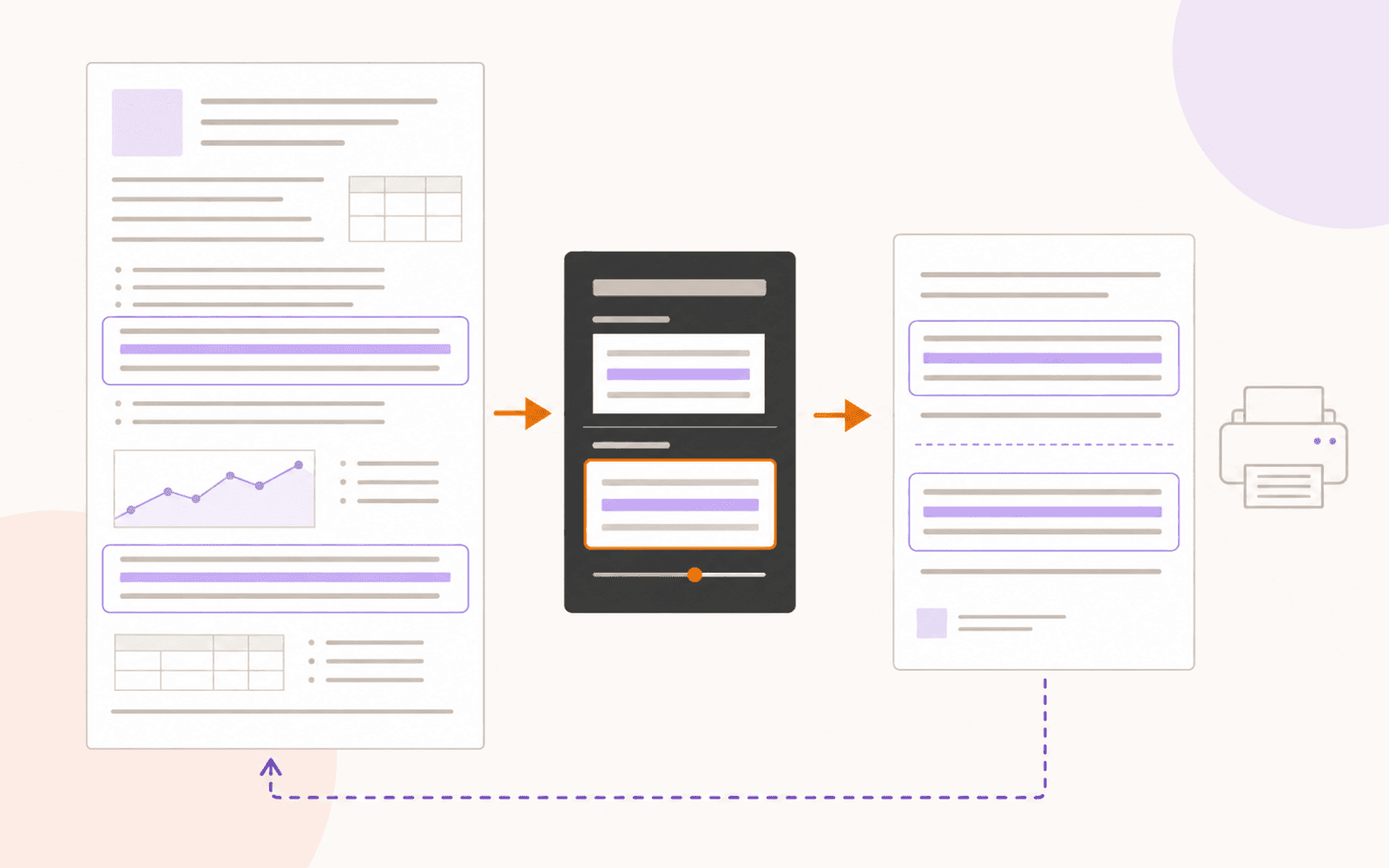
Select a passage, add a comment, and keep follow-up messages in that thread. In PDF Max, use Annotate → Comment, enter your feedback, and choose Save. Open Show Comments to revisit the discussion, use Reply to add a response, and select the checkmark to resolve or reopen it. Resolving records a review status; it does not change the page text or delete the discussion. Save an unflattened working copy and check it before sharing.
To comment on a PDF, select the passage you mean and attach feedback to it. Reply inside the same thread when the issue develops, then mark it resolved after you have checked the response. Keep the editable review copy: a resolved comment is still part of the discussion, not a correction to the document itself.
This is useful when reviewing a classmate’s essay, a draft paper, or a report. A highlight identifies the sentence; a comment explains the problem. A reply records what happened next. Keeping those jobs separate makes the review easier to act on.
Choose a note, a thread, or a page edit
Before adding anything, decide what the recipient needs.
| Your intention | Use | Result to expect |
|---|---|---|
| Leave a short reminder at a place on the page | A sticky note | A page annotation you can open and read |
| Discuss a particular passage or annotation | A comment thread | Feedback and replies grouped around that target |
| Record that an issue has been handled | Resolve the thread | A changed review status, with the discussion retained |
| Replace incorrect wording in the document | Edit the source document or PDF text | An actual content change, not just a request for one |
If you still have the Word or Pages source, make substantive revisions there and export a new PDF when appropriate. If only the PDF is available, editing existing PDF text is a separate workflow. Neither typing a proposed replacement into a comment nor resolving that comment applies the replacement for you.
A quick note on Mac with Preview
For a simple note, you may already have what you need. In Preview on Mac:
- Open the PDF and show the Markup toolbar.
- Choose the Note button and type your feedback.
- Click elsewhere on the page to close the note; drag its marker to the relevant location if needed.
- Choose View → Highlights and Notes to see the document’s notes in the sidebar.
Apple’s Preview instructions also cover editing, removing, and changing the author name for notes. For a review organized around replies and a resolved state, use a thread-based workflow such as the one below.
Attach a comment to the exact passage in PDF Max
Start with a separately named working copy, especially if you will return feedback to someone else. Open it in PDF Max and use the annotation/review tools rather than Edit PDF.
- Select the smallest passage that gives your comment enough context. Include the claim and its qualifier, not just an isolated word.
- Open Annotate → Comment.
- Enter the feedback in the comment editor.
- Choose Save to keep the message.
- Check that the thread refers to the intended passage before adding the next one.
The Comment command can also target a selected annotation, such as an existing highlight or shape. If that annotation already has a thread, the command opens it. If neither text nor a supported annotation is selected, PDF Max asks you to select something first.
Write one actionable issue per thread. For example, a comment on a methods paragraph might ask the author to state the sample size and point out that the results table uses a different total. A reply can explain the discrepancy. A separate thread should handle an unrelated missing citation.
Avoid scattering the same issue across several page notes. The reader should be able to understand what needs attention and what would count as an adequate response without searching the entire file.
Find the discussion and add a reply
Choose Annotate → Show Comments. PDF Max opens a comments sidebar on Mac and in wider iPad layouts, or a list sheet on iPhone and in narrow iPad layouts. Select the relevant thread to return to its page location; in the sheet layout, tap the row to open its discussion.
Type your follow-up in Reply…, then use the upward-arrow Send reply button. Confirm that the message appears in the thread. Adding a new comment elsewhere on the page creates a separate discussion rather than answering the existing one.
Use a reply to record a decision, clarification, or next action. For the sample-size example, that might be an explanation of excluded participants and a note that the methods paragraph still needs updating. Do not resolve it until you have checked the required change in the appropriate document.
Resolve the issue without deleting its history
Open the thread and select the checkmark-circle control beside the first message. Its action is Resolve comment thread. Once resolved, the same control offers Reopen comment thread.
Resolve only when the issue is actually handled. If you are reviewing somebody else’s proposed correction, read the revised passage first. If you are keeping a personal reading log, a final reply can record the explanation you accepted before you mark the thread resolved.
Resolution is reversible. Reopen the thread if a new draft reintroduces the problem or the explanation turns out to be incomplete. It is a review marker, not proof that the document is correct, an approval signature, or removal of private feedback.
Message editing and deletion are separate actions. Where available, the message’s More actions menu offers Edit; Delete Thread applies to the root discussion, while Delete Comment on a reply removes that reply. Those controls depend on the message’s edit/delete permissions. For cleaning up marks as well as discussions, use the separate highlight and comment removal guide.
Preserve the review copy when sharing
Save the ordinary working PDF when the recipient still needs to read and answer comments. Do not choose Save as Flattened… as a way to preserve a live discussion. When flattening rebuilds the pages, the visible annotation appearance can remain while the interactive comment data does not. See what flattening a PDF changes before making a delivery copy.
Reopen the exact saved file and check three things: the comment points to the right place, its replies remain readable, and its resolved or open status is what you intended. Then test the copy in the recipient’s PDF reader. Do not assume every viewer presents threads and review states identically.
This walkthrough is a file-based review process. Agree who edits the working copy and how the next version will be returned; sending two people separate copies does not by itself combine their responses. Use clear filenames to distinguish the original, the review copy, and a revised draft.
If your team specifically needs shared-review mentions and notifications, choose a workflow designed for that. Adobe documents those shared-PDF comment tools in Acrobat on mobile. Those service features are not implied by PDF Max’s local Comment and Reply controls.
Requirements and a one-thread test
Adding comments, replying, resolving or reopening threads, and permitted message editing or deletion are included in PDF Max Free, and therefore also in Pro and Premium. Commenting does not require Apple Intelligence or a downloaded language model. The plan comparison distinguishes these review tools from Premium page-content editing and OCR.
PDF Max requires iOS 18 or later, iPadOS 18 or later, or macOS 15 or later on an Apple silicon Mac with an M1 chip or newer. You also need a PDF that permits the intended annotation changes. If a scan has no selectable text, first make a working copy searchable with OCR, or use an annotation as the comment’s target instead.
Try the complete loop on one page in PDF Max: select a passage, save one specific comment, add a reply, resolve it, and reopen the saved PDF. Check that you can find the discussion and return to the passage. That small test is worth doing before you mark up an entire assignment or manuscript.