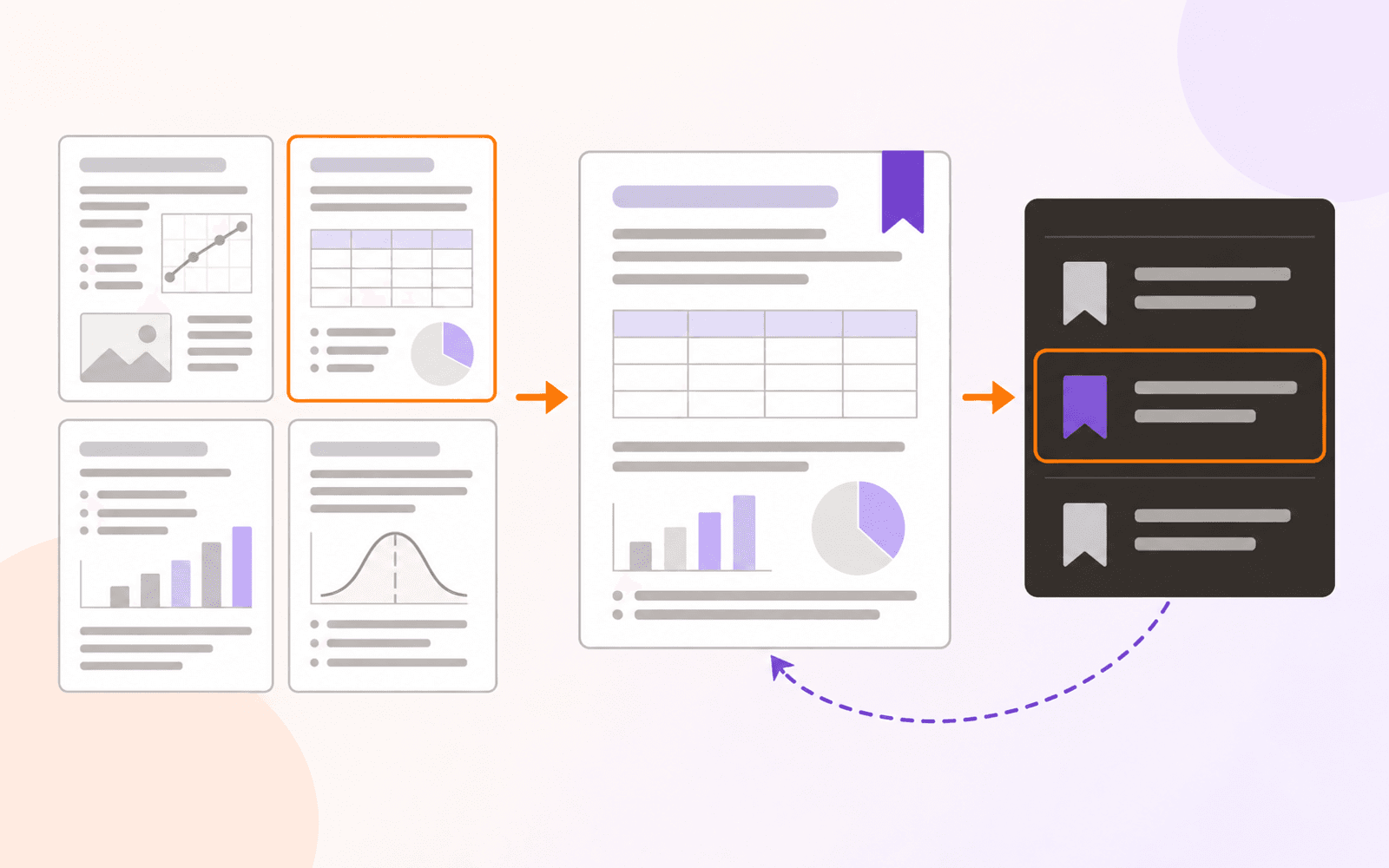
PDF Max vs Adobe Acrobat: which PDF editor fits you?
Compare PDF Max and Adobe Acrobat for editing, OCR, forms, signatures, redaction, collaboration, and PDF work on Mac, iPad, and iPhone.
Direct answer
Should an Apple-device PDF user choose PDF Max or Adobe Acrobat?
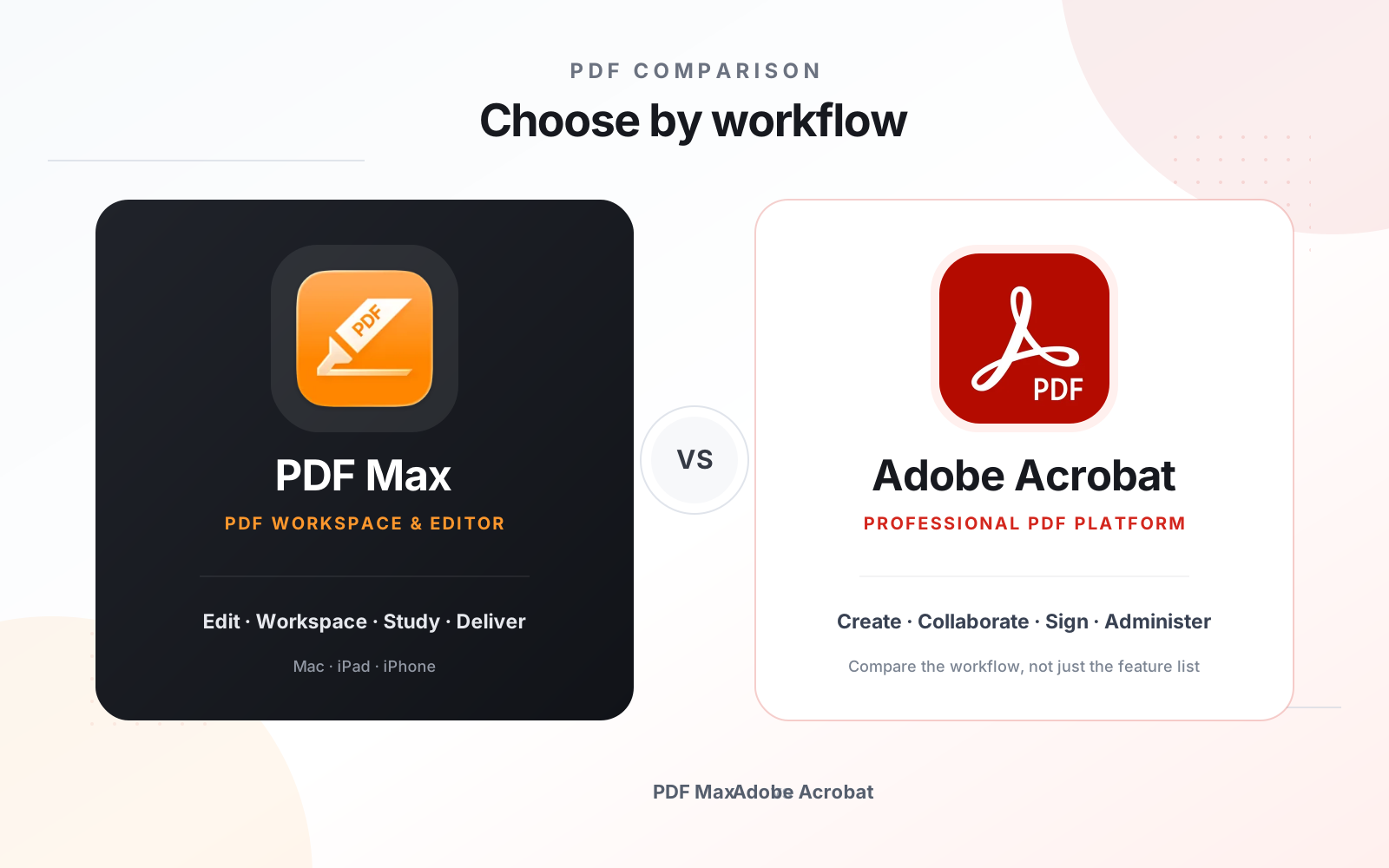
Choose PDF Max when you want an Apple-focused PDF workspace with on-device document intelligence, source-linked research, direct presentation, and a lower-cost path to editing, OCR, forms, and redaction. Choose Adobe Acrobat when your priority is a broader cross-platform business ecosystem, web services, enterprise administration, advanced signing, or established Acrobat workflows across mixed device fleets.
Adobe Acrobat defines the category for many professional and organizational PDF workflows. PDF Max is a focused alternative for Apple users who want to read, annotate, edit, complete, transform, and protect PDFs across Mac, iPad, and iPhone.
The decision is therefore not whether Acrobat has a longer feature list. It is whether you need Adobe's broader document, signature, collaboration, accessibility, and enterprise ecosystem, or an Apple-first workflow that keeps several document-intelligence operations on the device.
The short answer
Choose Adobe Acrobat when the work depends on established enterprise deployment, formal accessibility remediation, large-scale e-signature collection, shared review services, advanced prepress or production tools, or compatibility with an organization already standardized on Adobe.
Choose PDF Max when you work primarily on Apple devices and want editing, form creation, OCR, permanent redaction, reflow, translation, read-aloud, and source-linked research in one focused app without adopting a larger document platform.
Capability comparison
| Criteria | PDF Max | Compared app |
|---|---|---|
| Reading and annotation | Reading themes, search, bookmarks, Focus View, highlights, drawing, stamps, comments, replies, and resolved review threads. | Reading, comments, markups, shared reviews, and feedback collection across Acrobat desktop, mobile, and web services. |
| Edit existing content | Edit existing text and typography, images, links, shapes, and tables, or add new content to a page. | Edit text, images, objects, pages, headers, footers, backgrounds, watermarks, and scanned content with plan-dependent Acrobat tools. |
| OCR and scanned PDFs | Run on-device recognition and save a searchable text layer into the scanned PDF. | Acrobat can run OCR while editing a scan and provides dedicated scan-enhancement and text-recognition workflows. |
| Forms and signatures | Fill and sign, manage reusable answers and signatures, detect fields, and create or edit interactive form fields. | Fill, sign, request and track e-signatures, and create forms; service and plan requirements vary by workflow. |
| Permanent redaction | Mark text, areas, search results, or pages, review the marks, and permanently apply them on Apple devices. | Permanently removes sensitive content with Acrobat redaction; Adobe's current feature page describes redaction as desktop-only. |
| Reading intelligence | Reflow, on-device translation, read-aloud, OCR, and source-linked Workspace research. | AI Assistant and Acrobat Studio add document questions, summaries, rewriting, audio overviews, and content-creation tools under separate service terms. |
| Multi-document workspace | Capture accepted evidence as source-linked Cards, connect it across PDFs, organize Frames, present it live, and export according to plan. | Acrobat PDF Spaces brings project files into an AI workspace for summaries, cited answers, insights, sharing, and interactive experiences. |
| Scheduled study | Free includes reviewable source-linked Questions, scheduled Study, unscheduled Practice, Progress views, presets, and source return. | Acrobat offers questions, summaries, and audio overviews; its official feature page does not describe a comparable spaced Question schedule. |
| Create, optimize, and deliver | Scan on iPhone or iPad, create from images, compress, resize pages, edit outlines, set or remove an open password, and save a flattened copy. | Create PDFs from files or scans, compress, resize or crop pages, organize pages, set or remove password protection, and use broader export and production tools; platform and plan vary. |
| Organization and administration | A consumer and professional Apple app with Free, Pro, and Premium levels. | Individual, team, and enterprise offerings with administrative, identity, security, accessibility, and integration capabilities. |
Where Acrobat is the stronger fit
Acrobat is more than a local editor. Adobe connects PDF creation and editing with document sharing, signature requests, response tracking, team administration, and enterprise controls. If a company already manages Adobe identities and workflows, replacing one editor can create more complexity than it removes.
Accessibility is another important dividing line. Preparing a public document for assistive technology can involve tags, reading order, alternative text, form-field descriptions, table structure, and validation. That is a specialized production discipline, not the same task as using a comfortable reflow view to read a PDF. Organizations responsible for formal PDF accessibility should evaluate Acrobat's remediation and checking tools against their required standard.
Acrobat also covers production and automation scenarios that go beyond ordinary editing. If the job includes batch processing, preflight, print production, comparison of document versions, or tightly controlled signatures, confirm the required Acrobat edition rather than assuming a lighter editor replaces the complete workflow.
Where PDF Max is the simpler fit
PDF Max is aimed at people whose documents stay within the Apple ecosystem. It uses the same basic workflow on Mac, iPad, and iPhone, so a report can be read on a Mac, marked with Apple Pencil on an iPad, and signed or shared from an iPhone.
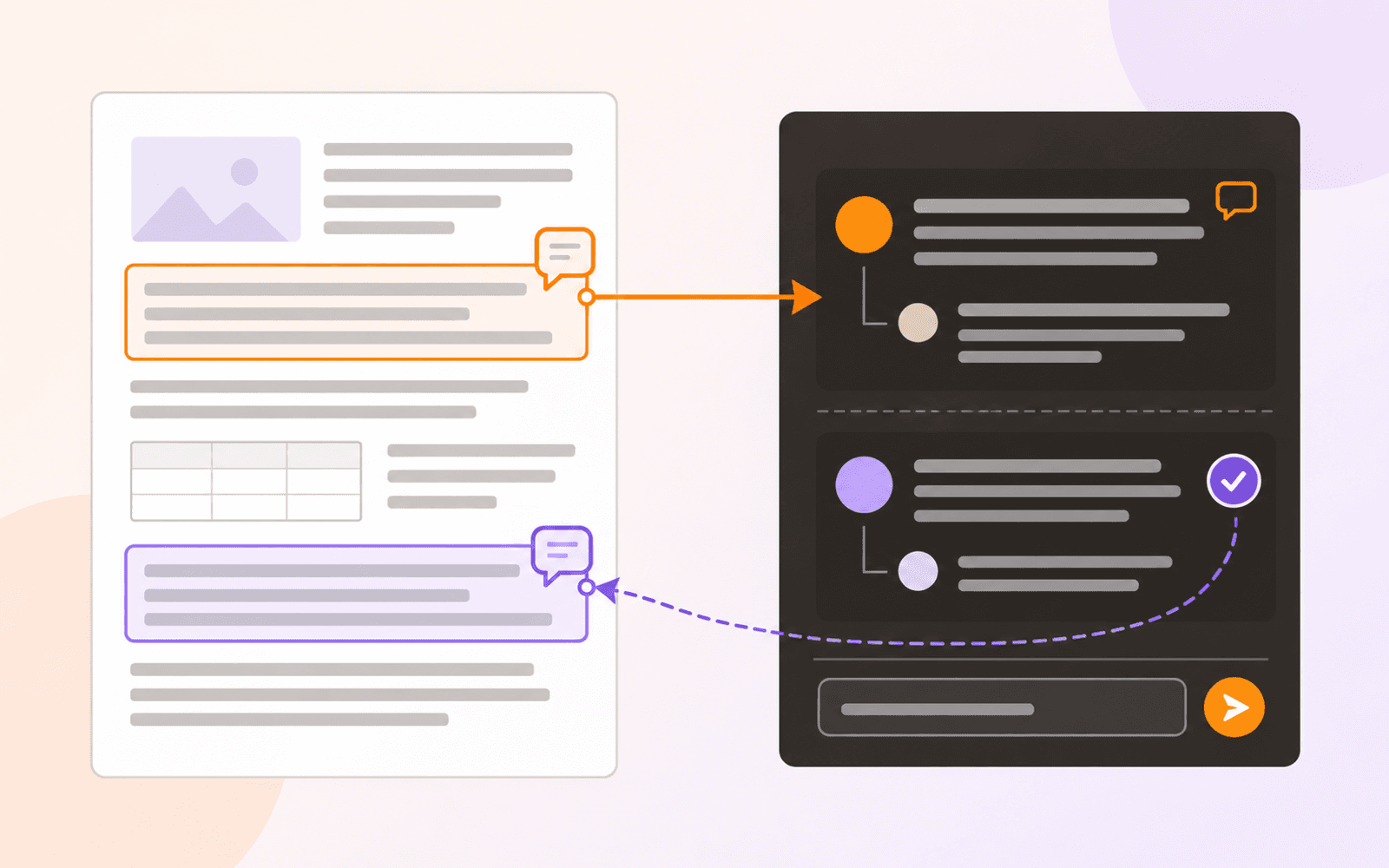
Its document-intelligence features focus on completing the work around the file. Reflow Reader makes dense pages easier to follow, system voices can read the document aloud, and translation can run through Apple's on-device language support. Workspace turns selected evidence into organized items that retain links to their source pages.
Study, included with Free, can then turn accepted Cards into Questions with independent learning histories, scheduled reviews, unscheduled Practice, Progress views, and a route back through the Card to the original evidence. That is a different model from Acrobat's current AI summaries, cited answers, audio overviews, and PDF Spaces.
PDF Max also treats form creation as distinct from form completion. It can detect likely fields on a flat document and create or edit interactive controls, while reusable answer profiles assist repeated completion. For a practical explanation, see how to make a PDF fillable.
Example: edit, recognize, and redact a report on Mac
Suppose a report contains one page of selectable text, a scanned appendix, and an account number that must be removed from the delivery copy. Keep the original and work through each operation separately:
- Edit the text page. On Mac, use Acrobat's text editing tools to correct a sentence. In PDF Max, use existing-text editing. Save and check that the correction did not disturb the surrounding layout.
- Recognize the appendix. Acrobat desktop's Scan & OCR workflow lets you select the pages and recognition language. In PDF Max on Mac, iPad, or iPhone, run on-device OCR, then reopen the output and search for a phrase from the scan.
- Remove the account number. In Acrobat Pro desktop, mark and apply redaction, then save the delivery file. PDF Max's redaction workflow also separates marking from applying. Search, select, and copy around the removed number in the saved output, including any OCR text layer.
This example uses Acrobat's desktop instructions. If the entire job must be completed on an iPad or iPhone, check each mobile capability and entitlement separately. Successful Mac editing does not establish mobile OCR or redaction availability.
Desktop and mobile are not interchangeable
Acrobat is available across desktop, mobile, and web surfaces, but availability does not mean every tool runs everywhere. Adobe's current feature overview, for example, labels permanent redaction as desktop-only. Plan entitlements and mobile capabilities also differ.
Test the actual device path before choosing a subscription. If a reviewer must redact on an iPad at a client site, a Mac-only entitlement is not equivalent. If an organization needs a desktop accessibility checker, a mobile editor cannot replace it. Platform-specific comparison is more useful than a single checkmark beside “works on iOS.”
Privacy and connected services
PDF Max describes several sensitive document operations—including OCR, translation, read-aloud processing, form assistance, and conversion—as on-device. Files remain in the storage location the user chooses unless they are deliberately moved or shared elsewhere.
Acrobat supports local editing and also offers connected document, collaboration, e-signature, and AI services. Those services can be valuable precisely because other people and systems can participate. For confidential material, identify whether the required task is local or connected, review the applicable service terms, and follow the organization's data-handling policy.
Plans and total workflow cost
Acrobat Reader, Acrobat Standard, Acrobat Pro, Acrobat Studio, and business offerings do not provide the same capabilities. PDF Max similarly separates Free, Pro, and Premium features. Prices and bundles change, so compare dated official plan pages and avoid treating the cheapest displayed figure as the cost of the required workflow.
Create a checklist that includes every must-have operation and every device. Include signature-request volume, collaboration, OCR, redaction, form authoring, accessibility, and administrative requirements. The right cost is the tier that completes that list without another product.
Which should you use?
Use Acrobat when PDF work is part of a wider organizational system or depends on Adobe-specific professional capabilities. Its breadth is the reason to choose it, not a disadvantage to explain away.
Use PDF Max when the priority is a coherent Apple-device editor with on-device document intelligence, advanced forms, comfortable reading, research, and permanent redaction. Whichever app you choose, verify it with the kind of PDF that matters: a real scan, form, contract, or long report, saved and reopened on the devices where the work will happen.