PDF Max vs PDF Expert: which Apple PDF editor fits you?
Compare PDF Max and PDF Expert for editing, annotation, OCR, forms, signatures, redaction, reading tools, and work across Apple devices.
Direct answer
Should an Apple PDF power user choose PDF Max or PDF Expert?
Both are Apple-focused PDF editors with annotation, content editing, forms, OCR, signatures, and redaction. Choose PDF Max when source-linked research, reflow with on-device translation, Voice Notes, direct PDF presentation, and its Free, Pro, or Premium packaging fit your work. Choose PDF Expert when its established interface, feature set, and subscription bundle better match your existing workflow.
PDF Expert and PDF Max are both designed for people who want more than the basic PDF tools built into an Apple device. Each can handle reading, annotation, signatures, page organization, and existing-content editing, so the useful decision is not whether either app can open a PDF. It is which workflow you want around the document.
PDF Expert emphasizes a polished, established PDF experience across iPhone, iPad, and Mac. PDF Max combines core editing with longer-document reading, source-linked research, form authoring, on-device translation, and permanent redaction in one Apple-focused workspace.
The short answer
Choose PDF Expert when you want a streamlined general-purpose PDF editor with familiar tools for annotation, editing, conversion, OCR, signatures, page management, and Apple-device continuity.
Choose PDF Max when the work also involves making flat forms fillable, reading a difficult document in reflow, listening or translating on-device, collecting evidence with links back to its source pages, or carrying a PDF from research through editing and final redaction.
Capability comparison
| Criteria | PDF Max | Compared app |
|---|---|---|
| Reading and annotation | Search, bookmarks, focus tools, highlights, drawing, stamps, comments, replies, and resolved review threads. | Reading, highlighting, drawing, notes, stamps, comments, bookmarks, and other established annotation tools across Apple devices. |
| Edit existing content | Edit existing text and typography, images, links, shapes, and tables, then add new page content. | Edit PDF text, images, links, signatures, pages, and other content using its editing toolset. |
| Scans and OCR | Recognize scanned text on-device and write a searchable text layer back into the PDF. | PDF Expert documents OCR for recognizing, selecting, copying, and searching text in scans; check the current platform and plan for the device you use. |
| Forms and signatures | Fill existing fields, use reusable signatures and answer profiles, detect likely fields, and create or edit interactive form fields. | Fill PDF forms, add saved signatures, and collect a customer signature on iPhone or iPad. |
| Permanent redaction | Mark text, areas, search results, or pages, review every mark, then remove the underlying content. | Provides PDF redaction tools for blacking out or erasing confidential information. |
| Long-document understanding | Reflow pages, listen with system voices, translate in reading view, and organize source-linked evidence in Workspace. | Provides reading modes and PDF Copilot features alongside its core PDF workflow; availability and processing depend on the current plan. |
| Workspace and source return | Capture evidence across PDFs as Cards, connect and filter it, build Frames, present it live, and return to the exact page. | PDF Expert provides reading, annotation, bookmarks, and intelligent assistance; its current overview does not describe a comparable source-linked Card canvas. |
| Scheduled study | Free includes reviewable Questions with scheduled Study, unscheduled Practice, Progress, presets, and source return. | PDF Expert's current product overview does not present a built-in spaced Question schedule linked through research Cards. |
| Apple-device workflow | One focused editor for Mac, iPad, and iPhone, with Apple frameworks used for several on-device intelligence features. | One account across Mac, iPad, and iPhone, with an interface and feature set designed specifically for Apple platforms. |
| Create, optimize, and deliver | Scan on iPhone or iPad, create from images, compress, resize pages, edit outlines, set or remove a password, and save a flattened copy. | Scan on iPhone or iPad, compress, create outlines, password-protect, and share a flattened copy across its Apple-device workflow; confirm the required feature and plan. |
Where PDF Expert is the natural choice
PDF Expert is a direct fit for someone who wants a mature, recognizable PDF editor and does not need the document to become a broader research workspace. Its official feature set covers the jobs most people associate with a full editor: changing text and images, annotating, managing pages, filling forms, signing, converting, recognizing scans, and redacting content.
That focus can be an advantage. If your day consists of opening a contract, correcting a line, adding comments, collecting a signature, and exporting the result, PDF Expert keeps the decision simple. It is also a sensible option for an existing Readdle customer who already understands its account and file workflows.
PDF Expert promotes the same account across iPhone, iPad, and Mac, but individual tools can still differ by platform or plan. Before choosing it for one essential capability, confirm that capability on the specific device where the work will happen rather than assuming complete feature parity.
Where PDF Max goes further
PDF Max is designed around documents that require several different kinds of attention before they are finished. A scanned report can be recognized, opened in Reflow Reader, translated or read aloud, annotated, corrected, and permanently redacted without treating each stage as a separate product category.
Its forms workflow is also broader than simply completing fields. Form Assist can help with repeated answers, Detect Fields can identify likely controls on a flat page, and the form editor can create text, choice, date, image, and signature fields. If form authoring is the actual requirement, compare that workflow rather than relying on a generic “forms supported” label. The fillable-PDF guide explains the difference between filling and creating fields.
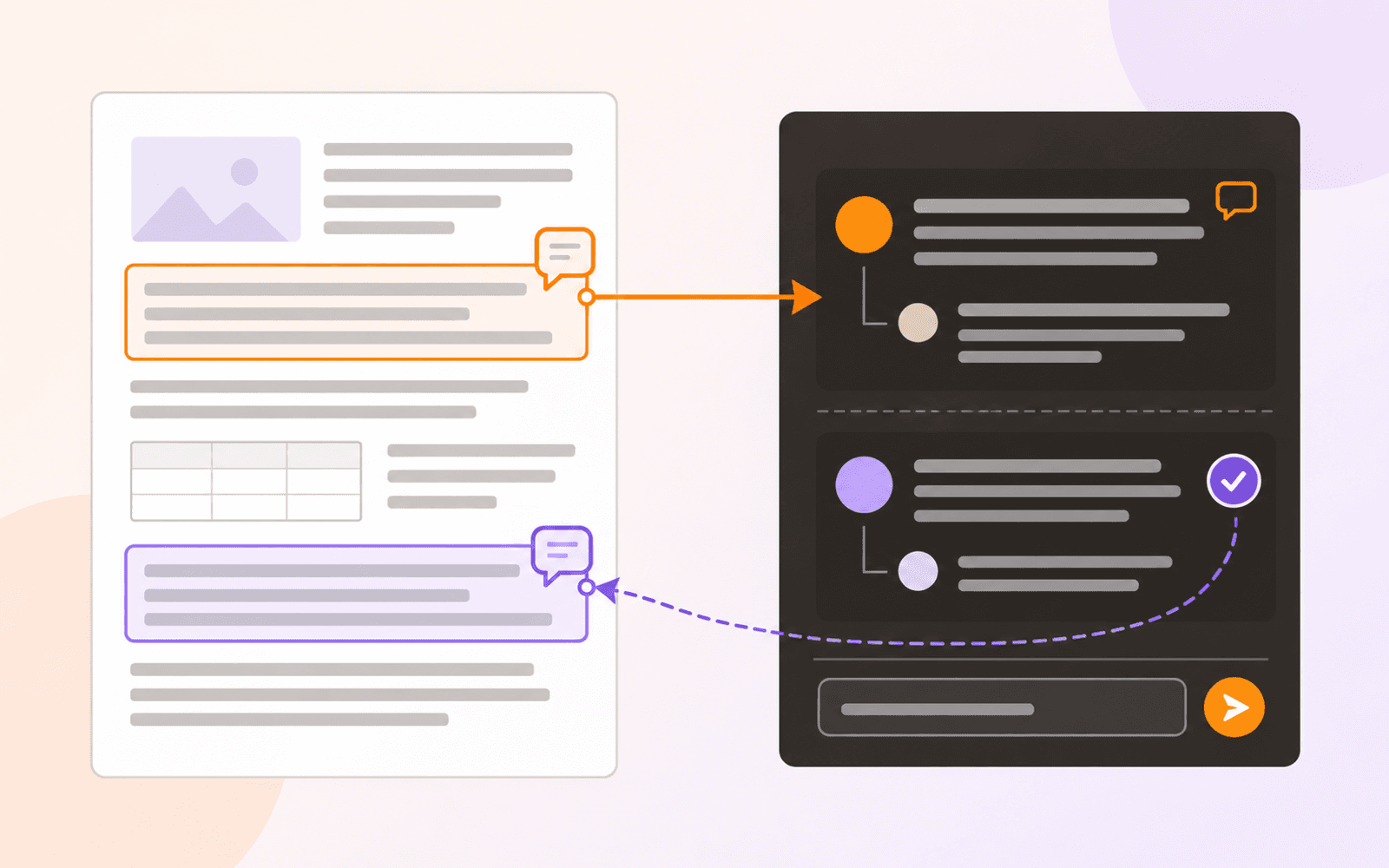
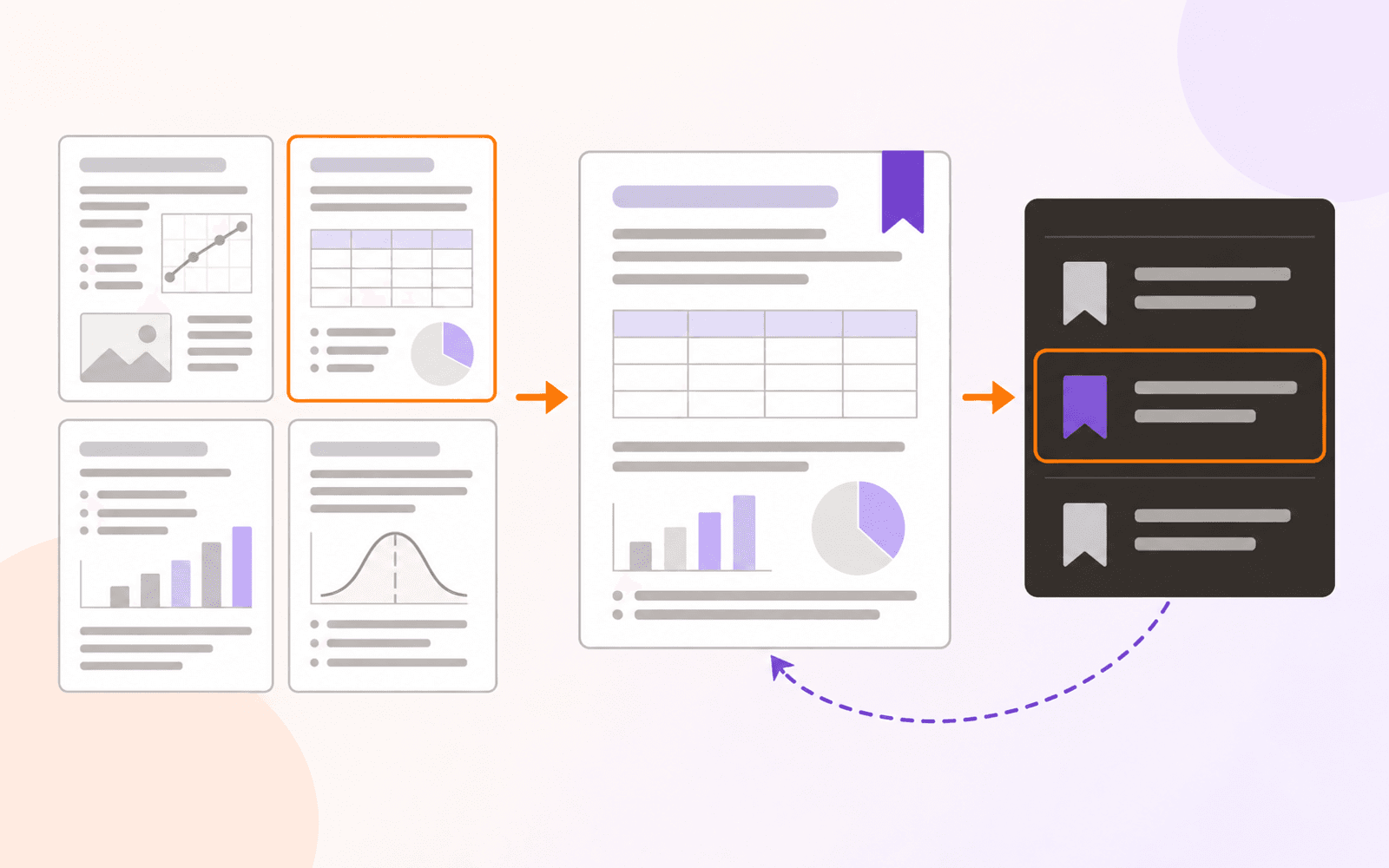
Workspace addresses another kind of PDF job: collecting claims, figures, and passages while retaining a route back to the source page. That is useful for research, review, and evidence-heavy reading where ordinary highlights eventually become difficult to organize.
Study, included with Free, extends that evidence trail into Questions, scheduled review, unscheduled Practice, and Progress. The Question returns to its Card and the Card returns to the original page, so learning does not detach from the document context.
OCR, reading, and privacy
Both products describe OCR, but the desired output matters. A successful searchable-PDF workflow should let you search for a distinctive phrase after saving and should preserve the original scan for visual reference. Follow the searchable scanned PDF checklist rather than judging OCR only by whether text can be copied in the app.
PDF Max describes its OCR, translation, read-aloud, form assistance, and document conversion workflows as on-device. PDF Expert offers its own local editor plus optional intelligent services. For confidential material, identify the exact feature being used, whether it requires an account or network service, and where the file itself is stored. A broad product-level privacy slogan is less useful than the data path of the operation you actually need.
Plans and value
PDF Max separates everyday annotation, form and page workflows, and advanced editing into Free, Pro, and Premium levels. PDF Expert also separates free and paid capabilities. Because plan names, trials, and prices can change, compare the current entitlement for the required feature instead of comparing a single advertised price.
List the five or six operations that must work on your devices, then check all of them against the current plan. An inexpensive tier that omits OCR, editing, redaction, or mobile access is not the lower-cost choice if another app is still needed to finish the file.
Which should you use?
Use PDF Expert when you want an established Apple PDF editor for familiar editing, markup, conversion, signing, and page work, and its current plan covers the exact devices and features you need.
Use PDF Max when your PDFs regularly move beyond editing into form creation, assisted completion, accessible reading, translation, source-linked research, OCR, or reviewed permanent redaction. The best test is a representative document and an end-to-end task: open it, complete the work, save a separate result, reopen it, and verify that the change survives outside the app.