How to create a blank PDF on iPhone, iPad, and Mac
Create a blank PDF on iPhone, iPad, or Mac, choose its paper and size, save it in My Files, and distinguish creation from page insertion.
Direct answer
How do you create a blank PDF on iPhone, iPad, or Mac?
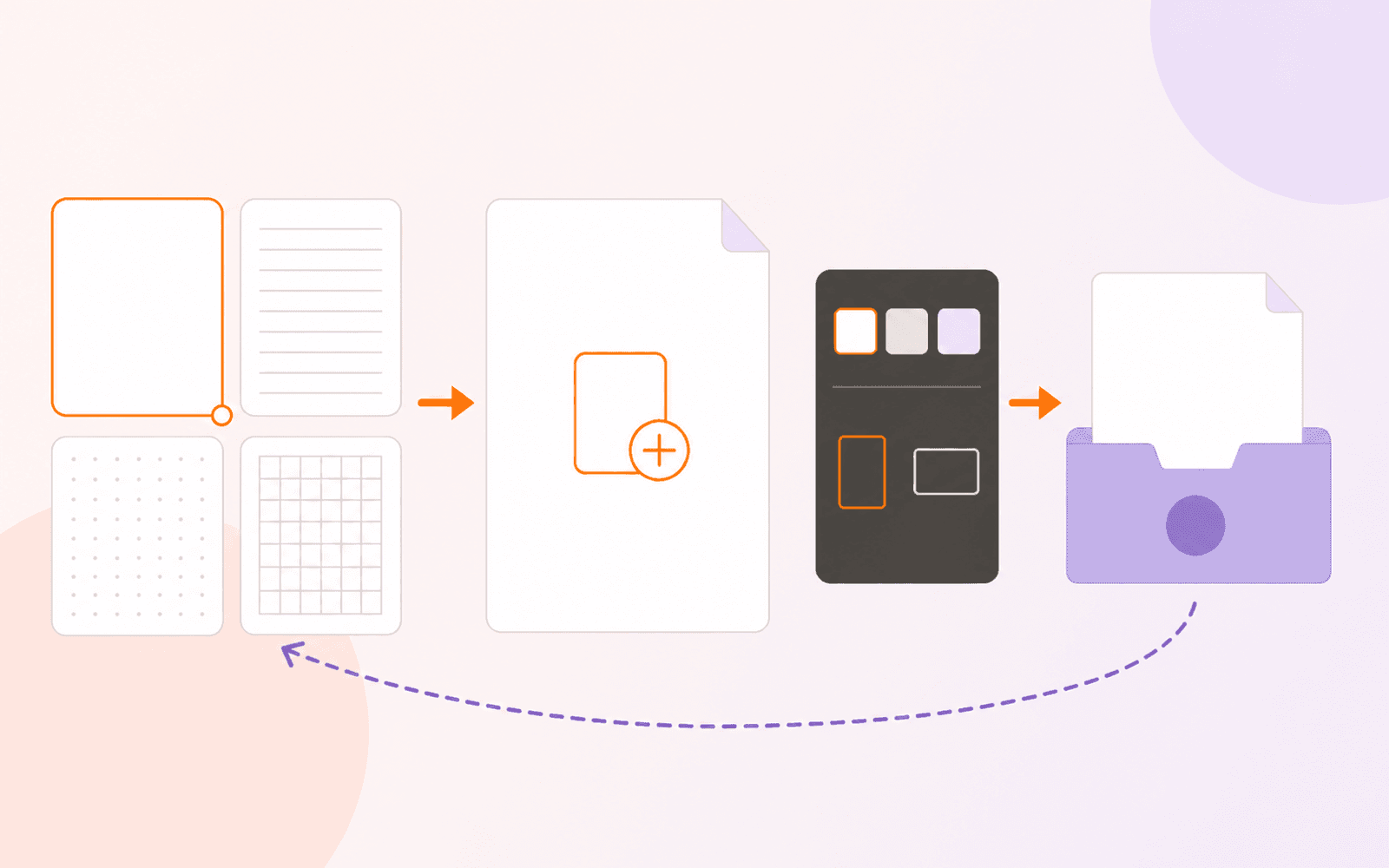
In PDF Max 27.2, choose Blank PDF from Home, Tools, or My Files. Select Plain Blank or a paper template, choose cream or white paper and a page size, then choose Create. Plain Blank can generate 1–50 pages; stationery creates one. The PDF saves in My Files on iPhone and iPad or at a location you choose on Mac, then opens for annotation. Creation is Free; inserting pages into an existing PDF is a separate Pro feature.
Sometimes the document you need does not begin as a scan, photo, web page, or word-processing file. You need an empty PDF now: a page for handwritten notes, a printable grid, a music sheet, a meeting record, or a fixed-size canvas that will open consistently on another device.
The awkward workaround is to create an empty document in another app, export it, find the exported file, and reopen it in a PDF editor. That route still makes sense when you need flowing text or a designed page layout. It is unnecessary when the PDF itself is the starting point.
PDF Max 27.2 can create a new PDF directly from My Files. You choose a blank page or stationery, paper color, and output size before the file is written and opened.
Create a blank PDF in PDF Max
On iPhone, iPad, or Mac:
- Open PDF Max and choose Blank PDF from the Home strip or Tools > Create.
- If you are already browsing a folder in My Files, use its add menu and choose New Blank PDF. The finished document will be created in that folder on iPhone or iPad.
- Select Plain Blank for an empty page, or choose a paper, journal, productivity, or creative template.
- Choose Cream or White paper.
- For a designed template, choose Multi-color, Graphite, Sage, or Lavender.
- Choose A4, US Letter, iPad 4:3, or iPad 4:3 Landscape.
- If Plain Blank is selected, set the page count from 1 to 50.
- Choose Create.
On iPhone and iPad, PDF Max writes a real file into My Files and gives it a collision-safe name based on the selected template. On Mac, a save dialog lets you choose the name and folder. The new PDF then opens in the editor.
The picker initially selects Classic Notes, so choose Plain Blank deliberately when you want no printed structure. A blank-looking preview alone is not enough if the selected card is still a designed template.
Choose the page before the content
Page size is not cosmetic. It determines the PDF media box—the actual canvas a viewer, printer, or downstream workflow receives.
| Output | Choose | Why |
|---|---|---|
| General international printing | A4 | Matches common A4 paper proportions |
| US office or school printing | US Letter | Matches 8.5 × 11 inch paper |
| Screen-first handwritten page | iPad 4:3 | Uses a portrait 4:3 canvas |
| Screen-first landscape board | iPad 4:3 Landscape | Uses a wide 4:3 canvas |
Choose the intended output now rather than treating resize as a harmless final step. Changing a PDF’s page canvases later is a separate Premium operation and can affect placement, margins, links, or annotations. The guide to resizing PDF pages to A4 or Letter explains what must be checked if the original choice is wrong.
Cream and White change the page fill itself. Cream can reduce visual glare during long note sessions; White is the more predictable choice when the page will be printed on ordinary white stock or placed beside existing white PDFs. Neither setting changes the screen’s brightness or the app’s reading theme.
Pick a template that supports the task
The template catalog contains Plain Blank plus 17 stationery designs across four groups.
Paper includes lined paper, uniform grid, music staves, 5 mm and 1 mm dot patterns, an engineering graph, an isometric grid, Classic Notes, Dot Journal, and Graph Paper.
Journal includes Cornell Notes and Habit & Wellness.
Productivity includes Daily Focus, Weekly Planner, Meeting Notes, and Project Canvas.
Creative contains Creative Canvas.
The theme controls remap the accents of designed templates. Multi-color keeps each template’s intended accent family, while Graphite, Sage, and Lavender apply a consistent alternative. Plain Blank has no designed accents to recolor, so its relevant choices are paper color, page size, and page count.
Do not choose a template only because it looks attractive at thumbnail size. Match its permanent printed structure to the work:
- use Plain Blank for signatures, sketches, free placement, or a neutral printable page;
- use Lined or Classic Notes for continuous handwritten notes;
- use Graph, Grid, Dotted, or Isometric paper when alignment matters;
- use Cornell Notes when the cue, notes, and summary regions fit your study method;
- use Meeting Notes when decisions and follow-up actions should remain visible; and
- use a screen-sized page when the result is primarily read and annotated on an iPad rather than printed.
The template artwork becomes part of the page. It is not a removable overlay or an editor-only background. If you may want a different structure later, test one page before creating a longer workflow around it.
Understand the page-count rule
Only Plain Blank exposes a page-count control, from 1 through 50. A designed stationery choice creates one page.
That rule avoids silently producing 50 richly structured planner pages when the user may only need one template source. It also means a multi-page blank document can be created in one operation without duplicating pages afterward.
If you need a multi-page journal or repeated template inside one file, begin with the single designed page and decide whether the Pro page-organization workflow is appropriate. Insert Page can add matching blank or template pages before or after a selected page; page duplication and reordering are also Pro features. Do not create many separate PDFs and merge them unless separate source files are actually useful—the merge workflow is Premium and creates another output to verify.
Add content without confusing annotations and editing
A newly created PDF is an ordinary PDF page, so the tool you choose next determines what kind of content you add.
- Draw, highlight, shapes, text annotations, stamps, comments, and one-time signatures are Free annotation workflows.
- Snap Shapes and Ruler can turn the page into a cleaner diagram or handwritten worksheet. The straight-lines and clean-shapes guide shows when to use recognition, a ruler, or precise shape placement.
- Handwritten pen annotations can be found later with PDF Max’s separate on-device handwriting search.
- Editing page content is different from placing an annotation over the page and requires Premium.
For a note-taking page, annotation ink is usually the intended content. For a formal handout whose paragraphs must reflow, use a document authoring app instead and export after the layout is complete.
When Pages or another PDF creator is better
Apple’s Pages documentation distinguishes word-processing documents from page-layout documents. Pages can start from Blank, Blank Landscape, or Blank Layout and later export the result as PDF. Use that route when the source must remain easy to revise as text, when paragraphs should add pages automatically, or when the design contains positioned text boxes and graphics.
Apple Preview on iOS 26 can insert a blank page into a PDF that is already open. That solves a different intent: extending an existing file. It does not make a separate blank document the same way as choosing Blank PDF from PDF Max’s file library.
Dedicated PDF apps also treat blank creation as its own workflow. PDF Expert documents Empty Document on Mac and Blank PDF on iPhone and iPad. UPDF’s iOS guide offers blank and templated page styles. This competitor coverage is a useful demand signal: people are not only asking how to convert existing material; they also want a clean PDF canvas from scratch.
Choose the shortest source workflow that matches the result:
| Starting need | Best starting point |
|---|---|
| Empty or ruled page for PDF annotation | Blank PDF or a PDF paper template |
| Flowing report, letter, or designed handout | Pages or another document authoring app, then export |
| Paper document in front of the camera | Scan to PDF |
| One or more existing photos | Images to PDF |
| Extra page inside an existing PDF | Insert Page, not new-document creation |
Verify the file you created
Before building a semester of notes or sending a printable worksheet, close and reopen one representative file.
- Confirm the filename and folder are the ones you intended.
- Check the page count in the thumbnail view.
- Inspect the paper color and template at normal zoom.
- Confirm portrait or landscape orientation.
- If it will be printed, print one page at 100 percent and check the physical margins.
- Add a temporary pen stroke, save, reopen, and confirm that the annotation persists.
- Open a copy in a second PDF viewer if another person or system will consume it.
This check separates creation problems from later editing problems. If the file exists with the correct page geometry but a mark is missing, investigate saving or annotation behavior rather than recreating the blank document.
Plan and device requirements
Creating a new Blank PDF and annotating it are included with PDF Max Free. The My Files entry point requires PDF Max 27.2 or later. At publication on September 7, 2026, Apple’s US storefront lists both PDF Max and the separate PDF Max Pro app at version 27.2.0.
PDF Max requires iOS 18 or later, iPadOS 18 or later, or macOS 15 or later on an Apple silicon Mac. Blank PDF creation is a local rendering and file-writing workflow: it does not require Apple Intelligence, a language model, a model download, or an internet connection. The plan comparison distinguishes Free new-document creation from Pro page insertion and Premium transformation tools.
Open PDF Max, create one A4 Plain Blank page and one screen-sized template page, then reopen both from My Files. That two-file test makes the size, color, stationery, and save-location choices concrete before you depend on a longer document.