How to search handwriting in a PDF on iPhone, iPad, and Mac
Search pen annotations in a PDF on Apple devices, learn why scanned handwriting needs a different workflow, and jump back to each matching page.
Direct answer
How do you search handwritten notes in a PDF?
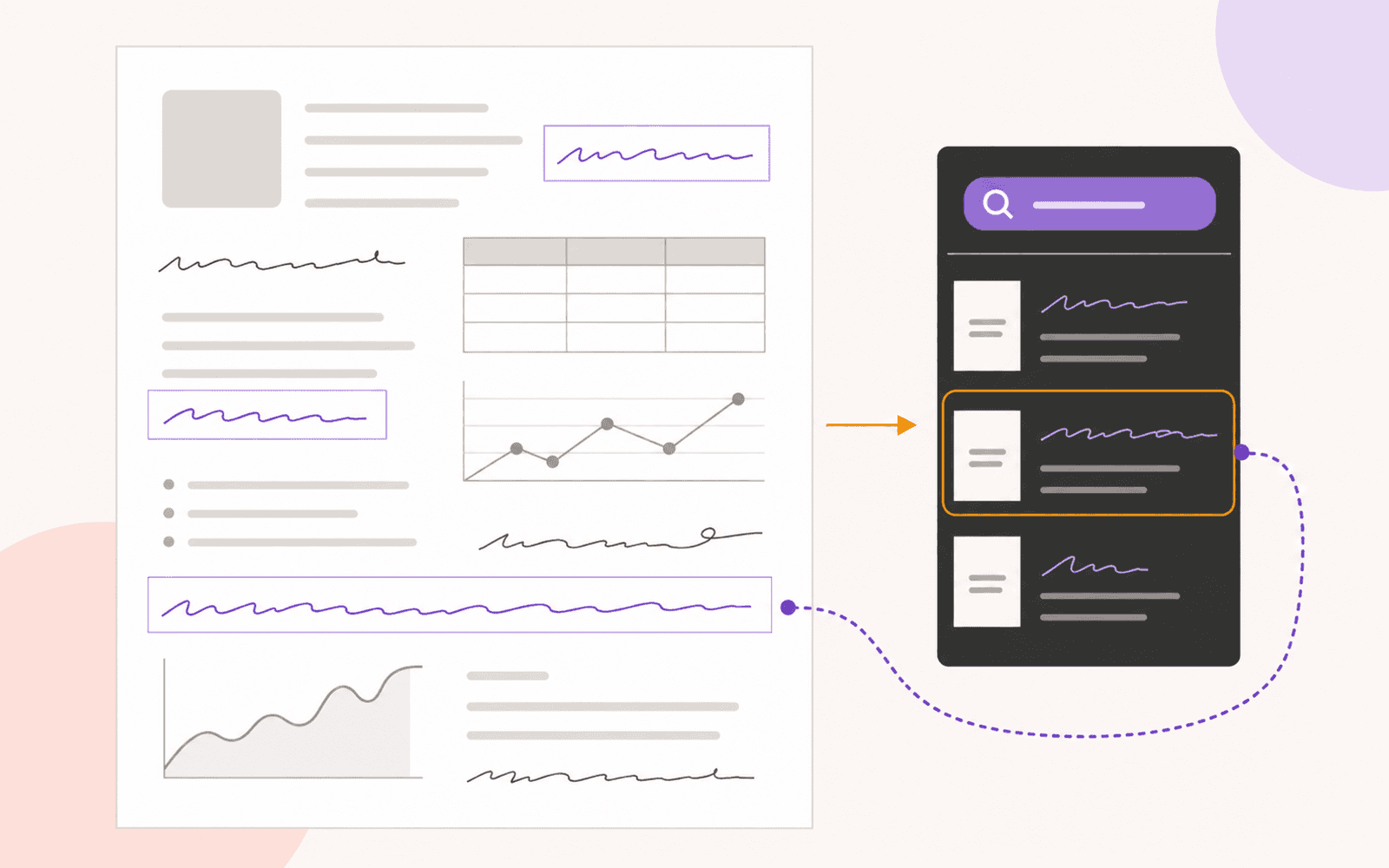
In PDF Max 27.2, open Search and enter a term. Typed PDF text appears with a separate Handwriting section for recognized pen annotations; select a handwriting result to jump to its page. Recognition runs on the device and keeps a rebuildable index outside the PDF. It does not convert ink to typed text, add an OCR layer, or search handwriting baked into a scanned page.
A handwritten reminder beside a lecture paragraph is useful until you need to find it again. Ordinary PDF search usually sees the page text, not the pen strokes you added later. That is why a search for your own note can return nothing even when the words are plainly visible on the page.
PDF Max 27.2 adds a separate on-device index for handwriting created with the PDF pen tool. Open Search, enter part of the note, and matching ink appears under Handwriting beside the normal PDF text results. Select a result to return to its page.
The boundary matters: this finds pen annotations. It does not make every handwritten scan searchable, convert your writing into editable text, or add recognized words to the PDF you share.
First identify which kind of writing you have
Two marks can look handwritten while being stored very differently. Test the source before choosing a tool.
| What you can see | What it probably is | Appropriate search route |
|---|---|---|
| Ink you drew over a PDF with a pen tool | A freehand annotation above the page | Handwriting results in PDF Max Search |
| Handwriting photographed or scanned with the paper | Pixels inside the page image | A scan/OCR workflow, with accuracy checked manually |
| Text exported from Word, Pages, or another digital source | PDF page text | Normal PDF search |
| A typed sticky note or comment | Annotation text or a discussion | Comments or annotation search, depending on the app |
This distinction is not unique to one app. Apple documents handwriting search in Notes, while Goodnotes separates searchable handwriting from imported PDF text that needs a text layer. PDF Expert’s documentation says its annotation search excludes freehand Pen content. Search scope varies, so “the app can search annotations” does not automatically mean “the app can recognize pen strokes.”
If the writing arrived as part of a scanned page, start with the guide to making a scanned PDF searchable. OCR analyzes page pixels and can write a text layer into a new PDF. Handwriting search in PDF Max analyzes the app’s pen-annotation layer and keeps the result as a rebuildable index outside the file.
Search handwritten pen notes in PDF Max
Use a distinctive word or short phrase from a note you wrote with the pen tool:
- Open the PDF in PDF Max 27.2 or later.
- Give a long or ink-heavy document a moment after opening so its handwriting index can prepare in the background.
- Open Home → Search.
- Enter the word or phrase in Find in document. Leave Match Case off for the first attempt.
- Choose Search.
- Review ordinary page-text matches, then look for the separate Handwriting section.
- Select the relevant handwriting result to jump to that page.
- Find the matching pen line visually and read it in its original page context.
Each handwriting row shows the recognized line and its page number. Choosing it navigates to the page; it does not select individual ink strokes or highlight an exact word as though the handwriting were PDF text.
New or edited ink is queued for reindexing after the writing settles. If you search immediately after finishing a stroke, pause briefly and run the search again. The same applies after erasing or replacing a handwritten note.
What the handwriting index does—and does not—change
PDF Max renders its pen layer for on-device recognition, records the recognized lines with their page locations, and reuses that derived index while the corresponding ink is unchanged. When a page’s annotations change, that page can be indexed again.
The operation does not:
- upload the page for cloud recognition;
- require Apple Intelligence or a separately downloaded model;
- write the recognized line into the PDF;
- turn handwriting into selectable or editable characters;
- include handwriting results in Find & Redact;
- guarantee recognition of every writing style, language, abbreviation, symbol, or formula;
- search handwriting that is only part of a scan, image stamp, or flattened page.
The separation protects the meaning of the document. A rough margin note should not silently become official page text, and a search hit should not be offered for permanent redaction when there is no matching text object to remove. If sensitive information exists in handwriting, inspect the page itself and use a verified permanent redaction workflow; do not treat a missing search result as proof that the mark is absent.
Why handwriting may not appear in the results
Recognition is useful, but it is not a perfect transcription service. Work through these checks:
- Confirm the source. Try selecting the mark as an annotation. Ink flattened into a scan or image is outside this pen index.
- Wait for the background pass. A long document may not have finished preparing every page when you first search.
- Use a simpler query. Search one distinctive word rather than a full sentence. Recognition may have split or misread part of the line.
- Turn off Match Case. Capitalization can narrow an already uncertain recognition result.
- Check the handwriting itself. Tight letter spacing, low contrast, overlapping strokes, mathematical notation, and hurried abbreviations can reduce accuracy.
- Edit, then retry. If the note matters, rewrite the unclear word with cleaner spacing and search again after indexing catches up.
Do not repeatedly run OCR on the whole document to solve a missing pen-annotation result. OCR is the right tool when visible writing belongs to the page image and you need a saved searchable copy. It is a different operation from searching annotations you drew over the PDF. The overview of OCR, searchable PDFs, and reflow explains those boundaries.
Know what happens when you share the PDF
Because recognized handwriting stays in a separate derived index, sending the PDF does not embed that recognized line as searchable text for the recipient. The ink annotation itself can still travel with the PDF, but another viewer decides whether and how it searches freehand annotations.
Before relying on the workflow:
- Close and reopen the document in PDF Max.
- Search for one clear note on an early page and another near the end.
- Select each result and confirm that it reaches the correct page.
- Open a copy in a second PDF viewer and test normal search.
- If the recipient must search words baked into page images, create and verify a separate OCR output instead.
That last test prevents a local navigation index from being mistaken for a portable PDF text layer.
Plan and device requirements
Handwriting search is included in PDF Max Free and has no subscription gate. It requires PDF Max 27.2 or later. Apple’s US storefront listed PDF Max at version 27.2.0 on publication day; by September 5, 2026, the separate PDF Max Pro app had also reached version 27.2.0.
PDF Max currently requires iOS 18 or later, iPadOS 18 or later, or macOS 15 or later on a Mac with Apple silicon. Recognition runs on the device and needs neither Apple Intelligence nor an additional model download. The PDF Max plan comparison separates this Free search workflow from Premium OCR and document transformations.
Update PDF Max, open a PDF containing your own pen annotations, and search one unmistakable word. Verify that the Handwriting result returns to the right page—then decide whether you need a local way back to your notes or a separate searchable PDF that other readers can use.