How to turn a PDF into source-linked study questions on Apple devices
Turn passages, formulas, tables, and figures from a university PDF into reviewable Questions that retain a route to the original evidence.
Direct answer
How can you turn a PDF into study questions without losing the source context?
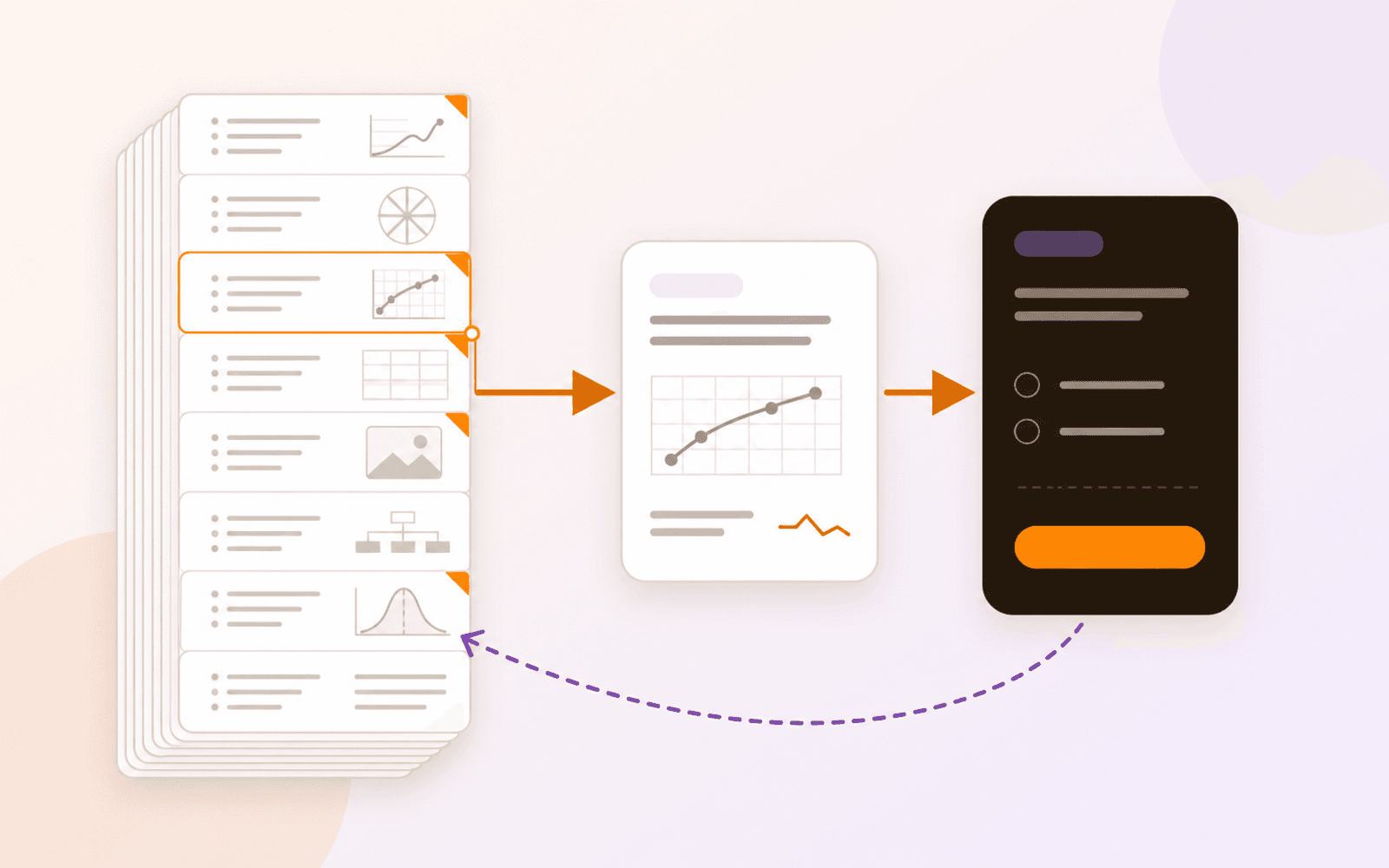
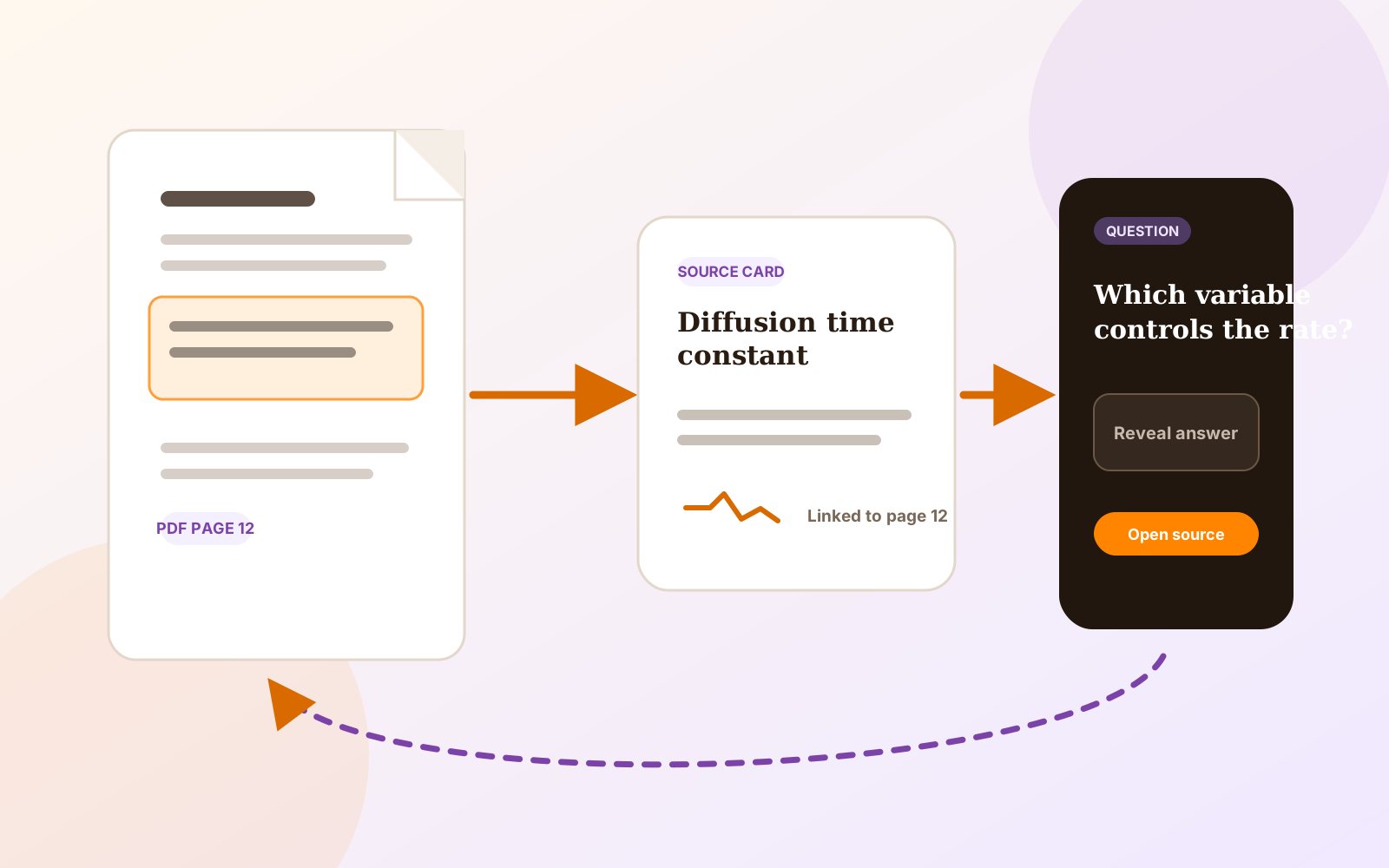
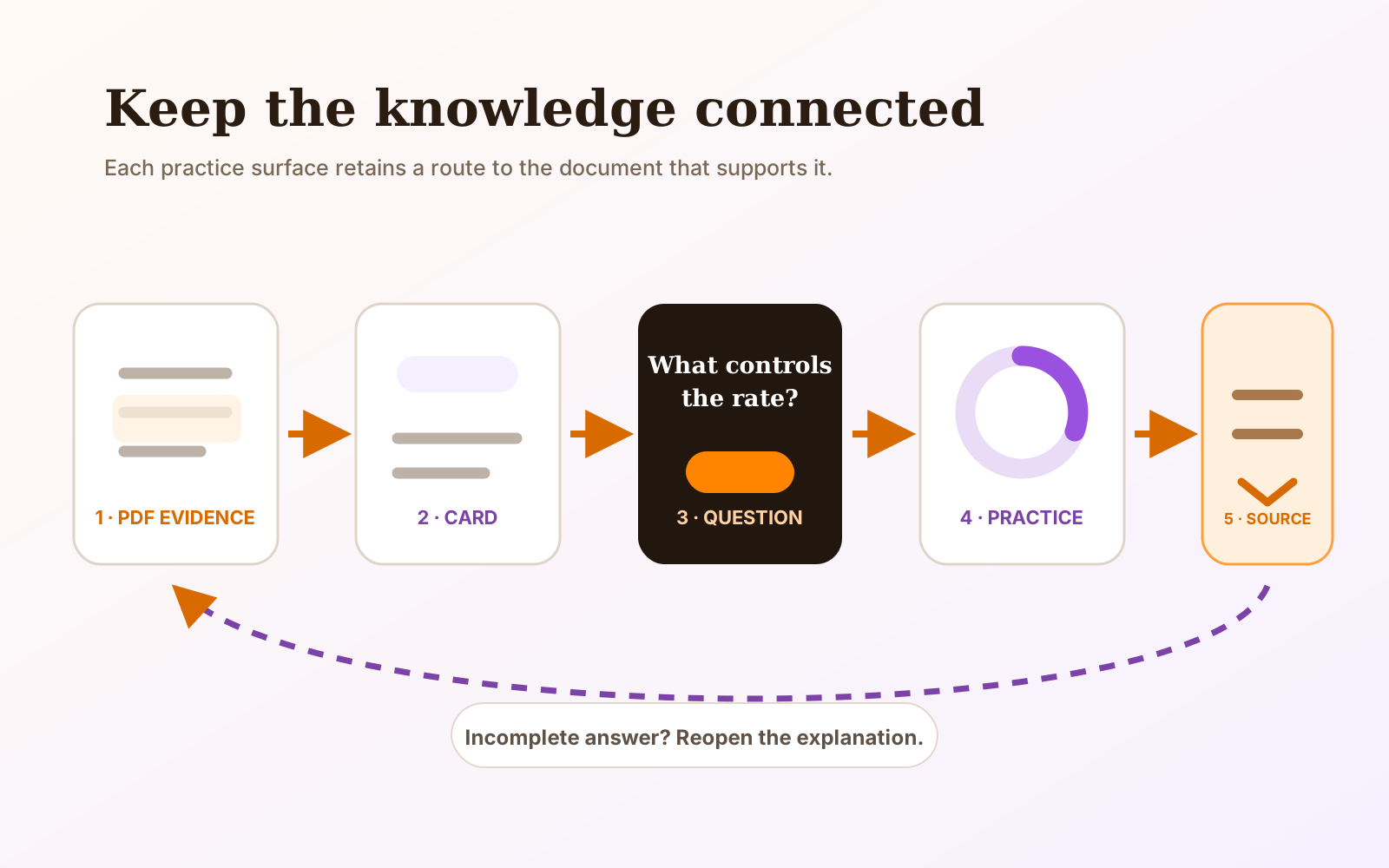
Capture the useful passage, formula, table, or figure as a source-linked Card, then create a Question from that Card instead of copying the fact into a disconnected deck. In PDF Max, you can write Questions manually or review optional Apple Intelligence drafts on supported devices. Each saved Question keeps a route through its Card to the original PDF page, so an incomplete answer can be checked in context.
A lecture PDF may contain exactly what you need for an exam, but highlighting it is not the same as being able to recall it. Copying isolated facts into a separate flashcard app introduces a different problem: a short answer can outlive the explanation, diagram, qualification, or footnote that made it accurate.
PDF Max Study uses a source-linked chain instead. You capture accepted material into a Workspace Card, create a Question from that Card, and keep the route back to the PDF. The result is useful for definitions and formulas, but also for questions whose answer needs context rather than a bare fact.
Study authoring, scheduled Study, Practice, presets, schedule controls, and Progress are included with PDF Max Free. Existing Questions and prior work remain visible on every plan.
Prepare the PDF before writing Questions
First confirm that the page material is usable. If a scanned page cannot be selected or searched, use the complete workflow for studying from scanned lecture notes: run OCR on a working copy, verify difficult tokens against the page image, and only then create Questions. If a paper is difficult to read because it uses narrow columns or dense equations, use the equation-aware Reflow Reader workflow for reading, then return to the fixed page for capture.
Open the PDF and choose Research → Workspace. A Workspace can hold the evidence you accept from the document without removing it from the page. Use the capture tool that matches the material:
- Clip Text for a passage, definition, or result;
- Markup & Clip for material you have already highlighted;
- Clip Formula for mathematical source material;
- Clip Table for rows, columns, and cells; or
- Clip Image for a figure, chart, map, or labeled diagram.
Give the Card enough context to remain meaningful. A Card called “Equation 4” is difficult to recognize later; “Diffusion time constant, Equation 4” is much easier to place. Keep the captured region focused, but include the units, caption, heading, or nearby sentence when it changes the interpretation.
Create one clear Question from the Card
Open the Card and choose Create Questions. From Study Home, the Create menu can also begin from the current document, selected Cards, or one Card you choose to write from yourself.
Start with the smallest Question that tests one useful idea. Good prompts include:
- “What condition makes this approximation valid?”
- “Which variable controls the rate in this equation?”
- “What did the treatment group improve compared with the control?”
- “Which structure is labeled C in this figure?”
Avoid prompts such as “Explain this page” or “What does the paper say?” They contain too many possible answers to produce a useful judgement during review. If a Card contains three independent claims, create three Questions rather than one oversized prompt.
PDF Max supports basic and typed Questions, cloze and multiple-choice Questions, and Questions based on supported formula, image, and table content. When an answer depends on comparing two passages, keep them as separate source-linked Cards and connect them in Workspace; PDF Max does not currently attach one Study Question to both Cards. The focused guide to comparing two PDF passages explains that boundary. Visual material can use occlusion to hide labels, cells, text, or formula parts. The structured-material guide explains those choices in detail.
Use manual authoring as the dependable path
Manual Question authoring is always available within the Study workflow included with Free and does not require AI. It is usually the better starting point when wording, notation, or the boundary of a claim matters.
Optional Apple Intelligence can draft Questions on supported iOS 26 and macOS 26 devices. Drafts are proposals: inspect the prompt, answer, Question type, source Card, and any alternatives before saving. Reject a draft that introduces information not present in the Card, collapses an important qualification, or asks a vague question simply because it sounds fluent.
Check the return path before building a large set
Create two or three Questions, then test the complete loop:
- Open Study and choose the relevant Question.
- Read the prompt without looking at the answer.
- Reveal or enter the answer and check whether the expected response is unambiguous.
- Open the supporting Card.
- Return from the Card to the original PDF page.
- Confirm that the selected passage or region still supports the wording.
This small test catches missing documents, changed source regions, questions attached to the wrong Card, and prompts that made sense only while you were writing them. PDF Max also surfaces source health when the underlying document has changed or is unavailable.
How the workflow differs from major learning apps
These products overlap, but their primary objects are different. The useful comparison is not a universal score; it is where the study material lives and how easily you can inspect its origin.
| Criteria | PDF Max | Compared app |
|---|---|---|
| Anki | Begins with a PDF and source-linked Workspace Cards; Questions return through Cards to the supporting evidence. | Begins with notes that generate cards inside decks; provenance depends on the fields and media the author adds. |
| RemNote | Keeps Question authoring inside a complete PDF editing, research, and delivery workflow. | Places PDF highlights and annotations beside notes and flashcards inside a broader linked knowledge base. |
| Quizlet | Organizes Questions around source-linked PDF Cards and the document lifecycle. | Organizes searchable or authored sets with sharing, study activities, and generated study material. |
| Goodnotes | Uses Workspace Cards and Questions while the PDF remains the editable source. | Uses separate Study Set files with text, images, freeform input, imports, Smart Learn, and Practice. |
For deeper product-level choices, see PDF Max Study vs Anki, PDF Max Study vs RemNote, PDF Max vs Goodnotes, and PDF Max vs MarginNote.
Begin scheduled Study only after the Questions are sound
Once the prompts and source links survive the test, choose the scope you actually need: an entire Workspace, one document, a Frame, selected Cards, due Questions, or a saved preset. Scheduled Study records the rating and updates when that individual Question returns. Practice Without Changing Your Schedule rehearses a chosen scope without moving its scheduled reviews.
Use Scheduled Study or Practice before an exam to choose between those modes. Whichever you choose, treat a surprising answer as a reason to reopen the explanation—not an invitation to memorize a disconnected sentence more aggressively.
The complete implemented loop and its Free availability are documented on PDF Max Study.