How to Study Lecture Slide PDFs Without Rereading
Turn this week’s lecture slides into source-linked Questions on iPhone, iPad, or Mac. Miss one, jump back to the exact slide. Free in one Workspace.
Direct answer
How should you study a lecture-slide PDF without rereading the whole deck?
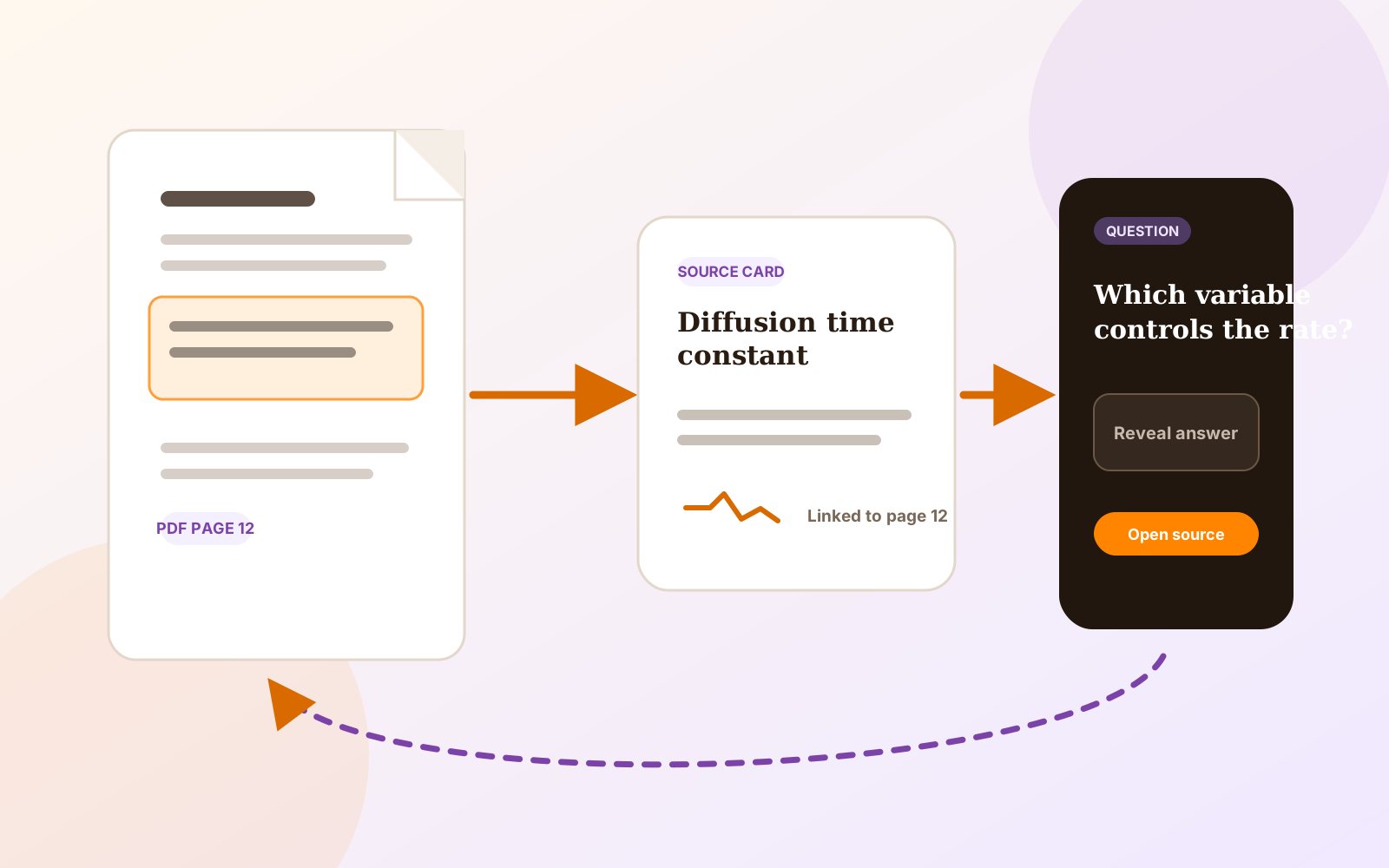
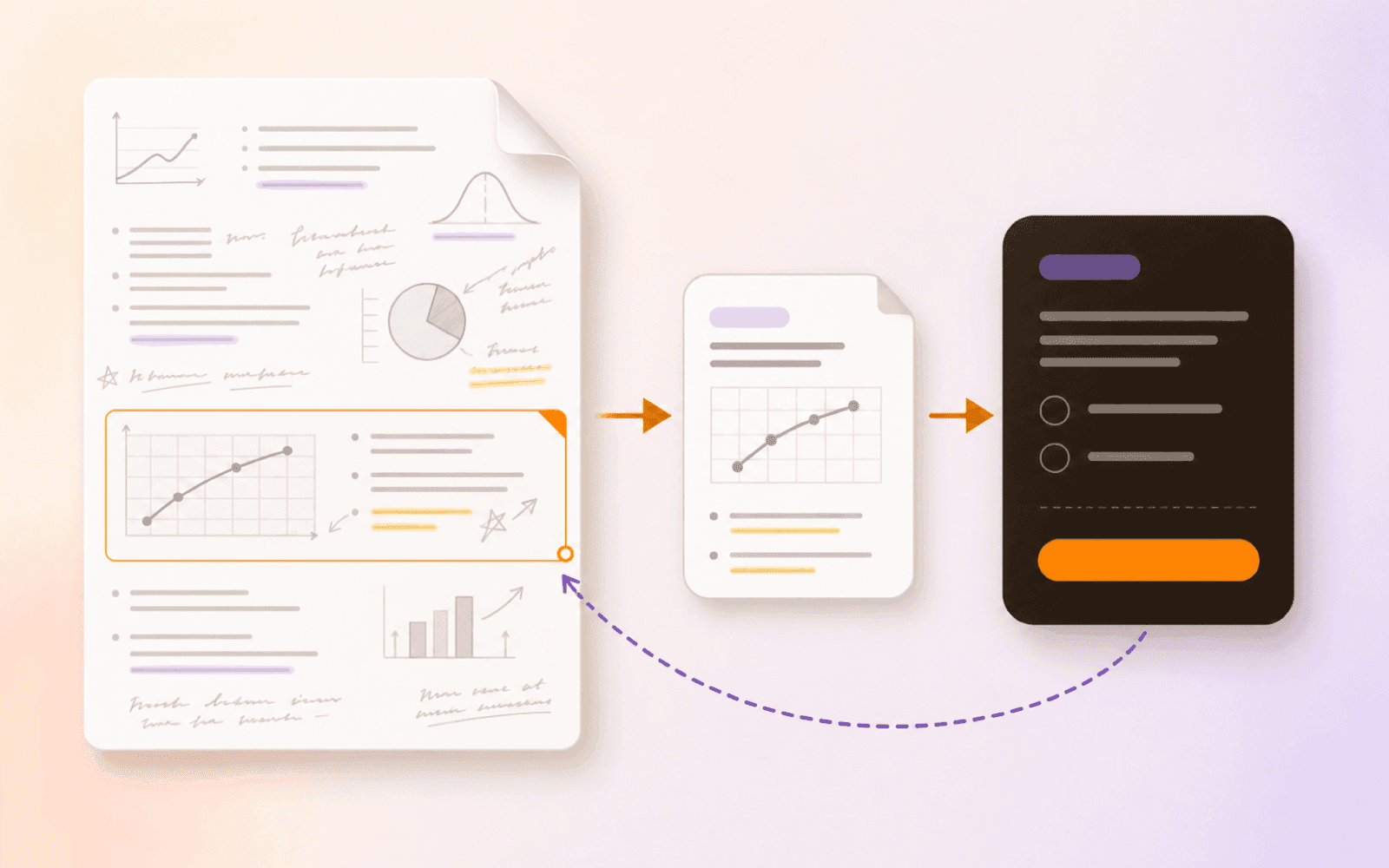
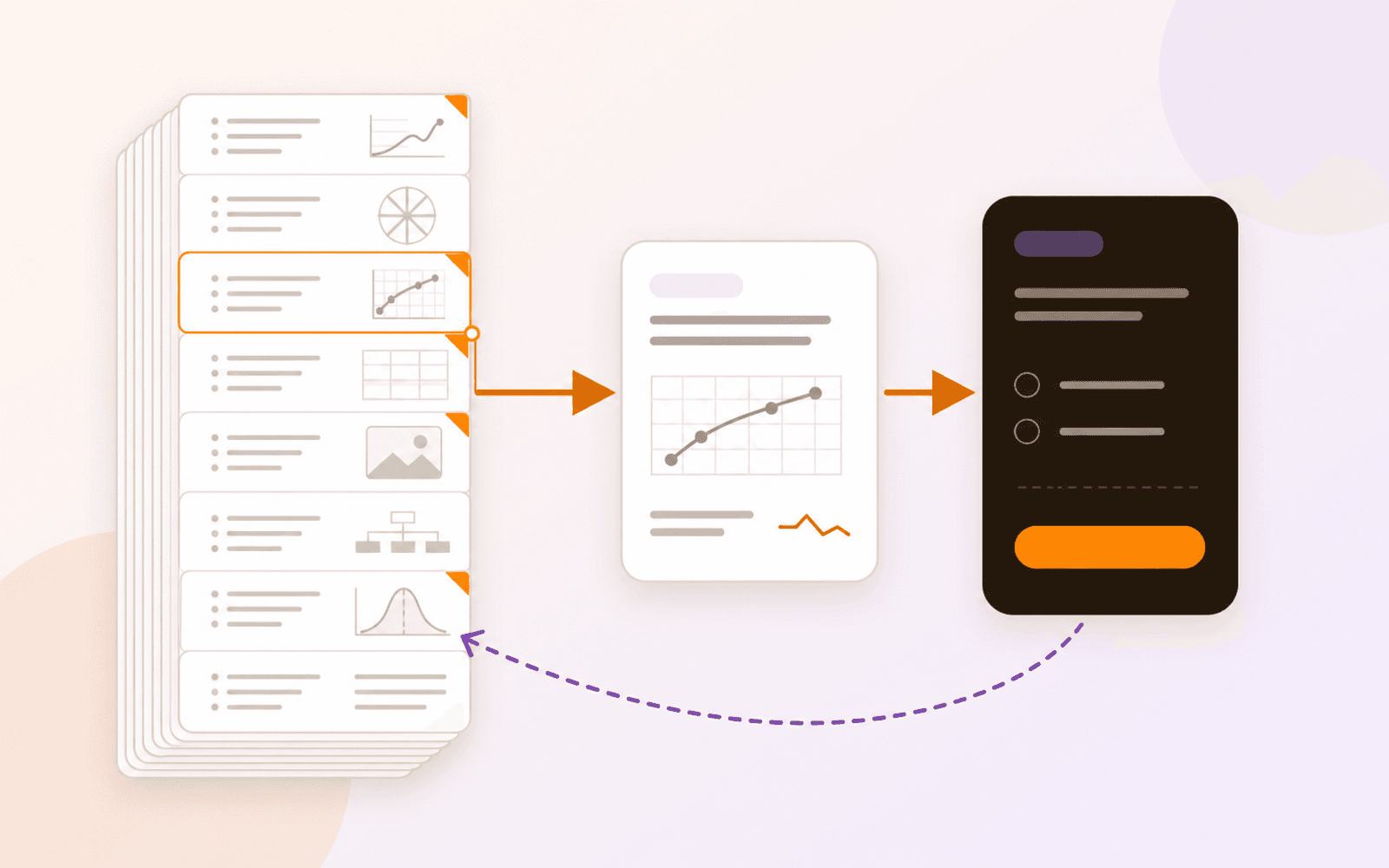
Treat each useful slide as a source, not a page to reread. Capture one focused idea or image as a Card, create one clear Question from it, and run a short Practice session. When an answer is incomplete, return through the Card to the exact slide. Begin with five to ten Questions from today’s lecture; the complete loop is included with PDF Max Free in one Workspace.
The first lecture deck of term often looks manageable until it becomes 60–80 slides of definitions, screenshots, labeled figures, and diagrams with no speaker notes. Highlighting the important lines can make the deck look studied, but it does not tell you whether you can retrieve the idea without seeing the slide.
A better week-one goal is smaller: turn five to ten useful slides from today’s lecture into Questions, test them once, and make sure every miss can reopen the slide that explains it. The general guide to turning a PDF into source-linked study Questions covers every supported source type. This workflow narrows that method to lecture slides, where one slide often presents one teachable idea and the layout itself carries meaning.
A five-step workflow for today’s lecture PDF
1. Open the deck and choose the useful slides
Open the lecture PDF in PDF Max, then choose Research → Workspace. Scan for slides that introduce an exam-relevant idea, explain a relationship, define an unfamiliar term, or provide a figure you will need to recognize.
Skip title slides, repeated agenda slides, and decorative examples unless the lecturer made them meaningful. The aim is not one Question for every page. It is one focused learning decision for each slide worth returning to.
2. Clip one idea from each slide as a Card
Use Clip Text for a definition, condition, comparison, or short explanation. Use Clip Image when the slide’s diagram, chart, screenshot, or spatial arrangement carries the meaning.
Keep the capture focused, but include enough context to identify it later. A clipped bullet reading “increases” is not useful without the variable, condition, or heading. Include the caption, units, legend, or slide heading when it changes what the material means.
Name the Card for the idea rather than the page number. “Action potential refractory period” will remain recognizable; “Lecture 1, slide 37” will not.
3. Create one clear Question from each Card
Open the Card and choose Create Questions. Ask for one retrievable answer:
- “Why does the refractory period limit firing frequency?”
- “Which condition makes this approximation valid?”
- “What changes between the first and second stage of this process?”
- “Which structure is labeled C?”
If a slide contains three independent claims, write three Questions or choose the one that matters now. Avoid “Explain this slide,” which makes it difficult to judge whether your answer was complete.
Manual authoring is always available. Optional Apple Intelligence can draft Questions on supported iOS 26 and macOS 26 devices, but review every draft before saving it. PDF Max does not automatically build an accepted deck from the whole lecture PDF.
4. Run Practice before starting a schedule
Choose the five to ten Questions from today’s lecture and start Practice Without Changing Your Schedule. Practice is useful in week one because you can test the wording and source links without treating the session as scheduling evidence.
Attempt each answer before revealing it. A response that merely resembles the slide is not enough; decide whether you retrieved the idea the Question actually asks for. The guide to scheduled Study versus Practice explains when to move from this neutral test into continuing scheduled review.
5. Miss one and test the jump-back
Deliberately mark one response incomplete. Open its source Card, then return to the original PDF page. Confirm that the slide opens and the captured passage or region supports the Question exactly.
Repair the Card or Question if the jump lands on the wrong slide, the capture omitted a qualifying detail, or the prompt only made sense while the lecture was fresh. Do this before you add another 20 Questions.
Why the source link matters
Lecture slides are designed to accompany a lecturer, not stand alone. A bullet may be shorthand for a spoken explanation, and a figure may carry more information than the text beside it. A short answer can therefore be correct yet incomplete unless you can restore the surrounding slide.
In PDF Max Workspace, the PDF remains the source, a Card captures one accepted passage or image, and a Question tests it. A miss can reopen the Card and original page. That route matters when a qualification, figure legend, or neighboring bullet changes the answer.
Upload-first tools such as Notelify and TikoNote can generate notes, flashcards, or quizzes from a submitted PDF. That is useful when you want generated study material. This workflow is for choosing the ideas yourself and retaining a direct route to the supporting slide.
Goodnotes documents Study Sets as a separate file option that can sit beside notes or lecture slides in Split View. PDF Max instead links a Question to a Workspace Card that retains its source route. Neither approach makes the other obsolete; the practical difference is whether source return is built into the authoring chain or maintained across separate material.
The same distinction matters for Anki. If the specific problem is reconnecting a card to its lecture page, read why Anki cards lose the lecture page. The broader PDF Max Study versus Anki comparison covers scheduling, customization, imports, and ecosystem differences.
Use the slide layout when the layout matters
A native slide PDF does not need OCR simply because it is a lecture deck. Use OCR only when the page is an image-only scan and the text you need cannot be selected or searched. Likewise, Reflow is not part of this workflow: slide position, callouts, arrows, panels, and labels often carry meaning that should remain fixed.
For a labeled anatomical figure, process diagram, table, or formula, capture the structured source rather than rewriting it as plain text. The guide to studying diagrams, tables, and formulas inside a PDF explains masks, typed answers, and the context each Question should keep. Use that guide for the visual Question instead of turning the diagram into a loose text list.
Keep the first week deliberately small
The complete Card, Question, Practice, scheduled Study, Progress, and source-return loop is included with PDF Max Study on Free. Free includes one complete editable multi-PDF Workspace without a Study cap. If you later need multiple separately editable Workspaces, the plan comparison shows that boundary; you do not need to upgrade to test this lecture workflow.
After each class, keep only Questions that survive the source-return check. At the end of the week, decide which belong in scheduled Study. The aim is a repeatable loop in which a forgotten answer leads back to evidence, not a perfect deck before the course has found its shape.
Open today’s lecture PDF in PDF Max, clip five slides into Questions, and run Practice on those five. If a miss does not jump back to the slide, the Card is not finished.