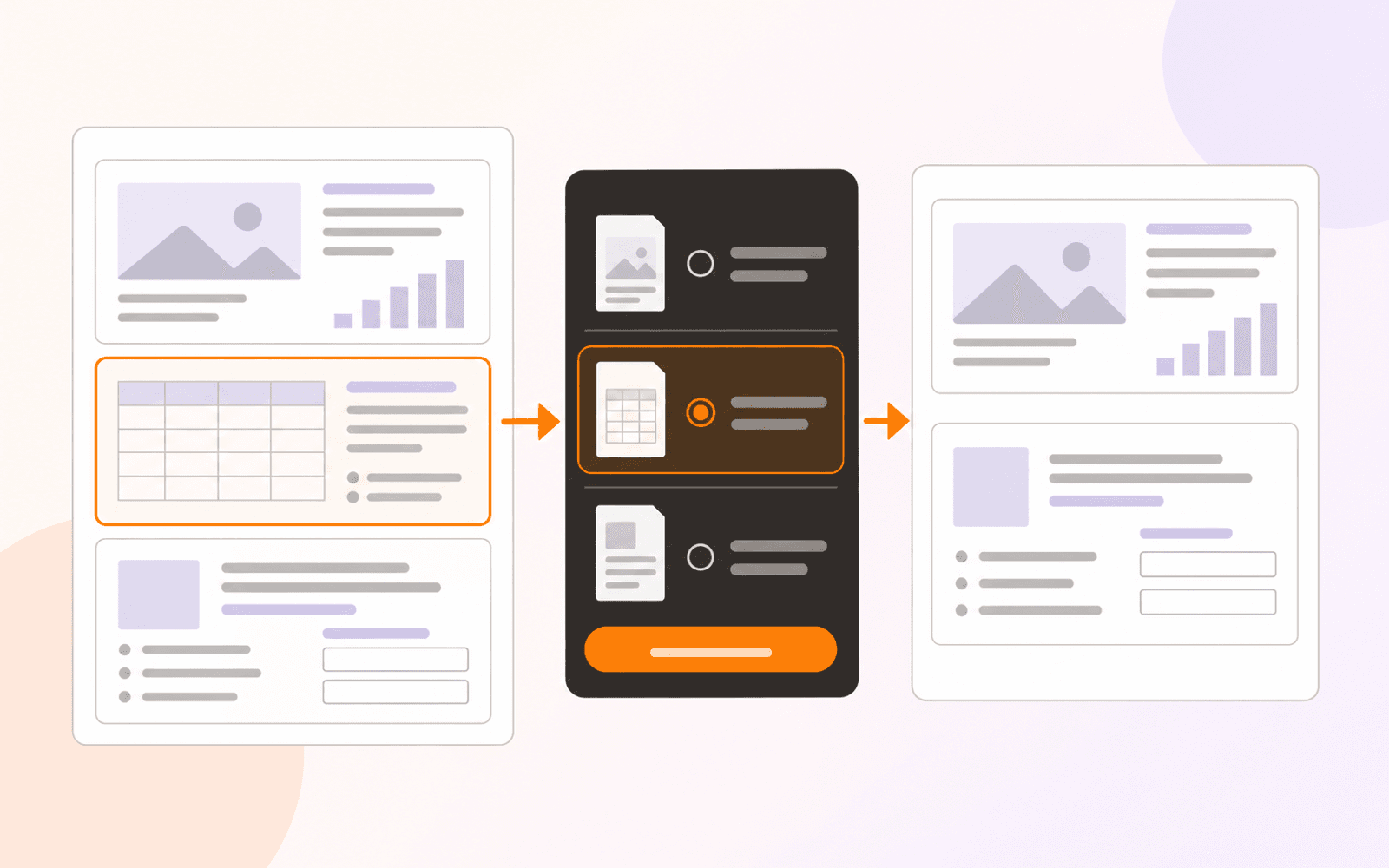
How to use Study Tape for active recall in a PDF
Cover answers in a PDF with Study Tape, quiz yourself, reveal one strip or every answer, and understand what happens when you save or share.
Direct answer
How do you cover and reveal answers in a PDF for active recall?
In PDF Max 27.2, open the Research tab, choose Tape, and draw an opaque strip over each answer you want to recall. Read the visible cue, attempt the answer before looking, then tap the strip to reveal it and tap again to cover it. Reveal All and Hide All control the complete set. Study Tape is included with PDF Max Free, works directly on the PDF, and is separate from scheduled Study and permanent redaction.
Rereading a visible answer can feel fluent without proving that you could produce it from memory. Study Tape changes the order: hide the answer, attempt it, then reveal it for feedback.
PDF Max 27.2 adds that loop directly to a PDF. You do not need to copy every fact into a flashcard first. Draw an opaque strip over a definition, label, step, value, or short explanation; tap the strip when you are ready to check; then cover it again for another pass.
This is a quick on-page recall tool. It does not automatically create Questions, schedule reviews, record recall history, or permanently remove the covered content.
Choose material that still has a useful cue
Tape works best when the visible part of the page asks one reasonably clear question. Good targets include:
- a term whose definition follows on the same line;
- the label beside a diagram pointer;
- one value in a table with its row and column headings left visible;
- the final step of a worked example;
- a date, name, formula term, or short process stage; or
- an answer printed beneath a practice question.
Avoid covering half a page simply because it is faster. A very large mask can leave too little information to identify what you are trying to recall. It also makes an honest attempt harder to judge: several different answers may fit the same visible context.
If the source contains no prompt, add one in your own notes or leave enough of the sentence visible to form a precise cue. For durable, independently scheduled material, use source-linked Questions instead.
Add Study Tape in PDF Max
Work on a duplicate if the PDF is important or shared. Then:
- Open the PDF in PDF Max 27.2 or later.
- Open the Research tab.
- Choose Tape. The tool remains active so you can cover several answers without selecting it again.
- Drag across the answer, label, or expression you want to hide.
- Repeat for the other recall targets on the page.
- Tap the active Tape button again when you want to change its appearance.
- Choose a width and color, and turn Curvy Tape on only when a straight strip does not fit the material.
- Choose Done with Tape when you have finished adding strips.
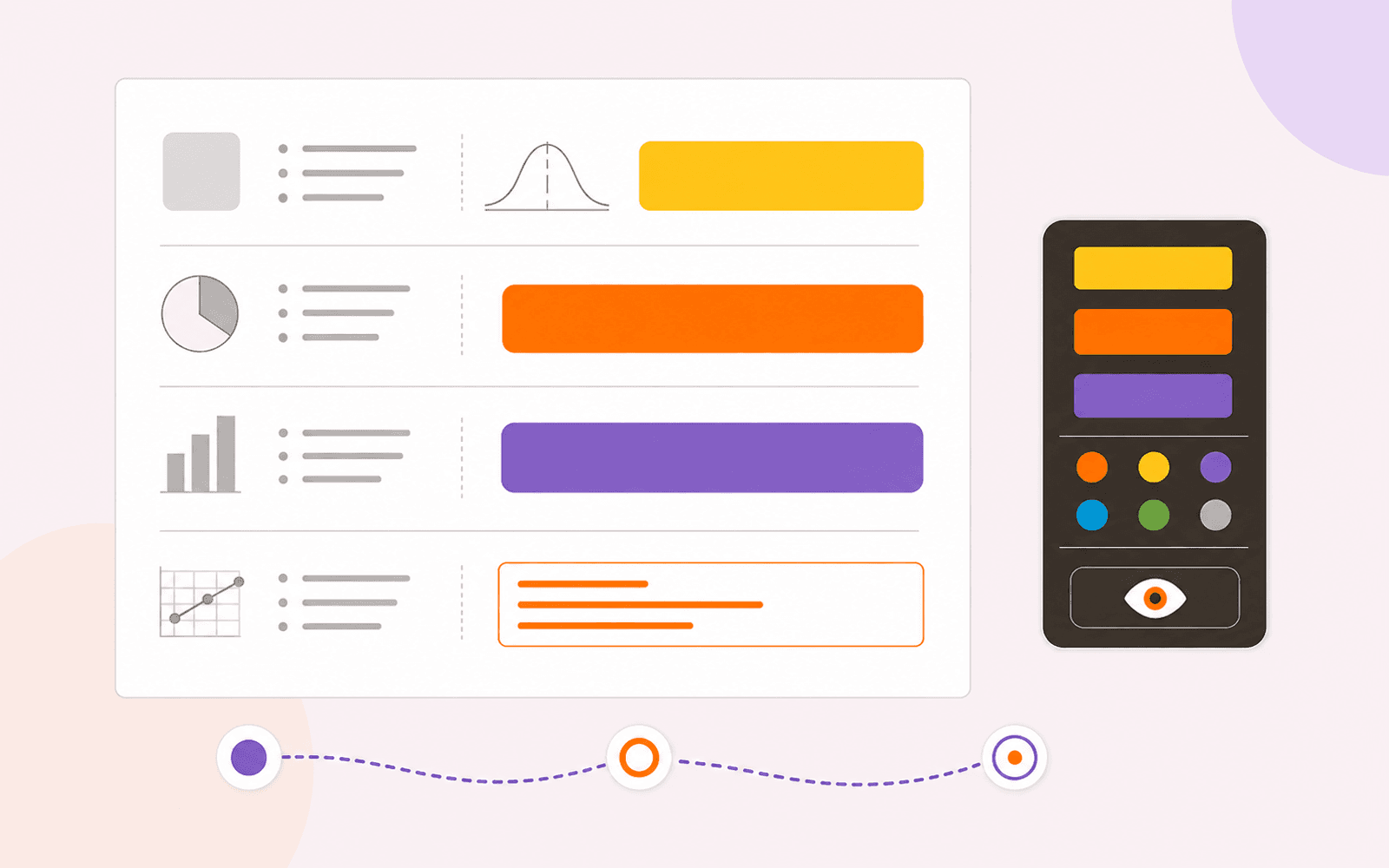
The appearance controls provide 6 mm, 10 mm, and 14 mm widths, six preset colors, and straight or curvy tape. Use the narrowest strip that fully hides the answer. A wide strip is useful for a formula or a short paragraph, while a narrow one keeps nearby labels and units visible.
Color can organize a page, but keep the scheme simple. For example, use one color for definitions and another for numerical values. Do not encode facts only by color if the page must also work in grayscale or for somebody who cannot distinguish the chosen colors.
Practice one strip at a time
Use a repeatable loop instead of revealing answers as soon as they feel familiar:
- Read the visible cue and look away from the covered area.
- Say, write, or sketch the answer from memory.
- Tap the tape once to reveal the source answer.
- Compare meaning, precision, units, spelling, or sequence—not just whether the answer looked familiar.
- Correct the response while the source is visible.
- Tap the same strip again to cover it.
- Move to the next cue.
A stationary tap toggles an individual strip. Reveal All shows every taped answer in the document; once everything is visible, the same control becomes Hide All. Reveal All is useful for checking that every strip covers the intended content. Hide All gives you a clean reset before a second pass.
Revealing is a session presentation state rather than a permanent edit to the tape. When a taped PDF is reopened in PDF Max, its strips begin covered again. The tape itself remains part of the editable annotation layer, so normal annotation operations such as undo, selection, movement, duplication, and deletion still apply.
Keep quick recall separate from scheduled Study
Study Tape and PDF Max Study solve related but different jobs.
| Need | Use | What it records |
|---|---|---|
| Quiz yourself immediately on the page | Study Tape | Editable tape strips; reveal is temporary |
| Rehearse a selected set without moving due dates | Practice | A schedule-neutral practice session |
| Build long-term review history and future intervals | Scheduled Study | Ratings, memory history, and next review dates |
| Remove sensitive information from the PDF | Redact | A permanent content-removal operation after Apply |
Use Tape during a first reading, a lecture review, or a rapid pass through a worksheet. Promote material into source-linked Questions when it must return over days or weeks, needs progress tracking, or should be practiced apart from the surrounding page. The guide to Scheduled Study versus Practice explains which session should affect future due dates.
For diagrams, tables, and formulas, page-level Tape is often enough when the visible context already supplies a clear cue. When you need multiple precise masks, independent scheduling, or a typed answer, use the structured PDF study workflow.
Do not use Study Tape as redaction
An opaque strip changes what you see during study; it is not evidence that the underlying content was removed. The source answer still exists, and PDF viewers do not share one universal interactive-tape format.
If a document contains private information, use a genuine redaction workflow on a copy, apply the redactions, and test the saved output. The comparison of redaction, flattening, and covering explains why a visible cover is not a security boundary.
Sharing also deserves a test. Save your work, close the PDF, and reopen it in PDF Max to confirm that the strips return covered. Then open the exact copy you plan to send in a second PDF viewer. Confirm which annotations appear and whether the recipient needs an interactive study file, an ordinary readable PDF, or a separately prepared worksheet. Do not promise that a different app will reveal PDF Max tape by tapping it.
How Tape compares with notebook apps
The demand for a cover-and-reveal tool is established. Goodnotes documents a Tape Tool that hides notebook content, reveals it with a tap, supports read-only practice, and exports visible but non-interactive tape to PDF. Notability also positions Tape as a way to cover terms or definitions and quiz yourself, but its support page says Tape does not appear in an exported note.
PDF Max applies the same active-recall principle inside a PDF-focused workflow: the Research tab owns Tape, individual strips toggle on the page, and Reveal All or Hide All controls the complete set. Its particular advantage is proximity to the rest of the document workflow—search, annotation, source-linked Questions, scheduled Study, page work, and delivery—without claiming that every one of those systems is the same feature.
The learning principle is broader than any app. A 2022 review in Nature Reviews Psychology summarizes evidence for retrieval practice and spacing across applied educational settings. Tape creates the opportunity for retrieval; the learner still has to attempt the answer before revealing it. Covering and immediately uncovering without an attempt is only another form of looking.
Fix the common failure modes
The answer is still visible. Use a wider strip or add a second strip. Do not rely on a translucent mark.
The cue is ambiguous. Reveal the answer, reduce the covered area, or add a clearer prompt. One strip should test one intended response.
A tap draws instead of revealing. Finish the gesture and use a stationary tap on the existing strip. If another pen or highlighter is active, finish that tool before testing the tape.
Everything is revealed. Choose Hide All to reset the document, then begin the recall pass again.
You need progress and future review dates. Create source-linked Questions and use Scheduled Study. Tape itself does not grade an answer or write scheduling history.
You need to protect confidential text. Stop and use Redact. Do not flatten or share a covered copy as though Tape had removed the source.
Plan and device requirements
Study Tape is included with PDF Max Free as part of the annotation tools. It requires PDF Max 27.2 or later. At publication on September 5, 2026, Apple’s US storefront lists both PDF Max and the separate PDF Max Pro app at version 27.2.0.
PDF Max requires iOS 18 or later, iPadOS 18 or later, or macOS 15 or later on an Apple silicon Mac. Study Tape does not require Apple Intelligence, a language model, a model download, or an internet connection for the cover-and-reveal interaction. The plan comparison separates these Free annotation tools from Premium editing and document transformations.
Start with five important answers on one page. Cover them, attempt every answer before revealing it, use Hide All to reset the page, and repeat the set once. That small loop is enough to turn a passive reread into a deliberate recall check without building a full deck first.