How to build and check a project budget spreadsheet
Build a project budget in a spreadsheet you can send as an Excel file: separate inputs from formulas, add totals, test the sums and chart the result.
Direct answer
How do I build a project budget spreadsheet and check that it is right?
Keep inputs and formulas apart. List each cost on its own row with a quantity and a unit price, calculate the line total with a formula, and sum the lines by category and overall. Then test the sheet: change one input and confirm that every total moves as expected. In Mobeera Office you can build it by hand or ask your AI to create the workbook, then save it as XLSX.
A budget is trustworthy when anyone can see where each total comes from. That depends on layout more than on formulas: inputs in one place, calculations in another, and no typed-in numbers hiding among the sums.
This guide builds a small project budget in Mobeera Office and saves it as an Excel file.
1. Lay out the sheet
Create a workbook with New Sheet on the Home window. Use one row per cost and these columns:
| Column | Holds | Typed or calculated |
|---|---|---|
| Category | Design, Development, Travel | Typed |
| Item | What the cost is | Typed |
| Quantity | Hours, days or units | Typed |
| Unit price | Cost of one | Typed |
| Line total | Quantity × unit price | Calculated |
Put assumptions that apply to many rows, such as a tax rate or a contingency percentage, in their own labelled cells above the table.
2. Add the formulas
- Line total: in the first row,
=C2*D2, then fill down. - Category subtotal:
=SUMIF(A:A,"Design",E:E). - Subtotal:
=SUM(E2:E20), adjusted to your rows. - Contingency: the subtotal multiplied by your contingency cell.
- Total: subtotal plus contingency.
Refer to the assumption cells in formulas. Do not type 0.1 inside a formula: a reader cannot see it and you will forget it.
3. Check it
- Change one input. Double a quantity and confirm that its line total, its category subtotal and the grand total all change. Undo the change.
- Add up one category by hand and compare it with the sheet.
- Look for typed totals. Click each total and confirm that the formula bar shows a formula.
- Check the range. Make sure the sum covers the last row. A row added below the range is the most common budget error.
4. Show it
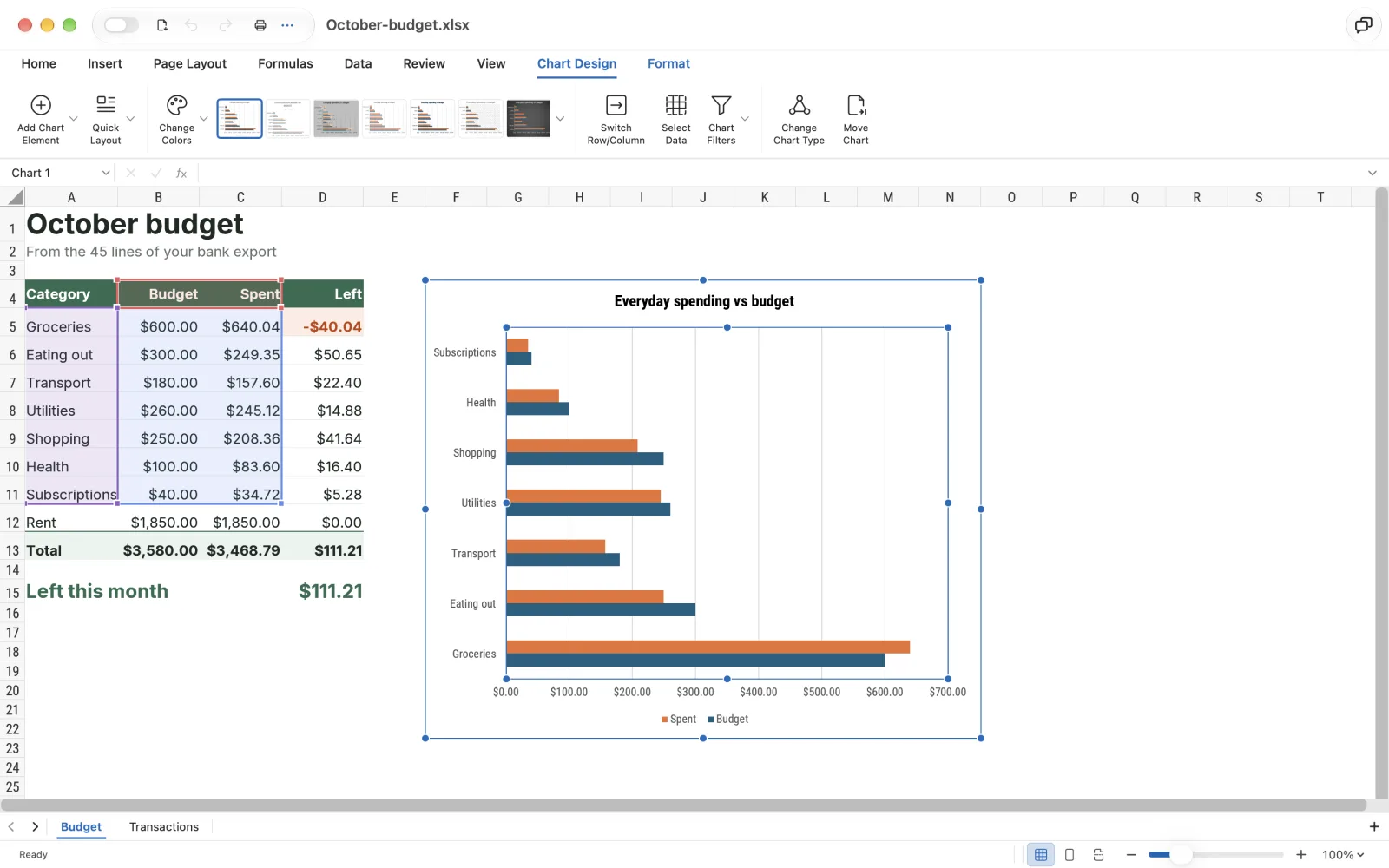
Select the category subtotals, open the Insert tab and choose Recommended Charts in the Charts group. A bar or pie chart of cost by category is usually enough.
5. Save as an Excel file
Choose File → Save and keep the format as Workbook (.xlsx). Reopen the file and confirm that the formulas still calculate.
Have your AI build the first version
On a Mac, a connected AI app can create the workbook for you:
Create a project budget workbook in Mobeera Office. Columns: Category, Item, Quantity, Unit price, Line total. Use formulas for every total. Put the contingency rate in its own labelled cell. Add subtotals by category and a chart of cost by category.
Run the checks in step 3 on the result. An AI can write a formula over the wrong range as easily as a person can.
Common questions
Will the formulas work in Excel?
Mobeera Office saves standard .xlsx files and the functions used here are common ones. See what is tested against Excel.
Is this free?
The free plan edits the first 50 rows of a workbook's first sheet. Larger workbooks, and workbooks created by an AI app, need lifetime access.