Microsoft Office alternatives for Mac you can buy once or use free
Six ways to edit Word, Excel and PowerPoint files on a Mac without a Microsoft 365 subscription, with what each costs, where it runs and who it suits.
Direct answer
What are the alternatives to a Microsoft 365 subscription on a Mac?
You have six realistic options on a Mac: Office Home 2024, Microsoft's own one-time purchase; Mobeera Office, bought once for Mac, iPhone and iPad; LibreOffice, free and open source; Apple Pages, Numbers and Keynote, free on Apple devices; Google Docs, Sheets and Slides, free in a browser; and WPS Office, free with paid plans. The right one depends on whose files you edit, which devices you use and whether you want AI.
You do not need a Microsoft 365 subscription to work with Word, Excel and PowerPoint files on a Mac. Microsoft still sells Office as a one-time purchase, and several other suites open and save the same files. This guide lists six options, what each costs and who it suits. We make one of them, Mobeera Office, so we have tried to be plain about where the others are the better choice.
Prices are US list prices in November 2026 and can change.
The options side by side
| Option | Cost | Runs on | Best for |
|---|---|---|---|
| Office Home 2024 | US$179.99 once, for one Mac or PC | Mac, Windows | People who need Word, Excel and PowerPoint themselves |
| Mobeera Office | Free to try; lifetime access is US$99.99 once, or pay US$49.99 a year | Mac, iPhone, iPad, Android | Office files plus PDF on all your devices, with your own AI |
| LibreOffice | Free | Mac, Windows, Linux | A full desktop suite at no cost |
| Pages, Numbers, Keynote | Free | Mac, iPhone, iPad, browser | Your own documents, shared with Apple users |
| Google Docs, Sheets, Slides | Free with a Google Account | Browser, iPhone, iPad, Android | Editing together in real time |
| WPS Office | Free version; paid plans by subscription | Mac, Windows, Linux, mobile, browser | A familiar look with built-in AI and cloud |
1. Office Home 2024
Microsoft's own answer. Office Home 2024 is US$179.99, paid once, for one Mac or PC. It includes Word, Excel, PowerPoint and OneNote. Office Home & Business 2024 adds Outlook and the right to use it commercially.
Because these are the real apps, file compatibility is not a question. The limits are in the licence. Microsoft says the one-time version gets security updates but no new features, has no upgrade path to the next version, and installs on a single computer. Its support ends in October 2029. Full editing on iPhone and iPad is part of Microsoft 365, not of the one-time purchase.
Choose it if you need exact Word, Excel and PowerPoint behaviour on one Mac, including macros, and do not need your phone or tablet.
2. Mobeera Office
Mobeera Office puts five editors in one app: Docs, Sheets, Slides, PDF and Publish. It works directly in .docx, .xlsx and .pptx, so there is nothing to convert, and Publish opens Publisher (.pub) files. One purchase covers every Mac, iPhone and iPad on your Apple account. The Android app is sold separately on Google Play.
It is free to download. Without paying you can edit the first two pages of a document or PDF, the first two slides and the first 50 rows of a spreadsheet. Lifetime access is a one-time purchase. See the current price.
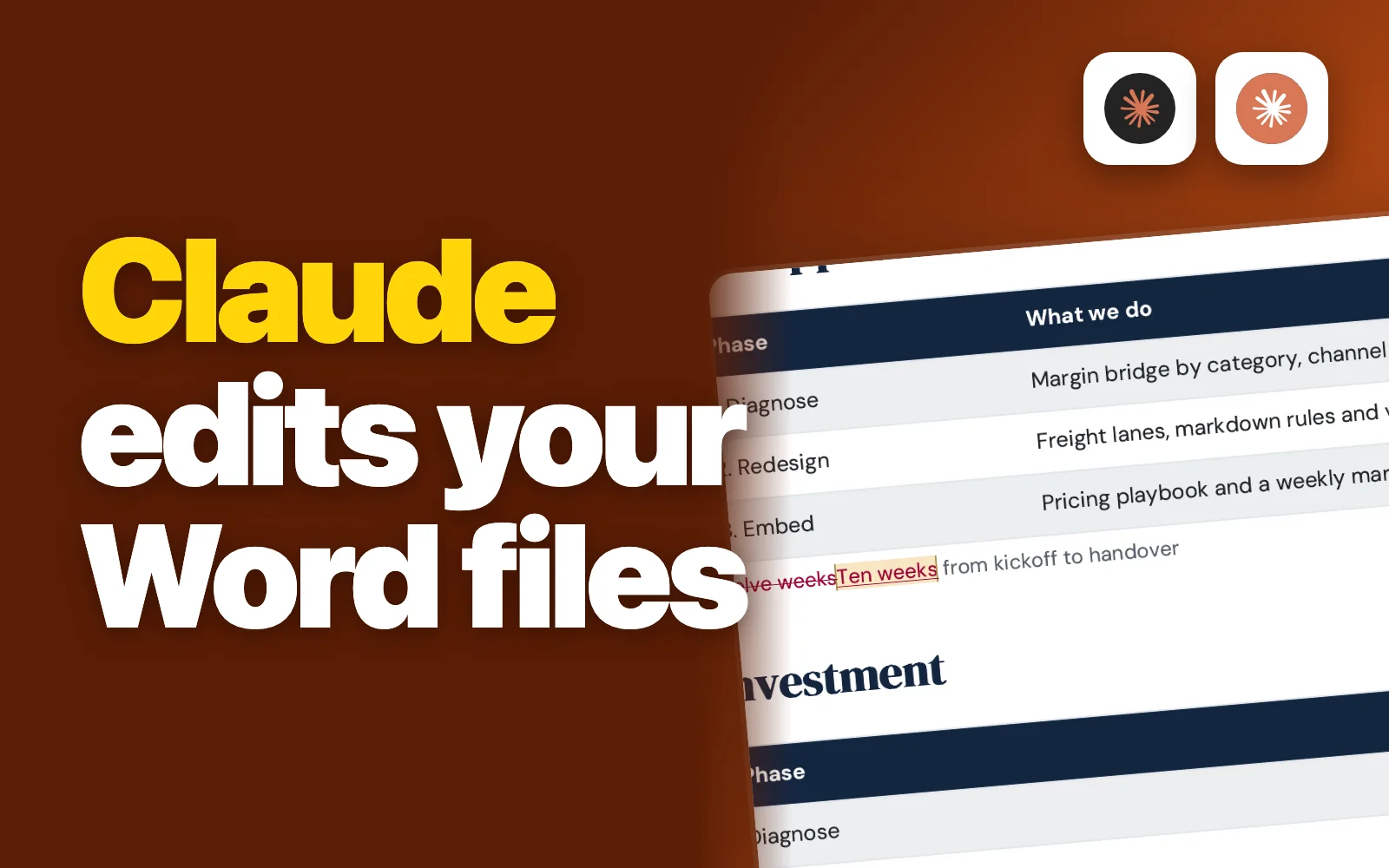
Two things set it apart. The PDF editor is built in, for forms, comments, redaction and page order. And it is built to work with the AI you choose: AI Chat with your own API key, or on Mac an AI app such as Claude or ChatGPT that connects through MCP and edits your files while you review the changes. AI is not included in the price.
The limits: the Mac app needs Apple silicon and macOS 14 or later, there is no real-time co-editing or cloud storage, it does not run VBA macros, and its PDF editor cannot yet change existing text on a page. We publish our test results against Microsoft Office, including what still differs.
Choose it if you exchange Office files with other people, work across Mac, iPhone and iPad, and want PDF tools and your own AI in the same app. See the full comparison with Microsoft Office.
3. LibreOffice
The standard free suite. LibreOffice includes a word processor, spreadsheet, presentation tool, drawing tool and database, runs on Intel and Apple silicon Macs with macOS 11 or newer, and has no advertising and no account.
Its native format is OpenDocument, and it reads and writes Office formats by conversion. Its own documentation lists features that can cause trouble, such as revision marks, pivot tables and conditional formatting. There is no iPhone or iPad app from its makers, and it has no generative AI features.
Choose it if you want a capable desktop suite for free and mostly produce your own documents. See Mobeera Office vs LibreOffice.
4. Apple Pages, Numbers and Keynote
Free on every Mac, iPhone and iPad, well designed, and good at real-time collaboration through iCloud. Keynote in particular is a pleasure for building presentations.
They use their own file formats. Opening a Word file creates a Pages document, and sending it back means exporting a Word copy, which Apple notes can look different. That is fine occasionally and tiring in a long back-and-forth.
Choose them if you create documents for yourself or for other Apple users. See Mobeera Office vs Pages, Numbers and Keynote.
5. Google Docs, Sheets and Slides
Free with a Google Account, with 15 GB of storage, and the best choice when several people need to edit at once. On a Mac it runs in a browser. It can edit Office files directly, with documented limits: no macros, and some elements such as SmartArt are converted.
Offline work needs Chrome or Edge and an extension, set up in advance. Your files live in Google Drive.
Choose it if collaboration matters more than exact layout or working offline. See Mobeera Office vs Google Docs.
6. WPS Office
WPS Office runs on nearly everything, looks familiar to Microsoft Office users, and includes documents, spreadsheets, presentations and a broad set of PDF tools, plus cloud storage and co-editing. It has a free version. Its paid plans, including the AI features, are subscriptions, and its App Store listing notes that the app contains advertising.
Choose it if you want one suite on Windows, Linux and Mac with AI and cloud included, and a subscription suits you. See Mobeera Office vs WPS Office.
How to choose
Three questions settle most cases:
- Whose files are they? If you mostly receive Office files and send them back, choose a suite that works in those formats directly: Office Home 2024 or Mobeera Office. If you mostly create your own, any of the six will do.
- Which devices? One Mac only: any of them. Mac plus iPhone and iPad: Mobeera Office, Apple's apps, Google or WPS. Windows as well: Mobeera Office, LibreOffice, Google or WPS. Linux as well: LibreOffice, Google or WPS.
- Do other people edit with you live? If yes, Google Docs or Apple's apps. If you pass files back and forth, tracked changes and comments in the file do the job.
Then test before you commit. Take the most complicated document, workbook and deck you have, open each in the suite you are considering, change something, save, and reopen. Ten minutes with your own files tells you more than any comparison table.
Common questions
Is there a free Microsoft Office for Mac?
Microsoft offers Word, Excel and PowerPoint for the web free with a Microsoft account, with files saved in OneDrive. The desktop apps need Microsoft 365 or a one-time purchase.
Can these alternatives open files with macros?
They open the files, but VBA macros generally do not run outside Microsoft Excel and Word. If your workbooks depend on macros, stay with Microsoft's apps.
Will people on Microsoft Office be able to open my files?
Yes, if you save in .docx, .xlsx or .pptx. Layout can differ in complex documents, so check important files with the recipient.
Microsoft, Microsoft 365, Word, Excel, PowerPoint, Outlook and OneNote are trademarks of the Microsoft group of companies. Other product names are trademarks of their owners. Mobeera is not affiliated with them.