How to connect your AI app to Mobeera Office with MCP on Mac
Turn on AI Apps in Mobeera Office, add it to Claude, ChatGPT, LM Studio or another MCP app, choose what your AI may do, and review or undo every change.
Direct answer
How do I connect an AI app to Mobeera Office through MCP?
On a Mac, open AI Apps in Mobeera Office and turn on Use Mobeera Office from your AI apps. Then add it to your AI app from the same screen: one click for Claude, ChatGPT and LM Studio, one Terminal command for Claude Code, or a copied command for any other app that runs local MCP servers. There is no account or key. Your AI then creates and edits Word, Excel, PowerPoint and PDF files while you review each change.
Mobeera Office on Mac includes an MCP server, so the AI app you already use can create and edit Word, Excel, PowerPoint and PDF files in it. Setup takes a few minutes and needs no account, API key or separate download. This guide covers the whole flow: turning it on, adding it to your AI app, deciding what your AI may do, and undoing a change you do not want.
MCP, the Model Context Protocol, is the open standard AI apps use to connect to other software. An AI app that supports it can call the tools another app offers. Mobeera Office offers tools for reading, creating, changing, checking and exporting documents, spreadsheets, presentations and PDFs.
Before you start
You need:
- A Mac with Apple silicon and macOS 14 or later.
- Mobeera Office from the Mac App Store.
- An AI app that can run local MCP servers, such as Claude, Claude Code, ChatGPT with Codex, LM Studio or Cursor.
MCP connections are available on Mac. On iPhone and iPad, use AI Chat inside Mobeera Office with your own API key.
Reading, rendering and exporting files from an AI app works on the free plan. Creating new files from an AI app, and changing files beyond the free editing limits, needs Mobeera Office Pro. See pricing.
1. Turn on AI Apps
- Open Mobeera Office.
- In the Home window's sidebar, choose AI Apps. You can also reach it from Settings → AI Apps, or from the menu bar with Help → Set Up an AI App…
- Turn on Use Mobeera Office from your AI apps.
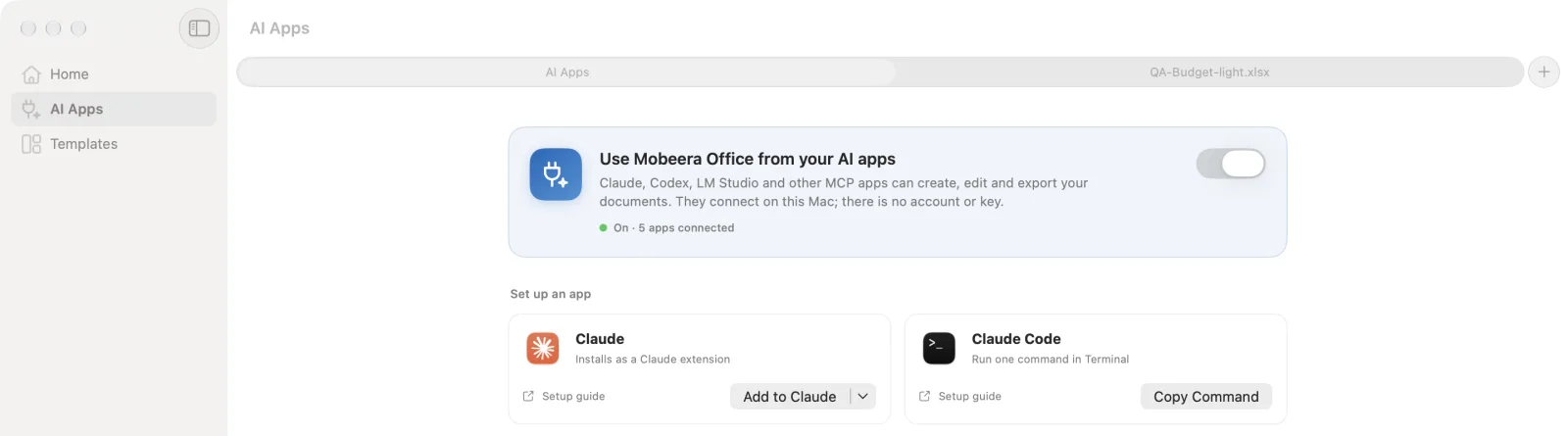
The status line changes to On · No apps have connected yet. Until this switch is on, an AI app that tries to use Mobeera Office is told that AI apps are turned off.
2. Add Mobeera Office to your AI app
The Set up an app section has a card for each supported app.
| Your AI app | What to do |
|---|---|
| Claude (desktop app) | Click Add to Claude. Claude opens and asks you to install the Mobeera Office extension. |
| Claude Code | Click Copy Command, paste it into Terminal and run it. |
| ChatGPT and Codex | Click Add to ChatGPT, then choose the .codex folder in your home folder. The ChatGPT app, the Codex CLI and the IDE extension share that setting. |
| LM Studio | Click Add to LM Studio. LM Studio opens and adds Mobeera Office to its tools. |
| Cursor or another MCP app | Under Another app, click Copy JSON, or copy the Command and Argument, and add them as a local MCP server in your app. |
If your AI app was already open, quit and reopen it so it loads the new server. When it first connects, the card shows Connected and the status line counts the app.
We have separate walkthroughs for Claude and Claude Code, ChatGPT and Codex and Cursor and other MCP apps.
3. Choose what AI apps can do
The What AI apps can do section has four settings:
- Create new documents. On by default. Turn it off if you only want your AI to work on existing files.
- Ask me before an app opens or saves a file. Off by default. Turn it on to approve each file an AI app opens or saves.
- Save exports to. Choose a folder before your AI can export a PDF or another format. Exports go only to this folder.
- Files and folders you allowed. Lists what you have granted, with Remove for each.
4. Ask for something small first
Start with a request you can check at a glance. In your AI app, try:
Create a one-page project brief in Mobeera Office for a website redesign, with a short summary, three goals and a table of milestones.
Your AI creates the document, and it opens in Mobeera Office. Then try an edit on a file you already have:
Open ~/Documents/proposal.docx in Mobeera Office, turn on tracked changes and tighten the executive summary.
The first time your AI opens a file from a folder, macOS may ask you to grant Mobeera Office access to that file or folder. Choose it and click Grant Access.
5. Review, undo and keep editing
Your AI prepares each change, can preview it, and then applies it as one step. You stay in control in three ways:
- Tracked changes in Docs. With Track Changes on, your AI's edits arrive as suggestions under the AI app's name. Accept or reject each one.
- Undo from Activity. The Activity list on the AI Apps screen records what each app created, changed and exported. Click Undo to revert a change while it is the latest one in its document.
- Your own edits. The files are ordinary
.docx,.xlsx,.pptxand PDF files. Keep working on them yourself at any point.
AI can misread a request or get a figure wrong. Read what it changed before you send a document to anyone.
What your AI can and cannot see
AI apps connect to Mobeera Office on your Mac. Your AI works on files you share with it, files it opens with your permission, and files it creates. Mobeera does not run a cloud service between your AI app and your files.
Your AI provider may process the content your AI reads, under that provider's terms. If that matters for a document, use a local model in an app such as LM Studio, or leave that document out.
If something does not work
- Your AI app does not list Mobeera Office. Quit and reopen the AI app. Check that the switch on the AI Apps screen is still on.
- "AI apps are turned off in Mobeera Office." Turn on Use Mobeera Office from your AI apps.
- Your AI cannot export. Choose a folder under Save exports to.
- macOS refuses a file. Let your AI request access, then choose the file or its folder and click Grant Access.
- Your AI says a change needs Pro. Creating files and editing beyond the free limits from an AI app requires Mobeera Office Pro.
- You moved or updated the app and the connection stopped. Add Mobeera Office to your AI app again from the same card.
Common questions
Do I need an API key?
No. With MCP, your AI app uses the plan you already have with it. API keys are only for AI Chat, the assistant inside Mobeera Office.
Does this work on iPhone or iPad?
MCP connections are Mac only. AI Chat works on Mac, iPhone and iPad with your own API key.
Which file types can my AI work on?
Word documents, Excel workbooks, PowerPoint presentations and PDFs. It can also convert between them, for example a report into a deck or any of them into a PDF.
Can I turn it off?
Yes. Turn off Use Mobeera Office from your AI apps. Sharing ends immediately for every app.