How to turn a project brief into an editable presentation with AI
Turn a written project brief into a PowerPoint presentation you can still edit: outline first, generate real slides, fix the layout and save a PPTX.

Direct answer
How do I turn a project brief into an editable presentation with AI?
Agree the outline before any slides are made: one message per slide, in order. Then ask your AI to build the deck as a real PowerPoint file. In Mobeera Office on Mac, a connected AI app creates the slides in the editor, where you can change the design, shorten the text and fix layouts. Save the result as PPTX so other people can edit it, or export a PDF.
Most AI-made slides fail in the same way: too much text, in a file you cannot properly edit. Both problems are avoidable. Settle the outline first, and have the AI build real slides in a presentation editor.
This guide uses Mobeera Office on Mac with an AI app connected through MCP.
1. Get an outline, not slides
Paste the brief into your AI app and ask for an outline only:
Read the project brief below. Propose an outline for a client presentation of at most eight slides. For each slide give a title that states its message and up to three supporting points. Use only facts from the brief. Do not create slides yet.
Edit the outline until the titles alone tell the story. Changing an outline takes seconds. Changing finished slides takes much longer.
2. Build the deck
Then ask for the file:
Create this presentation in Mobeera Office. One slide per outline item. Keep each slide to its title and at most three short points. Use a chart or a table where the brief gives numbers.
The presentation opens in the Slides editor as it is built.
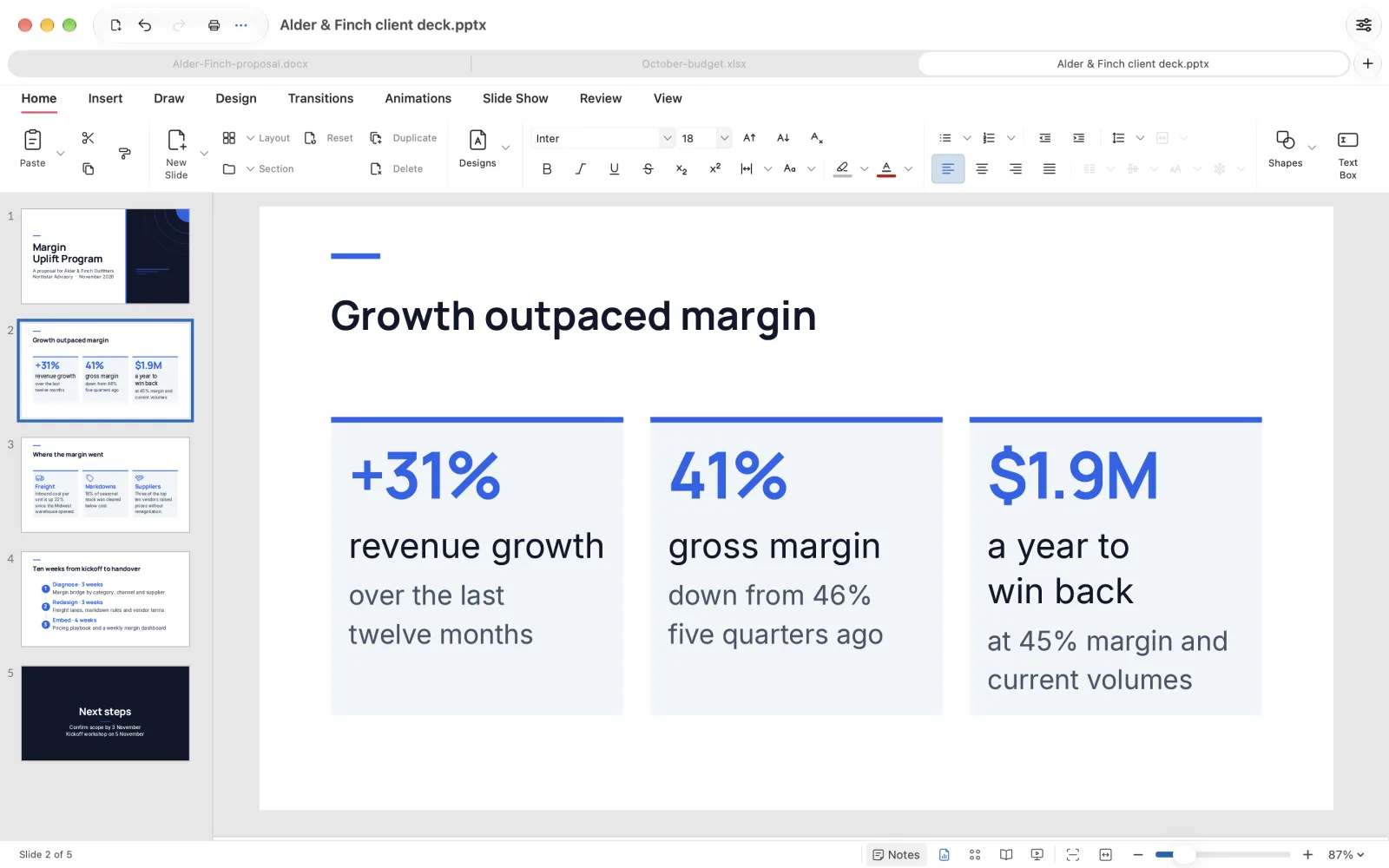
You can also start one yourself with New Slides on the Home window, or File → New from Design to begin from a design pack.
3. Fix what the AI got wrong
- Design. Open the Design tab and pick a different theme or variant under Themes and Variants. The slides keep their content.
- Length. Cut any slide that needs a smaller font to fit. Move detail to the speaker notes.
- Numbers. Check every figure and chart against the brief.
- Layout. Look at each slide at full size for text that overflows or overlaps a picture.
For a change across many slides, ask the AI: "Shorten every slide title to eight words or fewer." For one slide, editing by hand is usually faster.
4. Save and send
Choose File → Save and keep the format as a PowerPoint presentation. Reopen the file and click through every slide. Send the PPTX to people who will edit it, and File → Export as PDF… to people who will only read it.
Fonts are the usual reason a deck looks different on another computer. If the layout matters, send the PDF alongside the PPTX. See what is tested against PowerPoint.
Common questions
Can I do this without a connected AI app?
Yes. AI Chat inside Mobeera Office works with your own API key on Mac, iPhone and iPad. Open it from the Home tab or with Control-Command-I on Mac.
Is this free?
The free plan edits the first two slides of a presentation. Creating presentations with an AI app needs lifetime access.