How to turn meeting notes into an editable project proposal with AI
Turn rough meeting notes into a project proposal you can edit in Word format: the prompt to use, what to check, and how to save a DOCX to send.
Direct answer
How do I turn meeting notes into a project proposal with AI?
Give your AI the notes and ask for a proposal as a real Word document, not as chat text. In Mobeera Office on Mac, use Create with AI or a connected AI app such as Claude, and name the sections you want. Then check every name, date and amount against your notes, correct the draft in the editor, and save it as DOCX so the client can open and edit it.
AI is good at turning rough notes into a structured first draft. The useful part is getting that draft as a real document you can correct and send, not as text in a chat window. This guide goes from notes to a .docx proposal in Mobeera Office on Mac.
What you need
- Your meeting notes as text. Remove anything the AI should not see.
- Mobeera Office on a Mac.
- An AI: either your own API key for AI Chat, or an AI app such as Claude or ChatGPT connected through MCP.
Creating documents with AI needs lifetime access. Your AI provider bills its own usage separately.
1. Write the request
A proposal draft is only as good as the request. Say who it is for, what sections you want and what must not be invented.
Create a project proposal as a Word document from the meeting notes below. The client is [name]. Use these sections: Summary, Goals, Scope, Out of scope, Timeline, Budget, Next steps. Put the timeline and the budget in tables. Use only facts from the notes. Where the notes do not give a date or an amount, write "To be confirmed" and do not guess.
[paste your notes]
The last two sentences matter most. Without them a model fills gaps with plausible numbers.
2. Create the document
With AI Chat. On the Home window, click Create with AI and paste the request. If you have not added a key yet, click Set Up and add one under Settings → AI Apps → AI Chat.
With a connected AI app. Paste the same request into Claude, ChatGPT or another connected app and add "in Mobeera Office". The document opens in the editor as it is written.
3. Check it against your notes
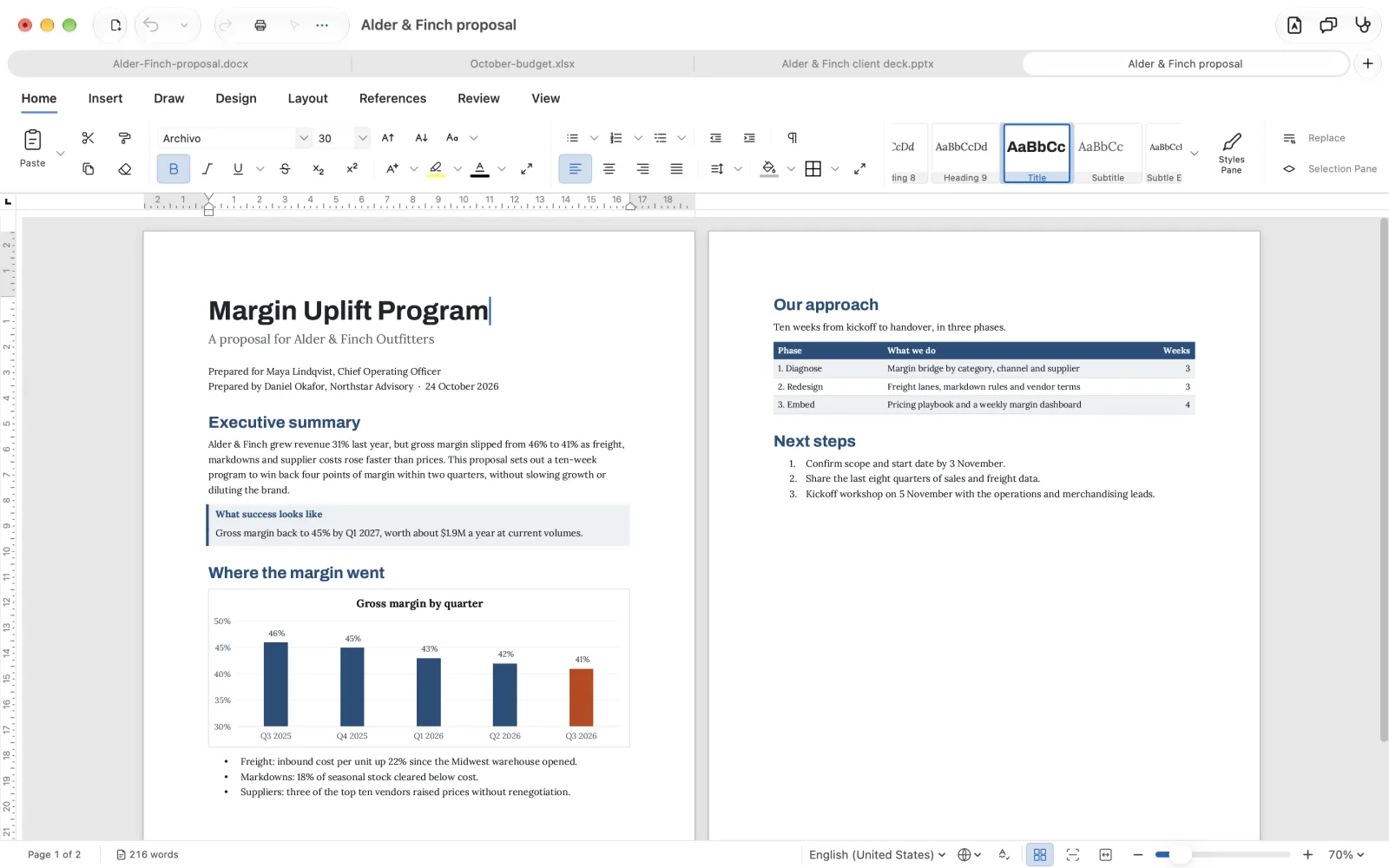
Read the draft with your notes beside it.
- Names, dates and amounts. Check each one. These are the errors a client notices.
- Scope. Make sure nothing was promised that the meeting did not agree.
- "To be confirmed". Search for the phrase and fill in or keep each one on purpose.
- Tone. Rewrite the summary in your own words. It is the part most likely to be read.
Fix small things directly in the editor. For a larger change, ask the AI: open AI Chat (Control-Command-I), select the section and say what to change. Every AI edit can be undone.
4. Save and send a DOCX
Choose File → Save and keep the format as a Word document. Close the file, open it again and check the tables and headings. Send the DOCX when the client will edit it, or choose File → Export as PDF… for a fixed copy.
Common questions
Will the AI get the facts right?
Not always. Treat the draft as a first version written by someone who was not in the meeting. You are responsible for what you send.
Does my AI provider see my notes?
Yes. The notes you paste and the document the AI reads are processed by the provider you chose, under its terms. A local model through an OpenAI-compatible server keeps them on your own machine.