How to review a Word document with tracked changes on Mac without Word
Review a DOCX on Mac without Microsoft Word: turn on Track Changes, add and resolve comments, accept or reject edits, and return a file Word can open.
Direct answer
How do I review a Word document with tracked changes on Mac without Microsoft Word?
Open a copy of the DOCX in Mobeera Office and choose the Review tab. Turn on Track Changes before you edit, so every insertion and deletion is recorded. Use New Comment for questions, Accept and Reject to settle other people's edits, and Previous and Next to move between them. Save the file as DOCX, reopen it to check the markup, then send it back.
You can review a Word document on a Mac without Microsoft Word, and send back tracked changes and comments the other person can accept or reject. Tracked changes and comments are stored inside the .docx file, so any editor that reads and writes them can take part in the review.
This guide uses Mobeera Office. The steps follow one review round: you receive a document, mark it up, deal with the edits already in it and return it.
Before you start
- Work on a copy. In Finder, select the file, choose File → Duplicate and give the copy a clear name such as
agreement-reviewed.docx. - Ask what the sender expects back: a marked-up copy with your changes still visible, or a clean copy with everything accepted.
- The free plan edits the first two pages of a document. A longer review needs lifetime access.
1. Open the document and the Review tab
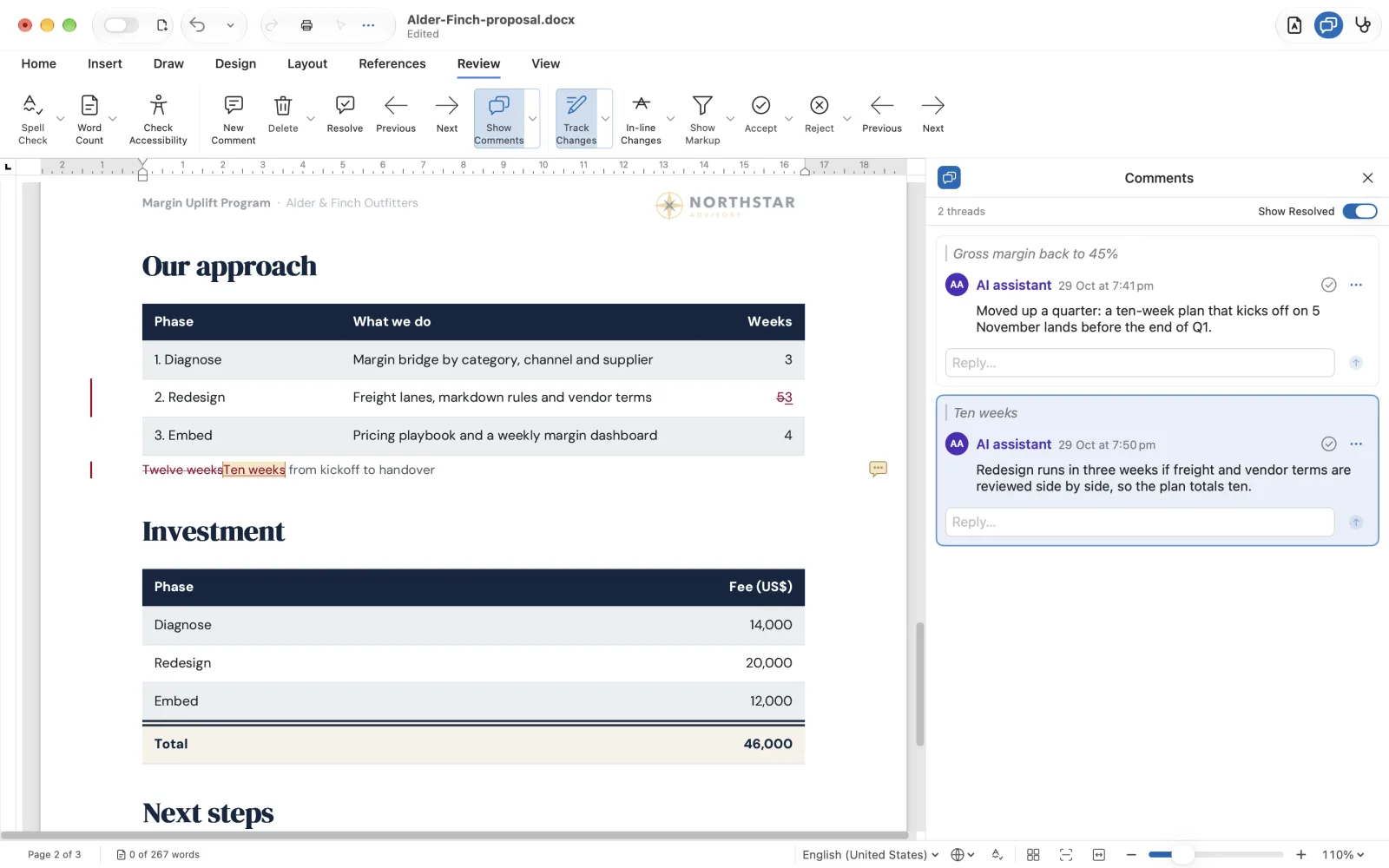
Open the copy in Mobeera Office and choose the Review tab. Its tools are in four groups: Proofing, Comments, Tracking and Changes.
If the document already contains edits from someone else, look at how they are displayed before you change anything. The display button in the Tracking group offers:
- All Markup shows every insertion, deletion and comment.
- Simple Markup shows the edited text with a mark beside changed lines.
- No Markup shows the document as if every change were accepted.
- Original shows the document as it was before the changes.
Choose All Markup for a review. The other views hide information you need to make decisions.
2. Turn on Track Changes before you edit
Click Track Changes in the Tracking group, or press Shift-Command-E. You can track changes For Everyone or Just Mine.
From now on, text you type is marked as an insertion and text you remove is marked as a deletion, both under your name. Edit as you normally would. Read each changed sentence afterwards: a tracked deletion next to a tracked insertion is easy to misread.
Turn tracking on before your first edit. An edit made with tracking off becomes part of the text and the sender cannot see that you made it.
3. Ask questions with comments
When you have a question or a suggestion and not a specific rewording, use a comment.
- Select the words the comment is about.
- Click New Comment in the Comments group.
- Type the comment.
To answer someone else's comment, type in the Reply… field under it. When a thread is settled, click Resolve. A resolved comment stays in the file as a record. Delete removes it, and its menu also offers Delete All Comments and Delete All Resolved Comments.
Use Previous and Next in the Comments group to step through every comment so you do not miss one.
4. Accept or reject existing changes
Only settle changes you have been asked to settle. In many reviews each person leaves the other's edits for the author to decide.
- Click Next in the Changes group to go to the first change.
- Click Accept to keep it or Reject to undo it. Both move on to the next change.
- Repeat until you reach the end.
The Accept and Reject menus hold the wider options: Accept This Change, Accept All Changes, Accept All Changes and Stop Tracking, and the matching Reject commands. Use the "all" commands only when you have read every change.
5. Save as DOCX and check the result
Choose File → Save. To keep both versions, use File → Save As... and keep the format as a Word document.
Close the document and open the saved file again. Check that:
- your insertions and deletions are still marked, under your name;
- every comment and reply is present, attached to the right text;
- changes you accepted are now ordinary text, and changes you rejected are gone;
- tables, page breaks, headers and footers have not moved.
Reopening checks the saved file in Mobeera Office. For a contract or another document where the markup matters, ask the recipient to confirm it looks right in their app too. Our compatibility page lists what is tested against Microsoft Word and what still differs.
6. Send it back
Attach the DOCX and say what you did. For example:
My edits are tracked in the attached file. I accepted your changes in section 2 and left a comment on the payment terms in section 4.
If the sender asked for a clean copy as well, save a second file, choose Accept All Changes and Stop Tracking in it, and send both.
Common questions
Will Microsoft Word show my tracked changes?
Tracked changes and comments are part of the Word file format, and Mobeera Office saves them in the DOCX. The recipient can accept or reject them in Word. Complex documents can still differ between editors, so check an important file with the recipient.
How do I send a document with no markup in it?
Accept or reject every change, resolve or delete the comments, then save. Choosing No Markup only hides the changes on your screen. They are still in the file and the recipient can show them again.
Can I review on iPhone or iPad?
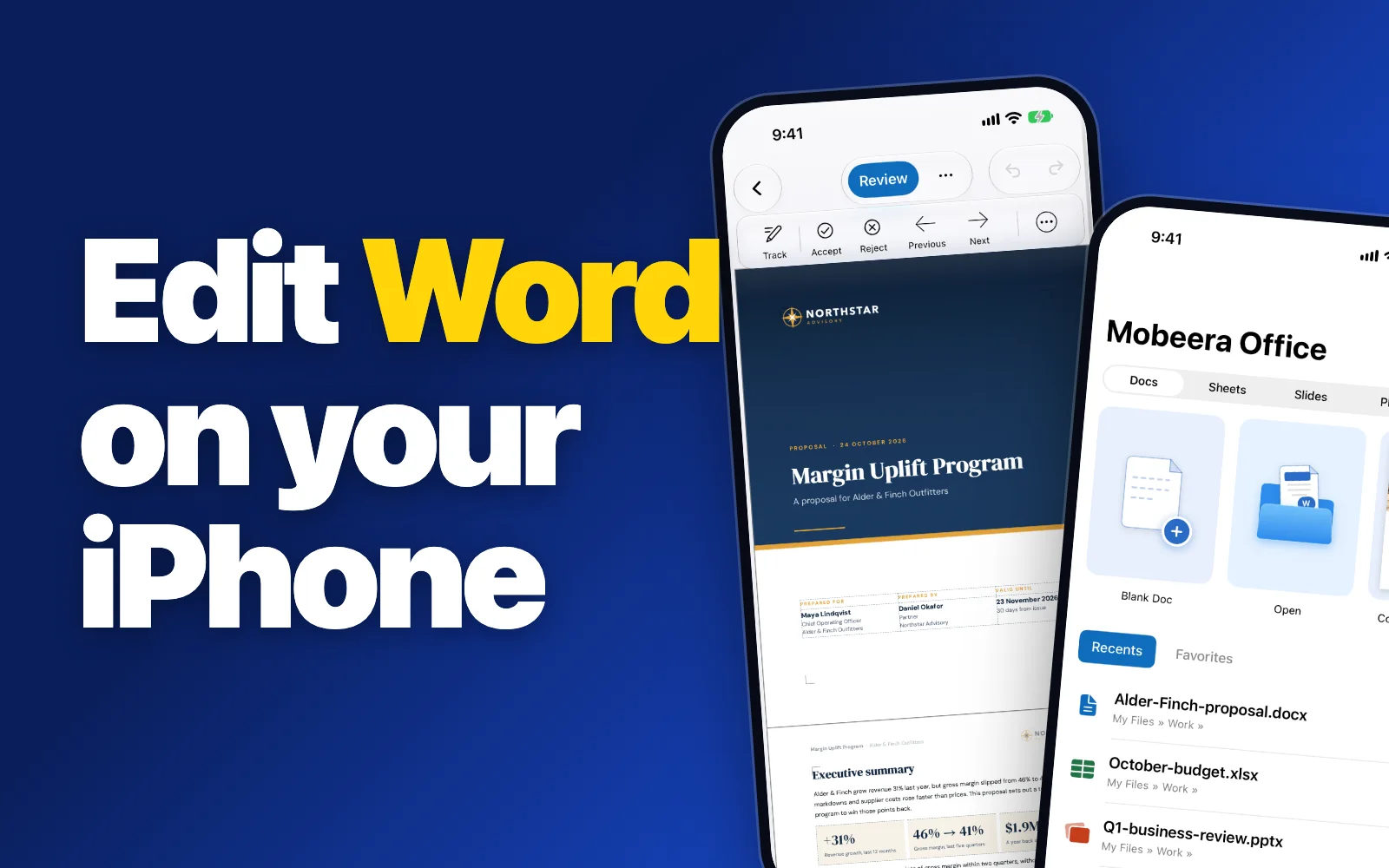
Yes. The Review tab is available there too, with shorter button names such as Track, Accept and Reject. See how to edit a Word document on iPhone.
Can an AI do the first pass?
On a Mac, an AI app connected to Mobeera Office can make its edits as tracked changes, so you review them the same way as a colleague's. See how to connect your AI app.