How to open and edit a Word document on iPhone
Open a DOCX on iPhone, edit the text, tables and comments, and send back an editable Word file or a PDF. Steps for Mobeera Office, with free limits explained.
Direct answer
How do I open and edit a Word document on my iPhone?
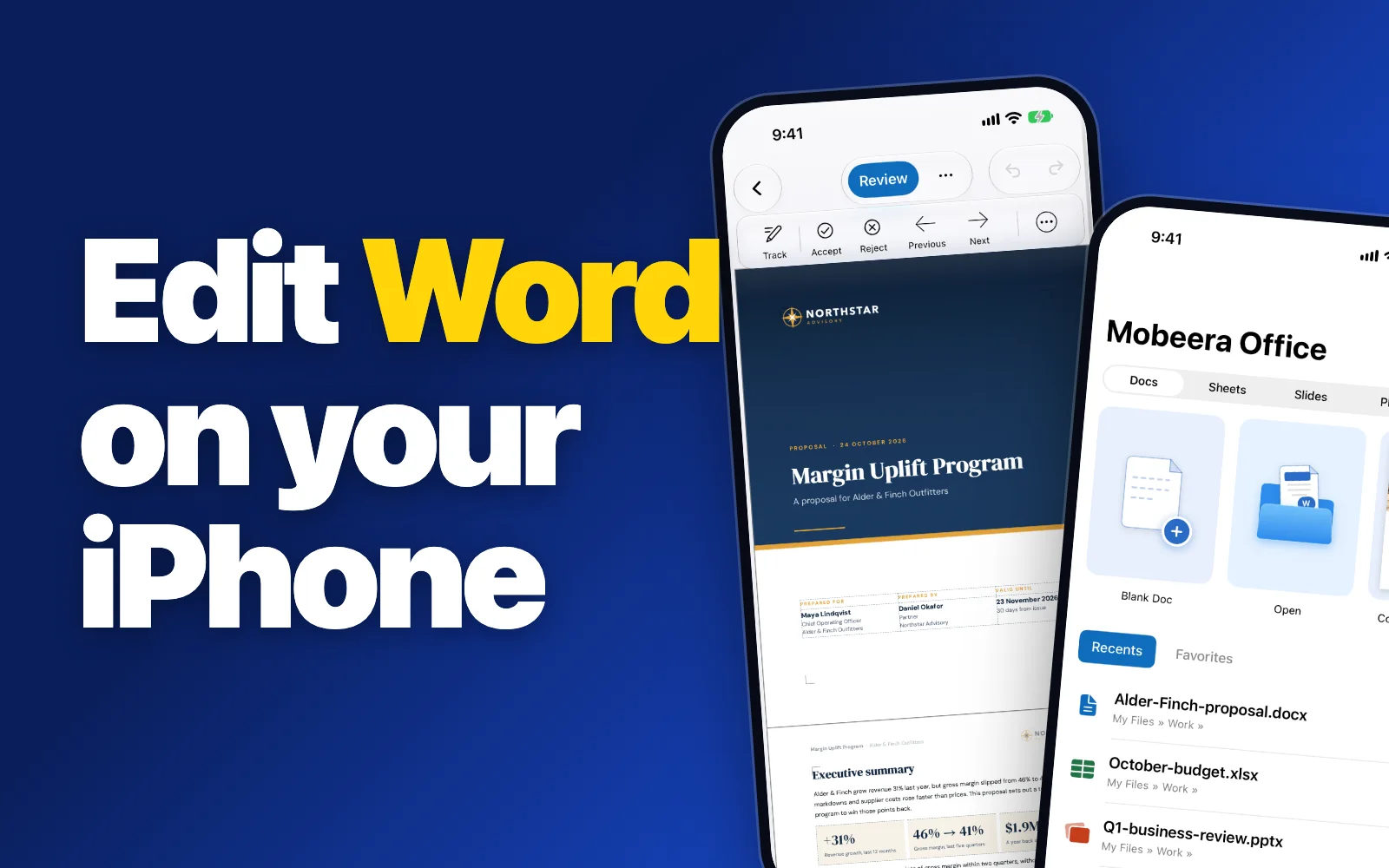
Save the Word file to the Files app, then open it in an office app that edits DOCX. In Mobeera Office, tap Open on the Home tab and choose the file. Tap into the text to edit, and use the Review tab for comments and tracked changes. Changes save automatically. To send the result, open the More options menu, choose Document, then Share or Export as PDF.
You can open a Word document on an iPhone and edit it there, without converting it first. A .docx file opens directly in an office app that supports the format, and you send back the same kind of file.
This guide uses Mobeera Office, which has document, spreadsheet, presentation and PDF editors in one iPhone app. The same steps work on iPad.
Before you start
- Install Mobeera Office from the App Store. On the Home Screen the app is named Office.
- Save the document where you can find it. In Mail or Messages, touch and hold the attachment and choose Save to Files.
- Mobeera Office is free to download. On the free plan you can edit the first two pages of a document; later pages open for reading. Lifetime access removes the limit.
1. Open the document
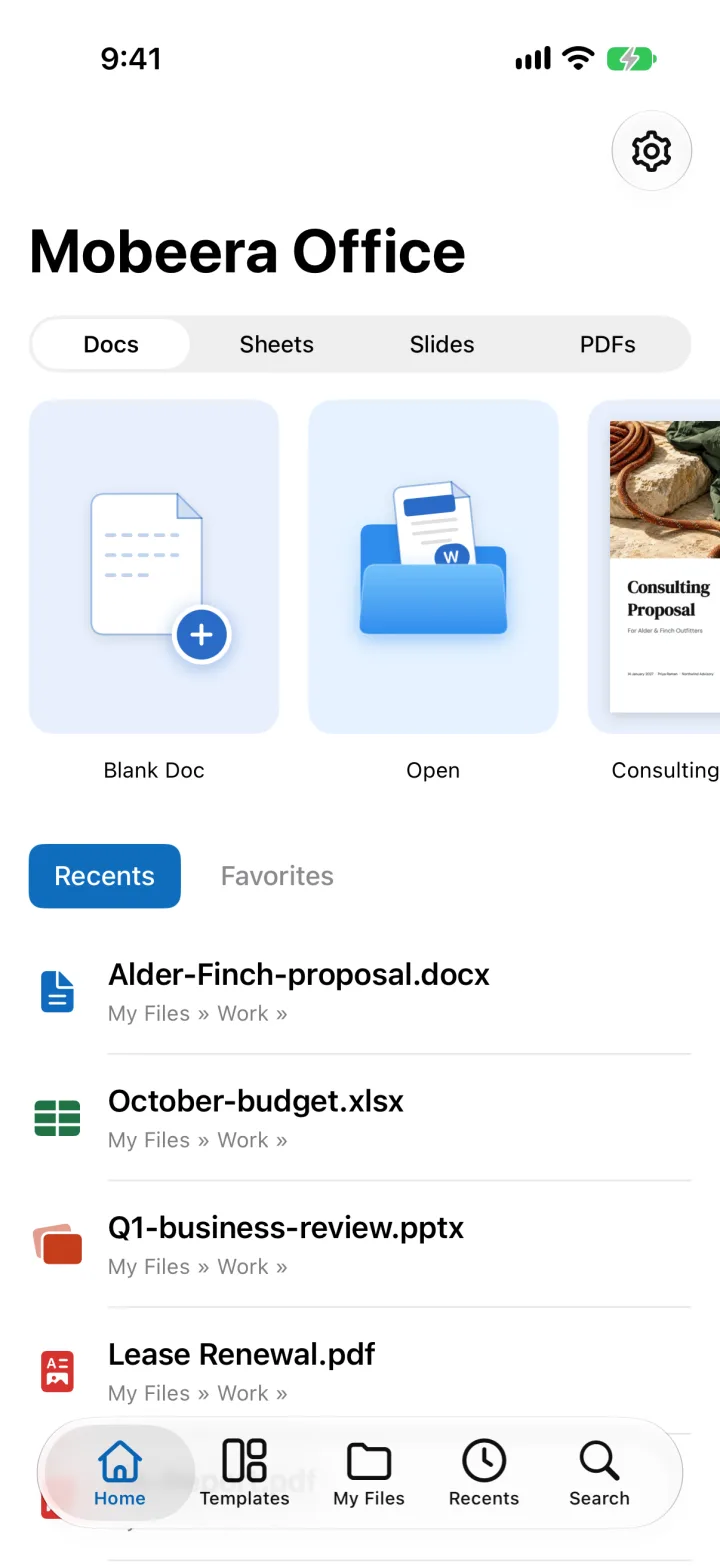
- Open Mobeera Office. You start on the Home tab.
- Tap Open.
- Find the Word file in the file browser and tap it.
You can also go to the My Files tab, tap + and choose Open File…. Use Import a Copy there when you want to leave the original untouched and work on a copy kept in the app.
Documents you opened before are listed under Recents.
2. Edit the text
Tap where you want to type. Double-tap a word to select it, then drag the handles to extend the selection.
The tabs at the top of the editor hold the tools. On a small screen, tap the … button (More options) to see every tab under Tabs. Formatting such as bold, lists and paragraph styles is on the Home tab.
A few habits help on a small screen:
- Zoom in with two fingers before placing the cursor in dense text or a table cell.
- Change a heading by applying a heading style, not by making normal text bigger. The document keeps its structure that way.
- After editing a table cell, look at the rows around it for text that has wrapped or moved.
3. Add comments and tracked changes
Open the Review tab when the sender wants to see what you changed.
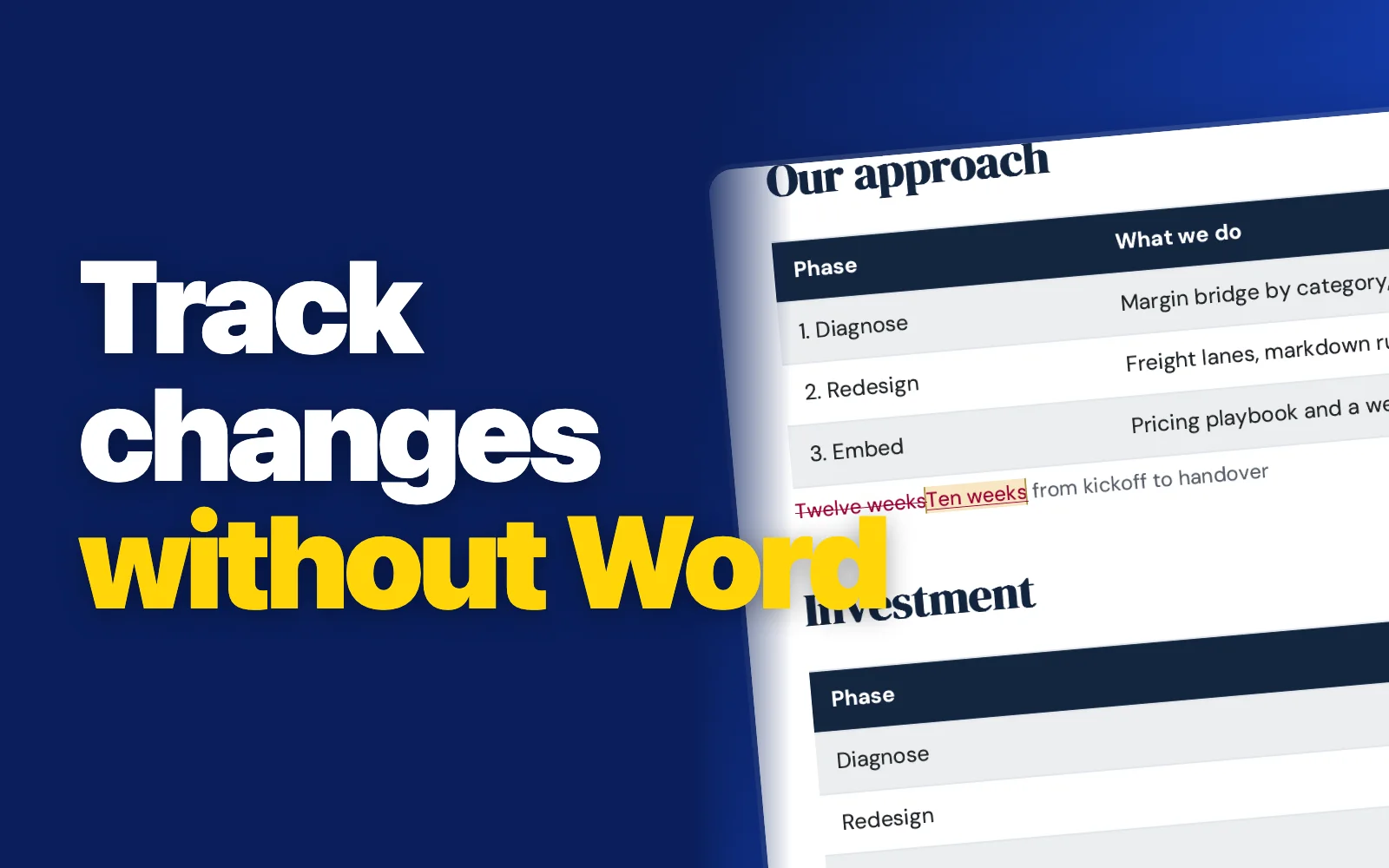
- Tap Track before you edit. Your insertions and deletions are then recorded under your name.
- Select some text and tap New to add a comment. If you do not see it, tap … at the end of the row.
- Use Previous and Next to move between changes, and Accept or Reject to settle them.
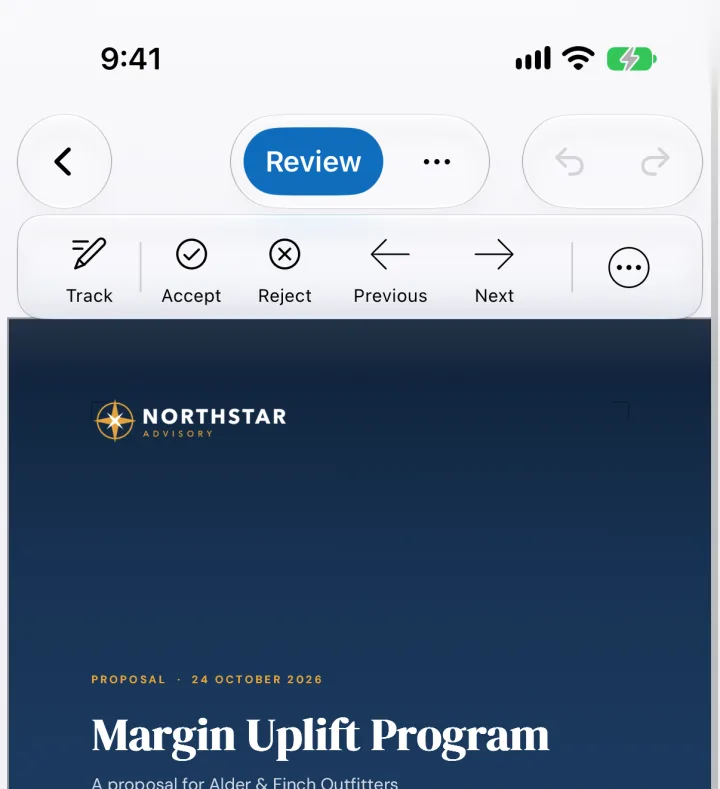
The full review process is described in how to review a Word document with tracked changes. The tools are the same on iPhone, with shorter names.
4. Save
Auto-save is on by default on iPhone and iPad, so your edits are written to the file as you work. If you turned Auto-save off in Settings, tap …, choose Document, then Save.
To keep the original and save your version under a new name, tap …, choose Document, then Save a Copy….
5. Send it back
Tap …, choose Document, then:
- Share to send the Word file by Mail, Messages or AirDrop. Send this when the other person needs to keep editing.
- Export as PDF… to make a PDF that looks the same on every device. Send this when the document is final. On the free plan, PDF export covers documents of up to two pages.
Before you send, close the document and open it once more from Recents to confirm your edits are in the saved file.
Common questions
Can I edit a Word document on iPhone for free?
Yes, within limits. Mobeera Office edits the first two pages of a document on the free plan. Apple Pages is free and can open a Word file, but it works in its own format, so you must export a Word copy before sending it back.
Will the formatting stay the same?
Most documents open as they were made. Fonts that are not on your iPhone and complex layouts can shift. See what is tested and what still differs, and check an important document with the recipient.
Can I open Excel and PowerPoint files too?
Yes. Mobeera Office opens and edits .xlsx and .pptx files in the same app. The free plan edits the first 50 rows of a spreadsheet and the first two slides of a presentation.
Can I use AI to help edit?
Yes, if you want to. AI Chat in Mobeera Office works with your own API key, which you add under Settings → AI Chat. It can summarize the document, check it for mistakes and make edits you can undo. See how Mobeera Office works with AI.