PDF Max vs Goodnotes: PDF Workspace and Study or digital notebook?
Compare PDF Max and Goodnotes for PDF annotation, handwriting, source-linked Workspace research, Study, editing, OCR, forms, and delivery.
Direct answer
Should you use PDF Max or Goodnotes for PDF-centered work and study?
Choose Goodnotes when handwriting, notebook organization, Apple Pencil input, audio notes, and Study Sets are the center of the workflow. Choose PDF Max when the PDF must remain an editable working document while evidence becomes source-linked Cards, Frames, Questions, Practice, and Progress. Both support annotation and learning, but Goodnotes is notebook-first while PDF Max connects Workspace and Study to the complete PDF lifecycle.
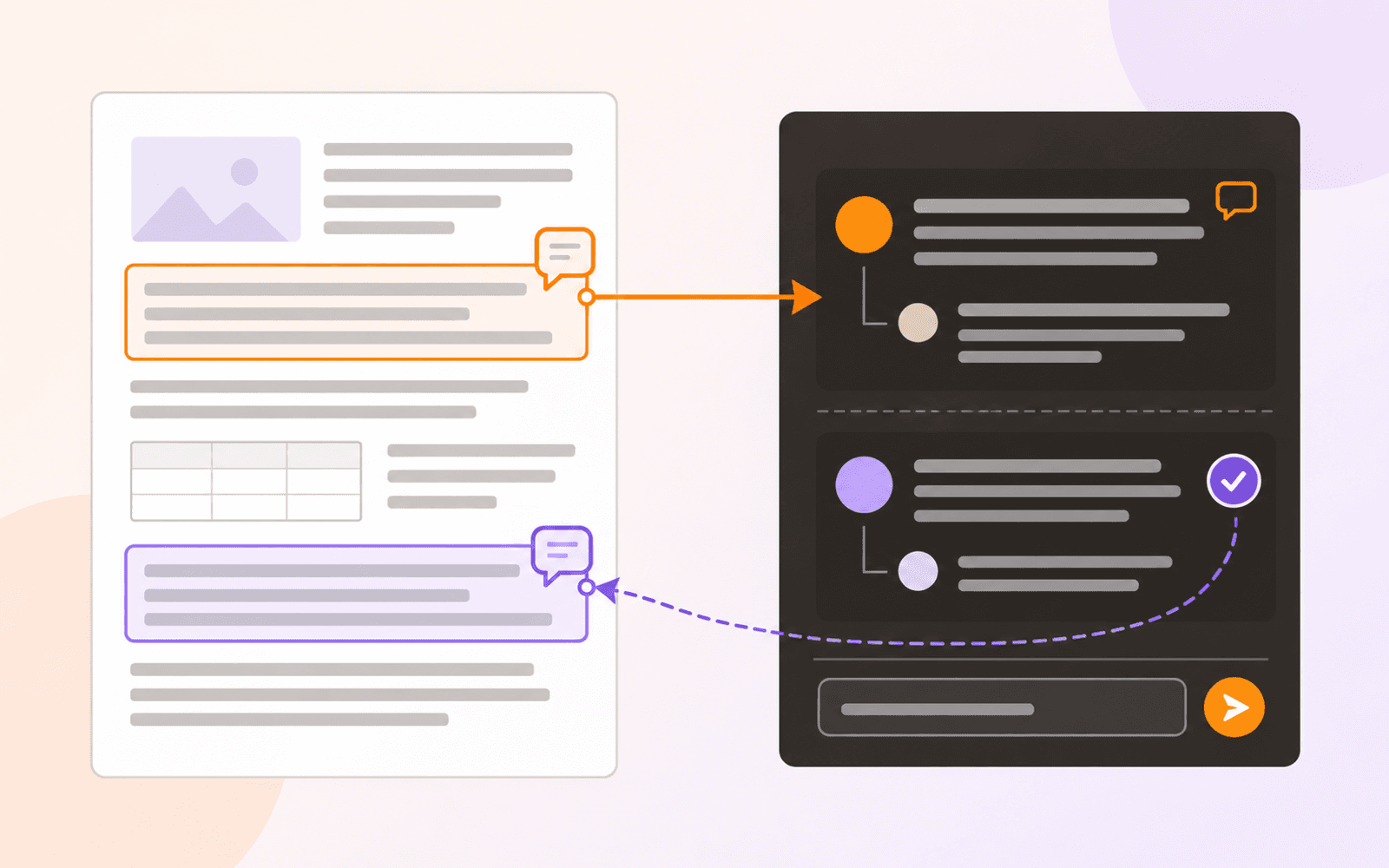
Goodnotes and PDF Max can both annotate a PDF and turn material into later practice, especially on an iPad. They are nevertheless built around different objects. Goodnotes is a digital notebook system that can import PDFs, combine them with handwriting and audio, and create Study Sets. PDF Max keeps the file itself at the center while Workspace turns evidence into source-linked Cards and Study, included with Free, turns accepted Cards into Questions.
That distinction matters more than the length of either feature list. A student annotating lecture slides has different requirements from someone correcting a contract, creating fillable fields, recognizing a scan, or permanently removing confidential information.
The short answer
Choose Goodnotes when handwriting, notebooks, Study Sets, whiteboards, audio notes, and Apple Pencil are the heart of the workflow, and the PDF mainly acts as paper you can write on.
Choose PDF Max when the PDF must remain a working document while evidence moves through Workspace, Frames, Questions, Practice, Progress, presentation, and verified delivery.
Capability comparison
| Criteria | PDF Max | Compared app |
|---|---|---|
| Primary workspace | A file-focused PDF editor with source-linked Cards, relationships, Frames, Study, presentation, and export around the document lifecycle. | A notebook library for handwriting, typed notes, whiteboards, study, and collaboration, with PDFs supported as importable documents. |
| Handwriting and markup | Apple Pencil ink, highlighter, shapes, stamps, text markup, comments, and review threads on PDF pages. | A handwriting-first toolset with pens, highlighters, shapes, lasso editing, elements, and notebook organization. |
| Edit existing PDF content | Edit existing text and typography, images, links, shapes, and tables rather than covering them with annotations. | Official PDF guidance focuses on importing, marking up, searching, and exporting PDFs rather than changing their underlying page content as a full PDF editor would. |
| Search and recognition | Search PDF text, recognize scans on-device, and save a searchable text layer into the PDF. | Search handwriting, typed text, and PDF text inside the Goodnotes library; recognition and AI availability vary by plan and platform. |
| Forms and signatures | Fill interactive fields, add signatures and reusable answers, detect likely fields, and create or edit form controls. | Write, type, or add a signature visibly to an imported page; it is not positioned as an interactive PDF form-authoring system. |
| Permanent redaction | Mark sensitive content, review every mark, then remove the underlying PDF content. | Drawing an opaque mark onto a notebook page is annotation, not evidence that the original PDF content has been permanently removed. |
| Research and source return | Capture passages, markup, notes, images, tables, and formulas into Cards, connect them, organize Frames, and return to exact PDF evidence. | Organize imported PDFs beside handwriting, typed notes, audio, and other notebook material; search operates within the Goodnotes library. |
| Questions and practice | Free includes reviewable source-linked Questions, scheduled Study, unscheduled Practice, saved scopes, Progress, and schedule tuning. | Study Sets use question-and-answer cards and Smart Learn spaced practice; the official guide currently identifies the feature as iOS-only. |
| Question provenance | A Question points to a Workspace Card, and the Card points back to the exact source page. | Study Sets are a notebook-library learning object; source context depends on how the learner creates and organizes the set. |
| Audio on the page | Voice Notes embed a playable recording and transcript at a PDF location; playback is Free and authoring with on-device transcription is Premium. | Goodnotes records and transcribes audio in its notebook workflow and can keep audio synced with typed or handwritten notes; plan and platform availability vary. |
Where Goodnotes is the better fit
Goodnotes is built for writing. Its pen, highlighter, shape, lasso, and page tools turn an iPad into a flexible notebook, while library organization keeps subjects and projects together. Imported lecture slides or readings can sit beside handwritten notes instead of remaining isolated files.
That is a strong model for classes, tutoring, planning, journals, and meetings. The goal is often not to preserve a PDF as a formal document; it is to use the page as a surface for thinking. Goodnotes also connects notes with Study Sets, Smart Learn, audio, whiteboard, collaboration, and AI features under its current plan structure.
Goodnotes officially supports importing PDFs and adding pages or other documents into an existing notebook. That import model is useful, but it should be understood before starting a file-sensitive workflow. The Goodnotes library becomes the working environment, and export settings determine what leaves it later.
Where PDF Max is the better fit
PDF Max stays centered on the PDF and the result that another person will open. Its editing mode changes existing page content, including text, images, links, shapes, and tables. Page tools can insert, rotate, reorder, extract, replace, split, and merge files.
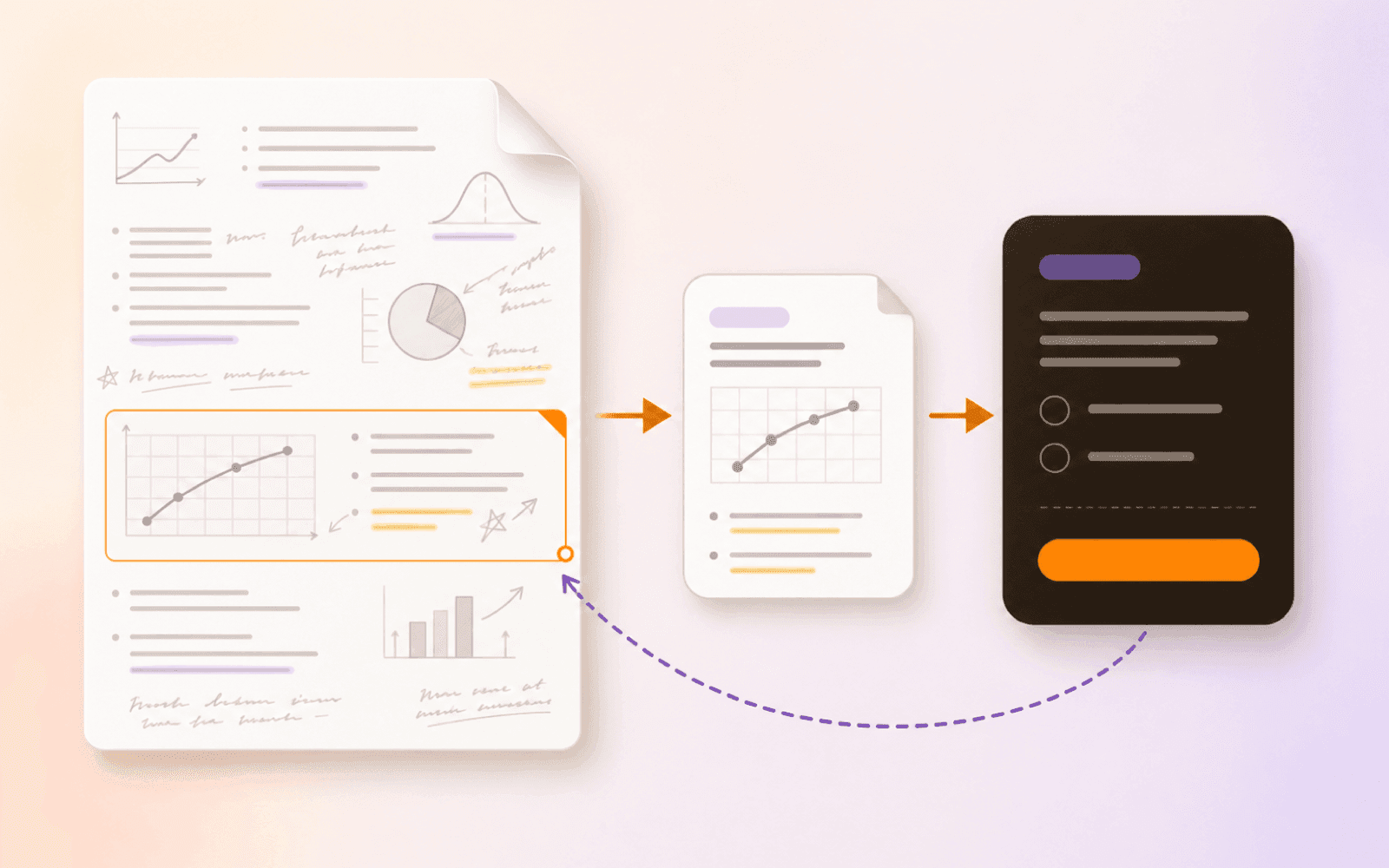
Workspace adds a second layer without replacing the source. A passage, figure, table, formula, or note can become a Card that retains a route back to the page. Cards can connect across documents, enter Frames, drive a live presentation, or become Questions with independent learning histories—all within Free's complete Workspace and Study workflows.
Forms illustrate the difference clearly. Writing a name above a printed line may make a page look complete, but it does not create an interactive field. PDF Max can fill existing fields, add Fill & Sign content, detect likely fields on a flat page, and author interactive controls. The fillable-PDF guide explains how to preserve a clean master and test the completed form.
Redaction is another file-level operation. A black pen stroke or shape can hide text visually while leaving the underlying information recoverable. PDF Max separates marking from applying, then removes the marked content. Follow the permanent-redaction workflow and verify the sharing copy before it leaves the device.
What happens when a PDF is imported?
Goodnotes documents several ways to import a PDF into its library: through the app, from another app, with drag and drop, or into an existing document. That is ideal when the PDF is becoming part of a notebook.
For a document workflow, ask different questions. Must existing links and outlines survive? Do annotations need to remain editable in another PDF viewer? Will the result be submitted to a portal that expects interactive fields? Does the original filename and folder remain the source of truth? Export a representative document and reopen it in an independent viewer before committing to a large library migration.
PDF Max works with PDFs directly in user-selected storage. Its annotations and edits are intended to travel with the saved PDF, while derivative features such as Focus View output are created deliberately.
OCR and search are different jobs
Goodnotes can search handwriting, typed text, and PDF text within its environment. That helps someone find a page in a large notebook. PDF Max can instead recognize a scan and write searchable text back into the PDF so the saved file remains searchable elsewhere.
Choose based on the destination. Library search is enough if the material will always be used in Goodnotes. A searchable-PDF workflow matters when the file will be archived, shared, indexed, or opened in other software. Use the scanned-PDF verification steps to test the output.
Plans and platform choices
Goodnotes currently offers Free, Special Edition, Essential, Pro, and optional AI entitlements, with platform and cloud differences between them. PDF Max offers Free, Pro, and Premium capability levels across its two App Store apps. These names and prices can change.
Compare the entitlement that matches the job: number of notebooks, Study Sets, Smart Learn, watermark-free export, cloud sync, AI processing, source-linked Questions, underlying PDF editing, OCR output, form authoring, or redaction. A broad “supports PDFs” label does not answer those questions.
Which should you use?
Use Goodnotes when the desired output is a rich notebook full of handwriting, Study Sets, audio, and ideas. It is especially compelling when Apple Pencil is the primary input and imported PDFs are reference pages.
Use PDF Max when the desired output is still a PDF that must be researched, studied, corrected, completed, transformed, protected, and delivered without breaking the source trail. Many people can reasonably use both: Goodnotes for notebook-centered learning and PDF Max for source-grounded PDF work. The deciding question is whether the PDF is your paper or the durable source and product.