How to open and edit a PowerPoint on Android
Open a PPTX on an Android phone or tablet, change text and pictures, present from the device, and send back an editable PowerPoint file or a PDF. Free limits explained.
Direct answer
How do I open and edit a PowerPoint presentation on my Android phone or tablet?
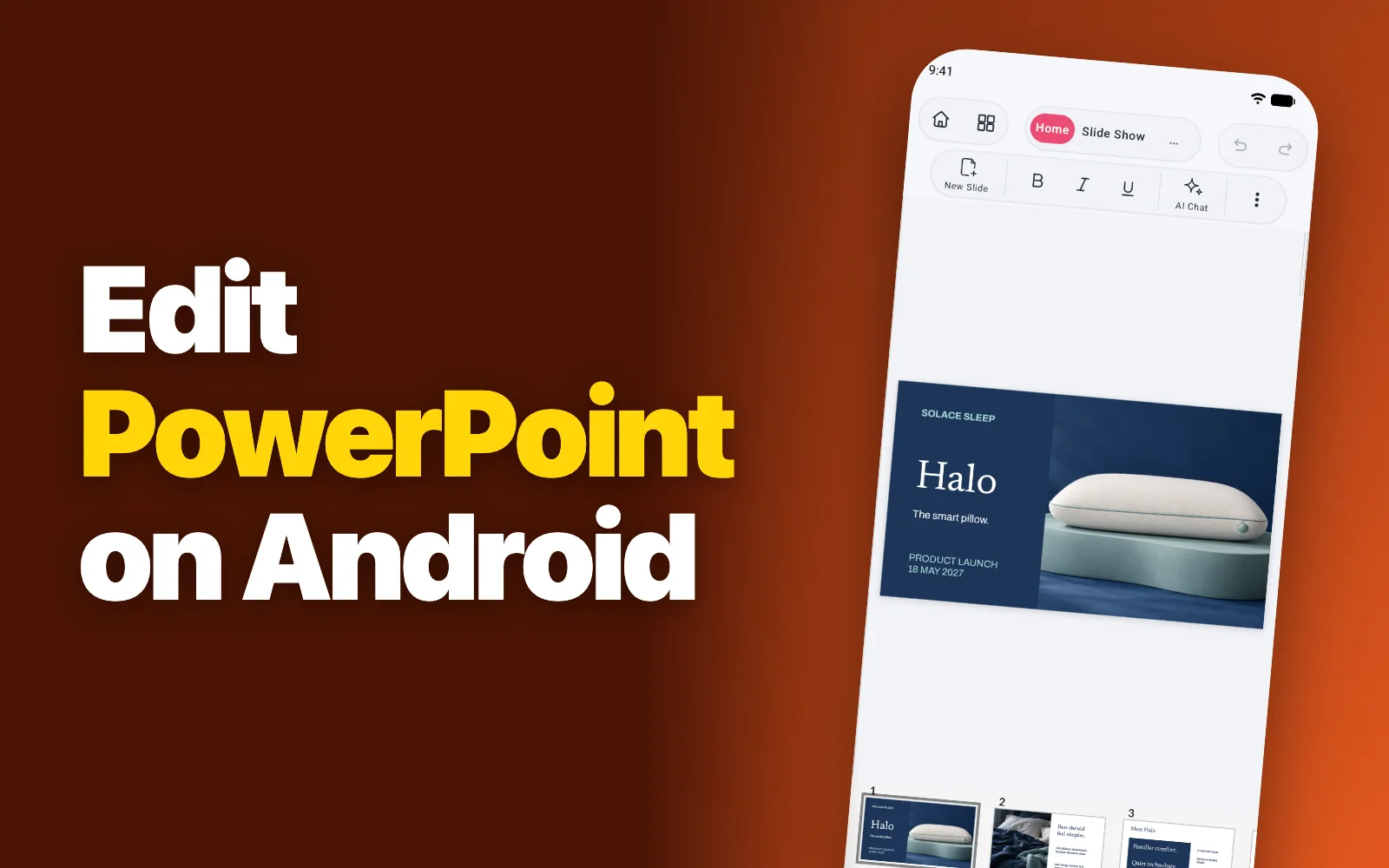
Tap the PowerPoint file in your downloads or email and choose an office app that edits PPTX. In Mobeera Office, you can also tap Open on the Home tab and pick the file. Double-tap a text box to change the words, use the Insert tab for pictures and slides, and the Slide Show tab to present. To keep your work, tap More options, choose Document, then Save. The same menu has Share and Export PDF.
A PowerPoint file opens and edits on an Android phone or tablet as it is. A .pptx deck opens directly in an office app that supports the format, so you can fix a slide on the way to the meeting and present from the same device.
This guide uses Mobeera Office, which has presentation, document, spreadsheet, PDF and publishing editors in one Android app.
Before you start
- Install Mobeera Office from Google Play.
- Download the deck to your device. Email attachments usually land in Downloads.
- Mobeera Office is free to download. On the free plan you can edit the first two slides; later slides open for viewing. A yearly plan or lifetime access removes the limit.
1. Open the presentation
- From the file: tap the PowerPoint file in the Files app or in your email, and choose Mobeera Office when Android asks which app to use.
- From the app: open Mobeera Office, stay on the Home tab and tap Open, then pick the file.
.pptx, .ppsx and .potx files all open this way.
2. Change the text
Tap a slide to show it, then double-tap a text box to type in it. Font, size, color and bullets are on the Home tab.
If new text no longer fits, shorten it before shrinking the font.
3. Add slides, pictures and effects
The tabs are Home, Insert, Draw, Design, Transitions, Animations, Slide Show, Review and View.
- Insert adds a new slide, pictures, shapes, tables and charts.
- Design changes the theme for the whole deck.
- Transitions and Animations control how slides and objects appear.
4. Present from your phone or tablet
Open the Slide Show tab. Under Start Slide Show, tap Beginning to start from the first slide or Current to start from the one you are on. Swipe or tap to move on.
To use a TV or projector, cast or mirror your screen from Android's quick settings, or use a cable adapter, and run through the deck once before the audience arrives.
5. Save and send it back
Tap the More options button at the top right, choose Document, then Save. Use Save As… to keep the original and save yours under another name.
In the same menu:
- Share sends the PowerPoint file. Send this when someone else will keep editing or will present from PowerPoint.
- Export PDF… makes a handout that looks the same on every device.
- Print… sends it to a printer.
Common questions
Can I edit a PowerPoint on Android for free?
Yes, within limits. Mobeera Office edits the first two slides on the free plan. Google Slides is free with a Google account and also opens PowerPoint files.
Will the slides look the same?
Most decks open as they were made. A font that is not on your device is replaced, which can move line breaks. See what is tested and what still differs, and check an important deck on the device you will present from.
Does it work offline?
Yes. The deck is opened, edited and presented on your device.