How to open and edit a PowerPoint on iPhone and iPad
Open a PPTX on iPhone or iPad, change text and pictures, reorder slides, present from the device, and send back an editable PowerPoint file or a PDF.
Direct answer
How do I open and edit a PowerPoint presentation on my iPhone or iPad?
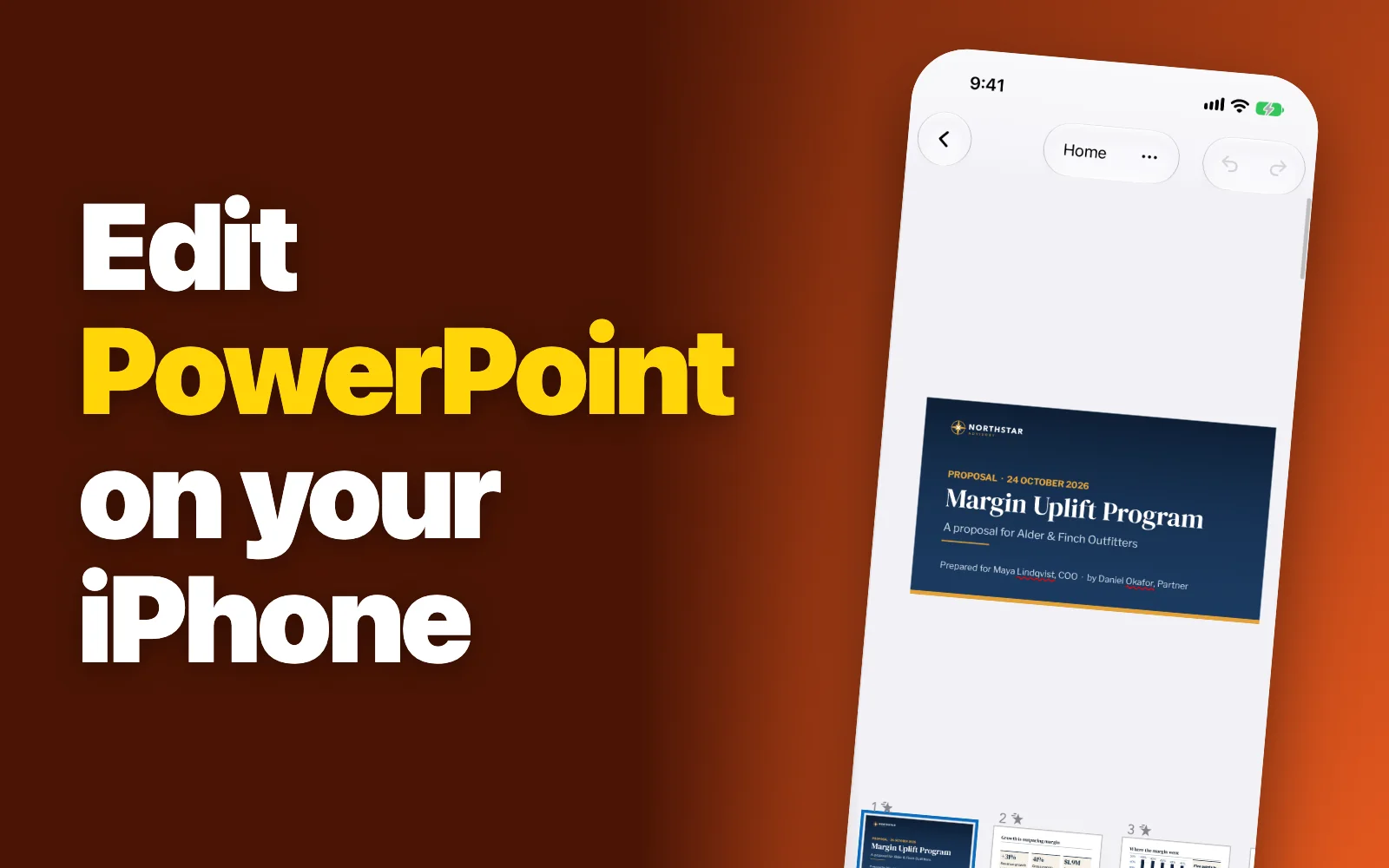
Save the PowerPoint file to the Files app, then open it in an office app that edits PPTX. In Mobeera Office, tap Open on the Home tab and choose the file. Double-tap a text box to change the words, use the Insert tab for pictures and new slides, and the Slide Show tab to present. Changes save automatically. To send it back, open the More options menu, choose Document, then Share or Export as PDF.
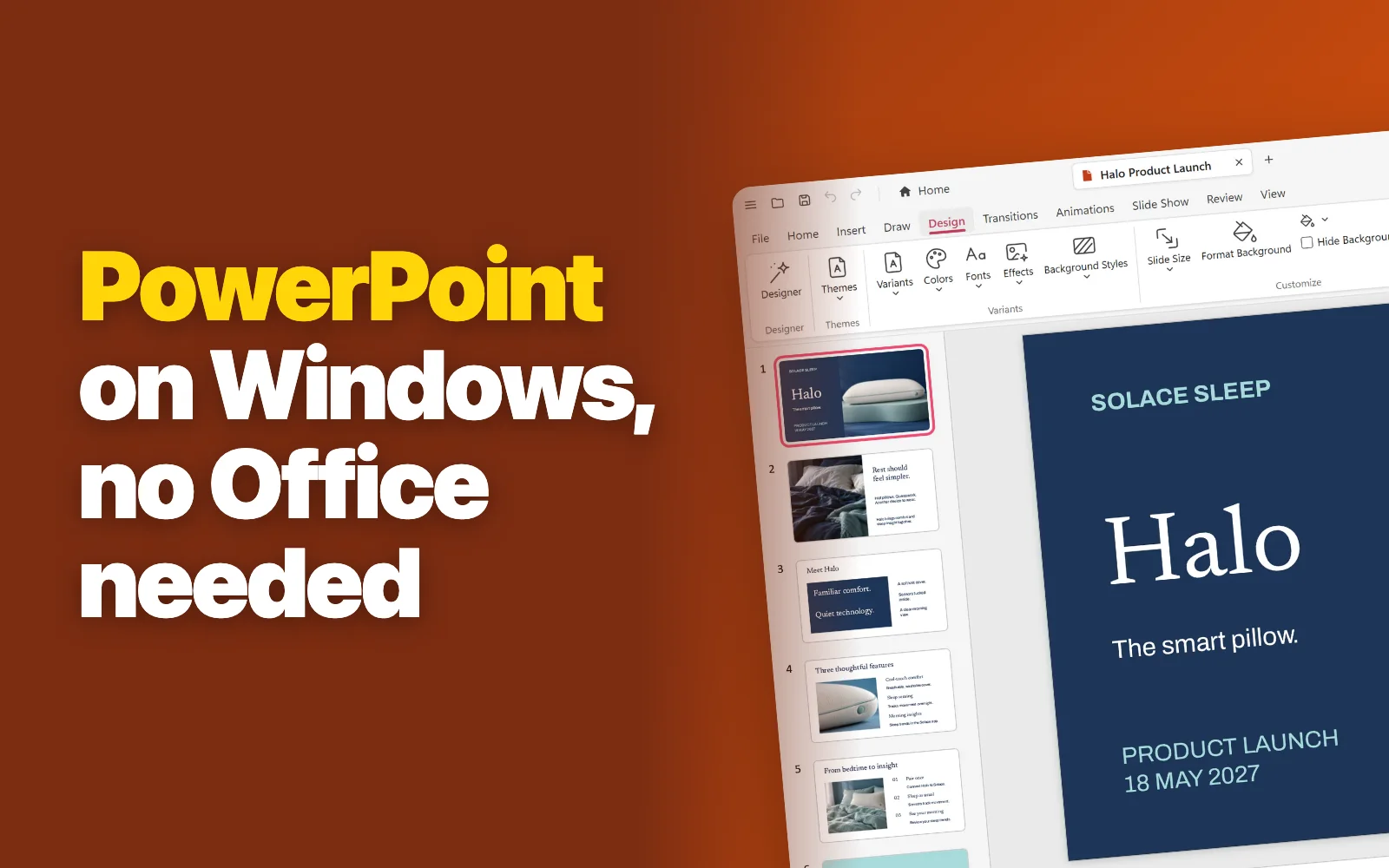
A PowerPoint file opens and edits on an iPhone or iPad as it is. A .pptx deck opens directly in an office app that supports the format, so you can fix a slide on the way to the meeting and present from the same device.
This guide uses Mobeera Office, which has presentation, document, spreadsheet and PDF editors in one app.
Before you start
- Install Mobeera Office from the App Store. On the Home Screen the app is named Office.
- Save the deck where you can find it. In Mail or Messages, touch and hold the attachment and choose Save to Files.
- Mobeera Office is free to download. On the free plan you can edit the first two slides; later slides open for viewing. Lifetime access removes the limit.
1. Open the presentation
- Open Mobeera Office. You start on the Home tab.
- Tap Open.
- Find the PowerPoint file and tap it.
You can also go to My Files, tap + and choose Open File…, or Import a Copy to leave the original untouched.
2. Change the text
Tap a slide to show it, then double-tap a text box to type in it. Formatting such as font, size, color and bullets is on the Home tab.
If new text no longer fits, shorten it before shrinking the font. A slide that was readable at the back of the room should stay that way.
3. Add, move and remove slides
- Insert adds a new slide, pictures, shapes, tables, charts and text boxes.
- To reorder, touch and hold a slide thumbnail and drag it.
- To replace a picture, select it and insert the new one in its place, then match the size.
- Design changes the theme, and Transitions and Animations control how slides and objects appear.
On a small screen, tap the … button (More options) to see every tab under Tabs.
4. Present from your iPhone or iPad
Open the Slide Show tab and start from the first slide or from the current one. Swipe or tap to move on. To show the deck on a TV or projector, use AirPlay or a cable adapter, and run through it once before the audience arrives.
5. Save and send it back
Auto-save is on by default. To keep the original and save yours under a new name, tap …, choose Document, then Save a Copy….
To send the result, tap …, choose Document, then:
- Share to send the PowerPoint file. Send this when someone else will keep editing or will present from PowerPoint.
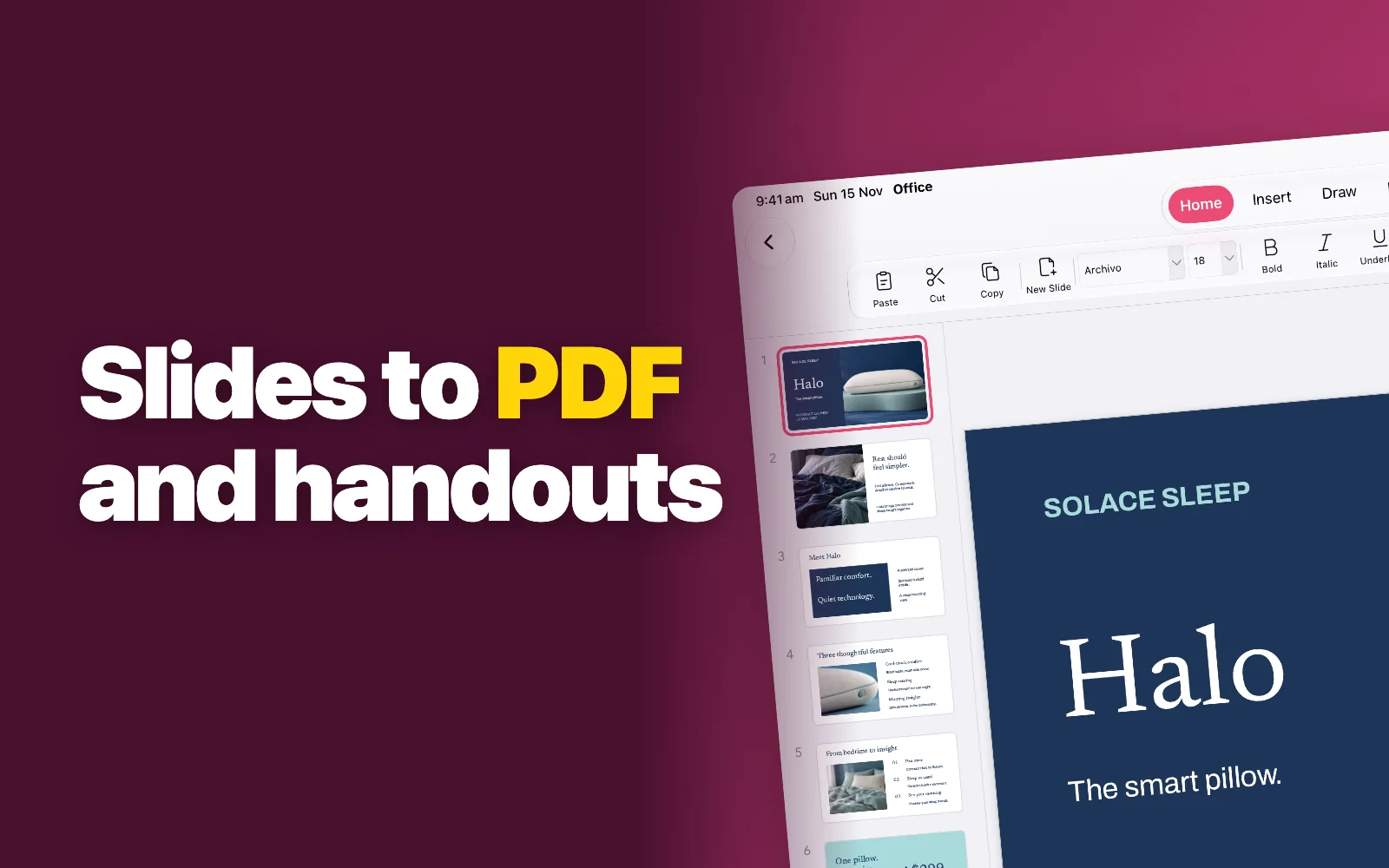
- Export as PDF… to send a handout that looks the same on every device.
What about Apple Keynote?
Keynote is free and opens PowerPoint files. It converts the deck to its own format, so you must export a PowerPoint copy before sending it back, and fonts, animations and layouts can change in the conversion. Apple describes the steps in its conversion guide. An app that edits .pptx directly skips the conversion in both directions.
Common questions
Can I edit a PowerPoint on iPhone for free?
Yes, within limits. Mobeera Office edits the first two slides on the free plan. Keynote is free and works through conversion.
Will the slides look the same?
Most decks open as they were made. A font that is not on your device is replaced, which can move line breaks. See what is tested and what still differs, and check an important deck on the device you will present from.
Can I add speaker notes?
Yes. Notes travel with the PowerPoint file, so the next presenter sees them too.
Can AI build slides for me?
Yes, if you want it to. AI Chat works with your own API key, added under Settings → AI Chat, and can draft slides from an outline or tidy the ones you have. It can also add interactive slides that play in PowerPoint.