How to open and edit a PowerPoint on a Mac without PowerPoint
Three ways to open, edit and present a PPTX file on a Mac without Microsoft PowerPoint: Keynote, LibreOffice Impress and Mobeera Office, with the trade-offs.
Direct answer
How do I open and edit a PowerPoint file on a Mac without Microsoft PowerPoint?
Open the PPTX file in another presentation app. Keynote comes with the Mac and converts the deck, so you export a PowerPoint copy when you finish. LibreOffice Impress is free and saves PowerPoint format if you choose it. Mobeera Office opens and saves PPTX directly: Control-click the file, choose Open With, edit the slides, then File, Save. Play the slide show once before you present or send it.
You do not need Microsoft PowerPoint, or a Microsoft 365 subscription, to edit and present a PowerPoint file on a Mac. A .pptx deck opens in several Mac apps. What differs is whether the app edits the PowerPoint file itself or converts it first.
Which Mac apps open PowerPoint files?
| App | Cost | How it handles PPTX |
|---|---|---|
| Apple Keynote | Free with the Mac | Converts to Keynote; export a PowerPoint copy to send back |
| LibreOffice Impress | Free | Opens PPTX; choose PowerPoint format when saving |
| Mobeera Office | Free to try; one-time purchase | Opens and saves PPTX directly |
Apple Keynote
Keynote opens a PowerPoint file and lists what it changed, typically fonts and some animations. When you finish, choose File → Export To → PowerPoint. Apple's conversion guide has the steps. It is a good choice when you will present from Keynote and nobody needs the file back.
LibreOffice Impress
LibreOffice is a free, open-source suite. Impress edits slides and saves PowerPoint format when you choose it; its own format is .odp.
Mobeera Office
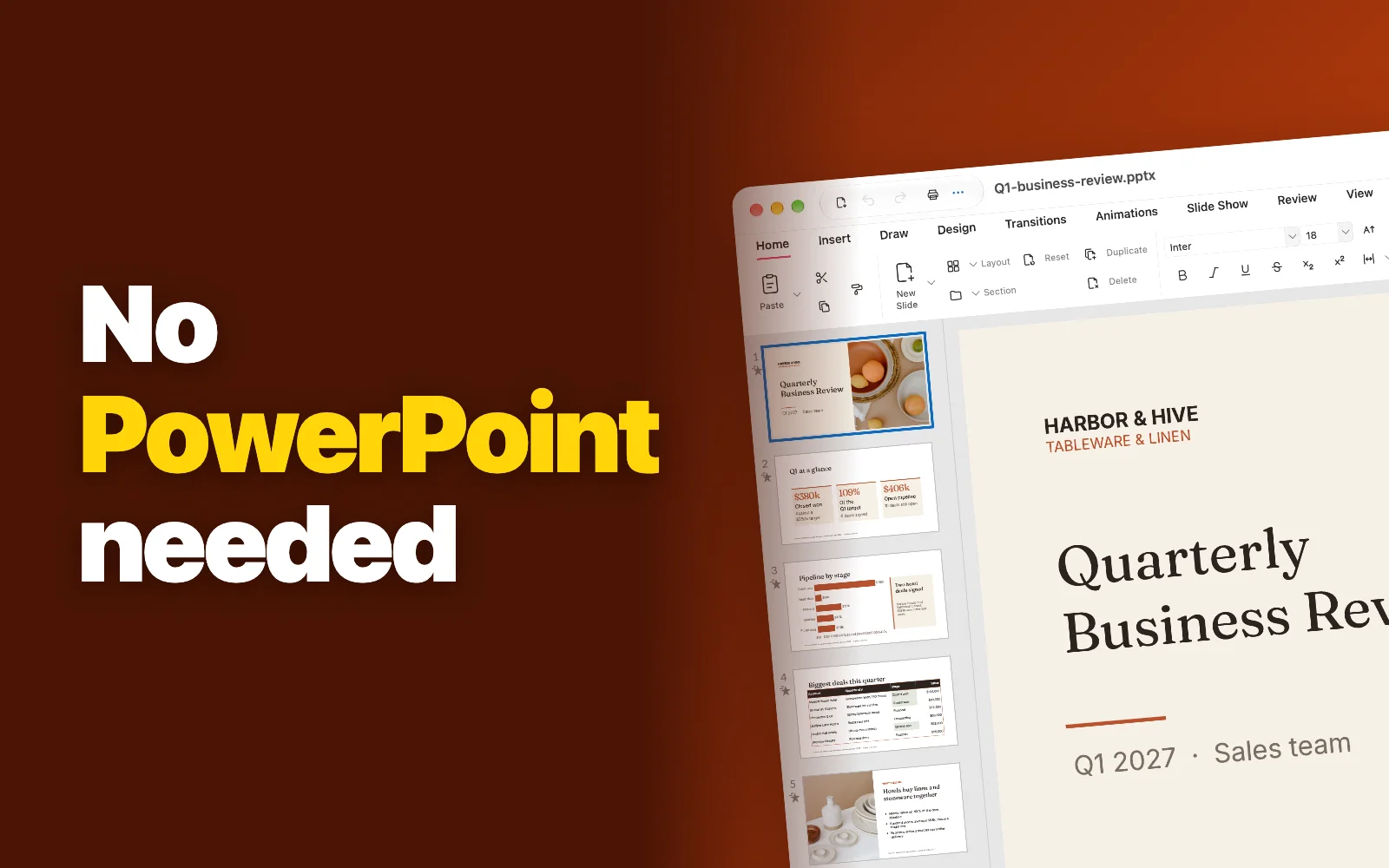
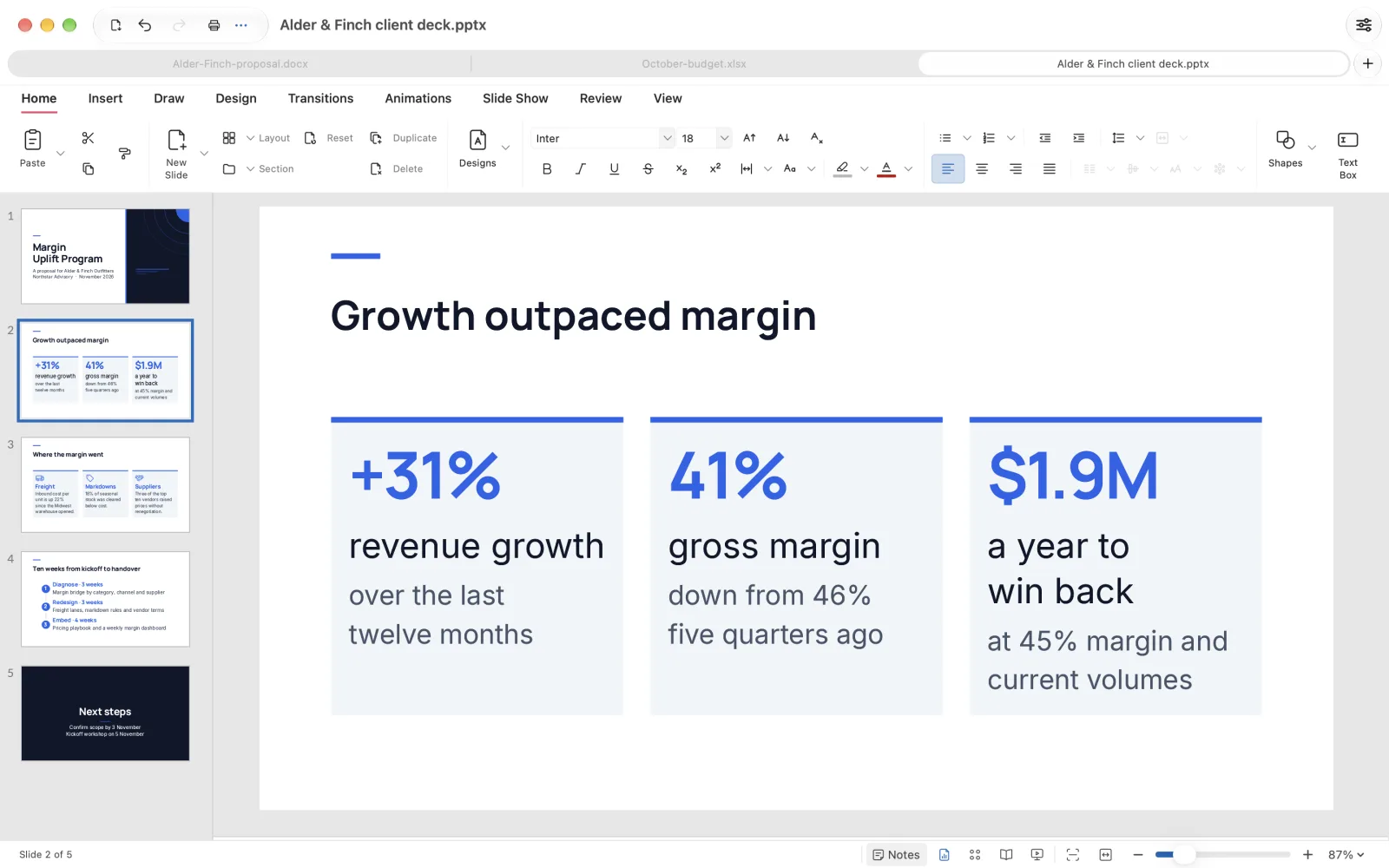
Mobeera Office edits the .pptx file itself, with the tabs PowerPoint users expect: Home, Insert, Draw, Design, Transitions, Animations, Slide Show, Review and View. It is the one used in the steps below.
1. Open the presentation
Keep the original. In Finder, select the file and choose File → Duplicate, then Control-click the copy, choose Open With and pick Mobeera Office.
The free plan edits the first two slides; later slides open for viewing. Lifetime access removes the limit.
2. Edit the slides
- Click a text box and type. Font, size, color and bullets are on Home.
- Insert adds slides, pictures, shapes, tables, charts and video.
- Drag thumbnails in the slide list to reorder them.
- Design changes the theme for the whole deck.
3. Check transitions and animations
Open Transitions and Animations to see what each slide does, and change or remove anything that no longer suits. Animations are where presentation apps differ most, so this is the part to look at closely.
4. Present
Open the Slide Show tab and start from the first slide, or press Shift-Command-Return. Command-Return starts from the slide you are on. Connect the projector or display first, then play the whole deck once.
5. Save as PowerPoint
Choose File → Save, or press Command-S. The file stays a .pptx deck that PowerPoint opens. For a handout, choose File → Export as PDF….
Common questions
Can I open a PowerPoint on a Mac for free?
Yes. Keynote and LibreOffice Impress are free. Mobeera Office opens any deck for viewing and edits the first two slides free.
Why do my slides look different in Keynote?
Keynote converts the deck and replaces fonts and effects it does not have. Install the missing fonts, or use an app that edits the PowerPoint file directly.
Will the deck still open in PowerPoint afterwards?
Yes, when it is saved as .pptx. If the other person presents from PowerPoint, ask them to click through it once. See what is tested and what still differs.
Can AI make the slides?
Yes, if you want it to. Connect Claude, ChatGPT or another AI app on the Mac, or use AI Chat with your own API key. See how to turn a project brief into an editable presentation and interactive slides that play in PowerPoint.