How to open and edit an Excel spreadsheet on Android
Open an XLSX or CSV file on an Android phone or tablet, change cells and formulas, sort and filter, and send back a working Excel file or a PDF. Free limits explained.
Direct answer
How do I open and edit an Excel spreadsheet on my Android phone or tablet?
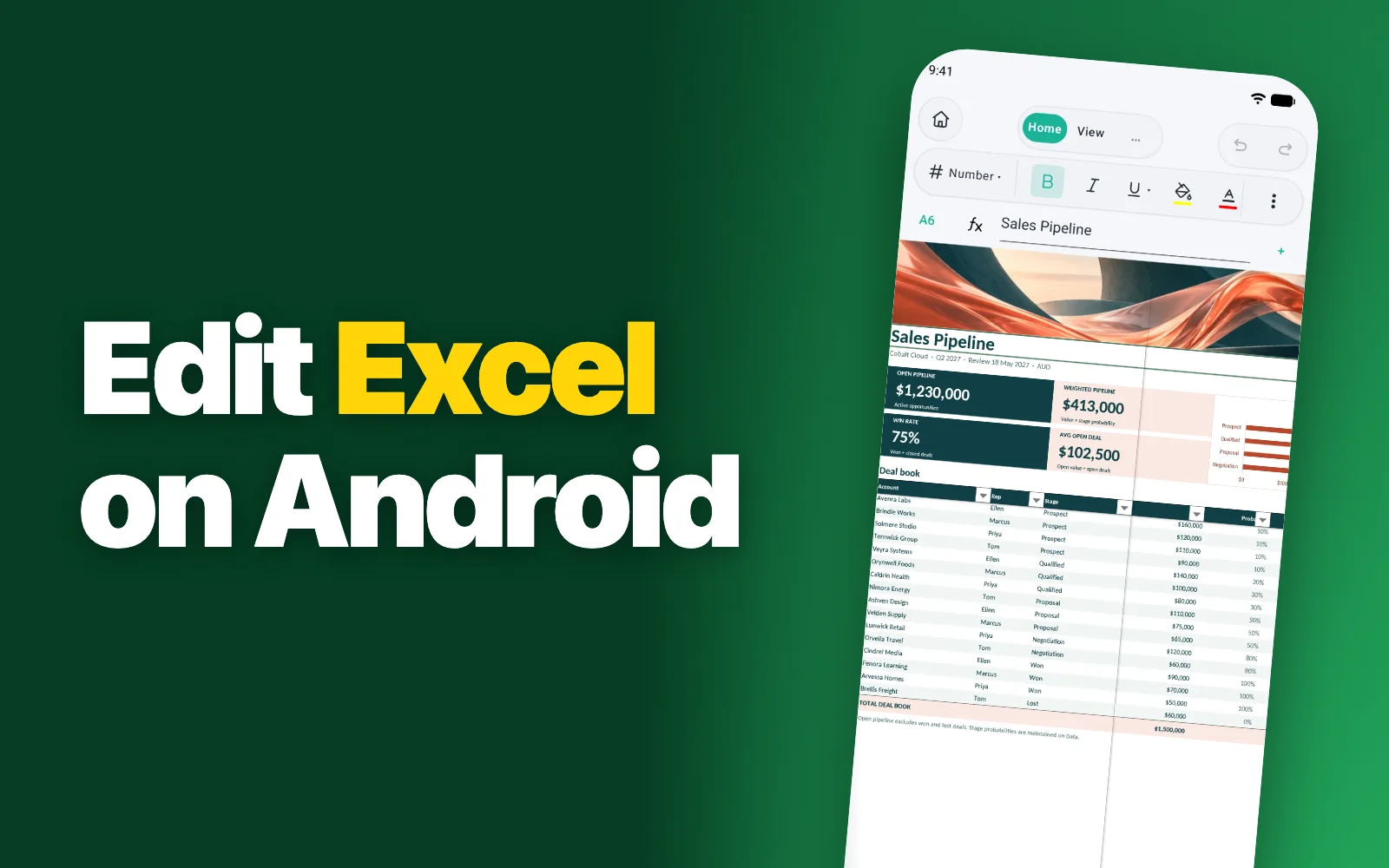
Tap the Excel file in your downloads or email and choose an office app that edits XLSX. In Mobeera Office, you can also tap Open on the Home tab and pick the file. Double-tap a cell to change it, and use the Formulas and Data tabs for functions, sorting and filters. To keep your work, tap More options, choose Document, then Save. The same menu has Share and Export as PDF.
An Excel file opens and edits on an Android phone or tablet as it is. An .xlsx workbook opens directly in an office app that supports the format, with its sheets, formulas and charts, and you send back the same kind of file.
This guide uses Mobeera Office, which has spreadsheet, document, presentation, PDF and publishing editors in one Android app.
Before you start
- Install Mobeera Office from Google Play.
- Download the workbook to your device. Email attachments usually land in Downloads.
- Mobeera Office is free to download. On the free plan you can edit rows 1 to 50 of the first sheet; the rest opens for reading. A yearly plan or lifetime access removes the limit.
1. Open the workbook
- From the file: tap the Excel file in the Files app or in your email, and choose Mobeera Office when Android asks which app to use.
- From the app: open Mobeera Office, stay on the Home tab and tap Open, then pick the file.
.xlsx, .xlsm, .csv and .tsv files all open this way.
2. Change a cell
- Tap a cell to select it. Double-tap to edit what is in it.
- Type the new value and confirm. Formulas that depend on the cell recalculate at once.
- Drag the selection handles to select a range.
Pinch to zoom in before tapping in a dense sheet, so you land on the right cell.
3. Work with formulas
Start a formula with =, as in Excel: =SUM(B2:B13), =AVERAGE(C2:C20), =IF(D2>0,"Yes","No"). The Formulas tab lists functions by kind, which is quicker than typing a long name on a phone keyboard.
Before you change a number, tap the cell and read what it contains. If it starts with =, it is a formula; typing a number over it replaces the calculation.
4. Sort, filter and format
The tabs are Home, Insert, Layout, Formulas, Data, Review and View.
- Data has sorting and filters. Select a cell inside the table first so rows stay together.
- Home has number formats, fonts, fill color, borders and alignment.
- Insert adds charts, tables and pictures.
5. Save and send it back
Tap the More options button at the top right, choose Document, then Save. Use Save As… to keep the original and save yours under another name.
In the same menu:
- Share sends the Excel file by email or a messaging app.
- Export as PDF… makes a fixed copy that looks the same everywhere.
- Print… sends it to a printer.
Before you send, open the file once more from Recents and check the totals.
Common questions
Can I edit an Excel file on Android for free?
Yes, within limits. Mobeera Office edits rows 1 to 50 of the first sheet on the free plan. Google Sheets is free with a Google account and also opens Excel files.
Will my formulas and charts still work?
Common formulas, formatting and charts open as they were made. Macros do not run. See what is tested and what still differs.
Does it work offline?
Yes. The workbook is opened and edited on your device.
Can I save a CSV as an Excel file?
Yes. Open the CSV, then use Save As…. Do this when you add formatting or formulas, because CSV keeps values only.