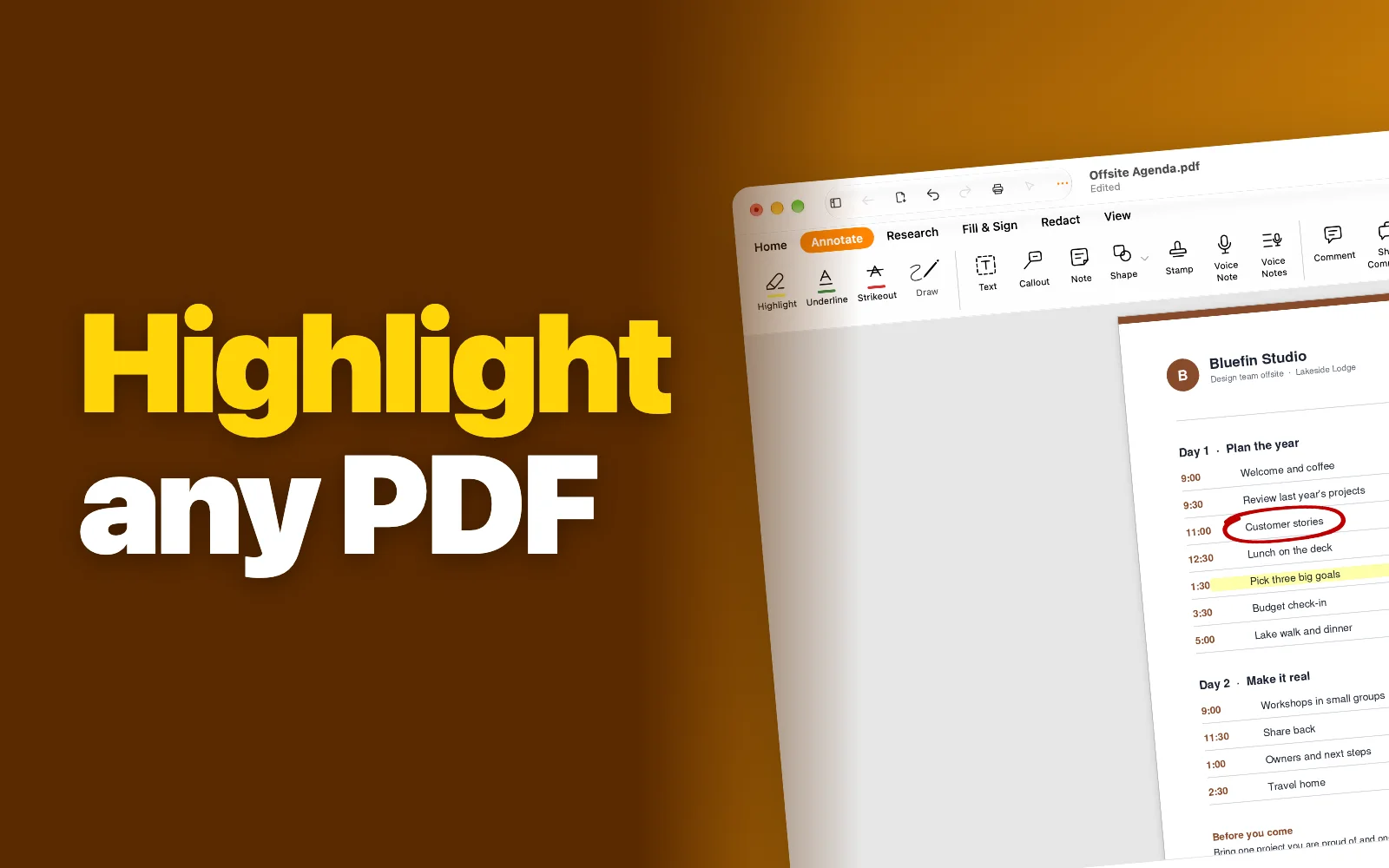
How to highlight a PDF on Android
Highlight, underline or strike out text in a PDF on an Android phone or tablet with PDF Max, change the color, remove a highlight, and save so others see your marks.
Direct answer
How do I highlight text in a PDF on Android?
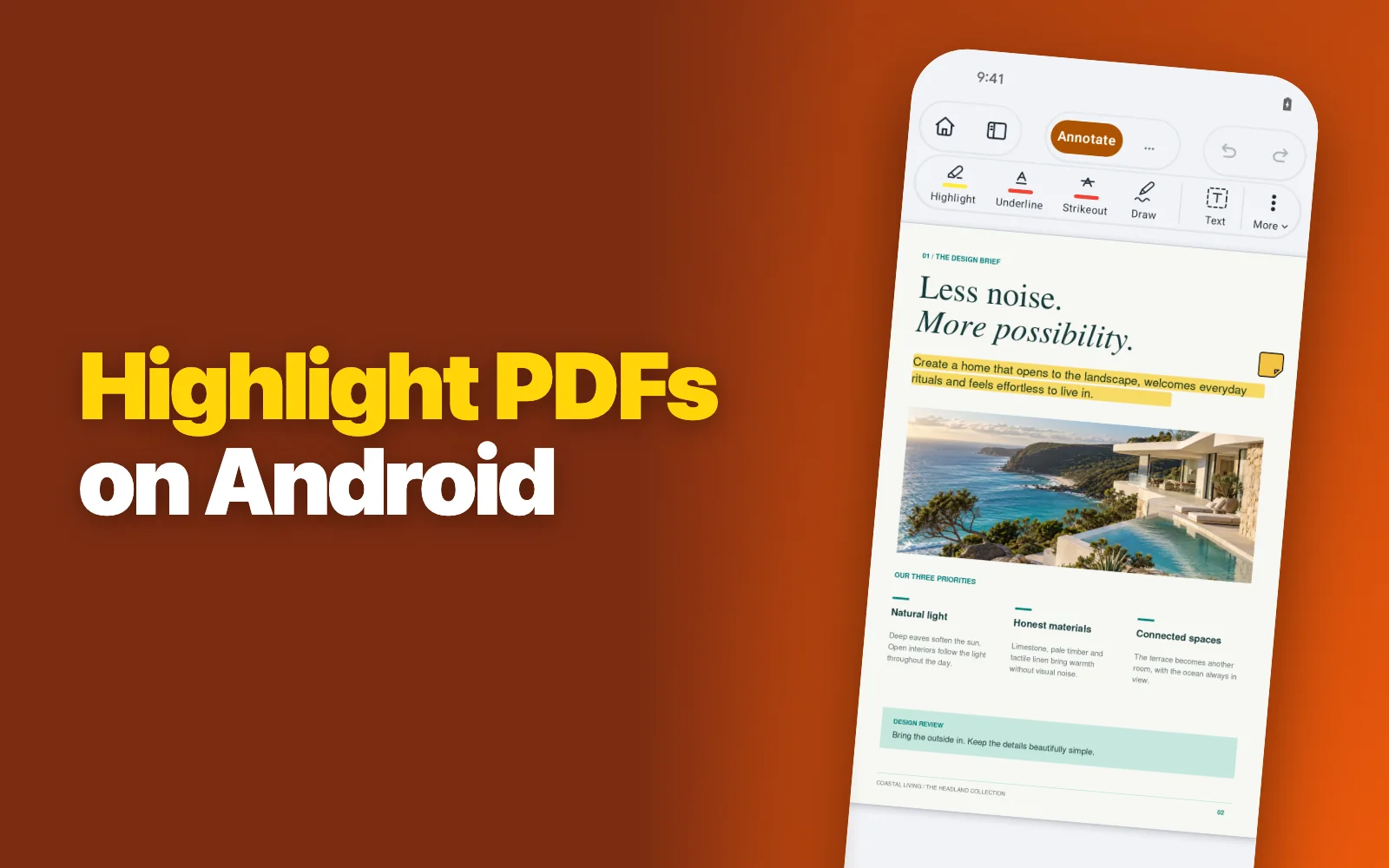
Open the PDF in PDF Max and tap Highlight on the Home tab, then drag across the words you want to mark and tap Done. You can also select the text first and choose Highlight, Underline or Strikeout from the menu. Tap a highlight to change its color or delete it. Save from More options, Document, Save, so the highlights are written to the file. Highlighting is free.
Most PDF viewers on Android only show the page. To mark what matters in a contract, a textbook chapter or a report, you need an app with annotation tools, and you need to save so the marks travel with the file.
This guide uses PDF Max for Android, which runs on Android 11 or later. Highlighting is free.
1. Open the PDF
- From the file: tap the PDF in your email or the Files app and choose PDF Max.
- From the app: open PDF Max. On Home, tap Open and pick the file.
2. Highlight the text
There are two ways.
Tool first. Best for marking many passages.
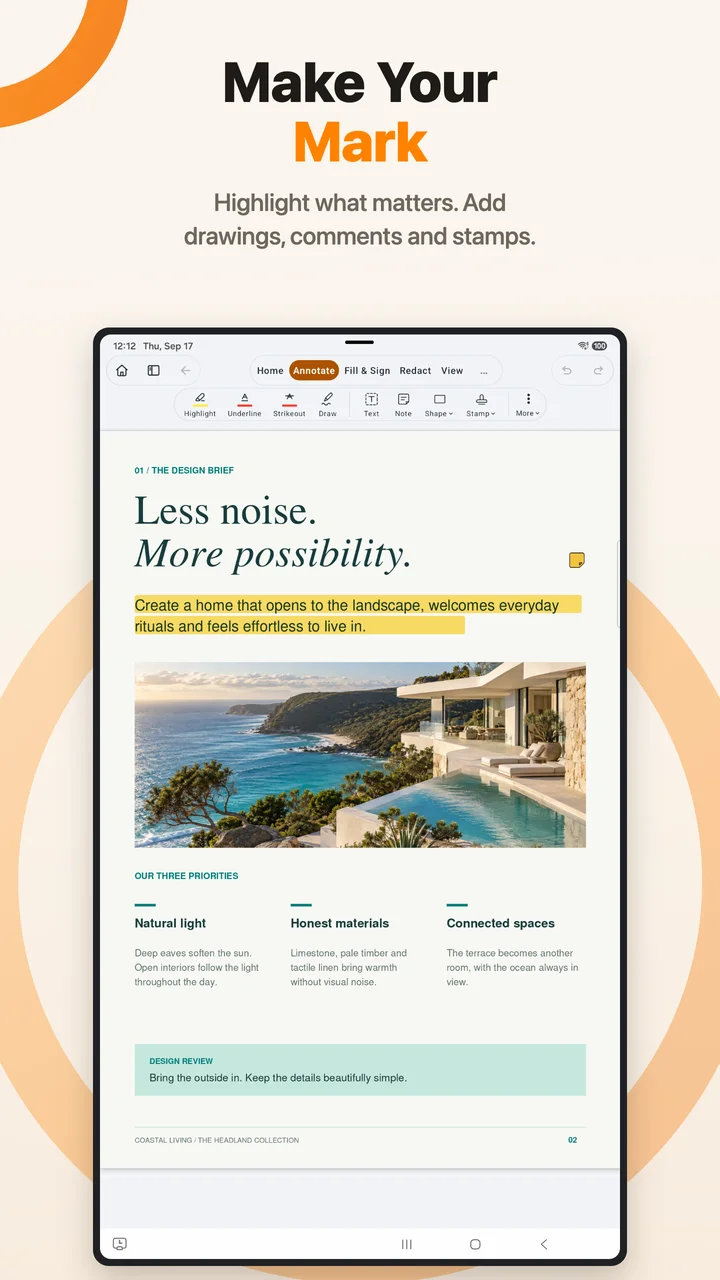
- On the Home tab, tap Highlight. It is also on the Annotate tab, with Underline and Strikeout.
- Drag your finger across the words. The highlighter uses the color you used last.
- Keep marking. The tool stays on.
- Tap Done when you finish.
Text first. Best for a single passage.
- Touch and hold a word to select it, then drag the handles to cover the passage.
- In the menu that appears, tap Highlight, Underline or Strikeout.
The same menu has Copy, Add Comment, Define and Translate.
3. Change the color
- For an existing highlight: tap it. The menu shows color dots: yellow, green, cyan, blue and pink. Tap one.
- For the next highlights: with the tool on, open the Annotation tab and choose Color under Appearance.
A color code makes a long document easier to review later, for example yellow for key points, green for definitions and pink for things to check.
4. Underline, strike out or squiggle
Underline and Strikeout work the same way as Highlight, from the Annotate tab or the selection menu. For a wavy line, underline the text, then set the style to Squiggly on the Annotation tab under Appearance.
On a phone, tabs that do not fit are under the … button (More options), in Tabs.
5. Remove a highlight
Tap the highlight and choose Delete. Undo at the top of the screen removes the mark you just made.
6. Save
PDF Max on Android does not write changes to the file until you save.
- Tap …, choose Document, then Save.
- Use Save As… to keep a clean original and save the marked-up copy under a new name.
- Use Share in the same menu to send the PDF.
If you leave with unsaved changes, PDF Max asks Save your changes? Choose Save.
If the text will not highlight
When dragging does nothing and no word selects, the page is a scan: a picture of text. Text highlighting needs real text in the PDF. PDF Max can recognize the text in a scan as part of Premium; after that the words select and highlight normally. Without it, use Draw on the Annotate tab to mark the page by hand.
Common questions
Will other people see my highlights?
Yes. They are saved in the PDF as standard annotations, which PDF apps on any device show.
Can I add a note to a highlight?
Select the text and choose Add Comment to attach a note to the passage.
Can I highlight in the Google Drive viewer?
Drive's viewer can draw on a PDF with a marker on many phones. The line is freehand and does not follow the text, and there is no underline, strikeout or comment tool.
Does highlighting work on a tablet with a stylus?
Yes. Drag with the stylus exactly as with a finger.