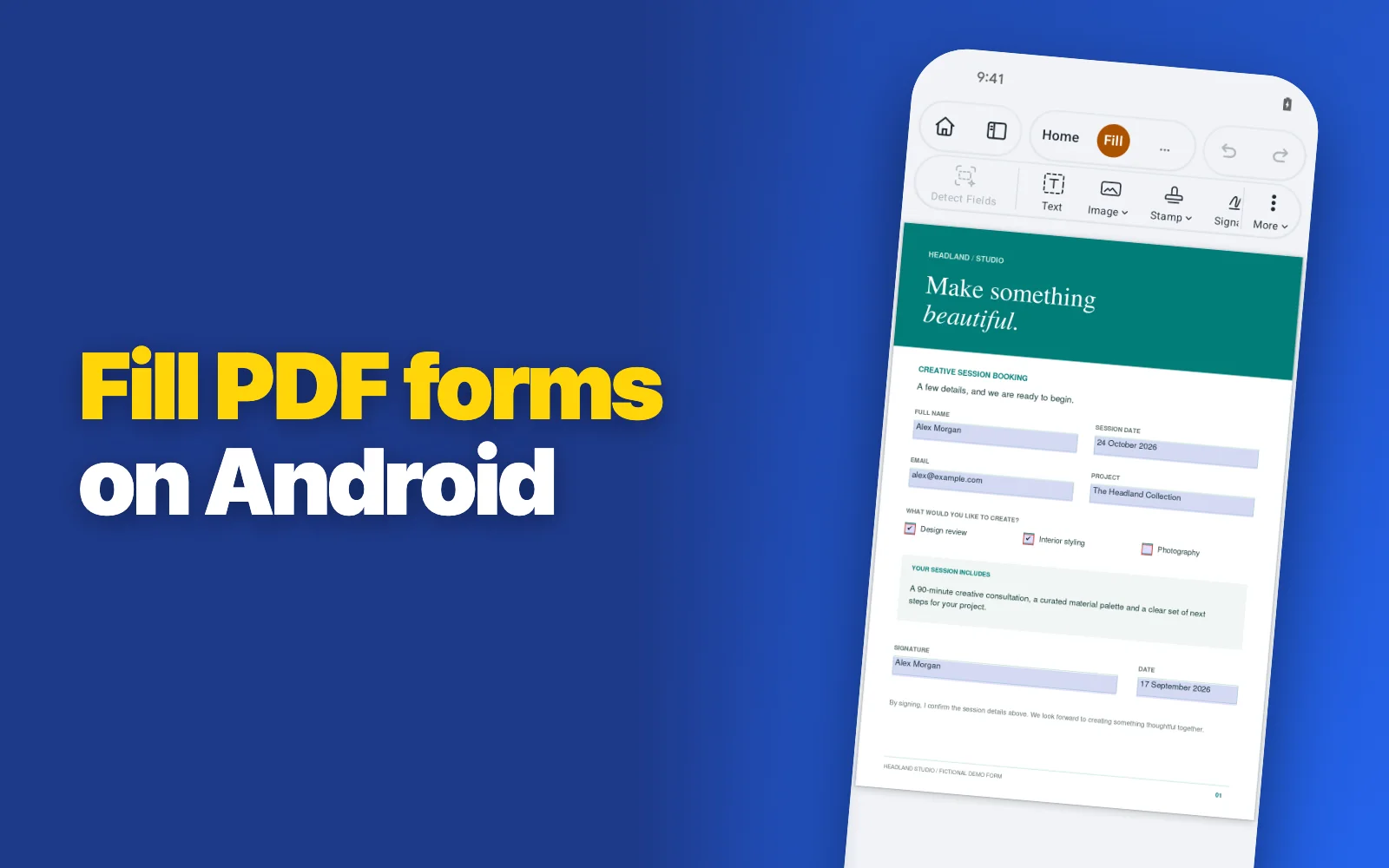
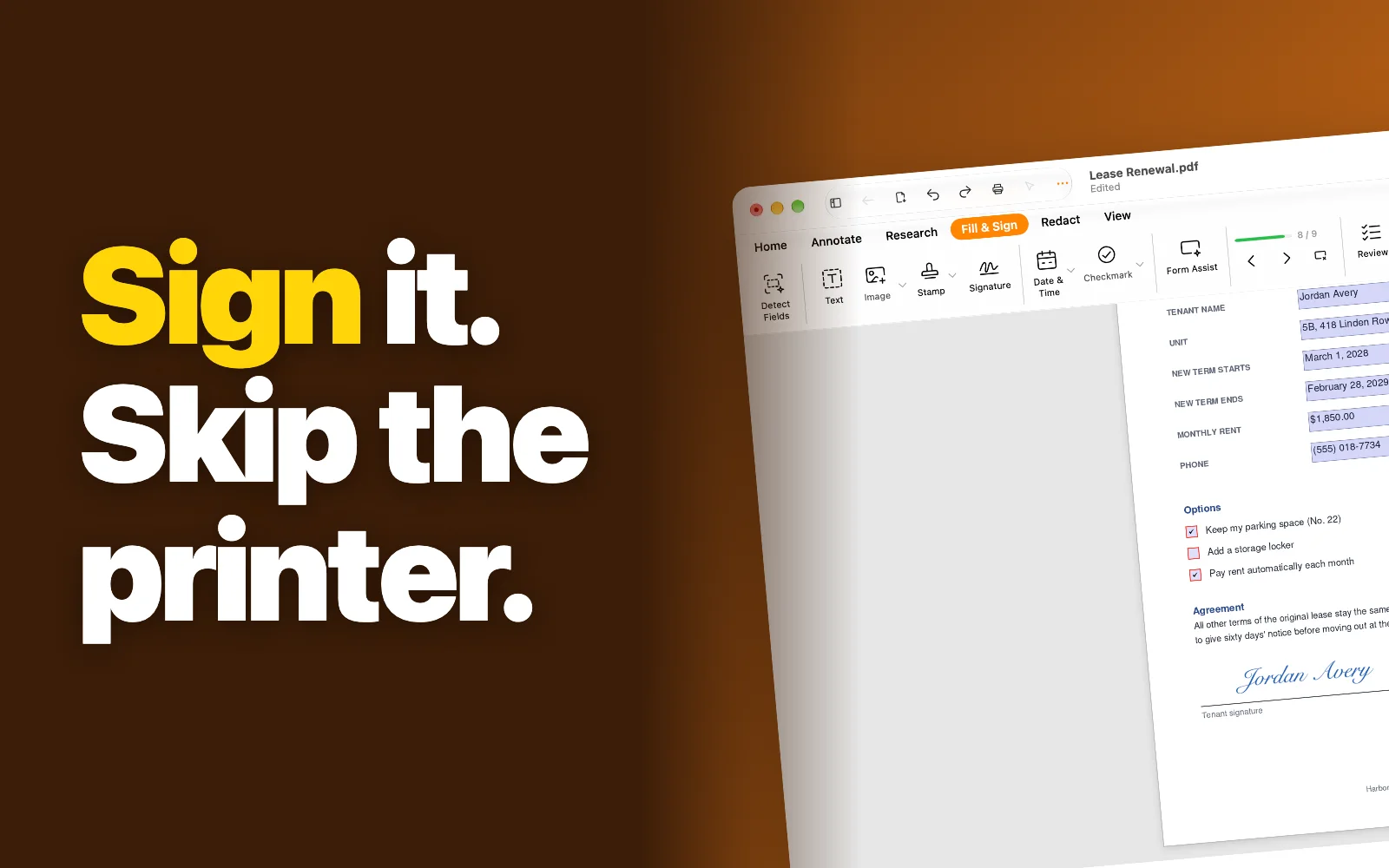
How to sign a PDF on Android
Sign a PDF on an Android phone or tablet without printing it: draw, type or import a signature in PDF Max, place it on the page, then save and send the signed file.
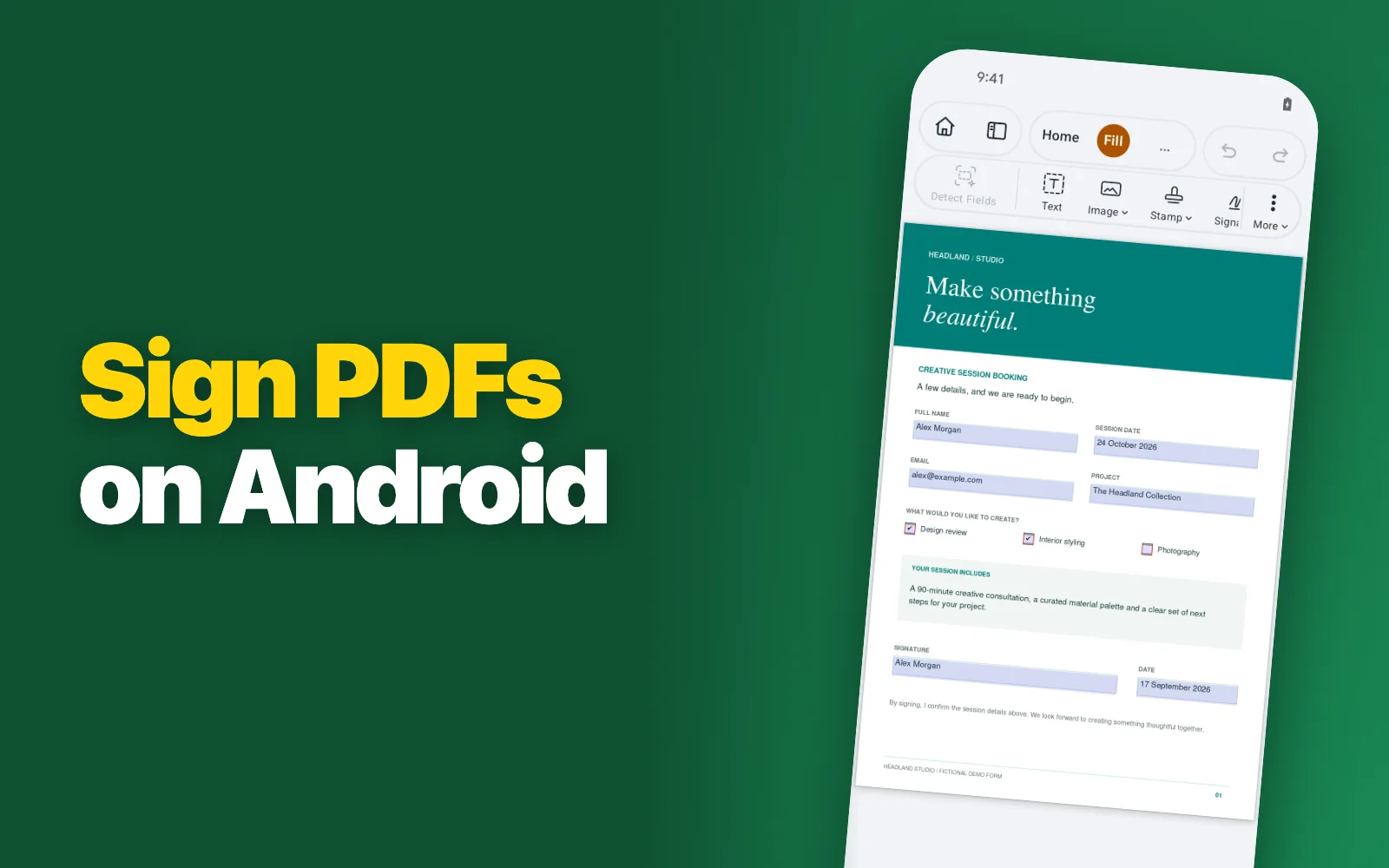
Direct answer
How do I sign a PDF on an Android phone or tablet?
Open the PDF in PDF Max, tap the More options button, choose Tabs, then Fill & Sign, and tap Signature. Create a signature by drawing with your finger, typing your name or choosing an image, and tap Create. Tap the page where the signature belongs, then move it into place and tap Done. Save the document from More options, Document, Save, and share the signed PDF. Creating and placing a signature is free.
A lease, a permission slip or a job offer arrives as a PDF, and you are nowhere near a printer. On an Android phone or tablet you can sign it on the screen and send it back in a couple of minutes.
This guide uses PDF Max for Android, which runs on Android 11 or later.
Before you start
- Install PDF Max from Google Play.
- Download the PDF. In Gmail, tap the attachment's download arrow; the file goes to your Downloads folder.
1. Open the PDF
- From the file: tap the PDF in your email or the Files app and choose PDF Max when Android asks which app to use.
- From the app: open PDF Max. On Home, tap Open and pick the file.
Files you opened before are listed under Recents.
2. Go to Fill & Sign
On a tablet, tap the Fill & Sign tab.
On a phone the tab row is short. Tap the … button (More options) at the top, choose Tabs, then Fill & Sign. Its tab is labeled Fill.
If you do not see it, Edit PDF is turned on, which swaps the tabs. Turn it off on the Home tab.
3. Create your signature
- Tap Signature.
- In My Signatures, tap New Signature.
- Choose how to make it:
- Draw: sign with your finger or a stylus. Pick a pen size, and tap the clear button to try again.
- Keyboard: type your name and choose a handwriting style with Change style.
- Image: tap Choose Image to use a photo of your signature on white paper.
- Pick an ink color: black or blue for most documents.
- Tap Create.
4. Place it on the page
- A message says Tap the page to place your signature. Scroll to the signature line and tap it.
- Drag the signature into position. Zoom in with two fingers to line it up with the printed line.
- Tap Done.
To add the date beside it, tap Date on the same tab, pick a format and tap the page. Text types your printed name.
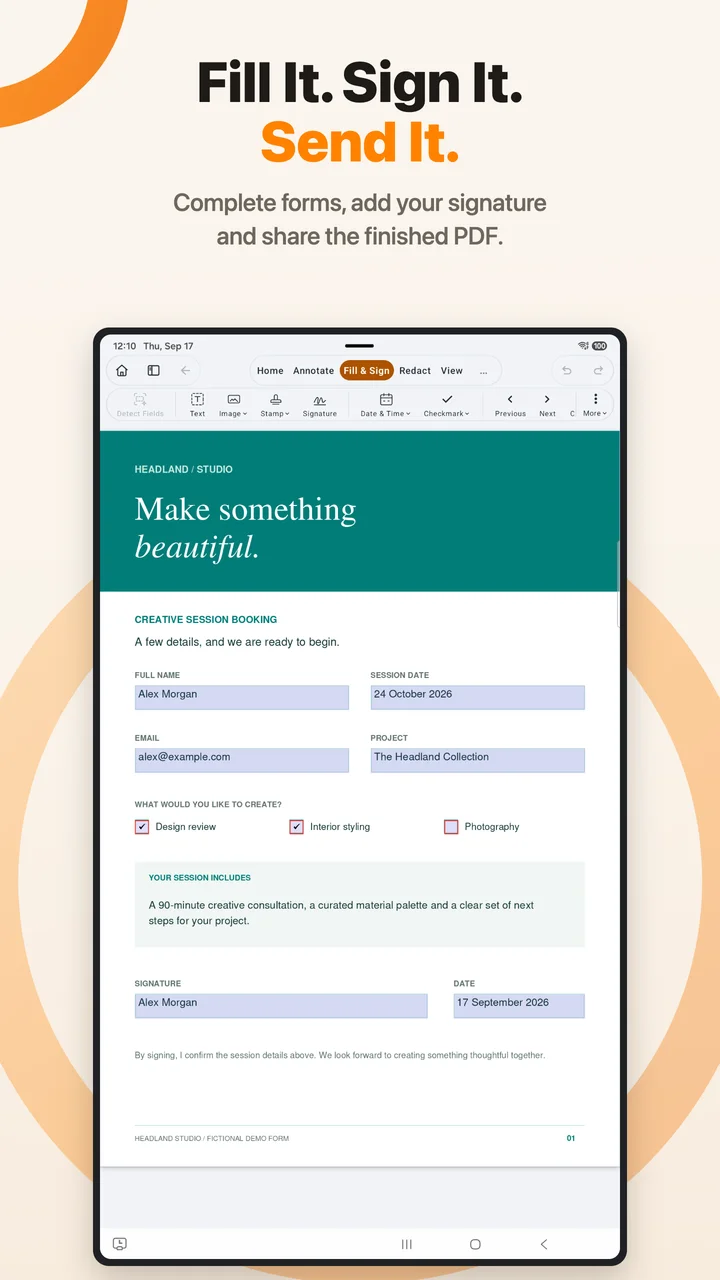
If the form has a signature box
Some PDFs have a real signature field. Tap it and choose:
- One-time Signature to sign this field without keeping the signature, or
- Saved Signature to use one from My Signatures.
Tap a signed field and choose Delete to clear it.
5. Save and send
PDF Max on Android does not write changes to the file until you save.
- Tap …, choose Document, then Save. Use Save As… to keep the unsigned original and save the signed copy under a new name.
- Tap …, choose Document, then Share, and pick your email or messaging app.
Before sending, close the document and open it again from Recents to confirm the signature is where you put it.
What it costs
Creating a signature and placing it is free, and so are typing on the page, dates and check marks. Each new signature is kept in My Signatures. Reusing a saved signature on another document needs Premium in PDF Max, or the separate PDF Max Pro app, which includes reusable signatures.
Common questions
Is a signature drawn on a phone legally valid?
For many everyday documents an electronic signature is accepted, and some documents need a specific kind of signature or a witness. If it matters, ask the person requesting it what they accept.
Can I sign with a stylus?
Yes. A stylus gives a finer line than a fingertip in the Draw box.
How do I remove a signature I placed?
Tap it and choose Delete, or tap Undo at the top. Do this before you save and send.
Can I sign a PDF on Android without an app?
Google Drive's PDF viewer can draw on a PDF with a pen tool on many phones. It has no saved signature, typed signature or form tools.